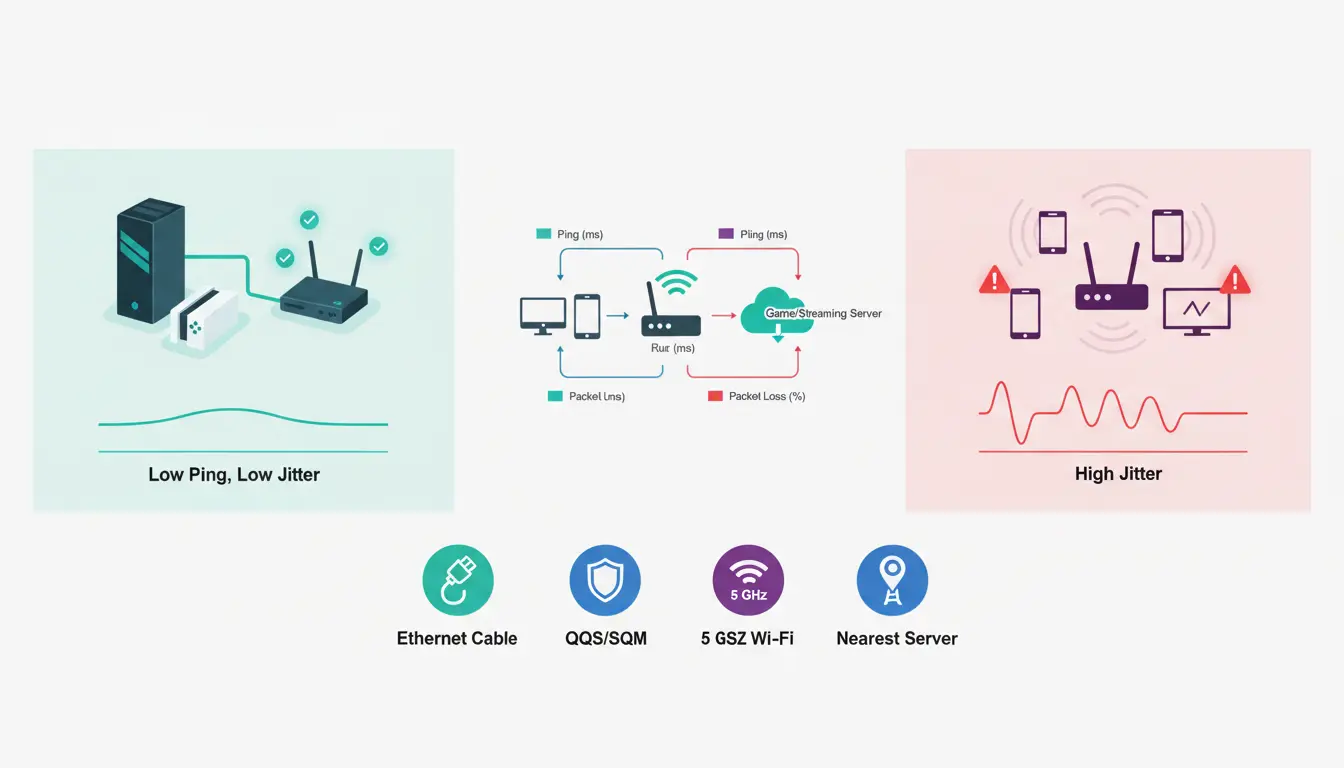

If you play online games or stream live video, you’ve probably heard people talk about ping and jitter. These two network metrics can make the difference between a smooth headshot and a frustrating rubber-banding death, or between a crisp livestream and one that freezes and desyncs. Understanding what ping and jitter are, why they happen, and how to reduce them can dramatically improve your gaming and streaming experience.
What is Ping?
Ping is the round-trip time it takes for a data packet to travel from your device to a server and back, measured in milliseconds (ms). In practice, it’s your network latency—the delay between your action (like clicking or moving) and the server’s response. Lower ping means more responsive gameplay and faster interactions.
- 0–20 ms: Excellent (virtually instantaneous)
- 20–50 ms: Good (rarely noticeable)
- 50–100 ms: Playable (can feel slightly delayed)
- 100+ ms: Poor (noticeable lag, input delay)
- 200+ ms: Very poor (rubber-banding, timeouts)
For streaming, ping matters less than jitter and packet loss, but very high ping can still signal routing issues that reduce reliability.



What is Jitter?
Jitter is the variation in ping over time. Even if your average ping is low, high jitter means your packets arrive inconsistently—some fast, some delayed. This inconsistency causes stutter in games (rubber-banding, hit registration issues) and audio/video glitches in streams (pops, desyncs, buffering).
- Jitter under 15 ms: Excellent
- 15–30 ms: Acceptable
- 30+ ms: Problematic, especially for competitive play and real-time streaming
Think of ping as the average delay, and jitter as how “wobbly” that delay is. Stable is better than merely low.
Why Do Ping and Jitter Happen?
- Congestion: Too many devices or heavy bandwidth use (4K streaming, cloud backups, large downloads).
- Wi‑Fi interference: Walls, distance, overlapping channels, or neighbors’ networks.
- Poor routing/peering: Your ISP’s chosen path to a game/stream server is indirect or congested.
- Bufferbloat: Home routers with deep buffers that add latency under load (e.g., uploading while gaming).
- Hardware limitations: Old modems/routers, weak CPUs, or outdated firmware.
- ISP limitations: Over-sold nodes, limited upstream capacity, or traffic shaping.
- Server distance and load: Far-away servers or overloaded game nodes increase latency.
How to Measure Ping, Jitter, and Packet Loss
- In-game network graphs: Many titles show ping and packet loss in real time.
- Speed test tools: Look for tests that display jitter and bufferbloat (e.g., waveform or DSLReports-style bufferbloat tests).
- Command line:
ping,tracert/traceroute, andmtrreveal latency and path issues over time.
Run tests while the network is idle and again while it’s busy (someone uploading files or streaming 4K) to reveal bufferbloat and congestion problems.
How to Reduce Ping and Jitter for Gaming and Streaming
- Prefer Wired Ethernet Over Wi‑Fi
- Use a Cat6 or better cable directly to your router.
- If wiring isn’t possible, consider MoCA (coax) or powerline adapters as a second-best option.
- Wired links eliminate interference and significantly reduce jitter.
- Optimize Your Wi‑Fi (If You Must Use It)
- Use 5 GHz or 6 GHz bands for lower interference and more throughput.
- Set channels manually to avoid congestion (e.g., channels 36–48 or 149–165 on 5 GHz).
- Place the router centrally and high, away from metal and microwaves.
- Use mesh systems with wired backhaul if your home is large.
- Enable Smart QoS and Fix Bufferbloat
- On your router, enable QoS/SQM (Smart Queue Management) if available.
- Look for FQ‑CoDel or CAKE. These algorithms reduce bufferbloat dramatically.
- Set upload and download limits to about 85–95% of your real bandwidth to keep queues short.
- Prioritize gaming devices or streaming encoders in QoS rules.
- Close Background Bandwidth Hogs
- Pause cloud backups, game updates, OS updates, and large downloads while playing or going live.
- Disable automatic updates during your gaming/streaming schedule.
- On Windows, turn on “Delivery Optimization” limits and set network to metered if needed.
Other
- Choose Nearby Servers
- Pick game servers or regions closest to your location.
- For streaming, choose an ingest server (e.g., Twitch/YouTube) with the lowest ping and jitter.
- Some services provide server status dashboards—use them to avoid congested nodes.
- Upgrade Modem/Router and Firmware
- Modem: Ensure DOCSIS version is current (for cable), or ONT is healthy (for fiber).
- Router: Modern routers with strong CPUs and SQM support manage latency better.
- Update firmware regularly to fix bugs and improve performance.
- Work With Your ISP
- Ask for a line check if you see high packet loss or jitter at the first hop.
- Request a different profile or interleaving mode (DSL) or confirm node utilization (cable).
- Consider upgrading to a plan with higher upload speeds—uplink saturation is a common jitter culprit.
- If routing to a specific game is poor, ask if the ISP can improve peering; if not, consider an ISP with better peering.
- Use a Gaming VPN Strategically (Case-by-Case)
- Sometimes a VPN provides a shorter or less congested path to the game server, reducing latency and jitter.
- Test both with and without VPN. Avoid free VPNs (highly congested).
- This is not guaranteed; only keep it if it improves stability.
- Reduce Device Load and Interference
- Disconnect idle devices; IoT chatter can add background noise.
- Separate 2.4 GHz IoT from your gaming device on 5/6 GHz SSIDs.
- Avoid streaming 4K on the same network while you’re live or in ranked matches.
- Tune Your PC/Console
- Keep network drivers updated.
- Disable overly aggressive power-saving modes that throttle NIC performance.
- Ensure your encoder settings don’t saturate your upload. For example, if you have 10 Mbps up, streaming at 8 Mbps leaves little headroom—use 5–6 Mbps plus QoS.
- Monitor and Maintain
- Schedule periodic tests and keep a log of ping/jitter/packet loss.
- Note times of day with spikes—this helps diagnose congestion or ISP issues.
- Reboot your modem/router occasionally if performance degrades over time.
Special Notes for Streamers
- Prioritize stable bitrate over maximum bitrate. A slightly lower, consistent bitrate reduces dropped frames and audio pops.
- CBR with a modest buffer often performs better on congested lines than VBR.
- Consider using SRT or RTMP variants that handle jitter better if your platform supports them.
- If multi-streaming, ensure your uplink and QoS can handle the aggregate bitrate.
Special Notes for Competitive Gamers
- Aim for servers under 40 ms with jitter below 15 ms.
- Cap your FPS only if it stabilizes frametimes; unstable frametimes can feel like network lag.
- Turn on in-game network stats to immediately see when issues arise and correlate with local changes.
When to Consider a New ISP
If you’ve optimized your home network and still see high base latency, frequent jitter spikes, or evening slowdowns, your ISP’s last-mile congestion or peering may be the bottleneck. Fiber providers generally offer lower latency and more consistent jitter than cable or DSL, though quality varies by region. Check community forums and latency graphs for your area.
Quick Checklist
- Use Ethernet.
- Enable SQM (FQ‑CoDel/CAKE) on your router.
- Limit upload/download to 85–95% in QoS.
- Pick the nearest game/ingest server.
- Pause heavy background traffic.
- Keep firmware and drivers updated.
- Test with and without a reputable VPN.
- Contact ISP for line checks if first-hop jitter/loss persists.
Conclusion
Ping is your average delay; jitter is how much that delay fluctuates. To achieve smooth gameplay and professional-looking streams, you need both low ping and low jitter. With a wired connection, smart QoS/SQM, careful server selection, and a properly tuned home network, you can drastically reduce lag spikes, rubber-banding, and buffering—giving you a competitive edge and a better viewer experience.