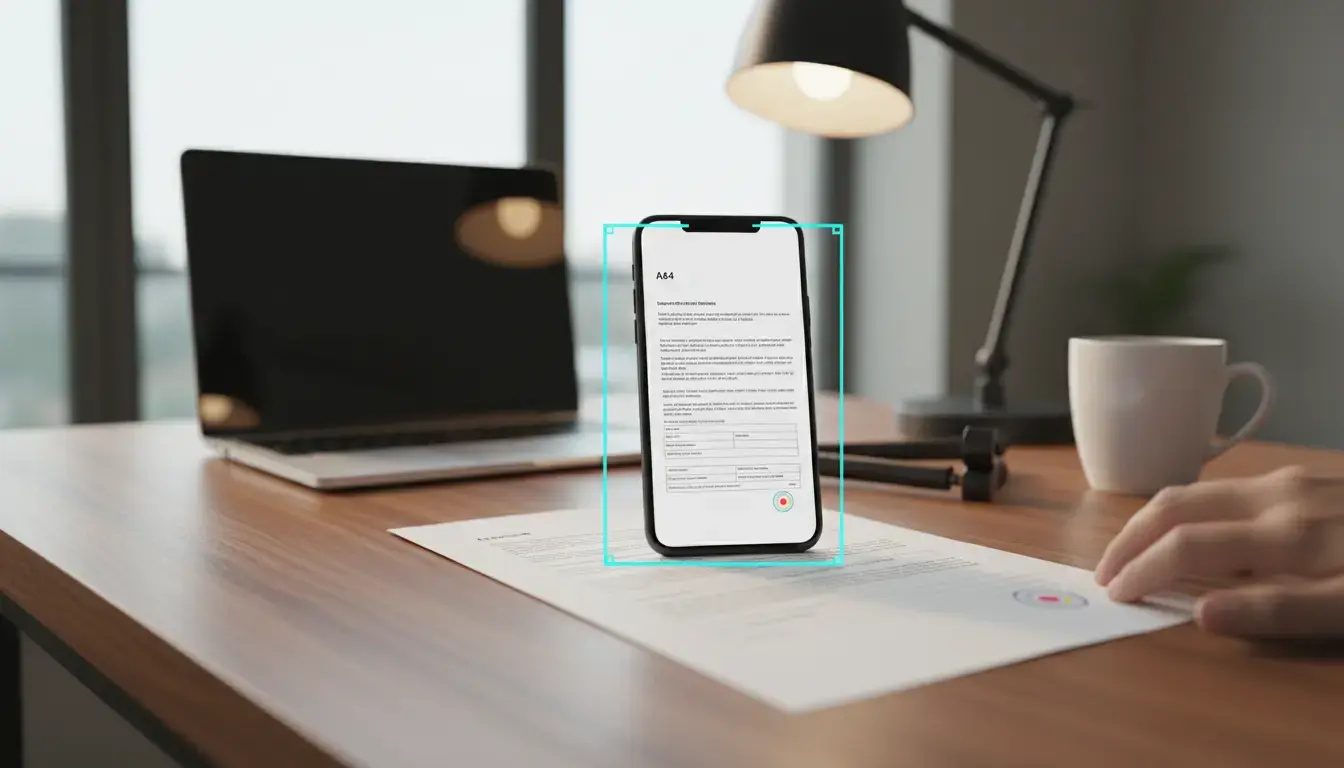

Smartphone document scanning has evolved from a casual convenience into a professional workflow, powering everything from expense reporting and academic research to legal archiving and healthcare records. Yet the real value emerges only when the captured pages become machine-readable through OCR (Optical Character Recognition). High OCR accuracy means better searchability, fewer manual edits, and reliable data extraction. This guide explains how to scan documents with a phone and systematically improve OCR accuracy using practical techniques in lighting, capture, image preprocessing, layout handling, model selection, and validation—so your scans look clean, convert reliably, and perform well in search.
1) Start with the right capture conditions
- Stabilize your phone:
- Use both hands or a tripod clamp to minimize blur.
- Enable optical image stabilization if available.
- Use the camera’s grid to keep the page parallel and avoid perspective distortion.
- Optimize lighting:
- Prefer bright, diffuse light (near a window with curtains or a softbox).
- Avoid harsh overhead lights that cause glare on glossy paper.
- If using flash, tilt the phone slightly to prevent specular highlights.
- Choose the right background:
- Use a plain, high-contrast surface (e.g., dark desk for white paper).
- Remove distracting objects around the page to help auto-detection.
- Frame intentionally:
- Fill the frame with the document while leaving a small margin.
- Capture at native resolution (avoid digital zoom).
- Use burst mode or take two shots for redundancy if the page is important.
2) Use scanner apps with edge detection and perspective correction
Modern mobile scanner apps automatically detect edges and apply a perspective transform. This matters because skewed baselines and warped characters degrade OCR. Before saving:
- Verify corners align tightly with the page.
- Inspect the text lines: they should be straight and parallel.
- If the page is curved (e.g., from a bound book), enable “book correction” or capture with slight pressure to flatten the page.
3) Preprocess images for OCR success
OCR engines are sensitive to noise, contrast, and layout. Apply these preprocessing steps:
- Denoise and sharpen:
- Use gentle denoising to remove sensor noise and paper texture.
- Apply mild unsharp masking to strengthen character edges.
- Binarization and contrast:
- Try adaptive thresholding on low-contrast scans.
- Increase global contrast for faint text but avoid clipping highlights.
- Deskew and dewarp:
- Run deskew to align text rows horizontally.
- For curved pages, use dewarping features when available.
- Remove shadows and gradients:
- Use background normalization to achieve a uniform white page.
- Crop margins and remove finger intrusions or binding shadows.
- Color vs. grayscale:
- Grayscale is often best for OCR on text-heavy pages.
- Keep color for documents where colored highlights, stamps, or diagrams matter.
4) Handle layout complexity intentionally
OCR accuracy drops when layout analysis fails. Improve segmentation:
- Multi-column text:
- Enable “multiple columns” detection in your OCR tool.
- If the tool struggles, split columns manually and OCR each region.
- Tables and forms:
- Use a scanner/OCR that supports table recognition or form fields.
- Increase resolution for fine grid lines and small numbers.
- Mixed content:
- Separate text blocks from images and diagrams; process text-only regions for OCR to reduce confusion.
- Marginalia and stamps:
- If annotations interfere, mask them or OCR in two passes (with and without annotations).
5) Choose the right resolution and file format
- Resolution:
- Aim for 300–400 DPI equivalent. On phones, this translates to capturing close enough that small characters (8–10 pt) are crisp when zoomed.
- File format:
- For preprocessing workflows, use PNG/TIFF to avoid repeated JPEG compression.
- For sharing and archiving, produce a searchable PDF with embedded text and the original image layer.
- Color depth:
- Grayscale often reduces file size while preserving OCR performance.
6) Select a strong OCR engine and language pack
- Engine selection:
- Different engines excel in different scripts. Test two or three on your document type (printed vs. handwritten, Latin vs. non-Latin).
- Language packs:
- Install the exact language(s) and regional variants present in the document.
- For mixed-language documents, enable multi-language recognition.
- Dictionaries and custom vocabularies:
- Load domain-specific lexicons (e.g., legal, medical, finance) to improve word confidence.
- Handwriting:
- Printed text OCR is far more accurate than cursive. For handwriting, use HTR-specific models or apps.
7) Improve small text and fine print recognition
- Capture strategy:
- Move closer rather than zooming; keep the camera perpendicular.
- Take a second pass at higher brightness if the print is faint.
- Preprocessing:
- Increase local contrast and apply mild sharpening.
- Upscale modestly with a high-quality algorithm before OCR if the source is low-res.
8) Manage skew, rotation, and perspective at capture time
- Keep the lens centered over the page to reduce keystone distortion.
- If you must shoot at an angle (e.g., behind glass), capture slightly farther and crop later to reduce extreme perspective.
- Immediately rotate pages upright and ensure text baselines are horizontal before OCR.
9) Validate and correct with a human-in-the-loop workflow
- Confidence thresholds:
- Many OCR tools output per-word or per-line confidence. Flag words below a threshold (e.g., 85%) for manual review.
- Spell-check and domain rules:
- Run automated spell-checks and domain-specific validators (e.g., IBAN/ISBN checkers, invoice tax rules) to catch subtle errors.
- Side-by-side review:
- Compare the OCR text with the image, focusing on headings, numbers, and proper nouns, which are common error hotspots.
- Iterative improvements:
- If accuracy is low, revisit preprocessing: try alternative binarization, deskew more aggressively, or re-shoot in better light.
10) Preserve structure and metadata for search and SEO
- Searchable PDFs:
- Export as PDF with a hidden text layer aligned to the original image. This preserves visual fidelity while enabling text search.
- Semantic structure:
- Where possible, retain headings, lists, and tables in the output (e.g., PDF tags or DOCX styles). Structured text improves downstream indexing and accessibility.
- Filenames and metadata:
- Use descriptive filenames and embed document metadata (title, author, date, keywords) for better organization and discoverability.
- Post-OCR cleanup:
- Normalize quotes, dashes, and ligatures. Replace OCR artifacts like “1” vs. “l” or “0” vs. “O.”
11) Security, privacy, and compliance considerations
- On-device OCR:
- Prefer on-device OCR for sensitive documents to avoid uploading confidential content.
- Redaction:
- If sharing, redact PII with proper redaction tools (not just black boxes over text).
- Auditability:
- Keep an original scan plus a processed version so you can trace changes if needed.
12) Continuous improvement and benchmarking
- Build a test set:
- Keep a small set of representative pages and measure word error rate (WER) after changes in your workflow.
- A/B preprocessing:
- Compare different pipelines (e.g., adaptive thresholding vs. global contrast gain) and record accuracy gains.
- Version control:
- Note app versions, OCR engine versions, and settings that produced the best results.
13) Practical quick checklist
- Bright, diffuse lighting; stabilize the phone.
- Fill the frame; avoid digital zoom; keep the page flat.
- Use edge detection and perspective correction.
- Deskew, denoise, and normalize background.
- Choose the right OCR engine and language pack.
- Validate low-confidence text; correct critical fields.
- Export searchable PDFs with proper metadata.
By treating mobile scanning as a disciplined pipeline—from capture conditions to preprocessing, OCR engine tuning, and validation—you can achieve consistently high OCR accuracy and produce documents that are easy to search, share, and archive.