
Using Your Phone as a Modem (Hotspot): Speed and Data Efficiency
In today’s hyper-connected world, the ability to access the internet on the go is more important than ever. One of the most convenient ways to stay online when Wi-Fi is unavailable is by using your smartphone as a modem, commonly known as a mobile hotspot. This feature allows you to share your phone’s cellular data connection with other devices, such as laptops, tablets, or even other smartphones. But how does using your phone as a modem impact speed and data efficiency? In this comprehensive guide, we’ll explore the technical aspects, best practices, and tips to maximize both speed and data usage when tethering via your mobile hotspot.
What is a Mobile Hotspot?
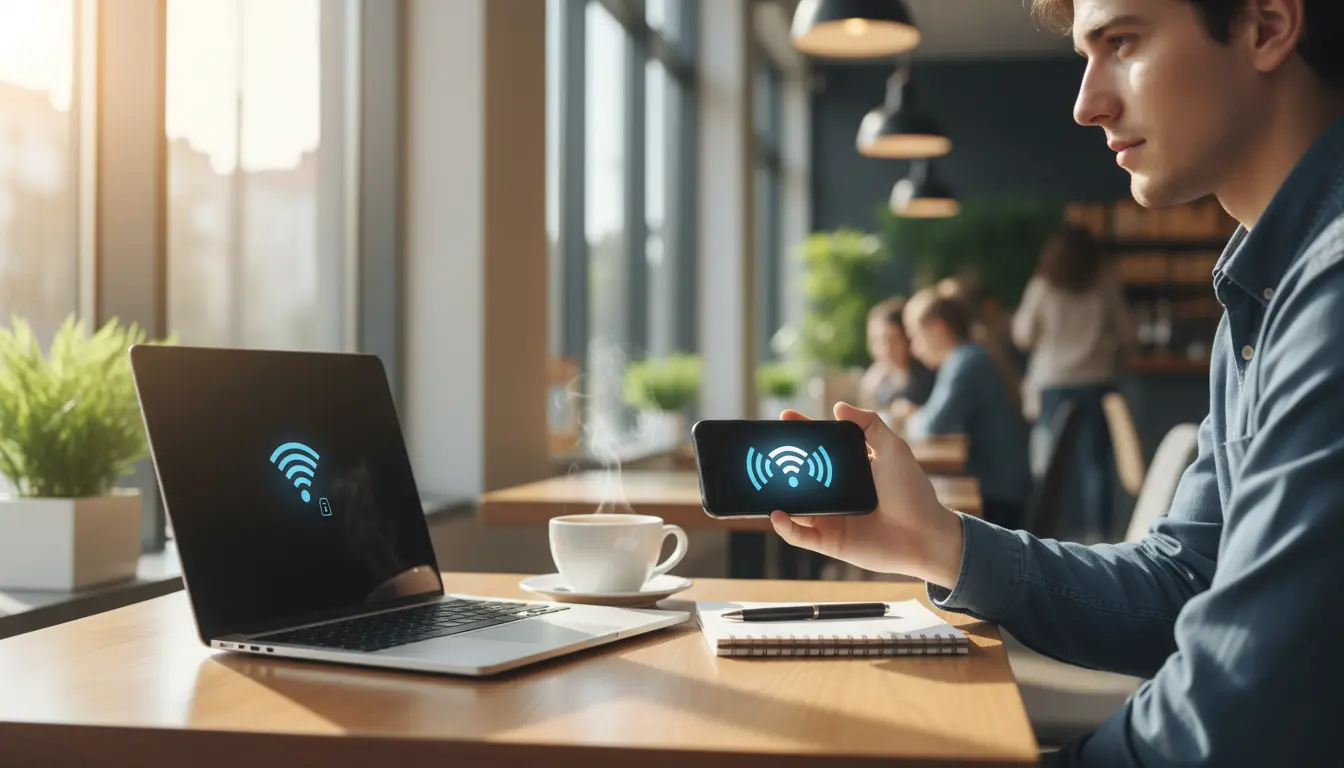
A mobile hotspot is a feature available on most modern smartphones that enables the device to act as a wireless router. By activating the hotspot function, your phone broadcasts a Wi-Fi signal that other devices can connect to, using your cellular data plan as the internet source. This is particularly useful when you’re traveling, working remotely, or experiencing a home internet outage.
How Does Tethering Work?
Tethering refers to connecting another device to your phone’s internet connection. There are three main types of tethering:
- Wi-Fi Hotspot: Your phone creates a Wi-Fi network that other devices can join.
- USB Tethering: You connect your phone to a computer via USB cable, providing a direct and often faster connection.
- Bluetooth Tethering: Devices connect via Bluetooth, which is slower but consumes less battery.
Each method has its own advantages and limitations in terms of speed, stability, and data efficiency.
Factors Affecting Hotspot Speed
Several factors influence the speed you experience when using your phone as a modem:
- Cellular Network Type: 4G LTE and 5G networks offer significantly higher speeds compared to 3G or older technologies.
- Signal Strength: The closer you are to a cell tower, the better your connection will be. Physical obstructions and distance can reduce speed.
- Carrier Limitations: Some mobile carriers throttle hotspot speeds or limit the amount of high-speed data available for tethering.
- Device Capabilities: Both your phone and the connected device must support the latest Wi-Fi standards for optimal performance.
- Network Congestion: During peak hours, speeds may drop due to high demand on the network.
Maximizing Hotspot Speed
To get the best possible speed from your mobile hotspot, consider the following tips:
- Use 5GHz Wi-Fi Band: If your phone supports dual-band Wi-Fi, select the 5GHz band for faster speeds and less interference.
- Positioning: Place your phone in an area with the strongest cellular signal, such as near a window or higher floor.
- Limit Connected Devices: The more devices connected, the more bandwidth is shared, reducing speed for each device.
- Update Firmware: Ensure your phone’s operating system and firmware are up to date for optimal performance.
- Monitor Data Usage: Some carriers slow down speeds after a certain data threshold is reached.
Data Efficiency When Using a Hotspot
Data efficiency refers to how effectively your data is used when sharing your connection. Since mobile data is often limited and expensive, it’s crucial to optimize usage:
- Disable Automatic Updates: Turn off automatic software and app updates on connected devices to prevent large downloads.
- Use Data Saver Modes: Many operating systems offer data saver features that restrict background data usage.
- Stream in Lower Quality: When streaming video or music, select lower quality settings to reduce data consumption.
- Compress Web Traffic: Use browsers or apps that compress data, such as Google Chrome’s Lite Mode.
- Monitor Connected Devices: Regularly check which devices are connected and disconnect any that are not in use.
Security Considerations
When using your phone as a hotspot, security is paramount. Always set a strong password for your hotspot to prevent unauthorized access. Use WPA3 or WPA2 encryption if available, and avoid using open (unsecured) networks. Regularly change your hotspot password and monitor for unknown devices.
Battery Life and Hotspot Usage
Running a mobile hotspot can drain your phone’s battery quickly. To extend battery life:
- Use USB Tethering: This method charges your phone while sharing the connection.
- Lower Screen Brightness: Reduce your phone’s screen brightness or turn off the display when not needed.
- Carry a Power Bank: Have a portable charger handy for extended hotspot sessions.
When to Use a Mobile Hotspot
Mobile hotspots are ideal for:
- Traveling and needing internet access for multiple devices.
- Working remotely from locations without Wi-Fi.
- Providing backup internet during home network outages.
- Sharing internet with friends or colleagues in a pinch.
However, for heavy or prolonged use, consider dedicated mobile hotspot devices or portable routers, which offer better performance and battery life.
Common Issues and Troubleshooting
If you experience slow speeds or connectivity issues:
- Restart your phone and connected devices.
- Check for carrier-imposed data limits or throttling.
- Move to an area with better signal strength.
- Reduce the number of connected devices.
- Reset network settings if problems persist.
Conclusion
Using your phone as a modem (hotspot) is a powerful tool for staying connected on the go. By understanding the factors that affect speed and data efficiency, and by following best practices, you can make the most of your mobile data while ensuring a fast, secure, and reliable connection. Always be mindful of your data limits, optimize your settings, and prioritize security to enjoy seamless internet access wherever you are.