
Slow Wi‑Fi can make streaming, Zoom calls, and gaming painful. The good news: many speed problems have quick fixes you can do in under 10 minutes. This guide walks you through fast, practical steps to boost Wi‑Fi speed right now—optimized for typical American homes and internet plans—followed by deeper tips for lasting performance. At the end, you’ll find LSI keywords for SEO and a meta description you can copy into your CMS.
Step 1: Test Your Speed and Set a Baseline (1 minute)
- Use a reliable speed test like Fast.com or Ookla Speedtest on a phone or laptop near your router.
- Compare the result to your ISP plan (e.g., 200 Mbps down/10 Mbps up).
- Note ping/latency as well (under 40 ms is good for video calls).
If the speed at the router is fine but poor in other rooms, your issue is Wi‑Fi range/interference rather than the ISP line.
Step 2: Power‑Cycle Your Modem and Router (2 minutes)
- Unplug both modem and router for 20–30 seconds.
- Plug the modem back in first, wait for full sync (solid online light), then plug in the router.
- This clears memory leaks, resets channels, and resolves temporary congestion with many ISPs (Comcast Xfinity, Spectrum, AT&T, etc.).
Pro tip: If you have a combined gateway, one reboot is enough.



Step 3: Reposition the Router for Better Coverage (2 minutes)
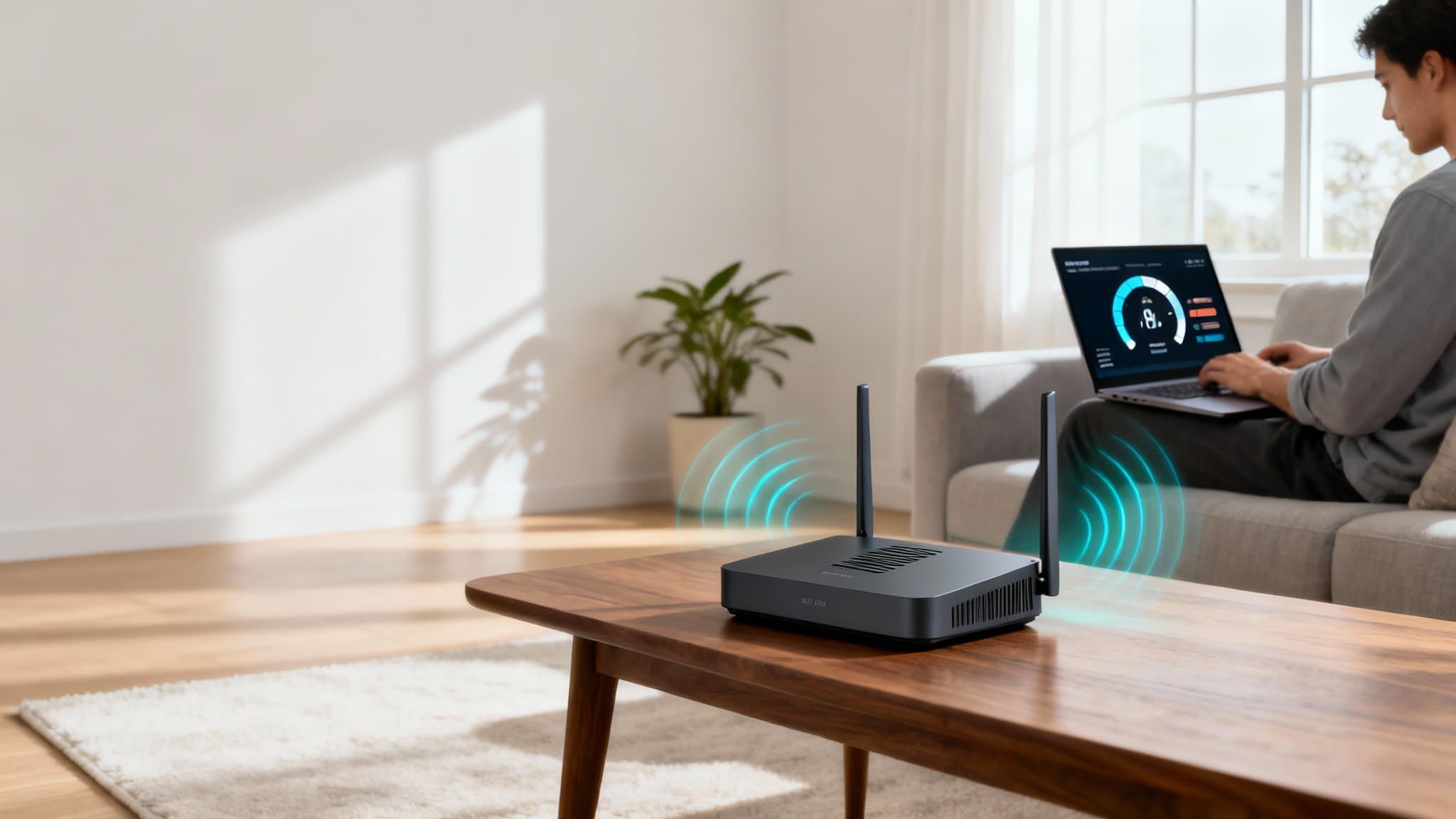
- Place it centrally, elevated (eye level or higher), and in the open—avoid closets, cabinets, and behind TVs.
- Keep it away from interference sources: microwaves, baby monitors, cordless phones, Bluetooth speakers, thick walls, and metal.
- For multi‑story homes, stairway landings or central hallways often work best.
You can gain 20–50% throughput just by moving the router.
Step 4: Switch to a Cleaner Wi‑Fi Band/Channel (3 minutes)
- Use the 5 GHz or 6 GHz band for faster speeds and less congestion (ideal for streaming and gaming).
- Leave 2.4 GHz for smart home devices and long‑range coverage.
- Log into your router admin page (printed on the back of the router; common URLs: 192.168.0.1 or 192.168.1.1).
- Set channel selection to Auto, or manually pick:
- 2.4 GHz: Channels 1, 6, or 11 (non‑overlapping).
- 5 GHz: Choose a DFS‑capable channel if supported for less neighborhood congestion.
- Enable 80 MHz channel width on 5 GHz (or 160 MHz if your router and devices support it and interference is low).
If you’re in an apartment building, this can dramatically improve speeds.
Step 5: Prioritize Your Critical Device with QoS (1 minute)
- Enable Quality of Service (QoS) or WMM in your router and prioritize your work laptop, gaming console, or streaming device.
- Many routers allow “Media Prioritization” or “Device Priority.” Turn it on for the device that matters most.
This helps keep Zoom calls stable even if someone else starts a large download.
Step 6: Update Router Firmware and Device Drivers (1 minute)
- In the router admin panel, check for firmware updates.
- On your computer, update Wi‑Fi drivers (Windows Device Manager, macOS Software Update).
- Firmware improves performance, stability, and security.
If you use an ISP gateway, check the ISP app (Xfinity, MySpectrum) for updates or restart triggers.
Step 7: Disable Band Steering Problems and SSID Confusion (optional quick test)
- If your devices keep jumping between 2.4 GHz and 5 GHz, split SSIDs:
- Name 2.4 GHz SSID like “Home_24” and 5 GHz SSID like “Home_5G.”
- Connect speed‑critical devices to the 5 GHz SSID manually.
This avoids sticky roaming and band misselection common in older phones and IoT devices.
Step 8: Kick Off Bandwidth Hogs (30 seconds)
- Check your router’s connected devices list.
- Disconnect unknown or idle devices.
- Pause big cloud backups, game updates, or 4K streams while you work or game.
If you haven’t changed your Wi‑Fi password in years, do it now and switch to WPA2‑AES or WPA3.
————
If You Have 10 More Minutes: Lasting Improvements
Upgrade Your Router to Modern Standards
- Look for Wi‑Fi 6 or Wi‑Fi 6E routers with MU‑MIMO and OFDMA for better multi‑device performance (e.g., busy households with smart TVs, tablets, consoles).
- For large homes or multi‑floor properties, consider a mesh Wi‑Fi system (e.g., eero, Orbi, Google Nest Wi‑Fi). Place nodes on each floor and near high‑use areas.
Wi‑Fi 6E adds the 6 GHz band, which is cleaner and faster in dense neighborhoods.
Use Wired Where It Counts
- Connect your work desktop, gaming console, or streaming box via Ethernet for stable gigabit performance and lower latency.
- If you can’t run cable, consider MoCA adapters (uses coax) or modern G.hn powerline adapters—often faster and more reliable than spotty Wi‑Fi.
Optimize DNS for Snappier Browsing
- Switching to a fast DNS like Cloudflare (1.1.1.1) or Google (8.8.8.8) won’t boost raw Mbps but can reduce page lookup latency.
- Set it on your router to apply network‑wide, or on individual devices.
Tame Interference and Obstacles
- Microwaves and older cordless phones can obliterate 2.4 GHz during use—move the router or switch critical devices to 5 GHz/6 GHz.
- Mirrors, aquariums, concrete, and brick walls absorb signal—reposition router or add a mesh node.
Check Your Plan and Equipment Compatibility
- If your plan promises 300 Mbps but your gateway is an old DOCSIS 2.0/3.0 modem or Wi‑Fi 4 router, you’ll never see full speed.
- For cable internet in the US, a DOCSIS 3.1 modem is future‑proof for most home plans. For fiber (AT&T Fiber, Verizon Fios), ensure your gateway’s Wi‑Fi radios match your device capabilities.
Secure Your Network
- Use WPA3 or WPA2‑AES (avoid WPA/WEP).
- Strong, unique Wi‑Fi password.
- Disable WPS.
- Guest network for visitors and IoT.
Security prevents freeloaders from draining your bandwidth and protects your data.
————
Troubleshooting Scenarios (US‑specific tips)
- Apartment Wi‑Fi is great near the router but bad in the bedroom:
- 5 GHz signal drops off faster with walls. Add a mesh node halfway, or try 2.4 GHz for that room if speed needs are modest.
- Great speeds late at night, poor in evenings:
- Neighborhood congestion or ISP peak hours. Use DFS channels on 5 GHz, enable QoS, and consider upgrading your plan or router.
- Only one device is slow:
- Forget and rejoin the network. Ensure it uses 5 GHz. Update its OS/drivers. Disable VPN briefly to test. Check for background syncs (OneDrive, iCloud).
- Smart TV buffers on 4K:
- Hardwire via Ethernet if possible. Otherwise, move the router closer, use 5 GHz, and ensure streaming app is updated.
————
Quick Checklist: 10‑Minute Wi‑Fi Speed Boost
- Run a speed test near the router and note results.
- Reboot modem and router.
- Move the router to a central, elevated, open spot.
- Ensure critical devices use 5 GHz (or 6 GHz).
- Set clean channels (1/6/11 for 2.4 GHz; DFS for 5 GHz if available).
- Turn on QoS/device priority.
- Update router firmware and device drivers.
- Remove unknown devices; secure with WPA2/WPA3.
- Consider splitting SSIDs to avoid band steering issues.
With these steps, most US households will see immediate improvements in Wi‑Fi speed and stability without calling the ISP.