
Practical Settings to Reduce Mobile Data Usage by 40%
In today’s hyper-connected world, mobile data has become as valuable as electricity. We rely on it for everything — from streaming videos and sharing files to checking emails and using navigation apps. However, mobile data is often consumed faster than we expect, leading to additional costs or throttled speeds. The good news is, by making a few smart adjustments on your smartphone, you can reduce mobile data usage by up to 40% without compromising your digital lifestyle.
1. Use Data Saver Mode Efficiently
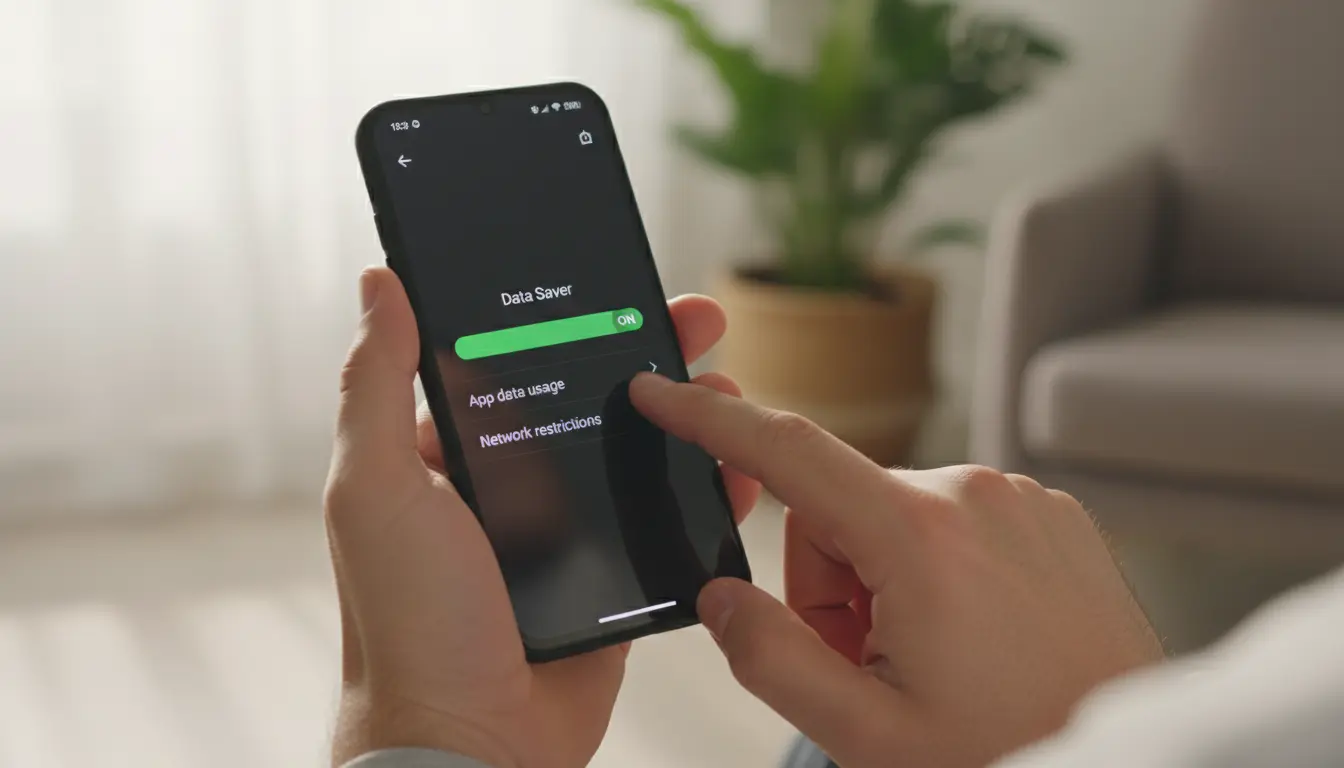
Both Android and iOS devices include a built-in Data Saver mode that restricts background data usage and optimizes app performance. Turning this feature on ensures that apps only use data when they are open and active, rather than silently consuming bandwidth in the background. On Android, it’s accessible via Settings → Network & Internet → Data Saver. For iOS users, navigate to Settings → Cellular → Cellular Data Options → Low Data Mode.
Using Data Saver mode alone can cut down 10–15% of your mobile data because many social media apps continuously refresh in the background, auto-downloading images, stories, and videos.
2. Disable Auto-Play on Social Media Apps
Apps like TikTok, Instagram, Facebook, and YouTube automatically play videos as you scroll. Although it enhances engagement, it’s one of the largest hidden data drains. Head into your app settings and disable auto-play. For example, in Instagram, go to Settings → Data Usage → Toggle Data Saver, and on YouTube, turn on ‘Play videos only on Wi-Fi’. Switching off these features can save another 10–12% of data monthly.
3. Restrict Background App Refresh
Every time apps sync in the background (fetching emails, updating notifications, or loading advertisements), they consume mobile data. Turn off Background App Refresh for all non-essential applications.
- On Android: Settings → Mobile Network → App Data Usage → Restrict Background Data.
- On iPhone: Settings → General → Background App Refresh → Off.
This small tweak can immediately slash your data consumption significantly, especially for apps like Facebook, Messenger, Gmail, and Spotify.
4. Control Cloud Syncing Behavior
Auto-uploading photos and videos to cloud services such as Google Photos, iCloud, or OneDrive can quietly drain your monthly data allowance. Adjust your cloud settings to allow sync only over Wi-Fi connections. Google Photos, for example, lets you manage upload preferences under Backup & Sync → Cellular Data Usage.
Disabling mobile uploads doesn’t mean losing data protection — it simply ensures large files upload only when a stable Wi-Fi connection is available.
5. Optimize Streaming Quality
Video streaming services like Netflix, YouTube, and Spotify offer an option to adjust playback quality. High-quality streaming easily consumes 1 GB of data per hour, while standard quality uses less than half. You can go into your settings and select Medium or Auto quality to balance clarity and efficiency. This alone can save up to 20% of total monthly data usage.
When using Spotify or Apple Music, enable the “Low Data Usage” or “Data Saver” modes to reduce the bitrate of streams.
6. Update Apps Only on Wi-Fi
Another common data sink is automatic app updates. Most smartphones regularly update apps in the background whenever new versions are available. To minimize this, configure your App Store or Google Play settings to allow updates only while connected to Wi-Fi.
This not only preserves mobile data but also ensures faster updates on stable connections.
7. Turn Off Wi-Fi Assist or Smart Network Switch
Wi-Fi Assist (on iOS) and Smart Network Switch (on Android) automatically activate mobile data when Wi-Fi connections are weak. While this feature prevents interruptions, it can also stealthily consume hundreds of megabytes per day.
Disabling this feature ensures your device doesn’t sneakily switch networks without your approval.
8. Use Offline Maps and Features
Applications like Google Maps and Netflix now provide offline modes. Downloading maps, playlists, or TV episodes over Wi-Fi for offline use drastically reduces future data use. If you frequently commute or travel, this trick not only helps avoid overage fees but also guarantees smoother experiences in low-network zones.
9. Track and Analyze Data Usage Regularly
Keeping an eye on app-level data consumption can reveal surprising culprits. Both Android and iOS offer built-in analytics under Settings → Data Usage or Cellular Data. You’ll see exactly which apps are consuming the most data. Use this insight to restrict or uninstall unnecessary apps.
You can also use third-party apps like GlassWire or My Data Manager to set custom data limits and receive alerts when specific apps exceed thresholds.
10. Use Lightweight or “Lite” Versions of Apps
Several big apps — such as Facebook Lite, Twitter Lite, Spotify Lite, and Google Maps Go — are designed to use less data and power. These lighter versions compress images, reduce animations, and preload less content. Installing them provides a faster experience while cutting mobile data use by up to 50% in some cases.
11. Turn Off Push Notifications
Push notifications can use more background data than you think, especially when they include images, ads, or dynamic content. Limiting push notifications from non-critical apps can make a small but consistent impact on your monthly mobile data use.
12. Compress Data with Browser Settings
Many mobile browsers such as Google Chrome and Opera have built-in data compression features. Enabling Lite Mode (Chrome) or Data Saving Mode (Opera) reduces the size of web pages by up to 60%. This is extremely beneficial if you browse news feeds, social sites, or shopping portals frequently on mobile data.
13. Monitor Roaming and Hotspot Usage
Using your phone as a hotspot can drain mobile data faster than expected, especially when connected devices perform updates or background tasks. Limit hotspot connections and disable automatic syncing or updates on connected devices. When traveling internationally, always disable data roaming unless you have a suitable plan in place.
Conclusion
Mobile data management isn’t just about saving money — it’s about taking control of your digital ecosystem. Implementing these practical settings will not only reduce your data consumption by up to 40% but also improve overall performance, battery life, and network reliability. The key is consistency: routinely monitor your data habits, adjust app permissions, and leverage built-in tools designed to help you stay efficient and connected.
By following these strategies, you’ll enjoy smoother, more economical mobile browsing — without worrying about running out of data halfway through the month.