
If you’re shopping for home internet gear in the United States, you’ll quickly run into two similar-sounding devices: the modem and the router. They often come combined in a single box from your ISP, yet they perform very different jobs. Understanding the difference helps you pick hardware that delivers faster speeds, stronger Wi‑Fi coverage, and better security—while also saving money on monthly rental fees.
What is a modem?
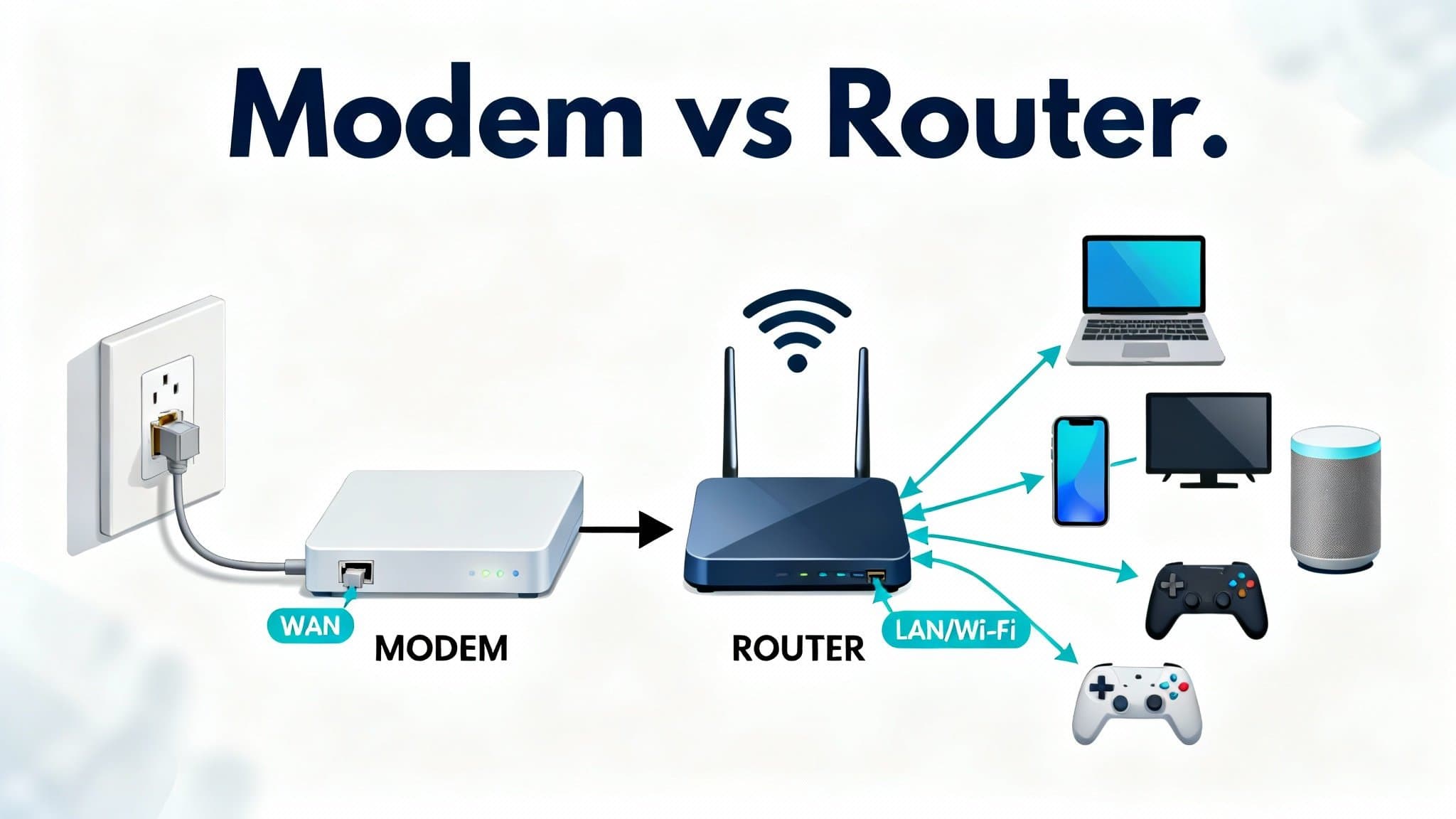
A modem is the translator between your home and your Internet Service Provider (ISP). It converts the signal from your provider’s infrastructure—coaxial cable for cable internet, twisted pair for DSL/VDSL, fiber for GPON, or cellular for 4G/5G—into a digital data stream your local network can use. Think of the modem as the front door to the internet. It terminates the WAN (wide‑area network) connection, authenticates with your ISP, and typically receives a public IP address.
Key modem types you’ll encounter in the U.S.:



- Cable (DOCSIS): If you use Xfinity, Spectrum, Cox, or another cable provider, choose a DOCSIS 3.1 modem for current gigabit plans and future upgrades. It supports higher throughput and lower latency than 3.0.
- DSL/VDSL: Less common today, but still used in some regions. Look for VDSL2 with vectoring if you’re on copper lines.
- Fiber: With AT&T Fiber, Verizon Fios, Google Fiber, and many municipal networks, you’ll receive an ONT (optical network terminal). It plays the modem role, converting light to Ethernet. You don’t buy this—your provider supplies it.
- Cellular (4G/5G): For rural or backup connections, a cellular modem or gateway accepts a SIM and connects to mobile networks.
On their own, most modems only provide a single Ethernet port. You can plug one computer into it, but you won’t get Wi‑Fi or multiple device access unless you add a router.
What is a router?
A router creates and manages your local network (LAN). It takes the internet feed from your modem and securely distributes it to all your devices via Ethernet and Wi‑Fi. It assigns local IP addresses (DHCP), keeps outside threats at bay (NAT and firewall), and handles advanced features like Quality of Service (QoS), parental controls, guest networks, VPN, and port forwarding.
Many consumer “Wi‑Fi routers” also include built‑in wireless access points, so the terms “router” and “Wi‑Fi router” are often used interchangeably. You’ll also hear “mesh routers,” which are multi‑unit systems that blanket larger homes with stronger, more consistent Wi‑Fi.
Modem vs router at a glance
- The modem connects your home to your ISP. Without it (or an ONT), you can’t get online.
- The router connects your devices to each other and to the internet. It manages traffic, Wi‑Fi, and security inside your home.
- A “gateway” or “modem-router combo” merges both functions into one box. Convenient, but usually weaker Wi‑Fi and fewer features than a dedicated router.
Should you buy a combo device or separate units?
Both approaches work, but they fit different needs.
- Combo (gateway): Best for small apartments, light use, or when simplicity is the top priority. Setup is easy, and your ISP may provide it. Downsides: limited Wi‑Fi range, fewer software updates, weaker processors, and it’s harder to upgrade one function without replacing the whole unit.
- Separate modem + router: Best for performance, coverage, and control. You can pair an ISP‑approved modem (or use the ISP’s ONT) with a premium router or mesh system. Upgrades are cheaper in the long run—replace just the piece that’s holding you back.
In U.S. markets where ISPs charge a monthly gateway rental fee, owning your modem can pay for itself in 6–12 months.
How to choose the right modem
- Match your provider and plan. For cable, pick a DOCSIS 3.1 modem approved by your ISP. Most providers maintain an online compatibility list.
- Look for enough downstream and upstream channels to support your speed tier. DOCSIS 3.1 already future‑proofs you for gigabit and beyond.
- Prefer bridge or passthrough mode. This lets you pair the modem/ONT with any router and avoid double NAT issues.
- Buy once, keep for years. A quality modem is a “set‑and‑forget” device—reliable power and cooling matter more than flashy features.
You do not buy a fiber ONT in most cases; your provider installs and maintains it. Focus your budget on the router.
How to choose the right router
- Wi‑Fi standard: Wi‑Fi 6 and 6E are the current mainstream sweet spots, offering higher throughput, better efficiency (OFDMA), and lower latency. Wi‑Fi 7 is emerging with multi‑link operation and wider channels; it’s excellent for very high‑density homes or multi‑gig internet, but still pricey.
- Bands and spectrum: Dual‑band (2.4 GHz + 5 GHz) works for most households. Tri‑band adds either a second 5 GHz or a 6 GHz band, which helps with backhaul and reduces congestion in busy homes.
- Ports and speeds: If you have or plan to get 1 Gbps+ internet, look for a 2.5 Gbps WAN port and at least one 2.5 Gbps LAN port. This prevents an artificial bottleneck.
- Processor and RAM: A stronger chipset improves QoS, VPN throughput, and overall responsiveness when dozens of devices are connected.
- Security and updates: Choose brands with consistent firmware updates, WPA3 support, automatic security patches, and options like DNS filtering.
- Mesh capability: For homes over roughly 1,500–2,000 sq ft or with multiple floors and dense walls, a two‑ or three‑node mesh with Ethernet backhaul delivers rock‑solid coverage.
- Software features: Smart QoS for work-from-home and gaming, robust parental controls, guest networks, and easy app‑based management.
Practical buying scenarios
- Small apartment, basic usage: Keep your ISP gateway or buy an approved combo. Save money and time.
- Typical single‑family home with many devices: Pair a DOCSIS 3.1 modem (if cable) or your fiber ONT with a Wi‑Fi 6/6E router. If coverage is uneven, add a second node or upgrade to mesh.
- Large home or multi‑story townhouse: Choose a tri‑band Wi‑Fi 6E/7 mesh kit with Ethernet backhaul where possible. Use the ISP’s ONT or a cable modem in bridge mode feeding the mesh router.
- Power users and gamers: Separate modem + high‑end router. Enable QoS to prioritize gaming/voice/video, run Ethernet to consoles and PCs, and consider a 2.5 Gbps switch for multi‑gig LAN transfers.
Setup best practices for U.S. homes
- Place the primary router centrally and up high, away from thick walls and metal appliances. Avoid closing it inside a media cabinet.
- Use Ethernet for stationary, bandwidth‑heavy devices like desktop PCs, game consoles, and smart TVs.
- If you deploy mesh, position satellites no more than one or two rooms from the primary router. For peak speeds, use wired backhaul with Cat6 or better where possible.
- Put the modem or ONT in bridge/passthrough mode and let your router handle routing, NAT, and Wi‑Fi. This improves stability and keeps features like VPN and parental controls on one platform.
- Update firmware during initial setup and enable automatic updates. Set strong, unique passwords and turn on WPA3 when compatible.
Common questions
- Can a router work without a modem? Not for public internet. It can create a local network, but you still need a modem or ONT to reach the web.
- Will a better router increase my internet plan speed? It won’t raise your ISP speed cap, but it can dramatically improve real‑world performance by reducing congestion, interference, and packet loss—especially over Wi‑Fi.
- Should I rent or buy? If your ISP charges a monthly rental fee, buying an approved modem and your own router usually pays off within a year. You’ll get stronger Wi‑Fi and long‑term savings.
Final recommendation
If you want simple internet in a small space, a gateway from your ISP is fine. But for most U.S. households working, streaming, gaming, and learning from home, separating the functions is the smart move: use an ISP‑approved modem (or ONT for fiber) and invest in a quality Wi‑Fi 6/6E or Wi‑Fi 7 router or mesh system. You’ll enjoy wider coverage, steadier speeds, lower latency, and security you control—plus the flexibility to upgrade later without replacing everything.