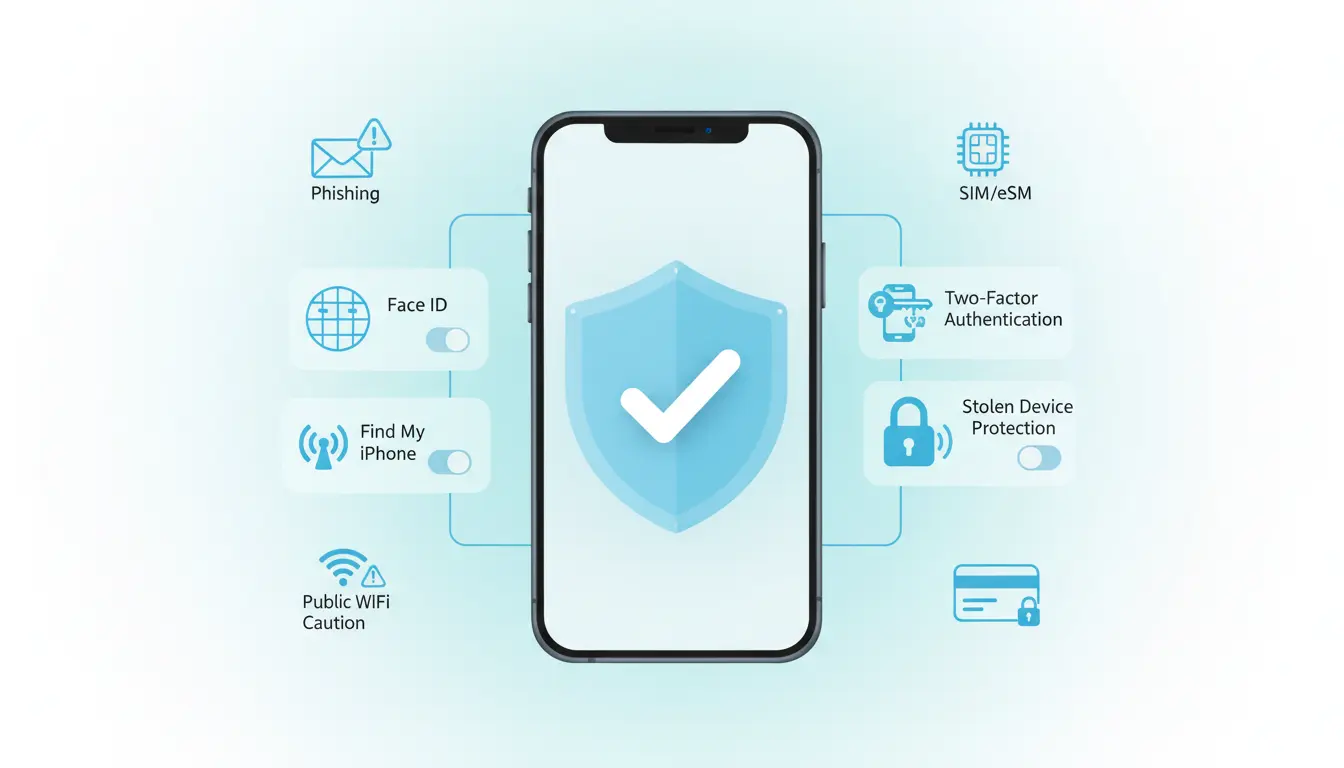

Keeping your iPhone secure isn’t just about convenience—it’s about protecting your identity, money, and personal data from theft and scams. Criminals increasingly target smartphones because they hold banking apps, passwords, private messages, and even 2FA codes. This comprehensive iPhone security checklist provides practical, up-to-date steps to harden your device, secure your Apple ID, and reduce your attack surface—while keeping your day-to-day experience smooth and organic.
1) Lock screen and access control
- Use a strong passcode: Switch from a 4- or 6-digit numeric code to an alphanumeric passcode. Go to Settings > Face ID & Passcode > Change Passcode > Passcode Options > Custom Alphanumeric Code.
- Enable Face ID: It’s secure and fast. But remember, in risky situations, you can quickly disable Face ID/Touch ID by holding the side button and a volume button until the power slider appears—this forces passcode entry.
- Disable Lock Screen access to sensitive features: Turn off Lock Screen access to Wallet, Home Control, Reply with Message, and Notification Center to prevent info leakage.
2) Protect your Apple ID like a vault
- Turn on two‑factor authentication (2FA): This is non-negotiable. Go to Settings > [your name] > Password & Security > Two-Factor Authentication.
- Use a unique, strong Apple ID password: Avoid reusing passwords. Use a passphrase with length, randomness, and uniqueness.
- Add recovery contacts and keys: Set an Account Recovery Contact and consider using a Recovery Key for account regain scenarios. Store these securely offline.
- Monitor devices: Regularly review devices signed in with your Apple ID and remove unknown ones.
3) Find My and Stolen Device Protection
- Enable Find My iPhone and Send Last Location: Settings > [your name] > Find My > Find My iPhone. This helps locate, lock, or erase your device.
- Activate Stolen Device Protection (iOS 17.3+): When enabled, critical security actions require Face ID/Touch ID and a security delay if away from familiar locations.
- Use Separation Alerts (AirTag/AirPods): Get notified if you leave your device behind. Helpful in crowded places.
4) Stop SIM-swaps and carrier fraud
- Add a carrier account PIN: Contact your carrier to set a port-out lock and account PIN so attackers can’t hijack your number.
- Use eSIM when possible: eSIMs make SIM-swapping harder, though not impossible. Always combine with 2FA apps (not SMS) for critical accounts.
5) Harden privacy and permissions
- Review app permissions: Settings > Privacy & Security. Limit access to Location, Contacts, Photos, Bluetooth, and Motion. Choose “While Using the App” and “Precise Location” only when necessary.
- Mail Privacy Protection: Enable to mask your IP and prevent tracking pixels.
- Limit ad tracking: Turn off Personalized Ads and use Private Relay if available.
- Clipboard access notifications: If an app frequently reads your clipboard without reason, reconsider keeping it.
6) Secure your Wi‑Fi and network use
- Use known, encrypted networks: Avoid logging into banking on public Wi‑Fi. Consider a trusted VPN for untrusted networks.
- Disable Auto‑Join for risky networks: Prevent automatic connections to public SSIDs.
- Use HTTPS and privacy-first DNS: Most modern apps enforce this, but avoid entering credentials on non-HTTPS sites.
7) Strengthen Safari and link hygiene
- Turn on Fraudulent Website Warning and Hide IP address from trackers in Safari settings.
- Beware of lookalike domains and shortened links in SMS, email, and social apps.
- Use Passkeys where supported: They’re phishing-resistant and easier than passwords.
8) Passwords, passkeys, and authenticator hygiene
- Use a password manager: The built‑in iCloud Keychain is solid, or use a reputable third-party manager.
- Prefer passkeys over passwords: Many major services now support passkeys, which resist phishing and credential stuffing.
- Avoid SMS 2FA for critical accounts: Use authenticator apps or hardware security keys for banking, email, and crypto.
9) Lock down notifications and previews
- Disable sensitive previews on the Lock Screen: Prevent shoulder-surfing of OTPs and messages.
- Filter unknown senders in Messages: Settings > Messages > Filter Unknown Senders. Reduces exposure to smishing attempts.
- Report junk and block: Use built‑in reporting to train filters and protect others.
10) Keep software current
- Enable automatic iOS updates and Rapid Security Responses: Patches often close high‑severity vulnerabilities exploited in the wild.
- Update apps regularly: Outdated apps can expose data or contain exploitable bugs.
11) App Store hygiene and sideloading risks
- Download only from the App Store: Check developer reputation and reviews.
- Review app history: Sudden permission changes or shady updates can be a red flag.
- Remove abandoned apps: If an app hasn’t been updated for years, consider alternatives.
12) Physical safety and travel mode habits
- Beware of shoulder surfing: In bars, transit, and events, shield your passcode entry.
- Use Guided Access for lending your phone: Locks the device to one app when someone else uses it.
- Turn on Lost Mode immediately if stolen: This locks, tracks, and displays a message with a contact number. Do not negotiate with thieves via untrusted channels.
13) Backup strategy and rapid recovery
- Turn on iCloud backups or maintain encrypted Finder backups on a Mac. Test restore occasionally.
- Know your recovery steps:
- Use Find My to mark as lost, then erase if needed.
- Change Apple ID and email passwords immediately.
- Revoke app sessions and reset 2FA wherever your phone was the primary factor.
- Contact your carrier for a SIM lock and replacement.
14) Combat phishing, smishing, and scam calls
- Verify before you tap: Never enter passwords after tapping links in unsolicited messages. Navigate manually to official sites.
- Silence unknown callers: Settings > Phone > Silence Unknown Callers.
- Use Message filtering and report spam: Reduces exposure and trains anti-abuse systems.
- Be suspicious of urgency: Claims of locked accounts, delivery failures, or prizes are common lures.
15) Banking, wallets, and subscriptions
- Lock Wallet on the Lock Screen or disable access: Prevents tap-to-pay misuse.
- Set spending notifications: Many banks let you enable real-time alerts for card use.
- Audit subscriptions: Remove unused services that might expose data or auto-renew unexpectedly.
16) Advanced protections for power users
- Lock Hidden and Recently Deleted albums in Photos with Face ID.
- Use Safety Check: If you’ve shared locations, passwords, or Home access with others, Safety Check can quickly reset sharing and permissions.
- Consider hardware security keys for Apple ID and critical accounts if supported by your workflow.
17) What to do if your passcode is compromised
- Immediately enable Stolen Device Protection if not already.
- Change Apple ID password and revoke trusted devices.
- Rotate all critical credentials: email, bank, crypto, and social accounts.
- Contact your bank and carrier to flag your accounts and add extra verification.
- File a report with local authorities for documentation.
18) Practical daily habits that reduce risk
- Lock your phone the moment you’re done using it.
- Keep notifications minimal on the Lock Screen.
- Don’t reuse passwords—ever.
- Pause before tapping links or scanning QR codes in public.
- Regularly review Settings > Privacy & Security and Settings > Passwords for alerts.
By combining strong authentication, Stolen Device Protection, minimal lock-screen exposure, and disciplined link hygiene, you dramatically reduce the odds of device theft turning into identity theft or financial loss. Security is a habit—start with the most impactful changes today and revisit this checklist monthly.