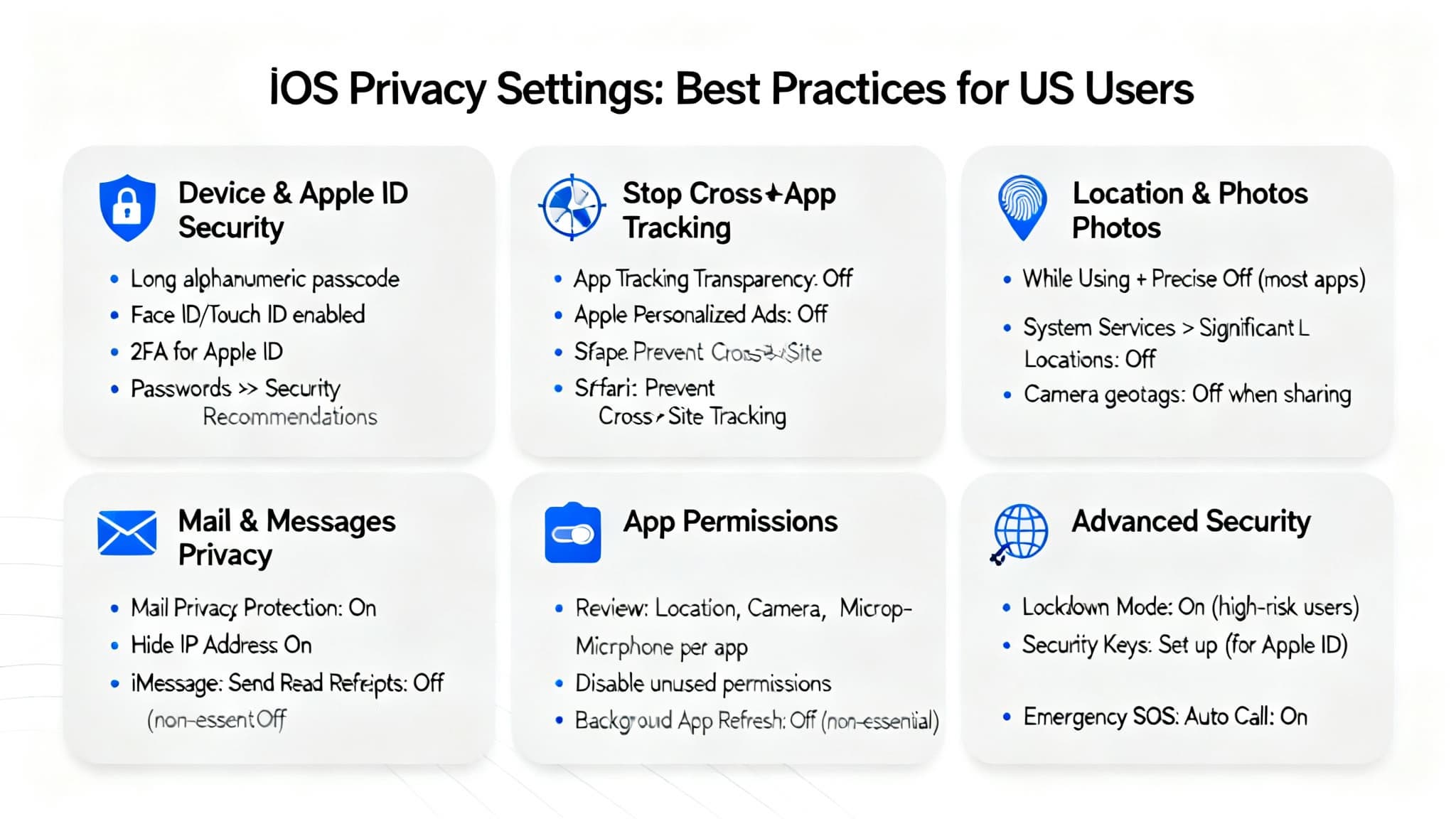

In the United States, iOS privacy settings do more than protect your data—they influence ad personalization, app permissions, and even legal compliance for publishers and businesses. This SEO-focused guide explains how to configure iPhone privacy for maximum data protection and minimal tracking while keeping your device fast and usable. We’ll cover App Tracking Transparency, Location Services, iCloud Advanced Data Protection, Safari anti-tracking, Private Relay, passkeys, and family controls—plus an actionable checklist designed for US users.
Why iOS privacy matters for US users
US users face aggressive cross-app tracking, data brokerage, and email pixel tracking. With iOS, you can drastically reduce profiling by:
- Blocking cross-app tracking with ATT
- Limiting precise location and background access
- Turning on Mail Privacy Protection to stop open tracking
- Securing iCloud with end-to-end encryption (Advanced Data Protection)
- Using passkeys and strong passwords to shut down account takeover
These changes also support privacy expectations for US publishers and ecommerce sites that respect user consent and transparent data practices.

1) Lock the device and secure your Apple ID
- Use a custom alphanumeric passcode: It’s stronger than a 6-digit PIN and resists brute-force attempts.
- Enable Face ID or Touch ID: Keeps your iPhone locked by default without sacrificing usability.
- Turn on Two-Factor Authentication (2FA): Protects Apple ID, iCloud, App Store, and Find My. This is critical for Americans who sync banking emails and tax documents to their iPhones.
- Audit Passwords > Security Recommendations: Replace weak/reused credentials and migrate to passkeys where supported.
SEO insight: These steps reduce account takeover risk and improve your “account security posture,” a key signal for trust-centric queries such as “secure iPhone for US banking apps.”
2) Stop cross-app tracking and unnecessary ad personalization
- App Tracking Transparency (ATT): Disable “Allow Apps to Request to Track” to block cross-app identifiers used by ad-tech SDKs.
- Apple Advertising: Turn off Personalized Ads to reduce Apple’s ad profiling.
- Ads in third-party apps: Expect fewer hyper-targeted ads, more contextual ads, and fewer intrusive prompts.
SEO angle: Users searching “disable app tracking iPhone USA” and “iPhone ad tracking off” want practical steps—this is the core how-to.
3) Control Location Services for privacy without breaking apps
- Default to While Using the App with Precise Location off. Enable Precise only for mapping, ride-sharing, and delivery apps when needed.
- System Services > Significant Locations: Disable if you don’t want iOS storing a private log of frequently visited places.
- Camera and Photos: Turn off geotagging in Camera if you share photos publicly. Remove location from images before posting.
US context: Many US retailers use geofencing; tightening location reduces retail push notifications and geo-targeted offers.
4) Rein in Photos, Contacts, Calendars, Bluetooth, and Local Network
- Photos: Grant “Selected Photos” access to social and editing apps to minimize exposure of your entire library.
- Contacts/Calendars/Reminders: Decline unless core to the app’s function.
- Bluetooth: Disable for apps that don’t need proximity; some SDKs use it for passive tracking.
- Local Network: Deny unless the app must discover devices (smart home, streaming sticks).
SEO note: Queries around “iPhone Bluetooth tracking privacy” and “iOS Selected Photos permission” are growing—this section targets them.
5) Harden email and messaging privacy
- Mail Privacy Protection: Enable Protect Mail Activity to block tracking pixels and hide IP addresses used by email marketers.
- Hide My Email (iCloud+): Use burner emails for signups to cut spam and reduce data linkage.
- Messages: Filter Unknown Senders; be cautious with link previews from unknown sources. For high-risk users, consider Lockdown Mode.
US relevance: Email marketing is aggressive in the US; this combination neutralizes typical tracking methods without losing deliverability.
6) Upgrade iCloud security with end-to-end encryption
- Advanced Data Protection: Extends end-to-end encryption to more iCloud categories, including device backups and Photos. Store a recovery key or set a trusted recovery contact.
- iCloud Keychain + Passkeys: Move from passwords to passkeys where supported for phishing-resistant logins. Great for banking, healthcare portals, and government services used by US residents.
- Find My + Activation Lock: Deters theft and enables remote wipe—important for big-city commuters and frequent travelers.
7) Strengthen Safari privacy and safe browsing
- Prevent Cross-Site Tracking: Blocks tracker profiles and fingerprinting attempts.
- Hide IP Address (Trackers and Websites): Reduces IP-based profiling and geotargeting.
- Private Browsing: Use for sensitive searches; pair with Private Relay if you subscribe to iCloud+.
- Clear Website Data regularly if you don’t use Private Relay.
US advantage: Many American ad networks depend on cross-site tracking; these settings significantly reduce their reach.
8) Consider iCloud Private Relay for additional network privacy
- Private Relay (iCloud+): Masks IP and DNS from websites and trackers in Safari.
- If not using Private Relay, set a trusted DNS over HTTPS/TLS provider via your router or device profile.
Note: Private Relay is not a full VPN, but it’s a meaningful layer against ISP-level profiling common in the US.
9) Manage Background App Refresh and notifications
- Background App Refresh: Turn off globally or allow only essential apps to stop silent data pulls.
- Notifications: Set previews to “When Unlocked” and limit lock-screen exposure of personal data. This matters in shared workspaces and public transit.
Performance bonus: Less background activity often means better battery life and fewer data leaks.
10) Family Sharing, Screen Time, and Safety Check
- Family Sharing: Share purchases without sharing credentials; manage Screen Time for minors.
- Screen Time: Use Content & Privacy Restrictions for app limits and communication safety.
- Safety Check: Quickly review and revoke sharing, location, and access if stalking or domestic abuse is a concern.
US-specific: These features support households navigating school-issued iPads, social media limits, and travel scenarios.
11) Physical and travel security for Americans
- Public charging: Prefer your own charger; if using public USB, use a data blocker to avoid malicious data pins.
- Border and business travel: Use a strong alphanumeric passcode; consider temporarily disabling biometrics if compelled unlocks are a concern. Back up before long trips.
12) Quarterly privacy audit checklist
- Tracking: Keep “Allow Apps to Request to Track” off.
- Apple Ads: Turn off Personalized Ads.
- Location: Review app list; set While Using + Precise off by default.
- Photos: Limit to Selected Photos for social apps.
- Mail: Ensure Protect Mail Activity is on; use Hide My Email for new signups.
- iCloud: Verify Advanced Data Protection and 2FA; store recovery details safely.
- Safari: Prevent Cross-Site Tracking; Hide IP for Trackers & Websites; optionally enable Private Relay.
- Permissions: Reassess Bluetooth, Local Network, Contacts, Calendars, and Reminders.
- Passwords: Fix weak/compromised passwords; prefer passkeys where available.
- Cleanup: Remove unused apps; update iOS and apps automatically.
Frequently asked questions (SEO-rich)
- What are the best iOS privacy settings for US users today?
Start with disabling app tracking, enabling Mail Privacy Protection, tightening Location Services, turning on Advanced Data Protection, and using passkeys. - Does turning off app tracking break apps?
Most apps continue to work. You’ll see less personalized ads; some features may prompt for permission again. - Is iCloud Private Relay the same as a VPN?
No. It hides IP/DNS in Safari but isn’t a device-wide VPN. It’s still valuable for privacy on public Wi‑Fi. - Should I use a password manager or passkeys on iPhone?
Use iCloud Keychain and passkeys where possible; they’re phishing-resistant and faster than passwords.
Conclusion
For US iPhone users, privacy optimization is a balance of strong defaults and selective permissions. By blocking cross-app tracking, limiting precise location, encrypting iCloud data end-to-end, and using Safari’s anti-tracking features, you reduce data exposure while keeping your iPhone fast and convenient. Add a quarterly audit to stay ahead of new app requests and platform updates.