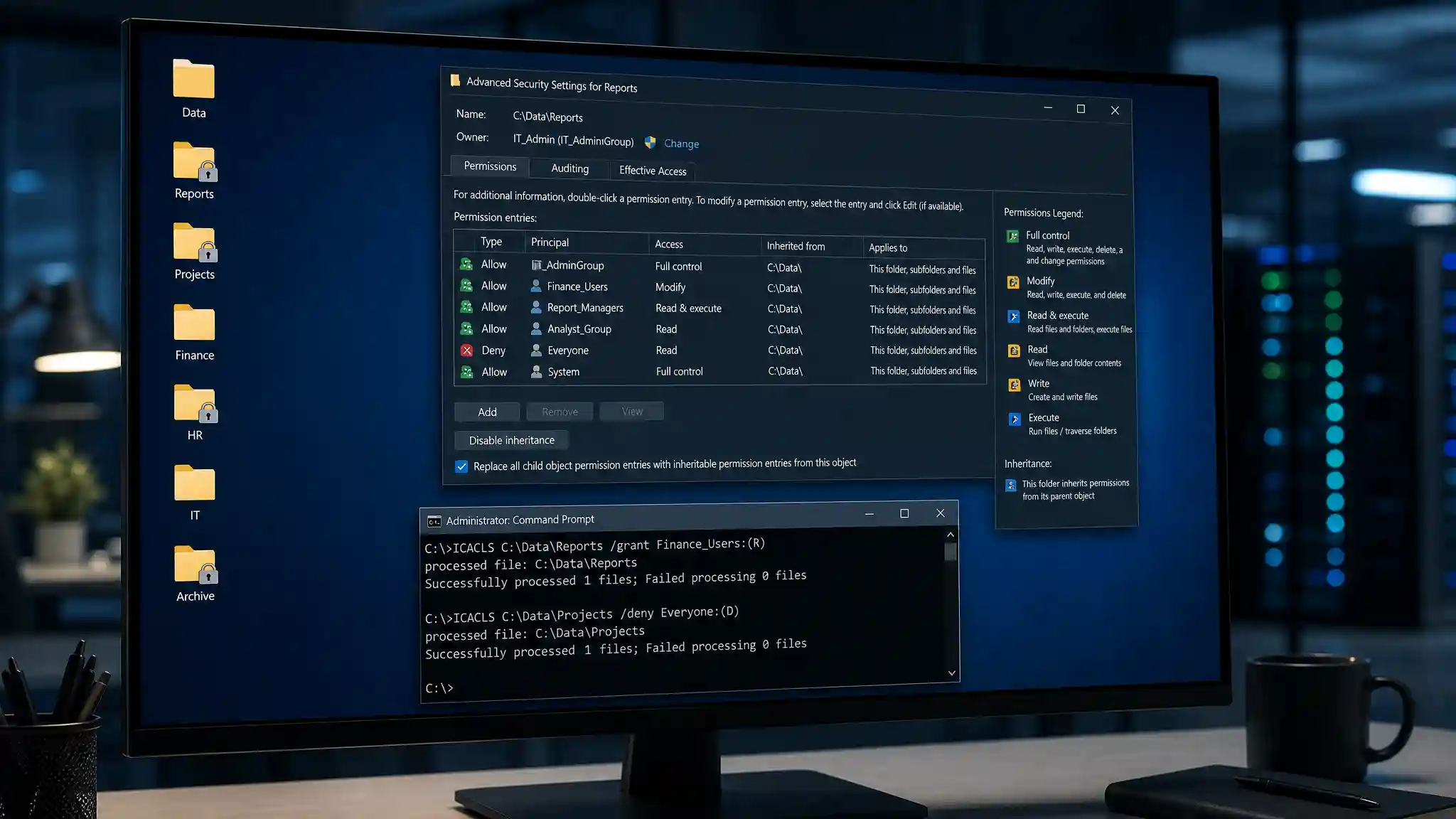

Windows File Permission Problems: Solving ACL Issues with ICACLS
Windows file permission problems can interrupt daily work, block applications, and expose sensitive data when administrators react too broadly. A user may see “Access is denied,” lose the ability to edit a shared document, or inherit permissions that do not match the folder’s purpose. The safest response is not to give Everyone full control. Instead, examine the Windows ACL, identify the relevant access control entry, and apply the smallest practical change with ICACLS.
What an ACL Actually Controls
An access control list is the permission record attached to an NTFS file or folder. Each access control entry, commonly called an ACE, identifies a user or group and specifies allowed or denied actions. Common NTFS permissions include Read, Write, Modify, Read and Execute, and Full Control. Windows evaluates these rules when a process requests access, so a correct ACL supports availability and file system security.
Before changing anything, inspect the target path. Run icacls "C:\Data\Reports" to view the current entries. Look for inherited entries, explicit entries, and groups that the affected user belongs to.
Diagnose Before You Repair
Ownership, sharing permissions, encryption, and a locked file can also create an access-denied error. ICACLS manages NTFS ACLs; it does not solve every Windows access problem. Confirm that the path is local or that you are reviewing the correct file server, then check whether the account has rights through a group. In a shared environment, remember that both share permissions and NTFS permissions can affect the result.
Use icacls "C:\Data\Reports" /verify when you suspect an invalid or noncanonical ACL. Microsoft documents that ICACLS can display or modify discretionary access control lists, verify ACL structure, save permission data, and restore it later. That makes it a practical command-line permissions tool for repeatable administration rather than a last-minute emergency fix.
Grant Only the Required Access
Apply least privilege whenever you repair file access. For example, grant a department group Modify permission when members need to create, change, and delete files, but do not automatically grant Full Control. A typical command is icacls "C:\Data\Reports" /grant:r "DOMAIN\FinanceTeam":(OI)(CI)M. The :r option replaces that principal’s existing explicit grant, while (OI)(CI) lets new files and subfolders inherit the rule.
Use carefully chosen groups instead of adding individual accounts repeatedly. Group-based access control simplifies reviews, reduces permission drift, and makes employee changes easier to manage. If you must target a local account, use its exact local name. On multilingual Windows installations, well-known security identifiers can be more dependable than translated built-in group names.
Inheritance and Explicit Deny Rules
Permission inheritance is often the hidden cause of ACL confusion. A child folder normally inherits ACEs from its parent. You can disable inheritance while copying inherited entries with /inheritance:d, or re-enable it with /inheritance:e. Avoid /inheritance:r unless you fully understand which inherited entries it removes; it can unintentionally remove the access you need to recover.
Explicit deny permissions deserve the same caution. Windows normally denies access when no suitable allow rule exists, so an explicit deny is rarely necessary. Because explicit deny entries take priority over grants, they can block a user who belongs to another permitted group. Remove outdated deny entries with /remove:d only after documenting why the rule existed and confirming that it is no longer required.
Back Up ACLs and Recover Safely
A permission backup should come before bulk changes. Use icacls "C:\Data\Reports\*" /save ReportsAcl.txt /t to save the directory tree’s DACL information. If a change produces an unexpected result, restore the saved configuration from the parent directory with icacls "C:\Data" /restore ReportsAcl.txt. Test these commands first in a nonproduction folder, because a restore applies stored settings to matching paths.
For large folder trees, use /t deliberately because it processes files and subdirectories recursively. Add /c when you want the operation to continue after individual file errors, then review the output rather than assuming success. Keep a change log with the original ACL, command, operator, date, business reason, and validation result. This small habit improves Windows security troubleshooting and supports future audits.
A Practical, Secure Workflow
Start by reproducing the problem with the affected account or a documented test account. Display the ACL, identify the controlling ACE, and decide whether a group, inheritance setting, or ownership issue is responsible. Back up permissions, make one narrow change, test read and write behavior, and record the result. If access remains blocked, investigate file locks, share-level rules, EFS encryption, or application-specific controls before widening NTFS permissions.
ICACLS gives administrators precise control, but precision matters more than speed. By auditing ACLs, using NTFS inheritance intentionally, maintaining permission backups, and granting only necessary rights, you can resolve Windows file permission problems without creating a larger security gap. For official command syntax and parameters, consult Microsoft’s ICACLS reference.
Product Recommendation
For stronger account protection alongside sound Windows access control, consider the Thetis FIDO U2F Security Key, listed on Amazon.com. It supports U2F authentication through USB-A; verify that it matches your organization’s authentication and browser requirements before purchase.