
Reducing Touch Latency in Mobile Games: Practical Methods, Settings, and Pro Tips
Mobile gamers demand instant responsiveness. Whether you play fast-paced shooters, rhythm games, or competitive MOBAs, touch latency can be the difference between hitting a perfect combo and missing your shot. Touch latency (or input lag) is the delay between your finger touching the screen and the game responding on-screen. This article explains what causes touch latency, how to measure and reduce it, and which device, software, and in-game optimizations truly make a difference.
What is touch latency in mobile gaming?
Touch latency is the total end-to-end delay from your touch event to visual feedback. It’s a sum of:
- Hardware scanning delay (digitizer sampling rate)
- OS input processing
- Game engine event handling and rendering
- Display refresh and frame delivery (V-Sync/frame pacing)
- Wireless/network delay (for online games; not touch per se, but affects perceived responsiveness)
Lower total latency makes controls feel crisp and predictable, increasing accuracy and player confidence.
Check Also

August 24, 2026

June 21, 2026

June 20, 2026
How to measure or sense high latency
- Subjective checks: If your actions feel “slippery,” delayed, or you overcompensate with earlier inputs, latency may be high.
- High-FPS camera tests: Filming your device at 240–960 fps and counting frames from touch to response yields rough measurements.
- Developer tools: Some engines overlay frame time graphs; a stable, low frame time usually correlates with lower perceived lag.
Device-level optimizations
- Enable high refresh rate
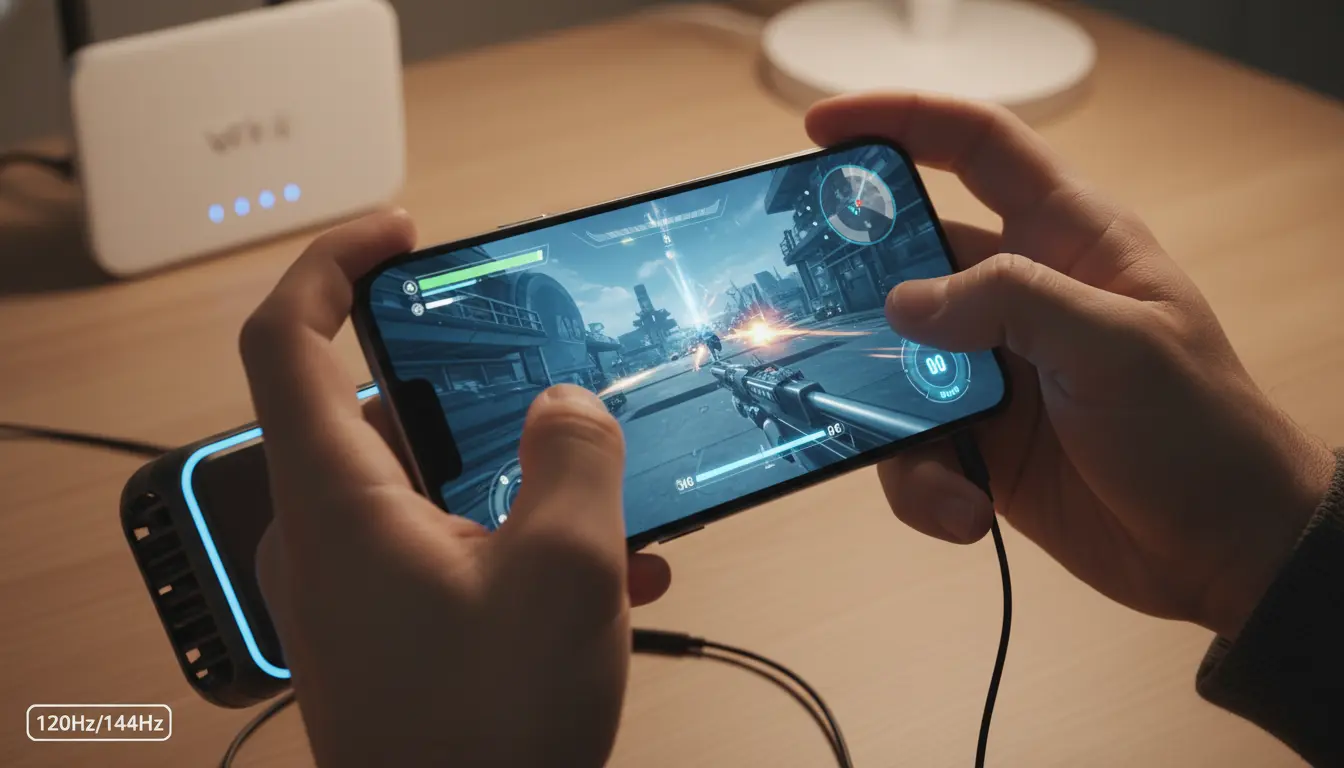
- Set your display to 90/120/144/165 Hz if supported. Higher refresh rates reduce frame delivery intervals and perceived input lag.
- Prefer high touch sampling rate
- Many gaming phones offer 240–1000 Hz touch sampling modes. Enable “Game Mode” or “Performance” profiles to unlock these rates.
- Keep thermal headroom
- Heat throttles CPU/GPU, increasing frame times and latency. Use a phone cooler, avoid charging while gaming, and remove thick cases that trap heat.
- Use a clean charging cable or go battery-only
- Some devices reduce performance or introduce noise when charging. If possible, game at high battery percentage without charging to keep thermals stable.
- Disable touch-enhancing overlays
- Screen protectors can slightly dampen touch responsiveness. If you use one, pick ultra-thin, high-quality glass with good oleophobic coating.
OS and background processes
- Gaming mode/focus mode
- Enable built-in Game Mode (Android vendors, iOS Focus). These modes prioritize CPU/GPU, reduce background sync, and may boost touch sampling.
- Kill background apps and services
- Messaging apps, widgets, VPNs, and overlays can add jitter. Close everything nonessential. Turn off floating windows, bubble notifications, and screen filters.
- Disable animations (advanced)
- On Android, in Developer Options, set window/transition/animator scales to 0.5x or 0x. This doesn’t change in-game rendering, but can make UI interactions snappier around your session.
- Keep OS and firmware updated
- Vendors often refine touch firmware and scheduler behavior. Updates can noticeably improve input consistency.
Network and controller considerations
- Prefer low-latency networks
- While network lag is separate from touch latency, it impacts perceived responsiveness in online titles. Use 5 GHz Wi‑Fi or stable low-jitter 4G/5G. Avoid congested networks and disable downloads/updates.
- Wired or low-latency controllers
- Some games support controllers with lower input lag than Bluetooth touch. If you use Bluetooth, choose low-latency profiles (e.g., Bluetooth 5.x, aptX Low Latency for audio to avoid audio desync distraction).
- Turn off Bluetooth audio if not needed
- Bluetooth audio can add system scheduling contention or audio pipeline lag. Wired earbuds or no audio can reduce distractions and occasional scheduling spikes.
In-game settings that reduce perceived lag
- Lock a stable FPS, not just the highest
- A steady 60/90/120 FPS is better than spiky 120 that dips to 70. Stability reduces frame pacing variance and makes touch feel consistent.
- Lower heavy graphics options
- Turn down shadows, post-processing, volumetrics, reflections, anti-aliasing levels. Reducing GPU load stabilizes frame times.
- Disable motion blur
- Blur degrades clarity and adds perceived delay to feedback. Turning it off helps you react faster to visual changes.
- Sensitivity and response curves
- Many shooters and MOBAs allow tuning touch sensitivity and aim acceleration. Start with linear/low acceleration profiles for predictable control. Calibrate until micro-adjustments feel natural.
- Reduce UI clutter
- Fewer on-screen overlays minimize draw calls and potential performance dips. Customize HUD to essentials.
- Touch dead zones and edge rejection
- Some games let you adjust dead zones. Minimize unnecessary dead zones to register light taps quickly but keep enough to prevent mis-touches.
- Enable “raw input” if available
- A few titles offer raw touch input, bypassing smoothing/filters that may add delay.
Engine and developer-side insights (for advanced users and devs)
- Event-processing frequency: Higher input polling in the game loop reduces delay between touch and simulation update.
- Frame pacing: Strict V-Sync plus uneven frame times cause latency spikes. Consider frame pacing solutions and triple buffering trade-offs.
- Prediction techniques: Input prediction and animation interpolation can mask small latencies.
- Touch filters: Excessive smoothing or debouncing raises delay. Prefer minimal filtering with robust gesture detection.
Maintenance and environment best practices
- Keep storage free
- Maintain at least 10–20% free storage so the OS can manage swap, logs, and shader caches without stutter.
- Clear shader cache after major updates
- If a game stutters after updates, clearing cache or reinstalling can rebuild optimized shaders, improving consistency.
- Use performance power mode
- Many devices throttle by default to save battery. Switch to “Performance” before starting long sessions.
- Screen cleanliness and grip
- A clean screen with a quality finger sleeve can reduce friction and improve precision in rapid taps and swipes.
Myths vs. reality
- “Highest graphics equals best input” — False. Visual fidelity often increases latency via heavier frame times. Prioritize stable FPS.
- “5G always lowers lag” — Not necessarily. Jitter and signal quality matter more than peak bandwidth.
- “All 120 Hz phones feel the same” — Touch firmware, sampling rate, scheduler tuning, and thermals vary widely between models.
Quick checklist to reduce touch latency today
- Enable 120/144 Hz display and the device’s gaming/performance mode.
- Close background apps; disable overlays and motion blur.
- Drop demanding graphics settings to stabilize FPS.
- Use 5 GHz Wi‑Fi; avoid Bluetooth audio during competitive play.
- Keep the phone cool; consider a clip-on cooler for long sessions.
- Calibrate in-game sensitivity and dead zones for precise control.