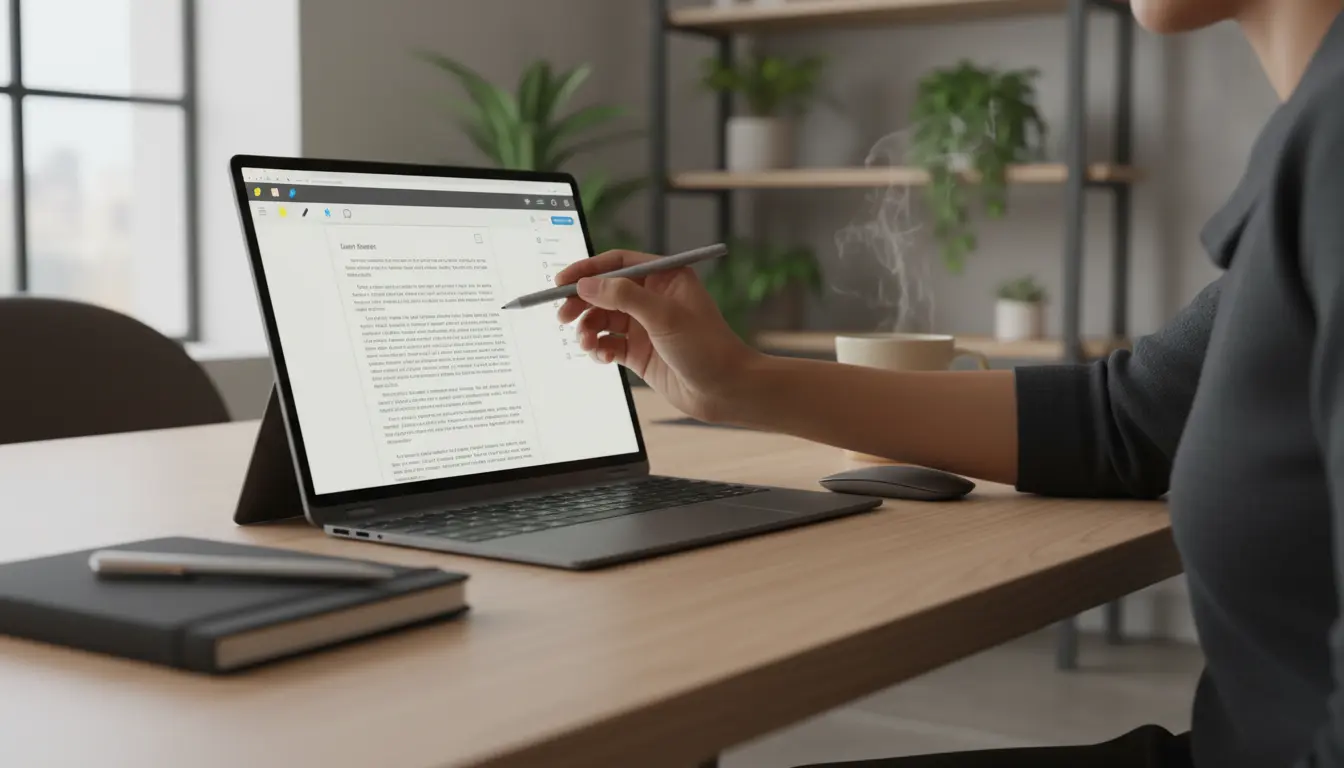

Touchscreen Laptops for work: In Which Jobs Do They Truly Boost Productivity?
Touchscreen laptops have evolved from a nice-to-have feature into a practical tool for many modern workflows. When used strategically, touch, pen input, and convertible 2‑in‑1 designs can streamline tasks, reduce context switching, and speed up ideation. This in‑depth guide explores where touchscreen laptops shine, when they’re less effective, and how to choose the right device for your work.
Why a touchscreen can be more productive
A touchscreen shortens the distance between thought and action. Instead of navigating a cursor to tap small UI elements, you can touch them directly. For creative and spatial tasks, pen input enables precision, sketching, and markup that’s hard to replicate with a trackpad. Convertible hinges let you shift from typing to tablet mode, which can reduce fatigue over long sessions and match the posture to the task—typing for long-form writing, tablet mode for reading and annotating, tent mode for presenting.
Jobs and workflows where touch excels
- Creative design and illustration
- Sketching storyboards, wireframes, iconography, and UI flows is faster with an active stylus and palm rejection. Pressure sensitivity supports shading and line weight, while tilt detection mimics pencil behavior. Designers can iterate rapidly in apps like Adobe Fresco, Illustrator, Figma (for quick annotation), and Affinity Designer.
- Note‑taking, research, and academics
- Handwritten notes with lasso move, shape conversion, and math ink-to-text can be more memorable than typing. You can annotate PDFs, highlight journal articles, and insert screenshots with arrows or layers. OneNote, Notability alternatives on Windows, and Nebo are popular tools that convert handwriting to searchable text.
- Document review and client feedback
- Touch makes redlining contracts, drawing callouts on slides, and signing documents feel natural. Marking up proposals or architectural drawings with pen layers reduces email back‑and‑forth. PDF editors and whiteboarding apps shine on 2‑in‑1s during review sessions.
- Field work and inspections
- In construction, real estate, healthcare rounds, and logistics, a convertible laptop in tablet mode allows quick forms, photos, and signatures on the move. Glove and rain‑friendly touchscreens with high brightness help in challenging environments.
other
- Education and teaching
- Educators can write formulas, annotate slides live, and export them for students. STEM subjects benefit from accurate pen input for diagrams, graphs, and proofs. Touch helps keep lessons dynamic without being tethered to a podium.
- Music production and DAWs
- Large faders, drum pads, and clip launching are more intuitive by touch. While precision editing still favors a mouse, arranging ideas, toggling effects, and jotting automation curves are often faster with touch on supported DAWs or companion apps.
- Digital whiteboarding and workshops
- In workshops, touch laptops double as boards for mind maps, Kanban sessions, and sprint planning. Pinch‑to‑zoom and drag‑to‑reorder speed up collaboration, while the pen lets facilitators sketch flows on the fly.
- Presentation and sales demos
- Flipping into tent or tablet mode avoids keyboard distractions. Touch navigation keeps demos smooth, while inking directly over slides can highlight key points and handle on‑the‑spot questions.
- Photo retouching and content creation
- Cropping, masking, and local adjustments feel tactile; a pen can offer pixel‑level edits. Touch helps with culling sessions—swipe to flag, tap to rate, pinch to zoom—reducing time in selection workflows.
When a touchscreen is less helpful
- Heavy spreadsheet modeling
- Touch is slower than a keyboard for formulas and bulk data entry. A high‑quality keyboard and external mouse typically win here.
- Long coding sessions
- Touch can assist with quick selection or scrolling, but precise cursor placement and hotkeys remain faster for developers.
- Color‑critical design
- If the panel isn’t calibrated or lacks wide gamut, touch doesn’t compensate. Prioritize a color‑accurate display over touch in these cases.
Features that make a real difference
- Active pen with low latency and tilt: Look for MPP 2.0, Wacom AES, or similar standards, with high pressure levels and low parallax.
- Bright, low‑glare display: 400–500 nits with anti‑reflective coatings help under varied lighting.
- Strong hinge and tablet ergonomics: A firm 360° hinge or detachable design prevents wobble while inking.
- High‑polling touch digitizer: Reduces lag and improves handwriting fidelity during quick strokes.
- Battery life and fast charge: Touch and pen usage can increase power draw; aim for all‑day battery with USB‑C PD.
- Weight and balance: Under ~1.4 kg (3.1 lb) improves tablet‑mode comfort; good weight distribution reduces wrist strain.
- Performance headroom: Creative apps love more RAM (16 GB+), fast storage, and competent integrated or discrete graphics.
Best practices to maximize productivity
- Calibrate your pen and customize buttons for erase, lasso, or screenshot. Map app shortcuts to pen buttons or screen corners.
- Use split screen: pen on the right for notes, reference on the left; or vertical split to match document layout.
- Build a markup workflow: receive—annotate—export PDF—version tag—send back. Templates and naming conventions save time.
- Switch modes intentionally: laptop mode for typing, stand mode for video calls, tablet for reading/ink. Avoid mid‑task posture changes.
- Keep microfiber and a matte screen protector handy to reduce smudges and glare, especially under office lighting.
- Learn gesture sets in your OS and primary apps: three‑finger swipe, hold‑to‑right‑click, and custom pen gestures compound over time.
Choosing the right touchscreen laptop
- For designers and artists: Prioritize the pen experience and display. Tilt, pressure levels, laminated panel, and color coverage (sRGB/P3) are key.
- For students and researchers: Battery life, portability, good keyboard, and reliable inking in note apps matter more than GPU power.
- For field professionals: Ruggedness, brightness, LTE/5G options, and quick wake. Consider spill resistance and MIL‑STD durability.
- For presenters and consultants: A premium hinge, tent mode stability, and solid speakers/webcam elevate client meetings.
ROI and practical gains
Touchscreens shine when your daily tasks involve:
- Frequent annotation or visual thinking
- Rapid iteration with stakeholders
- On‑site data capture and signatures
- Teaching, workshops, and live markups
If 30–50% of your work touches these areas, the time saved in navigation, ideation, and feedback loops often outweighs the added cost versus a non‑touch model. If your work is mostly typing, spreadsheets, or code, priority should go to CPU, RAM, keyboard, and screen quality; touch becomes a nice bonus rather than a must‑have.
Common misconceptions
- “Touch drains battery too much.” Modern panels add a modest overhead; the bigger factors are brightness, CPU load, and discrete graphics.
- “Pen input is only for artists.” It’s equally powerful for annotating research, math, UI sketches, and meeting notes.
- “You don’t need touch on a laptop.” For certain roles, touch + pen can replace notebooks, scanners, and even some peripherals in one device.
Quick setup checklist
- Update firmware for the pen and digitizer.
- Enable palm rejection and set pen pressure curve.
- Create templates for notes, critique, and review comments.
- Set up cloud sync so inked notes are searchable on all devices.
Recommended products (short suggestions)
- Microsoft Surface Pro 9 (or latest Surface Pro): Excellent pen latency, high‑resolution laminated display, lightweight tablet-first design that still handles full desktop apps.
- Lenovo Yoga 9i (or latest Yoga 7i/9i): Robust 2‑in‑1 hinge, strong battery life, good color coverage, and reliable inking for everyday creative and office workflows.
- HP Spectre x360 (latest): Premium build, OLED touch options, long battery, and comfortable pen feel—great all‑around for students, consultants, and presenters.









