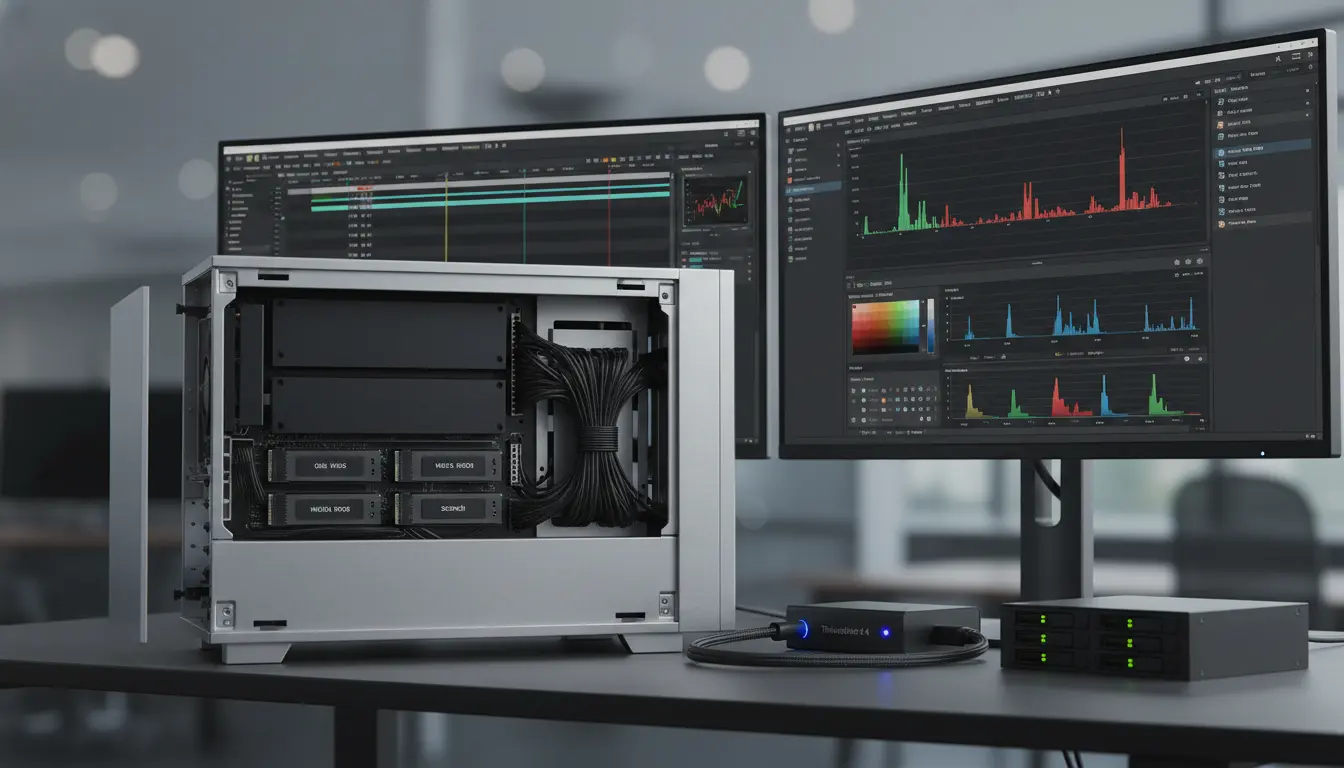

Scratch Disk Management for Large Video Projects
Efficient scratch disk management is one of the most overlooked factors in smooth, high-performance video editing—especially when working on large video projects. Whether you’re using Adobe Premiere Pro, After Effects, DaVinci Resolve, or Final Cut Pro, the way you configure, allocate, and maintain your scratch disks can dramatically affect render times, playback performance, and system stability. In this guide, we’ll break down practical strategies for organizing your scratch disks, optimizing drive types, preventing bottlenecks, and scaling your workflow as projects grow. These best practices will help you keep timelines responsive, previews snappy, and exports reliable, while aligning with SEO-friendly structure and terminology for discoverability.
What Is a Scratch Disk and Why It Matters
A scratch disk is the storage location your editing software uses for temporary files, previews, cache, and autosaves. During heavy workflows—multicam edits, 4K/8K footage, GPU-accelerated effects—your NLE (non-linear editor) reads and writes constantly. If your scratch disks are slow, fragmented, or poorly organized, you’ll see symptoms like dropped frames, sluggish scrubbing, and long render queues. Allocating fast, dedicated storage for scratch operations ensures your system can keep up with the demands of high-bitrate footage and complex timelines.
The Golden Rule: Separate OS, Media, and Scratch
For large projects, segregating your storage roles is essential:
- System Drive (OS/Apps): Keep your operating system and applications on one drive.
- Media Drive: Store original footage and project assets on a separate drive.
- Scratch/Cache Drive: Dedicate a third, fast drive to caches, previews, conforms, and temp files.
This separation prevents your system drive from becoming a bottleneck and ensures that simultaneous reads (media) and writes (scratch) don’t compete on the same disk.
SSD vs. NVMe vs. HDD: Choosing the Right Drive
- SATA SSD: A solid baseline for scratch disks; offers low latency and decent throughput for HD and light 4K workflows.
- NVMe SSD (PCIe 3.0/4.0): Ideal for large video projects and 4K–8K timelines, multicam editing, or heavy effects. NVMe’s high IOPS and bandwidth minimize cache stalls.
- HDD (7200 RPM): Best reserved for archival storage or long-term media backups. As a scratch disk for large projects, HDDs often become the performance bottleneck.
If you can, use an NVMe drive for scratch and a separate NVMe or SATA SSD for media. If you’re on a laptop, consider a Thunderbolt 3/4 NVMe enclosure to offload scratch and cache externally with near-internal performance.
RAID and External Storage Considerations
- RAID 0 (Striping): Delivers higher throughput, suitable for media or scratch, but offers no redundancy. Use only if you have reliable backups.
- RAID 5 or 10: Provides performance plus redundancy, better for shared media pools. Scratch can live on a fast RAID 0 volume if you accept the risk to temp files.
- NAS vs. DAS: For scratch disks, Direct-Attached Storage (Thunderbolt/USB4 NVMe) generally outperforms NAS due to lower latency. Use NAS for media and proxies, DAS/NVMe for scratch.
Project-Level Organization for Scratch Efficiency
- One Scratch Location per Project: Create a project-specific scratch folder to avoid cross-project cache pollution. Use clear naming like “ProjectName_Scratch_2025-11.”
- Subfolders by Function: Separate previews, audio conforms, and render cache folders. This structure makes cleanup faster and reduces accidental deletions.
- Version Control for Cache: When you make major timeline changes or relink media, regenerate previews to avoid stale or mismatched cache.
NLE-Specific Best Practices
- Adobe Premiere Pro:
- Set “Media Cache” and “Media Cache Database” to your dedicated NVMe scratch disk.
- Periodically use “Delete Unused” in Media Cache to remove stale entries without nuking active caches.
- Direct “Previews” and “Project Auto Save” to the scratch drive, not the system drive.
- After Effects:
- Point the Disk Cache to NVMe. Increase cache size for complex comps (250–500 GB if available).
- Purge cache when switching major project branches to prevent conflicts.
- DaVinci Resolve:
- Store “CacheClip” and Gallery Stills on a fast SSD/NVMe.
- Enable optimized media or proxies for long-GOP 4K/8K formats and place them on the scratch drive.
- Final Cut Pro:
- Use Libraries with external media and set Cache and Motion Content to a fast external NVMe when possible.
Proxy and Optimized Media Strategy
High-resolution, high-compression footage (e.g., H.265/HEVC) can choke timelines. Generate proxies or optimized media and put them on your scratch disk for fast I/O:
- Proxies: Lower-resolution or lightweight codec files (ProRes Proxy, DNxHR LB) to accelerate editing.
- Optimized Media: Intraframe codecs (ProRes 422, DNxHR SQ) that trade space for smoother performance.
Keep proxy/optimized media co-located with your scratch folders, then relink or delete them per project lifecycle.
Capacity Planning and Headroom
Scratch disks need headroom to breathe. As a rule:
- Maintain at least 20–30% free space on scratch volumes.
- Estimate 2–3x your project size for previews, conforms, proxies, and render cache for complex edits.
- Monitor usage weekly on active projects; archive or purge when projects move to finishing stages.
File System and Block Size Tips
- Windows: Use NTFS on internal drives and exFAT only for cross-platform portability. Consider ReFS if supported and beneficial for your workflow.
- macOS: APFS for SSD/NVMe. For shared arrays, use formats your team’s OS supports reliably.
- Larger allocation unit sizes can benefit large sequential operations, but test with your typical media.
Avoiding Fragmentation and Thermal Throttling
Even SSDs can slow when near capacity or when thermally throttled:
- Ensure proper airflow for internal NVMe drives; consider heatsinks.
- Avoid filling SSDs beyond 80% for sustained performance.
- For HDD-based arrays, schedule defragmentation and verify write speeds regularly.
Backup and Resilience Considerations
Scratch data is, by definition, disposable—but losing it at the wrong time costs hours:
- Don’t back up scratch folders in your primary backup set to avoid bloating backups.
- Do back up project files, LUTs, presets, and production audio/video to separate destinations.
- Keep autosaves on the scratch drive for speed, but mirror the project file to cloud or NAS at intervals.
Cleanup and Lifecycle Management
- Per Project Wrap-Up:
- Delete previews, proxies, and cache when delivering final masters.
- Consolidate and trim media to a delivery archive with only used clips if your policy allows.
- Routine Maintenance:
- Monthly cache purges for inactive projects.
- Verify disk health (SMART, TBW for SSDs) and plan replacements proactively.
Performance Testing and Benchmarks
Use tools like Blackmagic Disk Speed Test or AJA System Test to validate read/write speeds. Benchmark before large edits to confirm your scratch disk can sustain:
- HD/4K ProRes: ~150–800 MB/s
- 6K/8K or EXR workflows: 1,000 MB/s and above preferred
If you see unexplained drops, check thermal conditions, free space, and background processes (indexing, antivirus).
Team and Multi-Editor Environments
- Standardize scratch locations and naming conventions across editors.
- For shared workstations, assign per-user scratch subfolders to avoid cache conflicts.
- In collaborative workflows (Productions in Premiere, Resolve Collaboration), keep scratch local per machine while media lives on shared storage.
Quick Checklist for Large Projects
- Dedicated NVMe for scratch, separate from OS and media.
- Proxies/optimized media enabled for long-GOP or 8K.
- Project-specific scratch folders with clear naming.
- 20–30% free space headroom at all times.
- Regular cache cleanup and periodic benchmarks.
- Thermal management for NVMe drives.
- Autosave to scratch + mirrored project file backups.
Adopting these scratch disk strategies will keep your timelines responsive, stabilize exports, and help you deliver on schedule—even when your project scales in complexity and resolution.









