
Understanding Android Phone Encryption and External Storage Encryption: A Comprehensive Guide
In today’s digital age, protecting personal data on mobile devices is more critical than ever. Android phones, being one of the most widely used mobile platforms globally, offer robust encryption features to safeguard user information. This article delves into Android phone encryption and external storage encryption, explaining their importance, how they work, and best practices to keep your data secure.
What is Android Phone Encryption?
“Android phone encryption actively protects your data by converting it into a secure format that only you can access using your password, PIN, or pattern, ensuring your personal information stays safe even if your device is lost or stolen.”
Encryption works by scrambling the data using complex algorithms, making it unreadable to anyone without the proper authentication. When you unlock your phone, the system decrypts the data on the fly, allowing you to access your files seamlessly.
Why is Phone Encryption Important?
With the increasing amount of sensitive data stored on smartphones—such as emails, photos, banking information, and personal messages—encryption acts as a vital line of defense against data breaches. It protects against theft, hacking, and unauthorized access, ensuring your privacy remains intact.
Moreover, many organizations and governments mandate encryption to comply with data protection regulations, making it essential for both personal and professional use.
How Android Phone Encryption Works
Android uses Full Disk Encryption (FDE) or File-Based Encryption (FBE) depending on the device and Android version.
- Full Disk Encryption (FDE): Encrypts the entire device storage as a single unit. The data is inaccessible until the user enters the decryption key during boot-up.
- File-Based Encryption (FBE): Introduced in Android 7.0 (Nougat), FBE encrypts individual files separately, allowing different files to be decrypted independently. This method improves performance and security by enabling certain system functions to run without decrypting the entire storage.
Most modern Android devices use FBE, providing enhanced security and flexibility.
Enabling Encryption on Android Devices
Most Android devices come with encryption enabled by default, especially those running Android 6.0 (Marshmallow) and later. However, if your device is not encrypted, you can enable it manually:
- Go to Settings > Security > Encryption & credentials.
- Select Encrypt phone or Encrypt device.
- Follow the on-screen instructions, which usually require your device to be fully charged and plugged in during the process.
Note that encryption can take some time, and once enabled, it cannot be easily disabled without a factory reset.
What is External Storage Encryption?
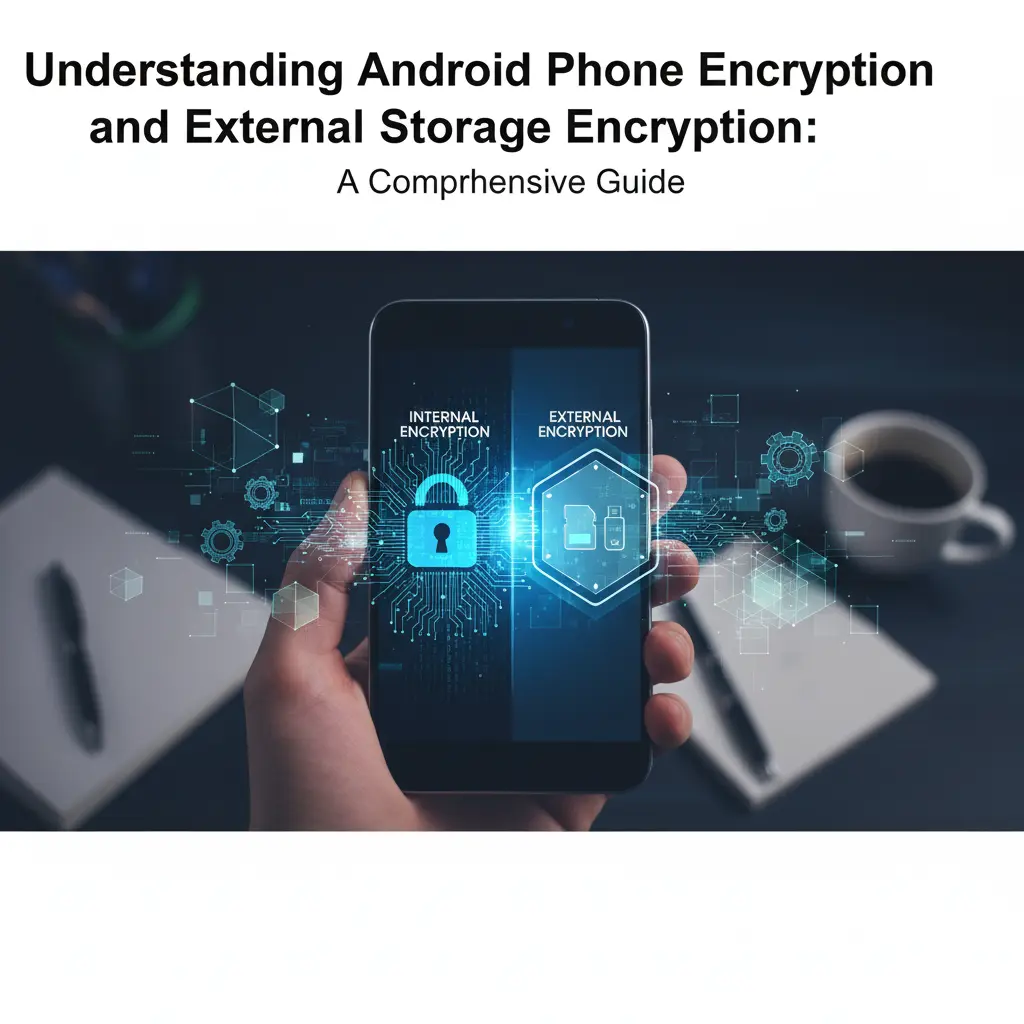
External storage encryption refers to encrypting data stored on removable media such as SD cards or USB drives connected to your Android device. Unlike internal storage, external storage is more vulnerable to unauthorized access because it can be physically removed and accessed on other devices.
Encrypting external storage ensures that the data remains protected even if the storage medium is lost or stolen.
How External Storage Encryption Works on Android
Android supports encryption of external storage through a feature called Adoptable Storage, introduced in Android 6.0. When you format an SD card as adoptable storage, it becomes encrypted and integrated into the device’s internal storage pool. This means the SD card can only be read by the device that encrypted it.
Alternatively, some devices allow manual encryption of external storage without adopting it, but this depends on the manufacturer and Android version.
Benefits of Encrypting External Storage
Encrypting external storage offers several advantages:
- Data Protection: Prevents unauthorized access to sensitive files stored on SD cards.
- Device-Specific Security: Ensures that encrypted external storage cannot be used on other devices without proper authentication.
- Compliance: Helps meet security standards for data protection in professional environments.
How to Encrypt External Storage on Android
To encrypt an SD card as adoptable storage:
- Insert the SD card into your Android device.
- Go to Settings > Storage.
- Select the SD card and tap the menu (three dots).
- Choose Format as internal or Adoptable storage.
- Follow the prompts to encrypt and format the card.
Be aware that formatting the SD card as internal storage will erase all data on it, so back up important files beforehand.
Best Practices for Android Encryption
To maximize the security benefits of Android encryption, consider these best practices:
- Use Strong Authentication: Set a strong PIN, password, or biometric lock to protect your encryption key.
- Keep Software Updated: Regularly update your Android OS to benefit from the latest security patches and encryption improvements.
- Backup Data Securely: Always back up your encrypted data to a secure location to prevent data loss.
- Avoid Rooting or Custom ROMs: Modifying your device’s software can compromise encryption and overall security.
- Be Cautious with External Storage: Only use trusted SD cards and avoid sharing encrypted external storage with unknown devices.
Common Misconceptions About Android Encryption
- Encryption Slows Down Your Device: While early implementations of encryption could impact performance, modern Android devices with hardware acceleration experience minimal to no slowdown.
- Encryption is Optional: On most recent Android devices, encryption is enabled by default for enhanced security.
- Encrypted Data is Unrecoverable: If you forget your password or PIN, encrypted data may become inaccessible, highlighting the importance of remembering your credentials or using backup methods.
Conclusion
Android phone encryption and external storage encryption are essential tools for protecting your personal and professional data. By understanding how these encryption methods work and following best practices, you can ensure your information remains secure against theft, loss, or unauthorized access. As mobile threats continue to evolve, leveraging Android’s built-in encryption features is a smart and necessary step toward digital privacy.