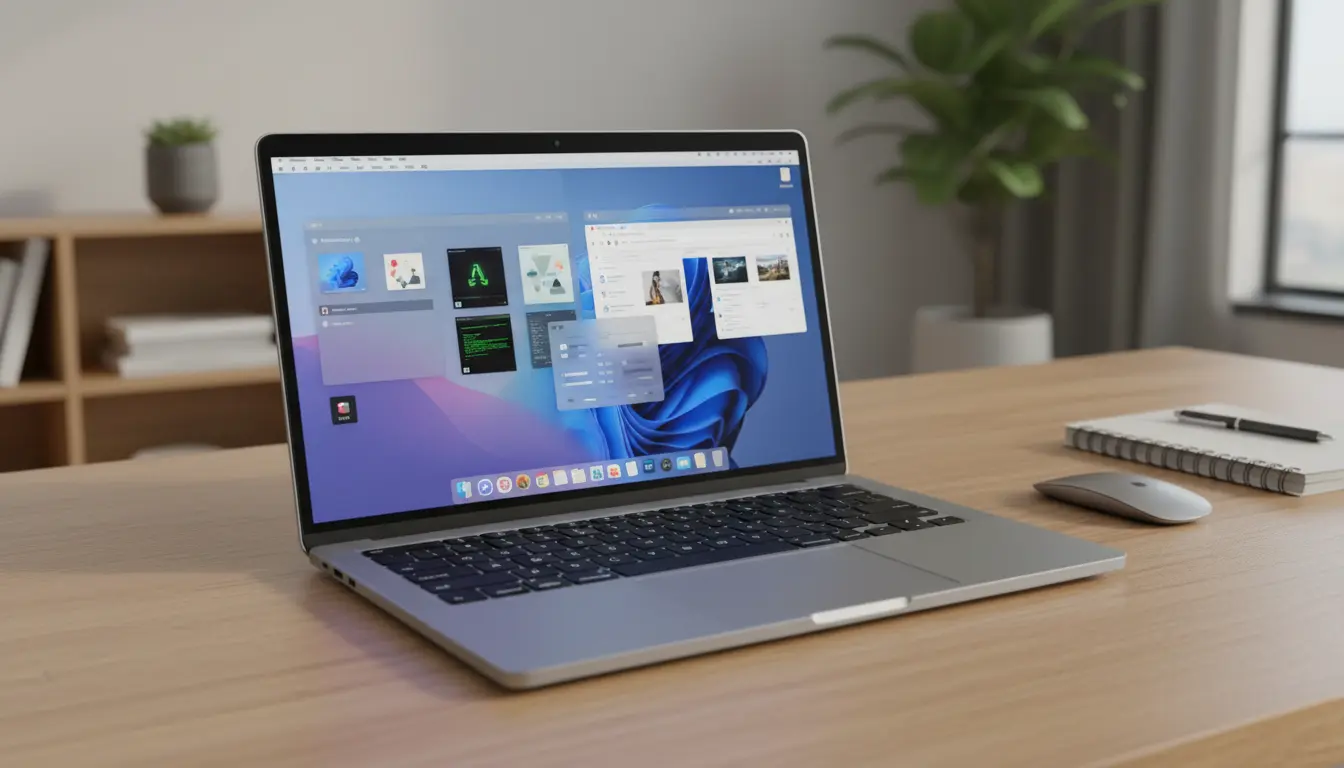

Boot Camp Alternative: Virtualization with Parallels and UTM (Complete Guide)
If you own a Mac with an Apple Silicon or Intel processor and still need Windows or Linux, Boot Camp is no longer your only option—and, on many new Macs, it isn’t an option at all. Instead of partitioning your drive and rebooting each time, you can use virtualization tools like Parallels Desktop and UTM to run other operating systems in a virtual machine directly inside macOS. This approach is more flexible, faster to switch between environments, and often safer for your data.
In this article, you’ll learn what virtualization is, how Parallels and UTM differ, and how they compare to the classic Boot Camp experience. You’ll also see which tool is better for gaming, software development, and everyday productivity on modern Macs.
What Is Virtualization and Why Use It Instead of Boot Camp?
Boot Camp creates a separate Windows partition on your Mac and lets you boot either macOS or Windows. Virtualization takes a different path. A virtualization app creates a virtual machine (VM)—a software-based computer that runs inside macOS. Instead of restarting your Mac to switch operating systems, you start or stop a VM like any other app.
Key advantages of virtualization over Boot Camp include:
- No reboot required: Switch between macOS and Windows or Linux in seconds.
- Better workflow: Keep your Mac apps and Windows apps open side by side.
- Safer experiments: Try new OS versions or software inside an isolated virtual machine.
- More flexible hardware support: Especially important on Apple Silicon Macs where Boot Camp is not officially supported.
For users who need occasional access to Windows apps or multiple Linux distributions, virtualization with Parallels or UTM is often a more modern and convenient Boot Camp alternative.
Parallels Desktop: Polished and User‑Friendly Boot Camp Alternative
Parallels Desktop is a commercial virtualization solution designed specifically for macOS. It focuses on ease of use, integration, and performance. If you want your Boot Camp alternative to “just work” with minimal manual configuration, Parallels is a strong choice.
Key Features of Parallels Desktop
- Coherence Mode: Run Windows applications as if they were native Mac apps. The Windows desktop can be hidden, so Word, Excel, or Visual Studio appear directly on your macOS desktop.
- Optimized for Apple Silicon: Parallels offers dedicated support for ARM‑based Windows and many popular Linux distributions, taking advantage of the performance and efficiency of M‑series chips.
- Simple setup: Preconfigured installation wizards download and install Windows or Linux with a few clicks.
- Hardware integration: Easy sharing of folders, printers, clipboard, and external drives between macOS and the VM.
- Gaming improvements: Support for DirectX and 3D acceleration makes light to moderate gaming possible, especially for titles that support ARM or run well through compatibility layers.
Compared to the old Boot Camp setup, Parallels gives you a smoother, more Mac‑like experience. Instead of maintaining a separate Windows partition, you keep your virtual machines in image files that you can back up, duplicate, or delete whenever you want.
UTM: Open‑Source and Flexible Virtualization for Power Users
UTM is a free, open‑source virtualization and emulation solution for macOS. It uses QEMU under the hood and is available through the Mac App Store and official project site. UTM appeals to users who want control, flexibility, and the ability to emulate many different architectures, not just x86 or ARM.
Key Features of UTM
- Wide OS support: Install various Linux distributions, BSD variants, and even older or niche operating systems.
- Emulation and virtualization modes: On Apple Silicon, UTM can virtualize ARM systems or emulate x86, making it possible—though sometimes slow—to run software that was never designed for ARM Macs.
- Open‑source and low‑cost: There is no mandatory subscription. You can experiment without ongoing licensing expenses.
- Snapshot and configuration control: Experienced users can tweak CPU cores, memory, storage, and virtual hardware in detail.
Compared to Parallels, UTM requires more manual steps. You often download ISO images yourself, configure virtual hardware, and occasionally troubleshoot driver or performance issues. However, if you like full control and prefer open‑source tools, UTM is a compelling Boot Camp alternative, especially for Linux enthusiasts and developers.
Parallels vs. UTM vs. Boot Camp: Performance and User Experience
When deciding between Parallels and UTM as a Boot Camp alternative, you need to evaluate both performance and user experience.
Performance Considerations
- Parallels Desktop:
- Highly optimized for Apple Silicon and Intel Macs.
- Uses native virtualization features, so ARM‑based Windows and Linux run very close to bare‑metal performance.
- Suitable for most productivity apps, development tools, and many creative workflows.
- UTM:
- Performs well when virtualizing ARM‑native operating systems.
- Emulation of x86 on Apple Silicon is much slower and best reserved for light workloads or experiments.
- Not ideal for demanding 3D games or heavy video editing compared to Parallels.
Boot Camp traditionally delivered near‑native performance since Windows ran directly on the hardware. On modern M‑series Macs where Boot Camp is missing, Parallels comes closer to that level of responsiveness than UTM in many everyday scenarios.
User Experience and Integration
- Parallels:
- Seamless drag‑and‑drop between macOS and Windows.
- Coherence Mode integrates Windows apps into the macOS Dock and menu bar.
- Automatic tools for backup, disk optimization, and Virtual Machine management make it beginner‑friendly.
- UTM:
- Interface is simpler and more technical.
- File sharing and clipboard integration require more configuration.
- Excellent for learning virtualization concepts but less polished for casual users.
If you used Boot Camp mainly to run a handful of Windows programs on a Mac and care about simplicity, Parallels is closer to that plug‑and‑play feeling. If you used Boot Camp to experiment with different operating systems and don’t mind tweaking settings, UTM gives you a lot of freedom at almost no cost.
Use Cases: Which Boot Camp Alternative Is Best for You?
For Productivity and Office Work
If you run Microsoft Office, accounting software, or company‑specific Windows apps:
- Choose Parallels Desktop for its stability, easy setup, and deep integration with macOS.
- You can keep Mail, Safari, and your Mac productivity apps open while using Windows tools in a separate window or integrated with Coherence Mode.
For Developers and IT Professionals
If you develop software, manage servers, or test multiple environments:
- Use UTM to run various Linux distributions and niche OSes, especially when you need custom network setups or multiple virtual machines.
- Use Parallels if you also require a polished Windows development environment with good performance for IDEs and database tools.
Many professionals install both: Parallels for daily Windows work and UTM for lab environments and specialized testing.
For Gaming on Mac
If gaming is your main reason to look for a Boot Camp alternative:
- Parallels currently offers the more practical solution, especially for titles that support ARM or run efficiently through compatibility layers.
- Heavy, graphics‑intensive AAA games still perform better on native Windows PCs or consoles, but casual and older titles can be quite playable.
UTM can run some games, but its focus is not gaming performance, especially when emulating x86 on Apple Silicon.
How to Make Your Virtualization Setup Feel as Smooth as Boot Camp
To get the best possible experience from your Boot Camp alternative:
- Allocate sufficient resources:
Assign enough CPU cores and RAM to each virtual machine, but leave some for macOS. For example, on an 8‑core, 16 GB RAM Mac, you might allocate 4 cores and 8 GB to your primary Windows VM. - Use SSD storage:
Keep VMs on fast SSD storage for quicker boot times, better application performance, and more responsive multitasking. - Enable integration features:
In Parallels, activate shared folders, clipboard sync, and Coherence Mode. In UTM, configure network and folder sharing carefully to streamline your workflow. - Keep images and backups organized:
Treat VM image files like important projects. Store them in dedicated folders and use Time Machine or other backup tools to protect them.
With a well‑tuned virtualization environment, you gain most of the benefits of Boot Camp—access to Windows or Linux—without losing the convenience and continuity of macOS.
Recommended Product on Amazon
A smooth virtualization experience also depends on hardware. If you plan to run multiple virtual machines or use Parallels Desktop heavily, extra memory helps significantly. Consider a Mac‑compatible external SSD or upgrading to a higher‑RAM Mac model if you are shopping.
A widely used, virtualization‑friendly accessory available on Amazon is a high‑performance external NVMe SSD enclosure plus NVMe drive.









