
The Ultimate Guide to Video Conferencing TVs: Transforming Your Living Room into a Professional Hub
The traditional boundaries between home entertainment and professional productivity have blurred significantly over the last few years. As remote work and hybrid schedules become the standard, the demand for high-quality video conferencing solutions has skyrocketed. While laptops and tablets served as temporary fixes, many professionals now seek a more immersive experience. This shift has led to the rise of video conferencing compatible TVs, specifically designed to integrate seamlessly with platforms like Zoom and Microsoft Teams.
Choosing the right television for your virtual meetings involves more than just picking a large screen. You need a device that supports external hardware, offers low latency, and provides crystal-clear image processing. In this comprehensive guide, we explore how modern smart TVs are revolutionizing virtual collaboration and what features you should prioritize to ensure your next video call is professional, engaging, and stress-free.
Why Use a Smart TV for Video Conferencing?
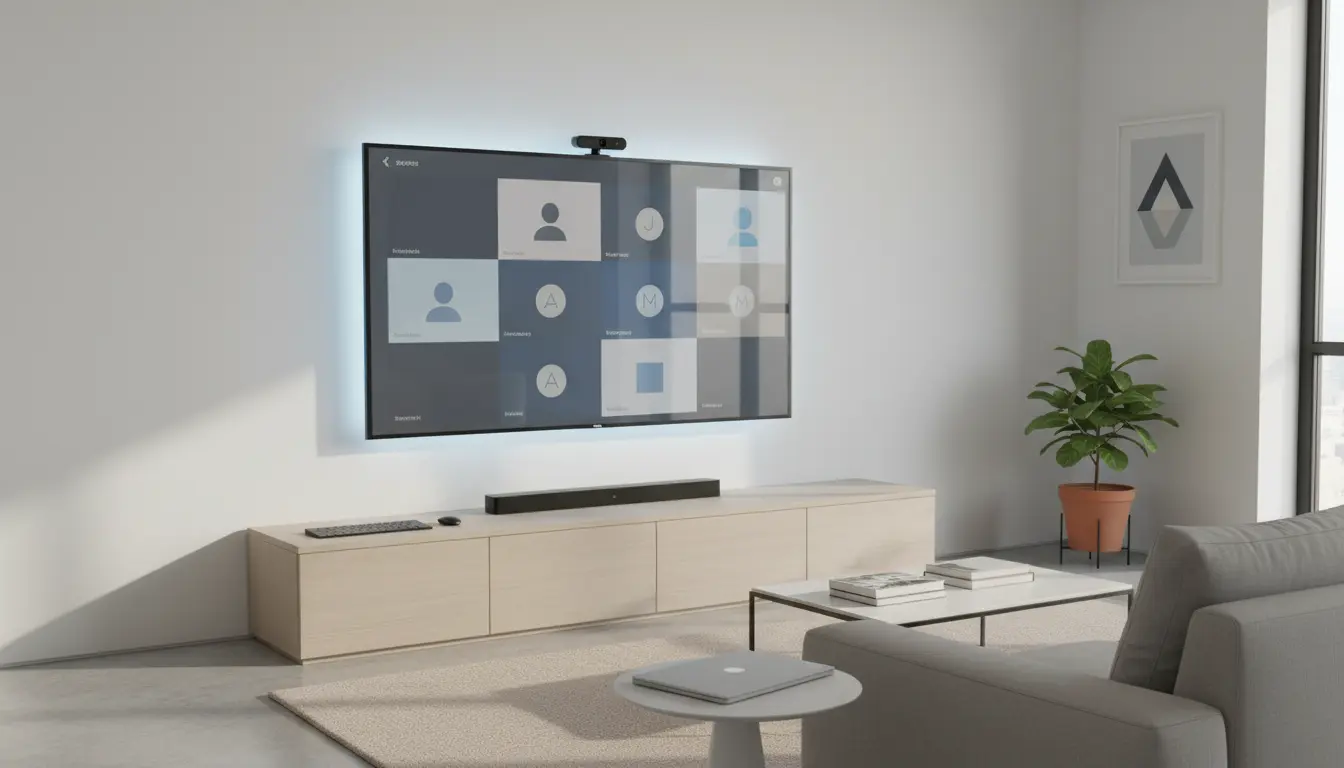
Using a large-format display for your meetings offers several advantages over a cramped laptop screen. First and foremost is the visual real-estate. When you participate in a “Gallery View” on Zoom with twenty participants, a 65-inch 4K TV allows you to see facial expressions and non-verbal cues that you would otherwise miss. This level of detail fosters better connection and engagement among team members.



Furthermore, modern smart TVs come equipped with powerful processors that can handle high-definition video streams without stuttering. Many high-end models from brands like Samsung, Sony, and LG now feature dedicated app stores where you can download Zoom or Google Meet directly onto the TV’s operating system. This eliminates the need to connect a computer via HDMI, simplifying your workspace and reducing cable clutter.
Essential Features for Zoom and Teams Compatibility
Not every smart TV is built equal when it comes to professional communication. To achieve a seamless experience, you must look for specific technical specifications.
Operating System and App Support: The most critical factor is the TV’s OS. Android TV and Google TV platforms generally offer the widest support for communication apps. Samsung’s Tizen OS and LG’s webOS have also added native support for popular conferencing tools in their recent iterations. Before purchasing, verify that the TV’s app gallery includes the specific software your company uses.
USB Connectivity for Webcams: Since most TVs do not have built-in cameras for privacy reasons, you will likely need to plug in an external USB webcam. Ensure the TV has at least one USB 2.0 or 3.0 port that supports “Plug-and-Play” HID (Human Interface Device) drivers. This allows the TV to recognize the camera and microphone instantly without requiring complex software installations.
Audio Quality and Echo Cancellation: Sound is half of the meeting experience. Look for TVs with “Object Tracking Sound” or AI-enhanced audio. These features help isolate voices from background noise. However, for the best results, many users pair their video conferencing TVs with a dedicated soundbar or a Bluetooth headset to prevent the dreaded echo effect during lively discussions.
Optimizing Your Setup for Professionalism
Once you have the hardware, the setup determines the quality of your presence. Positioning is key. If you mount your TV too high (the “r/TVTooHigh” syndrome), your webcam will look down on you, creating an unflattering and unprofessional angle. Aim to place the webcam at eye level, which might mean mounting it at the bottom of a wall-mounted TV or using a specialized shelf.
Lighting also plays a pivotal role. Avoid placing the TV directly opposite a bright window, as this creates a reflection on the screen and turns you into a silhouette for your colleagues. Instead, use soft, front-facing light sources to illuminate your face evenly. Many professionals now use smart LED strips behind the TV to reduce eye strain during long afternoon sessions.
The Role of 4K Resolution and AI Upscaling
While most video conferencing platforms cap their stream at 720p or 1080p to save bandwidth, having a 4K TV still provides a massive benefit. Modern TV processors use AI upscaling to sharpen lower-resolution signals. This means that even if your colleague is calling from a low-quality laptop camera, your TV will “fill in the gaps,” making their image look crisper and more lifelike on your large screen.
Additionally, the high refresh rates (120Hz) found in premium models ensure that motion remains fluid. This is particularly useful during screen-sharing sessions where someone might be presenting a video or navigating through complex architectural renders.
Security and Privacy in the Virtual Boardroom
Privacy is a valid concern when bringing professional conversations into the living room. Fortunately, using an external webcam provides a physical security layer; you can simply unplug the camera or slide a privacy shutter when the meeting ends. Furthermore, ensure your TV’s firmware is always up to date to protect against potential software vulnerabilities. Most modern smart TVs also offer “Workplace” modes that silo your professional apps away from your personal streaming data.
Future Trends: The All-in-One Meeting Display
We are moving toward a future where the TV is the central nervous system of the home office. We are already seeing “Smart Monitors” that bridge the gap between a computer screen and a television, offering built-in magnetic cameras and far-field microphones. As 5G and Wi-Fi 6E become more prevalent, the latency issues that once plagued TV-based video calling will disappear entirely, making the experience indistinguishable from an in-person meeting.
Product Recommendation: Sony BRAVIA XR X90L Series
If you are looking for the best balance of professional features and cinematic quality, the Sony BRAVIA XR X90L is an outstanding choice. Running on the Google TV platform, it provides native access to almost every major video conferencing app. Its Cognitive Processor XR ensures that skin tones look natural and voices are prioritized through its Acoustic Multi-Audio system. It pairs perfectly with the Sony BRAVIA CAM, which allows for gesture control and automatic picture optimization based on where you are sitting in the room.