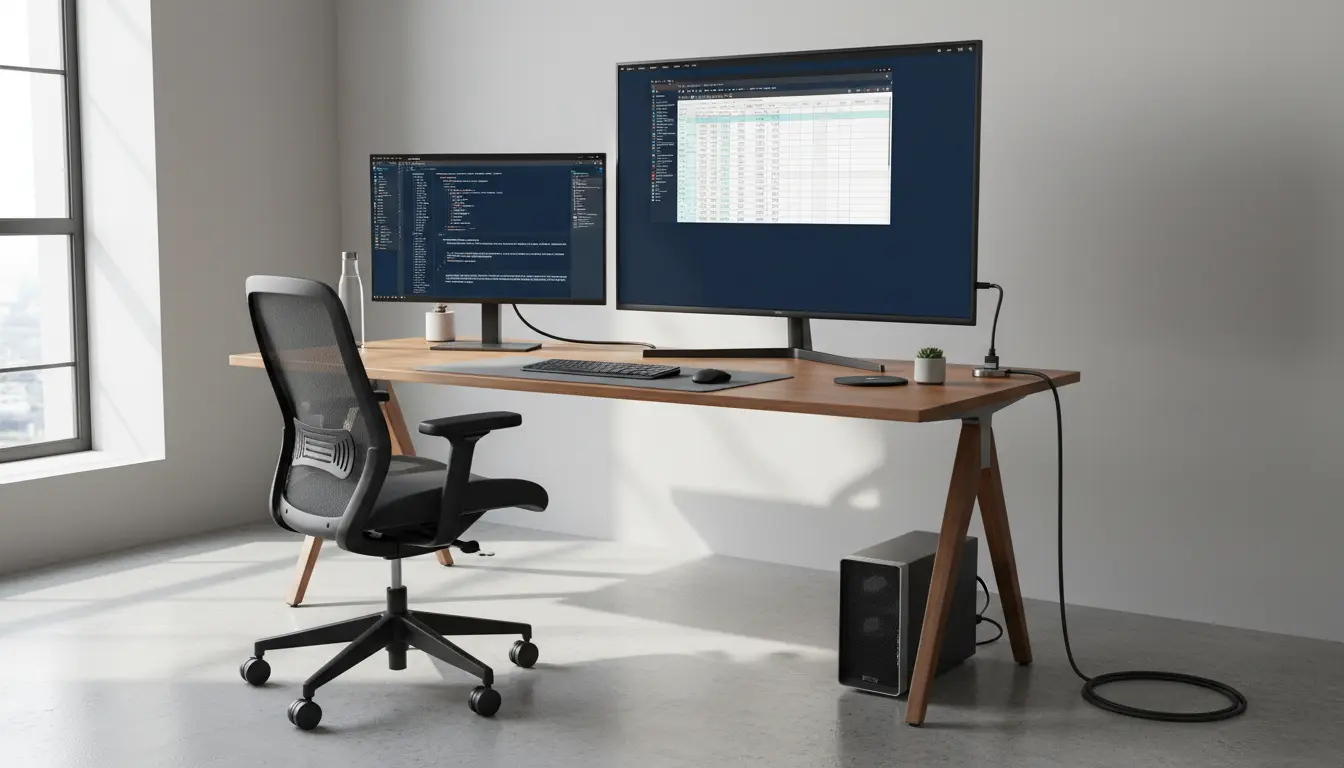

Working from home has redefined what we expect from our displays. While traditional computer monitors are excellent for productivity, many remote professionals are turning to TVs as second screens—especially large 4K models that double as entertainment hubs after hours. The key to making a TV truly viable for desktop use is support for 4:4:4 chroma at the resolution and refresh rate you need. When a TV handles full 4:4:4 chroma, fine text looks crisp, icons are clean, and detailed UI elements don’t blur. If you’ve ever plugged a laptop into a TV and noticed fuzzy text, that’s typically because the TV is using 4:2:2 or 4:2:0 chroma subsampling. In this guide, we’ll explain what to look for and recommend excellent second‑screen TVs that deliver genuine PC‑friendly clarity.
What Is 4:4:4 Chroma and Why It Matters for PCs
Chroma subsampling reduces color information to save bandwidth. For video content, formats like 4:2:0 are common and look fine at typical viewing distances. But desktop use is different—thin fonts and high‑contrast UI edges expose any color compression.
- 4:4:4: Full color detail per pixel; best for PC text and UI.
- 4:2:2 or 4:2:0: Reduced color detail; acceptable for movies, not for reading or spreadsheets.
To get 4:4:4, you need the right combination of TV settings, HDMI input mode, cable quality, and GPU output. Many TVs hide this behind “PC mode” or “HDMI enhanced format.”
Key Buying Criteria for a Home Office Second Screen
When choosing a TV as a secondary monitor, prioritize the following:
- True 4:4:4 at your target resolution and refresh rate
Aim for 3840×2160 (4K) at 60 Hz with 4:4:4, or 120 Hz if your GPU and TV support HDMI 2.1 bandwidth and you need smoother cursor movement. Verify the spec sheet or reputable reviews and ensure the TV supports “PC mode” or “Just Scan” with full chroma. - Pixel geometry and sharpness
TVs that support 1:1 pixel mapping and disable overscan produce the clearest desktop image. Look for settings such as “Screen Fit,” “Just Scan,” “Full Pixel,” or labeling the HDMI input as “PC.” - Input lag in PC mode
While not as critical for pure productivity, lower latency makes mouse movement feel more natural. Many TVs offer a “Game Mode” that also preserves 4:4:4—ideal if you work and play on the same screen. - Panel type and anti‑glare
OLED delivers perfect blacks and superb contrast, great for long reading sessions in dim rooms. High‑quality VA or IPS LCDs with good anti‑glare coatings are better for bright offices. Consider your lighting: glossy panels can reflect windows. - Size, pixel density, and ergonomics
A 48–55″ 4K TV can function like a multi‑monitor setup when placed at an appropriate distance (about 80–100 cm). If you sit closer, a 42–48″ might be more comfortable. Use VESA mounting or a sturdy stand to position the TV at eye height. - HDMI 2.1 and cable quality
For 4K 120 Hz 4:4:4, you need HDMI 2.1 ports and an Ultra High Speed HDMI cable. For 4K 60 Hz 4:4:4, Premium High Speed HDMI is typically enough, but quality still matters.
How to Enable 4:4:4 on Most TVs
- Rename or label the HDMI input to “PC” (Samsung, LG) or enable “PC mode.”
- Turn on “HDMI Deep Color,” “Enhanced format,” or “Input Signal Plus.”
- Disable overscan: choose “Just Scan,” “Screen Fit,” or “Full Pixel.”
- On your PC, set RGB Full (0–255) or YCbCr 4:4:4 in the GPU control panel.
- Verify with a 4:4:4 test pattern image—fine alternating red/blue text should appear crisp without color bleed.
Recommended TVs for Home Office Second Screen (4:4:4 Capable)
Below are categories and examples known for strong PC compatibility. Availability and exact model numbers vary by region; always confirm 4:4:4 support in the user manual or reputable reviews.
- LG OLED Series (e.g., 42″ C-series, 48″ C-series)
- Why it’s great: OLED’s per‑pixel lighting creates superb contrast, making text on dark backgrounds effortless on the eyes. LG’s C‑series typically supports 4:4:4 at 4K 60/120 Hz via HDMI 2.1, with PC/Game modes that maintain sharp chroma.
- Best for: Mixed productivity, coding/design, and after‑hours movies or gaming.
- Samsung QLED/QN90 Series
- Why it’s great: Bright, anti‑reflective panels excel in well‑lit offices. Samsung’s high‑end models generally provide excellent 4:4:4 support when HDMI input is labeled “PC” or “DVI PC.” Game Mode can preserve chroma while minimizing input lag.
- Best for: Bright rooms, spreadsheet work, and general productivity.
- Sony Bravia X90/X93/X95 Series
- Why it’s great: Sony tends to preserve detail with strong processing and typically offers full chroma in appropriate modes. Their motion handling can make window dragging and scrolling feel smooth.
- Best for: Balanced home office use with emphasis on natural color.
- TCL and Hisense 4K Models (mid/high tiers)
- Why it’s great: Strong value. Many midrange models support 4:4:4 at 4K 60 Hz. Check for “PC mode” and an HDMI setting like “Enhanced.”
- Best for: Budget‑friendly large screens with surprisingly good desktop clarity.
- 120 Hz‑Capable HDMI 2.1 TVs
- Why it’s great: If you need ultra‑smooth pointer movement and fast window animations, 4K 120 Hz with 4:4:4 is excellent. Ensure both TV and GPU support HDMI 2.1 with sufficient bandwidth and use an Ultra High Speed cable.
- Best for: Power users, creators, and anyone sensitive to cursor latency.
Setup Tips for Optimal Clarity and Comfort
- Scale thoughtfully: In Windows or macOS, set scaling between 100–150% depending on TV size and distance to balance workspace and readability.
- Calibrate sharpness: Set TV sharpness near neutral (often 0–10 range). Too high introduces halos; too low can soften text.
- Turn off extra processing: Disable motion interpolation, noise reduction, and edge enhancement in PC mode.
- Manage brightness: High brightness in a dark room can cause eye strain. Use a bias light behind the TV to reduce fatigue.
- Ergonomics: Keep the top of the screen at or slightly below eye level. Consider a wall mount or a tall VESA stand for ideal posture.
Common Pitfalls to Avoid
- Using the wrong HDMI port: Some TVs only support their best bandwidth or features on specific ports (e.g., HDMI 3/4).
- Forgetting input labels: On certain brands, 4:4:4 is tied to “PC” labeling.
- Non‑certified cables: If you see random blackouts or can’t get 4K 120 Hz, try a certified Ultra High Speed HDMI cable.
- Overscan enabled: If the Windows taskbar looks cropped, overscan is on—disable it for 1:1 mapping.
- RGB Limited vs Full: Set GPU output to RGB Full (0–255) for PC use to avoid washed‑out or crushed tones.
Who Should Choose a TV Over a Monitor?
- Multitaskers who prefer a single, expansive canvas instead of two or three monitors.
- Remote workers who want a hybrid screen for productivity by day, entertainment by night.
- Creatives who need color‑rich visuals and large timelines/Canvases, especially with OLED.
If you need pixel‑dense clarity at close distances (e.g., detailed photo retouching at 60–70 cm), a high‑PPI monitor may still be better. For most general productivity at a typical TV viewing distance (80–100 cm), a 4K TV with 4:4:4 PC mode is excellent.
Bottom Line
A TV can be a superb second screen for a home office—provided it supports 4:4:4 chroma and proper PC‑oriented settings. Prioritize models with proven PC modes, check port capabilities, and configure your GPU and TV for full‑bandwidth RGB with no overscan. With the right setup, you’ll enjoy a spacious, sharp, and comfortable desktop that doubles as your entertainment display.
3 Amazon Product Suggestions and Why They’re Worth Buying
- LG C3 42″ OLED
Why buy: It’s a sweet spot for desk‑friendly OLED. Excellent 4:4:4 support, deep blacks, and HDMI 2.1 for 4K 120 Hz. Perfect for productivity plus cinematic after‑hours use.
- Samsung QN90B 50″ Neo QLED
Why buy: Extremely bright with strong anti‑glare—great in sunlit rooms. PC/Game modes preserve chroma clarity, and input lag is low for responsive cursor control.
- Sony X90K 55″
Why buy: Balanced image with accurate color and solid motion handling. Supports enhanced HDMI modes for clean 4:4:4 text at 4K, ideal for large‑canvas multitasking.
Note: Model letters may vary by year; verify size, port, and 4:4:4 capabilities on the product page before purchase.