
Best Speakers for Online Classes and Zoom: A Complete Conversation‑Focused Guide
Clear, natural voice is the heart of every successful online class or Zoom meeting. You may have a great webcam and a fast connection, but if your students or colleagues can’t hear you clearly, engagement drops fast. That’s why choosing the best speakers for online classes and Zoom is critical for teachers, trainers, and remote professionals.
In this guide, you’ll learn what really matters in conversation‑focused speakers and how to pick the right model for your budget and setup.
Why Good Speakers Matter So Much for Online Lessons
In a physical classroom, students can read body language and lip movements. Online, audio does most of the heavy lifting. When your speakers deliver:
- Crisp, clear dialogue
- Stable volume across voices
- Low background noise and distortion
…you keep attention high and reduce listening fatigue.
Poor speakers turn a simple Zoom session into a struggle. Students miss details, ask you to repeat yourself, and lose focus. With high‑quality speakers, you create a more “in‑the‑room” experience, even over the internet.
Key Features of Conversation‑Focused Speakers for Zoom
When you shop for speakers for online teaching or Zoom meetings, don’t just look at bass or loudness. Instead, focus on features that improve speech clarity and reliability.
1. Frequency Response Tuned for Voice
Most human speech sits in the mid‑range frequencies (roughly 300 Hz – 4 kHz). You want speakers that reproduce this range cleanly, without muddy lows or piercing highs.
- Look for models that reviewers describe as “clear,” “balanced,” or “great for dialogue”.
- Avoid very bass‑heavy speakers designed mainly for music and gaming; they can blur spoken words.
2. Sufficient, Even Volume for Your Room
For a small home office, you don’t need huge, powerful speakers. You do need:
- Enough volume so every word is audible above ambient noise
- Smooth volume adjustment so you don’t jump from “too quiet” to “too loud” with one tap
If you teach from a larger room or sometimes present to a group gathered around one screen, choose speakers with a bit more power and room‑filling sound.
3. Connectivity: USB, 3.5mm, or Bluetooth?
Your connection type affects both convenience and reliability.
- USB speakers
- Often plug‑and‑play with laptops and desktops
- Draw power directly from your computer
- Usually recognized easily by Zoom, Teams, and similar apps
- 3.5mm (aux) speakers
- Very compatible with most devices
- Depend on your computer’s sound card for quality
- Bluetooth speakers
- Offer flexible placement and less cable clutter
- Can introduce latency and occasional dropouts if the connection is weak
For critical online classes and live sessions, USB or wired connections generally provide the most stable, low‑latency audio.
4. Compact, Desk‑Friendly Design
Online teaching setups already include a laptop, maybe a second monitor, a webcam, and possibly a ring light. Bulky speakers just add to the clutter.
You’ll benefit from:
- Slim, vertical speakers that frame your monitor
- A single soundbar under the screen for a clean look
- Controls on the front or top so you can quickly adjust volume during a lesson
Choose a design that keeps your workspace tidy while still projecting sound effectively.
5. On‑Device Controls and Mute Options
When a student suddenly unmutes with loud background noise, you must react fast. Good conversation‑focused speakers make this easy:
- A front‑facing volume knob or buttons for quick adjustments
- A hardware mute or power button to silence everything instantly
- Clearly visible LEDs or indicators so you know whether your audio is active
These small details reduce stress in live teaching situations, where seconds matter.
How to Match Speakers to Your Online Teaching Setup
Not every teacher or professional needs the same type of speaker. Consider how you work and who you teach.
For Solo Teachers in Small Home Offices
If you teach one‑on‑one or small groups:
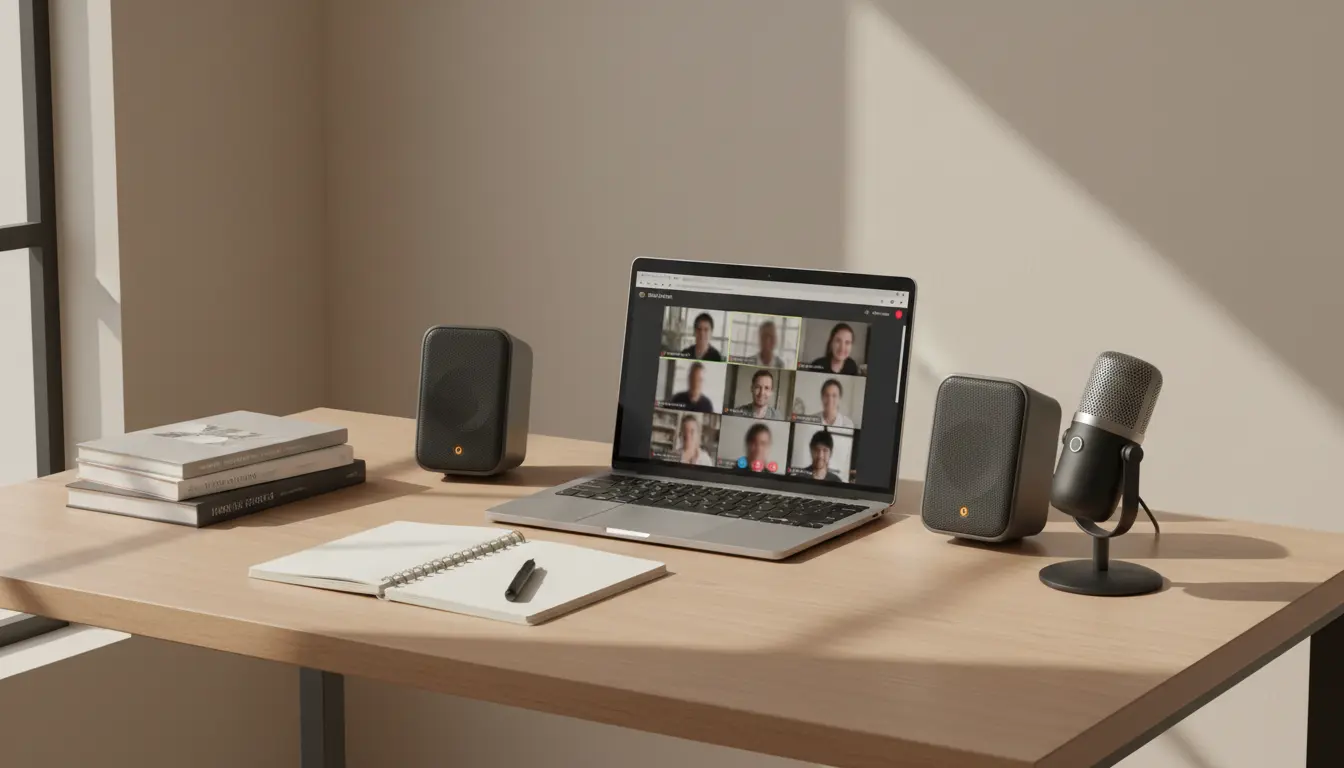
- A compact 2.0 speaker set (two small satellite speakers) is usually enough
- Prioritize voice clarity over deep bass
- USB‑powered models help keep the setup simple and portable
You can move your laptop and speakers together if you change rooms, without dealing with a separate power adapter.
For Trainers and Lecturers Presenting to Groups
If people in the same room listen to an online guest speaker or Zoom lecture:
- Look for slightly higher wattage and broader sound dispersion
- Consider a desktop soundbar that can sit under a large monitor or TV
- Make sure the maximum volume stays clear and distortion‑free
Stable, room‑filling audio keeps everyone engaged and reduces the need to repeat questions or answers.
For Mobile Tutors and Digital Nomads
If you often teach from different locations:
- Choose lightweight speakers that fit in a backpack
- Prefer USB or 3.5mm over Bluetooth in noisy Wi‑Fi environments
- Check whether the speakers can draw power from USB only (no big power brick)
Portability matters, but never sacrifice speech clarity. Your students should not notice any drop in quality when you change locations.
Practical Tips for Getting the Best Zoom Audio from Your Speakers
Even the best speakers perform poorly if you set them up wrong. Follow these simple optimizations:
1. Position the Speakers Correctly
- Place speakers at ear level or angle them toward your head
- Keep them equidistant from where you sit to create a centered audio image
- Avoid pushing them directly against the wall; leave a little space to reduce resonance
Good positioning improves intelligibility without touching any settings.
2. Tune Audio Settings in Zoom or Your Platform
Inside Zoom, Teams, or Google Meet:
- Set the speaker output to your external speakers (not your laptop default)
- Disable unnecessary sound effects or “virtual surround” that might color speech
- Adjust the volume so voices sound natural, not harsh or too quiet
A quick test call before every new course or big meeting helps you catch issues early.
3. Combine the Right Microphone with the Right Speakers
Speakers improve what you hear; microphones improve what others hear. For truly professional online teaching:
- Use a dedicated USB microphone or quality headset mic
- Position your mic close to your mouth but outside the airflow from your nose and mouth
- Keep your external speakers at reasonable volume to avoid echo and feedback
This combination provides a broadcast‑quality experience for classes, coaching, or webinars.
Common Mistakes When Buying Speakers for Online Classes
Avoid these pitfalls to protect both your budget and your audio quality.
Mistake 1: Buying Only for Music or Gaming
Bass‑heavy gaming speakers or party Bluetooth speakers can make voices sound boomy or muffled. For Zoom, clarity is more important than cinematic explosions.
Mistake 2: Ignoring Reviews About Voice Quality
Before you buy, scan user reviews for phrases like:
- “Great for video calls”
- “Clear voices”
- “Perfect for online meetings”
If most reviews focus only on music or movies, be cautious.
Mistake 3: Overpaying for Unnecessary Features
You probably don’t need RGB lights, subwoofers, or complex surround setups for online teaching. A clean, mid‑range‑focused pair of speakers often beats a flashy, expensive system for Zoom.
Creating a More Professional Online Classroom Experience
When you invest in good conversation‑focused speakers:
- Students hear your explanations clearly the first time
- You reduce misunderstandings and repeated questions
- Your classes feel more polished, organized, and professional
Combine speakers with a stable internet connection, a decent webcam, and proper lighting, and your online lessons can rival—sometimes surpass—traditional in‑person sessions.
Amazon Product Recommendation
Consider the Logitech Z207 2.0 Multi Device Stereo Speakers. They are compact, deliver clear mid‑range audio that works very well for speech, support both Bluetooth and wired connections, and fit easily on most desks—making them a strong, budget‑friendly choice for Zoom teaching and online classes.