
Connecting to Hidden Networks on iPhone and Evaluating Security Risks
Connecting to a hidden Wi‑Fi network on an iPhone may look like a smart privacy move, but it also comes with specific risks. Hidden networks do not broadcast their SSID (network name), so they stay invisible to casual users. However, cybercriminals and advanced scanners can still detect them. Understanding how to connect safely, what threats exist, and how to protect your iPhone is essential for anyone who values privacy and data security.
In this guide, you will learn how iOS handles hidden networks, what to check before you connect, and which best practices help keep your information secure and your connection stable.
What Is a Hidden Wi‑Fi Network on iPhone?
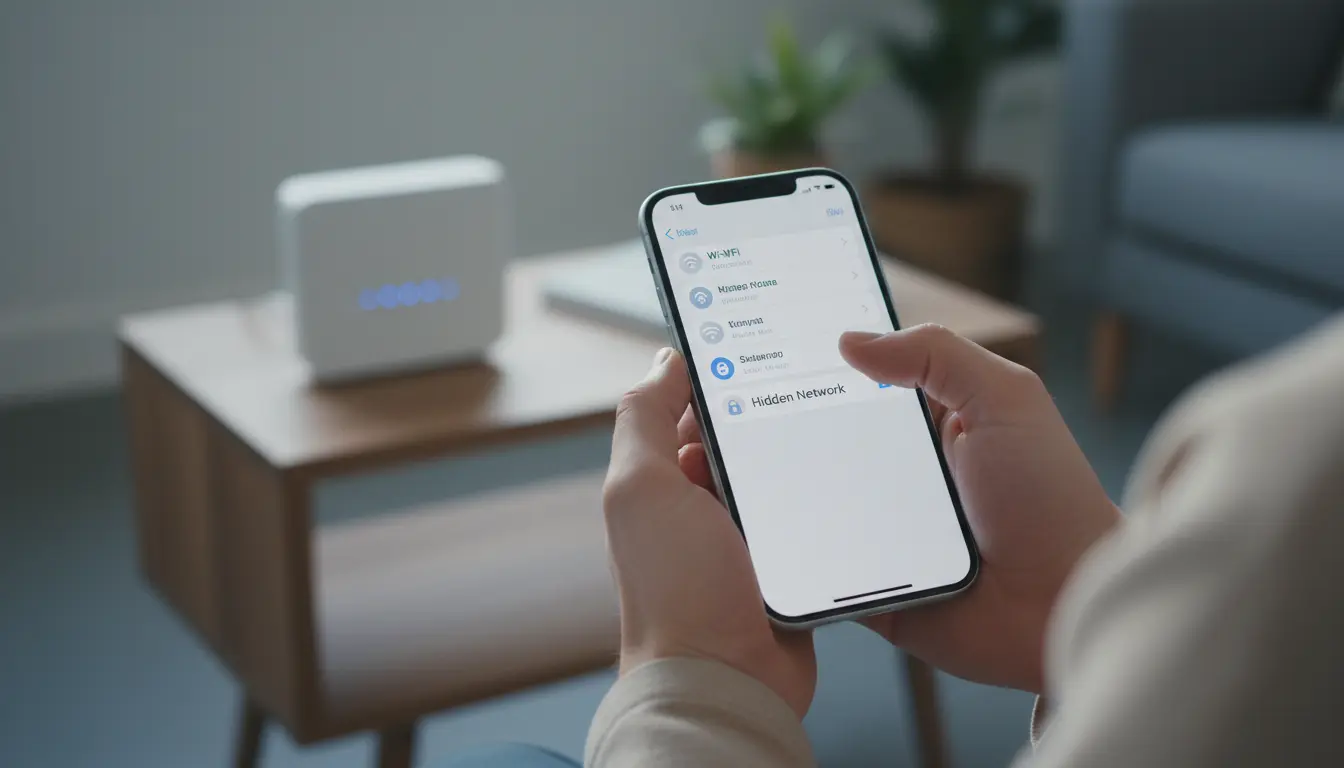
A hidden Wi‑Fi network is a wireless network that does not broadcast its SSID in beacon frames. On your iPhone, this means:
- It does not appear in the normal Wi‑Fi list.
- You must manually enter the SSID and password.
- iOS remembers the network and will try to connect when it is in range.
Many users assume that hiding the SSID adds strong security. In reality, hiding a network only provides obscurity, not true protection. Attackers with basic tools can still see traffic and identify hidden access points.
How to Connect Your iPhone to a Hidden Wi‑Fi Network
Follow these steps to join a hidden network safely:
- Open Settings
- On your iPhone, tap
Settingsand then tapWi‑Fi.
- On your iPhone, tap
- Tap “Other…”
- Scroll to the bottom of available networks and tap
Other….
- Scroll to the bottom of available networks and tap
- Enter the Exact Network Name (SSID)
- Type the network name carefully.
- SSIDs are case‑sensitive, so
HomeNetworkis different fromhomenetwork. - Ask the network owner to confirm spelling and capitalization.
- Choose the Correct Security Type
- Tap
Security. - Most modern networks use
WPA2/WPA3 Personalor at leastWPA2 Personal. - Never join a hidden network that is also open (no password).
- Tap
- Enter the Password
- Type a strong, unique password provided by the network admin.
- Avoid using passwords that you also use for email, banking, or social media.
- Tap Join
- Your iPhone will verify the password and attempt to connect.
- If successful, you will see the Wi‑Fi icon in the status bar.
By entering the SSID and security type manually, you tell your iPhone exactly which network to trust, reducing the risk of connecting to the wrong access point.
Security Risks of Hidden Networks on iPhone
Hidden networks may feel more private, but they also come with their own risks:
1. Easier Rogue Network Impersonation
When your iPhone has joined a hidden network once, it will actively probe for that SSID in the background. Attackers can listen for these probe requests and:
- Create a rogue access point with the same SSID.
- Trick your iPhone into connecting automatically.
- Intercept unencrypted data or perform man‑in‑the‑middle attacks.
This impersonation risk can be higher with hidden networks because your phone has to announce the SSID occasionally to try to find them.
2. False Sense of Security
Many users rely on the hidden SSID as their primary protection. That can lead to weak passwords, outdated encryption, and poor router configuration. In reality:
- Hiding the SSID does not encrypt the data.
- Attackers can still capture traffic with standard Wi‑Fi tools.
- The network remains visible to anyone who knows how to scan properly.
3. Compatibility and Stability Problems
Some devices, including older IoT gadgets, do not handle hidden SSIDs well. They may:
- Disconnect frequently.
- Fail to roam between multiple access points.
- Cause your iPhone to reconnect repeatedly, draining the battery faster.
When your connection is unstable, you may be tempted to disable security features or reuse passwords to “fix” the problem, which can further weaken overall security.
How to Evaluate Whether a Hidden Network Is Safe
Before you connect your iPhone to any hidden Wi‑Fi network, perform a simple security evaluation:
Check the Network Owner
- Know who runs the network. Only connect to hidden networks in homes, offices, or venues you trust.
- Avoid hidden SSIDs in public places such as cafés, airports, or malls unless they are officially documented and staff confirm details.
Confirm Encryption Standards
Ask or verify via the router admin:
- Prefer
WPA3 Personalif supported by your iPhone and router. - At minimum, use
WPA2 Personal (AES). - Avoid
WEPorWPA/WPA2 mixed modeif possible; they are weaker and easier to attack.
Assess the Password Strength
A secure password should:
- Be at least 12–16 characters long.
- Use a mix of letters, numbers, and symbols.
- Avoid dictionary words, names, or predictable patterns (e.g.,
12345678,password,qwerty).
If the hidden network uses a short or simple password, it is vulnerable to brute‑force attacks whether it is hidden or not.
Best Practices for Safely Using Hidden Networks on iPhone
1. Prefer Secure Visible Networks When Possible
A visible Wi‑Fi network with strong encryption and a robust password is usually safer than a hidden network with weak settings. If you control the router, consider:
- Making the SSID visible.
- Using
WPA3or strongWPA2with a complex passphrase. - Restricting access with guest networks and device lists, not SSID hiding alone.
2. Forget Networks You Do Not Need
On your iPhone:
- Go to
Settings→Wi‑Fi. - Tap the
iicon next to a network. - Tap
Forget This Network.
For hidden networks that you rarely use, forgetting them reduces the number of SSIDs your device probes for, which lowers exposure to rogue access points.
3. Turn Off Auto‑Join for Risky Networks
If you must keep a hidden network saved but do not want automatic connections:
- In
Wi‑Fisettings, tap theinext to the network. - Toggle Auto‑Join off.
This gives you manual control and prevents your iPhone from silently connecting to a cloned network in a new location.
4. Keep iOS and Router Firmware Updated
Security patches regularly fix Wi‑Fi and encryption vulnerabilities. To stay protected:
- Update your iPhone to the latest iOS version via
Settings→General→Software Update. - Log in to your router and check for firmware updates from the manufacturer.
Timely updates help close known security gaps that attackers may target.
5. Use a Trusted VPN on Unfamiliar Networks
Even when you trust the network owner, other users on the same network can still attempt local attacks. A reputable VPN:
- Encrypts traffic between your iPhone and the VPN server.
- Reduces the ability of a local attacker or rogue access point to inspect or alter your data.
- Adds another layer of protection on hotel, campus, and coworking networks.
How iPhone Protects You by Default
Apple includes several security features that help when you connect to both hidden and visible networks:
- Private Wi‑Fi Address: iOS can use a randomized MAC address per network to reduce device tracking.
- Automatic Security Recommendations: If your iPhone detects a weak security type, it can show warnings in the Wi‑Fi details.
- Encrypted Services: Many Apple services already use end‑to‑end or strong transport encryption, which mitigates some risks on untrusted Wi‑Fi.
To strengthen these defaults, combine them with strong router settings, careful network selection, and good password hygiene.
When Should You Avoid Hidden Networks Entirely?
You should avoid connecting your iPhone to a hidden network when:
- You do not know the owner or administrator.
- The network uses outdated encryption (WEP or open).
- The password is widely shared and rarely changed.
- You see multiple networks with the same hidden SSID in the same area (a sign of possible impersonation).
In high‑risk environments such as conferences, events, or shared office spaces, treat hidden Wi‑Fi networks with extra caution and prefer cellular data or a trusted hotspot if possible.
Summary
Connecting your iPhone to a hidden Wi‑Fi network is not inherently unsafe, but it demands more attention. Hiding an SSID does not equal strong security; it only removes the network from the casual list of available connections. Real protection comes from:
- Strong, modern encryption (WPA2/WPA3).
- Complex, unique passwords.
- Careful evaluation of who controls the network.
- Smart iOS settings such as disabling Auto‑Join and forgetting networks you do not trust.
By combining these best practices with regular updates and optional VPN usage, you can connect to hidden networks on your iPhone while keeping your privacy and data as secure as possible.
Amazon Product Recommendation: iPhone 17 Pro
For the best possible security, performance, and long‑term iOS support, consider upgrading to the iPhone 17 Pro from Amazon. Its latest Wi‑Fi hardware, extended software update window, and advanced security features make it an ideal choice for safely connecting to both hidden and visible networks while keeping your data protected.