
What Are Automated Cloud Backup Workflows on Android?
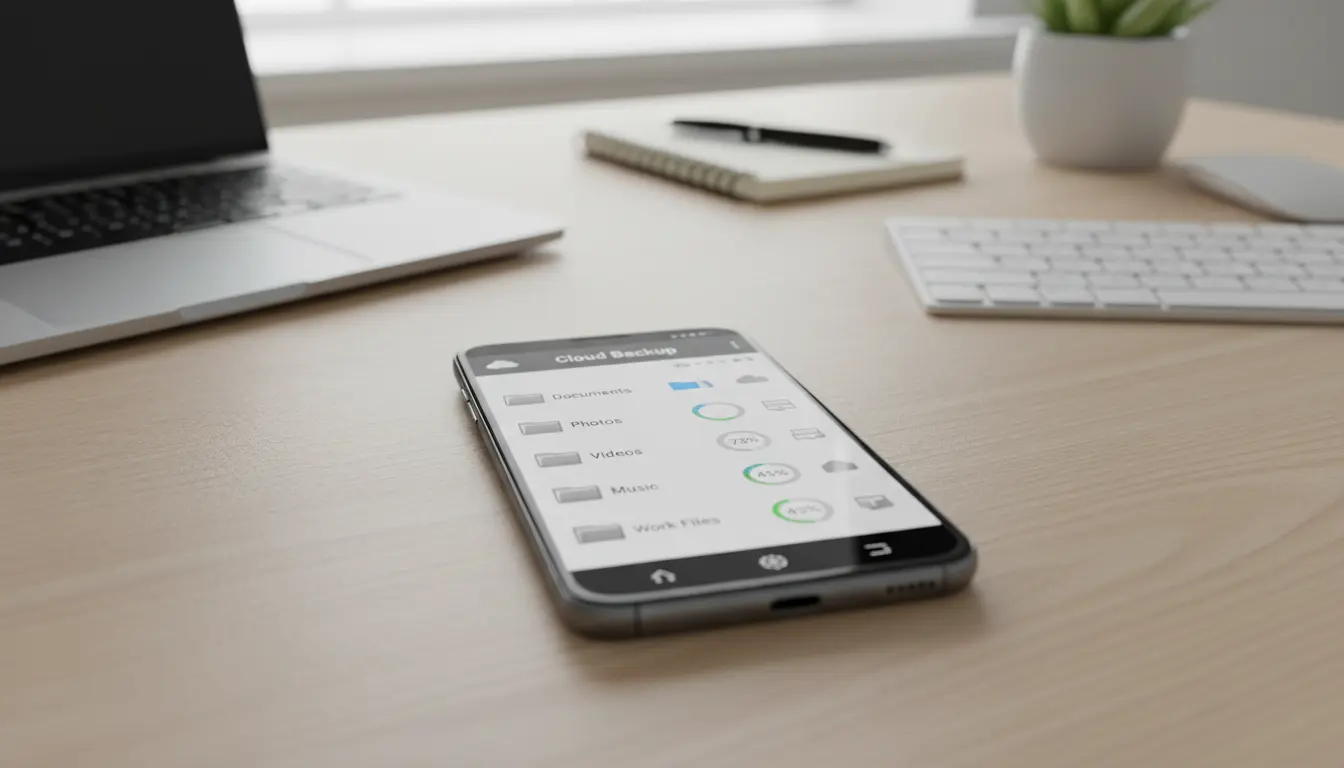
Automated cloud backup workflows on Android allow your files to be copied to cloud storage without manual effort. Once you configure a workflow, your photos, documents, and app folders are synced on a schedule or in real time. This approach reduces the risk of data loss and ensures that your files remain accessible across devices.
On Android, two of the most powerful tools for this are Rclone and FolderSync. Both applications can connect to a wide range of cloud storage providers, automate backup tasks, and give you granular control over how and when your data moves.
Why Use Automated Cloud Backups on Android?
Relying only on local storage or a single cloud app is risky. Your phone can be lost, stolen, or damaged, and individual cloud apps often sync only their own data. Automated backup workflows solve these issues by:

- Continuously protecting critical files in the background
- Keeping the same folder structures across devices and platforms
- Saving time compared to manual upload and download
- Providing versioning and redundancy depending on your cloud provider
With the right setup, you create a resilient system where your Android device is just one node in a secure, synchronized environment.
Overview of Rclone and FolderSync on Android
Rclone on Android
Rclone is a command‑line based sync and backup tool that supports dozens of cloud storage providers, including Google Drive, OneDrive, Dropbox, S3-compatible services, and many others. On Android, you typically use Rclone through a terminal emulator, Termux, or specialized Rclone Android ports.
Key strengths of Rclone:
- Advanced synchronization logic (
sync,copy,move,check) - Support for encryption, compression, and chunked transfers
- Ability to mount cloud storage as a virtual file system on some platforms
- Scripting capability for complex backup flows
Although it has a steeper learning curve, Rclone offers near desktop‑grade functionality on Android when configured correctly.
FolderSync on Android
FolderSync is a user‑friendly Android app that provides a graphical interface for syncing local folders with cloud accounts. It supports many popular providers and is ideal for users who prefer not to work with command‑line tools.
FolderSync strengths:
- Easy account setup via a clean mobile interface
- Per‑folder sync tasks with flexible scheduling
- One‑way or two‑way synchronization options
- Integration with external SD cards and internal storage
Because of its visual interface, FolderSync is often the first choice for non‑technical users who still want powerful automated cloud backup workflows.
Setting Up Automated Workflows with Rclone
To build an automated backup flow using Rclone on Android, you typically proceed in three main steps: installation, configuration, and automation.
1. Install and Configure Rclone
You can install Rclone using an Android terminal environment such as Termux. After installation, run the Rclone configuration wizard to add your cloud remotes. You authenticate with each provider and assign a short name like gdrive: or onedrive:.
2. Define Sync Commands
Next, you design the commands that reflect your backup strategy. Common patterns include:
rclone sync /sdcard/Pictures gdrive:AndroidBackups/Picturesrclone copy /sdcard/Documents s3:my-backups/android-docs
These commands ensure that specific Android directories are always mirrored or copied to your cloud storage, preserving folder structures and file timestamps.
3. Automate with Schedulers
To make the process truly automatic, you connect Rclone commands to a scheduling method. On Android, you can use automation apps (such as task schedulers or cron‑like implementations inside Termux) to run backup commands at fixed intervals, when charging, or only on Wi‑Fi.
As a result, Rclone quietly maintains your cloud backups in the background, without interrupting your normal phone usage.
Setting Up Automated Workflows with FolderSync
FolderSync offers a more visual approach to automated backups, but the end goal is the same: reliable, recurring synchronization between your Android storage and multiple cloud services.
1. Add Cloud Accounts
Inside the FolderSync app, you first add one or more cloud providers. You log in via OAuth or API keys, and FolderSync stores these connections securely. Each connection then becomes available when you create sync tasks.
2. Create Sync Pairs
A sync pair connects a local folder on your device with a remote folder in the cloud. You can define:
- Which direction the sync should go (device → cloud, cloud → device, or two‑way)
- Whether to delete files on one side when they are removed on the other
- File type filters to include or exclude specific formats
These options give you fine‑grained control over how each content category is handled.
3. Schedule and Optimize
FolderSync includes built‑in scheduling and conditions. You can decide:
- How often to run each task (hourly, daily, weekly, or custom)
- Whether to sync only when on Wi‑Fi
- Whether to restrict syncing to when the device is charging
This lets you avoid unnecessary data usage and battery drain while still maintaining up‑to‑date cloud backups.
Designing a Robust Backup Strategy on Android
Whether you prefer Rclone or FolderSync, you should think holistically about your Android backup architecture. A strong strategy includes:
- Multiple layers of redundancy: Back up to at least two different cloud services or a combination of cloud and external storage.
- Separation of concerns: Keep personal media, work documents, and app data in distinct backup flows.
- Encryption awareness: Use encrypted remotes or end‑to‑end encryption for sensitive files.
- Clear recovery paths: Test restoration procedures so you know exactly how to retrieve files to a new or reset device.
By combining the flexibility of Rclone with the simplicity of FolderSync, advanced users can even build hybrid workflows where different apps handle different portions of the backup plan.
Performance, Security, and Best Practices
Automated cloud backup workflows must be fast enough to keep up with your data and secure enough to protect it.
Performance tips:
- Limit background syncing to Wi‑Fi for large media libraries.
- Use incremental syncing so only new or changed files are uploaded.
- Exclude temporary or cache folders that do not need long‑term storage.
Security tips:
- Enable two‑factor authentication on every cloud provider.
- Consider encrypted containers or Rclone’s built‑in encryption for confidential documents.
- Regularly audit which folders and apps have access to your cloud accounts.
When you follow these best practices, you reduce risk without sacrificing convenience.
Ideal Hardware for Heavy Android Cloud Backups: Samsung Galaxy S25 Ultra
For intensive automated backup workflows, your choice of device matters. A flagship Android phone such as the SAMSUNG Galaxy S25 Ultra is well‑suited for Rclone and FolderSync tasks thanks to its powerful processor, generous RAM capacity, and long‑lasting battery. The device’s fast storage and advanced connectivity help large sync jobs complete quickly, while its robust security features support safe authentication with multiple cloud providers.
If you plan to run frequent scheduled backups, maintain large local media libraries, or sync with several cloud services at once, investing in a high‑end phone like the Samsung Galaxy S25 Ultra will make your automated cloud backup workflows smoother and more reliable.