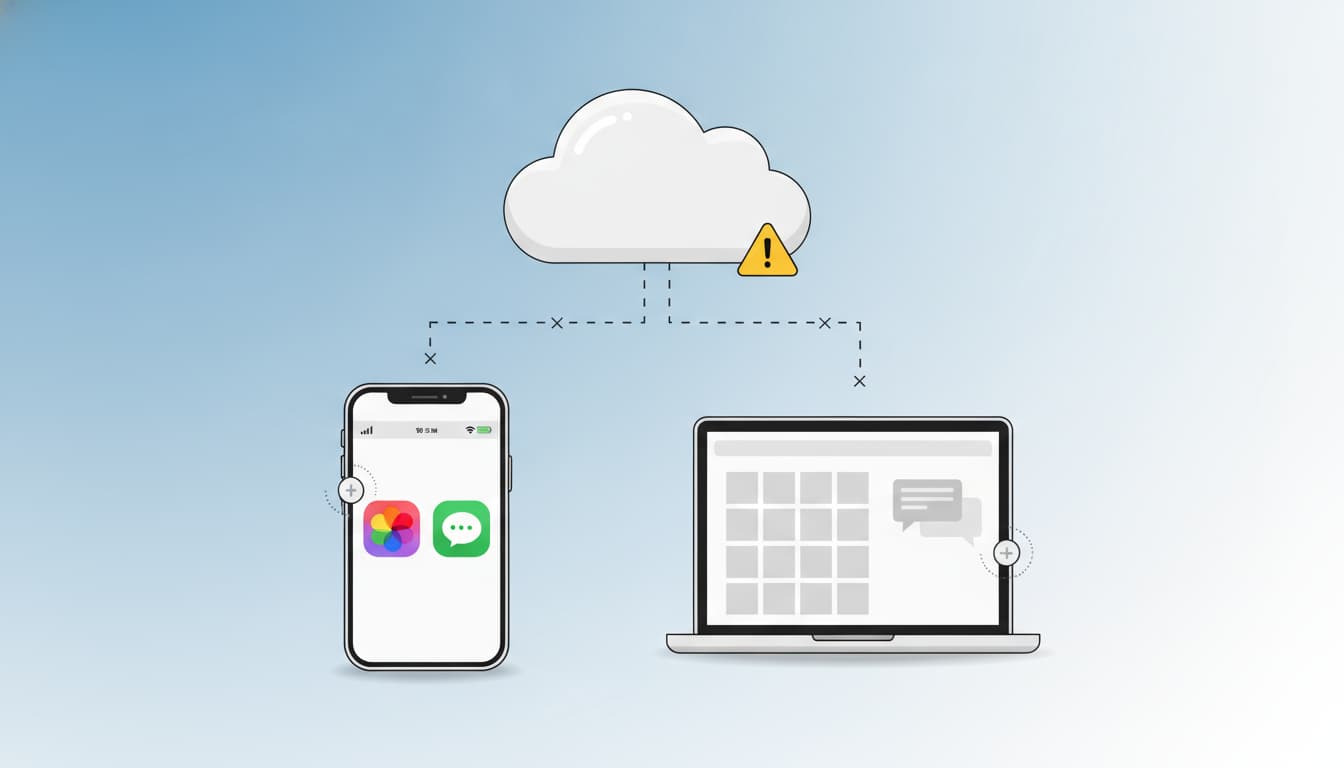

When iCloud stops syncing your Photos or Messages, it can disrupt your workflow, backups, and memories. Whether you rely on iCloud Photos to keep your media in perfect harmony across iPhone, iPad, Mac, and iCloud.com, or you depend on iCloud Messages to access conversations everywhere, sync failures usually stem from a handful of common misconfigurations or network constraints. This in-depth guide explains why iCloud may not sync, how to fix it step by step, and best practices to keep everything running smoothly. It’s designed with SEO-friendly structure and semantic breadth to help users quickly find accurate solutions.
Why iCloud Stops Syncing: Root Causes
- Account mismatch: You’re signed into different Apple IDs on different devices.
- Disabled services: iCloud Photos or Messages in iCloud toggles are off.
- Low storage: iCloud storage full or nearly full prevents new uploads.
- Network instability: Weak Wi‑Fi, captive portals, or restricted networks (e.g., work or school).
- Power and battery settings: Low Power Mode pausing background tasks.
- Outdated software: Older iOS/iPadOS/macOS versions causing compatibility issues.
- Library state: Photos library not set as System Photo Library on Mac.
- Optimization conflicts: “Optimize Storage” settings causing confusion about local availability.
- Corrupted caches or stuck processes: Background services needing a restart.
- Time and date drift: Incorrect system time can break sync handshakes.
Quick Checks Before Deep Troubleshooting
- Confirm Apple ID consistency: On each device, open Settings > [Your Name] and ensure the same Apple ID is signed in.
- Verify iCloud status: Visit Apple’s System Status page to ensure iCloud Photos and iMessage are operational.
- Check storage: Settings > [Your Name] > iCloud > Manage Storage. Keep a healthy buffer (e.g., 10–20% free).
- Connect to stable Wi‑Fi and charge: Keep devices plugged in and on reliable Wi‑Fi to allow long sync sessions.
- Update software: Install the latest iOS/iPadOS/macOS updates.
How to Fix iCloud Photos Not Syncing
- Turn on iCloud Photos
- iPhone/iPad: Settings > Photos > iCloud Photos ON.
- Mac: Photos > Settings > iCloud > iCloud Photos ON.
- Ensure the Mac Photos library you use is set as the System Photo Library: Photos > Settings > General > Use as System Photo Library.
- Review Storage and Optimization
- If your iCloud storage is full, upgrade your plan or delete unneeded files.
- Decide between “Optimize iPhone Storage” and “Download and Keep Originals.” For fast troubleshooting, temporarily choose “Download and Keep Originals” on your main library device to force a definitive baseline.
- Reboot and Nudge the Sync
- Restart iPhone/iPad/Mac.
- On iPhone/iPad: Settings > Photos > toggle iCloud Photos OFF, wait 30 seconds, turn it ON. Avoid “Remove from iPhone” unless you fully understand local removal.
- On Mac: Photos > Settings > iCloud > toggle iCloud Photos OFF/ON. Keep Photos app open and Mac awake.
- Check Hidden Bottlenecks
- Low Power Mode: Disable in Settings > Battery.
- Background App Refresh: Ensure Photos and iCloud have permission.
- VPN/Firewall: Temporarily disable VPNs or restrictive firewalls that may throttle Apple domains.
- Large Backlog: If you recently added thousands of items, allow hours to days for first-time upload.
- Repair the Photos Library on Mac (Advanced)
- Quit Photos.
- Hold Option + Command and open Photos to trigger the Repair Library tool.
- This can fix index issues that prevent proper syncing. Ensure you have backups before repairing.
- Verify iCloud.com
- Log into iCloud.com > Photos. If images appear there but not on a device, the issue is device-side. If they don’t appear there, the source device hasn’t uploaded yet.
How to Fix iCloud Messages Not Syncing
- Enable Messages in iCloud
- iPhone/iPad: Settings > [Your Name] > iCloud > Show All > Messages ON. Also in Settings > Messages > iMessage ON.
- Mac: Messages > Settings > iMessage > Enable Messages in iCloud ON. Click “Sync Now.”
- Confirm Send & Receive
- iPhone/iPad: Settings > Messages > Send & Receive. Ensure the same Apple ID and phone/email addresses are enabled across all devices.
- Mac: Messages > Settings > iMessage > same Apple ID and addresses.
- Trigger a Fresh Sync
- On Mac, click “Sync Now.”
- On iPhone/iPad, toggle Messages in iCloud OFF, wait 30 seconds, ON again.
- Keep devices on Wi‑Fi and plugged in for large history uploads.
- Clear Stalls
- Sign out of iMessage on Mac: Messages > Settings > iMessage > Sign Out, then sign back in.
- Reboot devices.
- Temporarily disable VPNs or security filters that may block Apple push services.
- Storage and Attachment Size
- Large attachments may slow sync dramatically. Consider trimming old conversations with huge media or archiving them first.
Network and Power Best Practices
- Prefer 5 GHz Wi‑Fi for large libraries.
- Avoid metered hotspots for initial syncs.
- Disable Low Power Mode during long upload sessions.
- On MacBooks, prevent sleep: System Settings > Displays > Never turn off during sync; keep the Photos or Messages app open.
Preventing Future Sync Issues
- Maintain headroom in iCloud storage—avoid running at 99% capacity.
- Schedule regular backups and periodic audits of duplicate media.
- Keep all devices updated within the same major OS generation when possible.
- Minimize abrupt toggling of sync settings; allow changes time to propagate.
- Use consistent Apple ID and contact reachability settings across devices.
When to Contact Apple Support
- Repeated errors after library repair.
- Missing content on iCloud.com after days of stable upload conditions.
- Authentication issues that persist after password resets and re-sign-ins.
FAQ Snapshot
- Does Optimize Storage delete originals? No, it offloads local full-resolution copies while retaining them in iCloud; originals remain in iCloud.
- Why is sync so slow? First-time uploads, large Live Photos/4K videos, and limited upstream bandwidth can make it take hours or days.
- Can I choose what to sync? iCloud Photos is all-or-nothing per device; Messages in iCloud syncs your full conversation history. For selective sharing, consider Shared Albums or manual exports.
Action Checklist (TL;DR)
- Same Apple ID on all devices.
- iCloud Photos/Messages toggles ON.
- Sufficient iCloud storage.
- Stable Wi‑Fi, devices plugged in, no Low Power Mode.
- Update OS, reboot devices, toggle services to refresh.
- On Mac, ensure System Photo Library and consider Repair Library if needed.
- Verify progress on iCloud.com.