
In a connected American household, stable, wall‑to‑wall Wi‑Fi is now as essential as electricity. From remote work and 4K streaming to smart locks and thermostats, a single weak signal can derail daily routines. If you’re battling dead zones, buffering, or slowdowns as you move through rooms, a Mesh Wi‑Fi system can transform your experience. Unlike a single router or basic extenders, mesh networks use multiple nodes that cooperate to blanket your entire home—upstairs, downstairs, garage, and even the backyard—with consistent coverage.
This guide walks you through how Mesh Wi‑Fi works, what to look for when buying, step‑by‑step setup, optimization tactics, and practical home layout examples tailored for U.S. apartments, ranch‑style homes, and multi‑story houses. By the end, you’ll know exactly how many nodes you need, where to place them, and how to maintain fast, reliable Wi‑Fi everywhere.
What Is Mesh Wi‑Fi and Why It’s Different
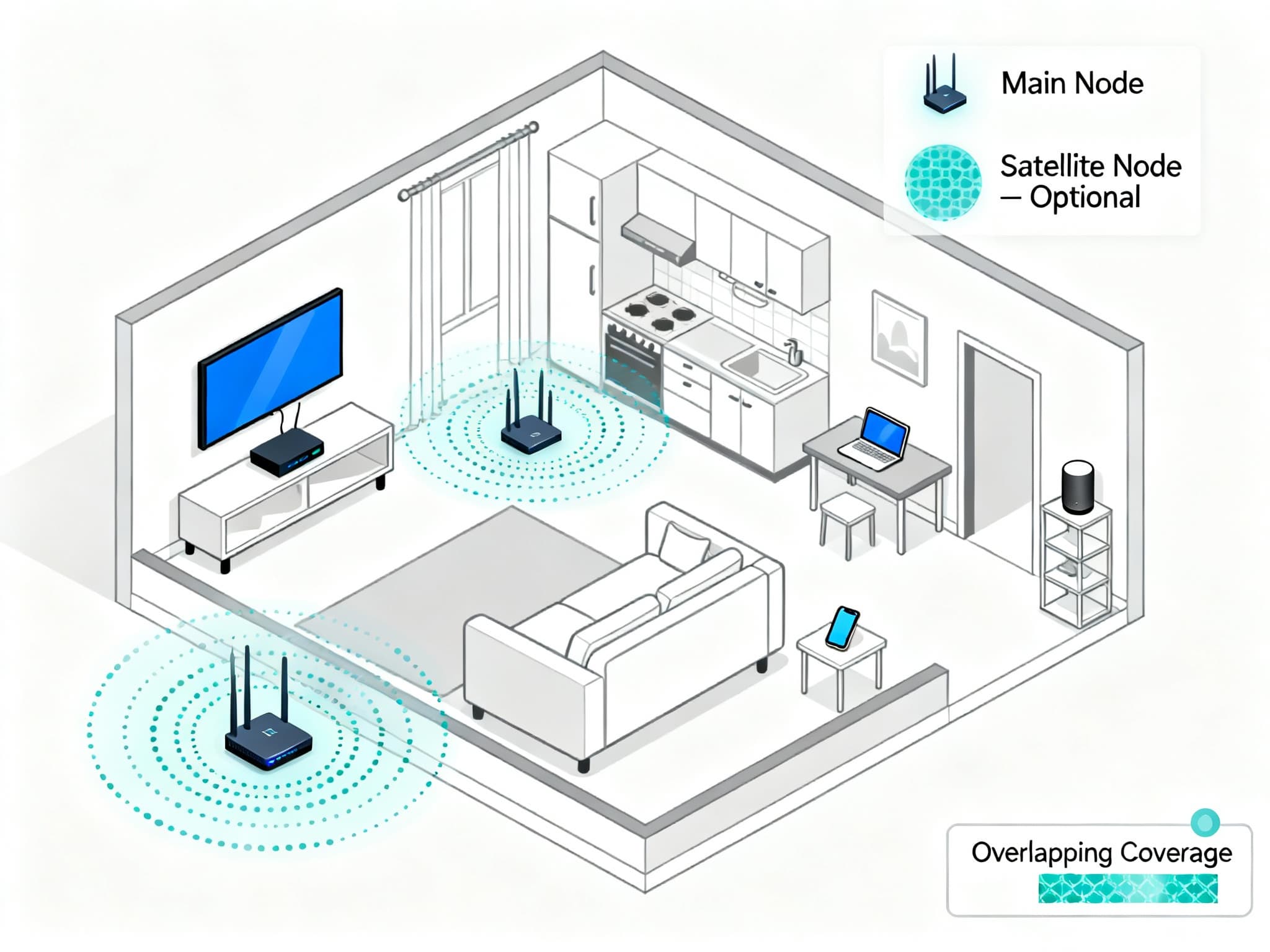
A Mesh Wi‑Fi system consists of a main router (the “gateway” node) and one or more satellite nodes. These nodes create a single, unified network (one SSID) that your devices roam across seamlessly. Instead of your phone clinging to a weak signal from a distant router, it automatically hops to the nearest node for a stronger connection.


Key advantages:
- Whole‑home coverage without dead zones
- Seamless roaming under one network name
- Scalable—add nodes as your needs grow
- App‑based setup, monitoring, and parental controls
- Smart routing to the best node and band for each device
Compared to old‑school range extenders, mesh avoids the bandwidth penalties and awkward dual‑network juggling. It also scales better for modern homes filled with smart devices.
How Many Nodes Do You Need?
Manufacturers often quote ideal conditions. In the real world, consider materials (brick, plaster, concrete, radiant floors), appliance interference, and floor count.
- Small apartments/condos (800–1,200 sq. ft.): 1–2 nodes
- Medium two‑story homes (1,500–2,500 sq. ft.): 2–3 nodes
- Large multi‑story homes (3,000–5,000+ sq. ft.): 3–5 nodes
- Long ranch homes: 2–3 nodes spaced evenly across the length
When in doubt, plan conservatively—better to have one more node than to tolerate weak corners.
Backhaul: Wireless vs. Wired
Backhaul is the link between nodes. You have two main options:
- Wireless backhaul: Easiest to deploy. Tri‑band mesh systems dedicate a separate band for node‑to‑node traffic, improving speeds.
- Wired backhaul: Best performance and stability. If your home has Ethernet runs—or you can use MoCA over existing coax—wire each satellite to your router/switch for near‑wired performance.
If you have gigabit or multi‑gig internet, wired backhaul helps you actually realize those speeds throughout the home.
Home Layout Examples
- Small Single‑Story Apartment (800–1,200 sq. ft.)
- Place the main node near the modem, ideally central in the living area.
- If a far bedroom or office is weak, add a second node halfway between the living room and that space.
- Elevate nodes on a shelf; avoid tucking them behind TVs or inside cabinets.
- Medium Two‑Story House (1,500–2,500 sq. ft.)
- Main node on the first floor near the modem in a semi‑central spot.
- Second node at the top of the stairs or hallway to radiate into bedrooms.
- Optional third node for the garage, basement, or a far office.
- Large Multi‑Story Family Home (3,000–5,000+ sq. ft.)
- Main node centrally located on the ground floor.
- Secondary node on the upper floor near the stair landing.
- Add nodes in the home office, media room, or patio for targeted coverage.
- Consider tri‑band mesh or wired backhaul for best throughput.
- Ranch‑Style Home (Long, Single Level)
- One node near the modem at one end of the house.
- Second node mid‑home for overlap.
- Third node toward the far end or near the patio to cover yard seating.
In all layouts, aim for overlapping “good” signal zones rather than leaving gaps. If a node reports weak backhaul in the app, move it 10–15 feet closer.
Step‑by‑Step Mesh Wi‑Fi Setup
- Prep your modem or gateway
- If your ISP provided a gateway (modem + router), put it in bridge mode or set your mesh to Access Point mode to avoid double NAT.
- If you have a standalone modem, connect the mesh main node via Ethernet.
- Install the mesh app
- Most systems (Eero, Google Nest, TP‑Link Deco, Netgear Orbi, Linksys Velop) guide you through pairing nodes, naming your network, and testing signal quality.
- Check price on Amazon
- Name your network and secure it
- Choose a memorable SSID and a strong, unique passphrase.
- Prefer WPA3 where possible; otherwise, use WPA2‑AES. Avoid outdated WEP or TKIP.
- Place satellites
- Start halfway between the main node and weak areas. The app usually flags if a node is too close or too far.
- Keep nodes off the floor (3–5 feet high is ideal), away from microwaves, cordless phone bases, thick metal furniture, and electrical panels.
- Optimize channel widths and bands
- Let auto settings run first. In congested apartments, 20/40 MHz on 2.4/5 GHz can be more stable than 80/160 MHz.
- If you have Wi‑Fi 6E devices, the 6 GHz band offers cleaner spectrum but shorter range—great for same‑room performance.
- Consider Ethernet backhaul
- If Ethernet exists, wire nodes to maximize throughput and minimize latency.
- No Ethernet? Consider MoCA adapters over coax runs found in many U.S. homes.
- Create a guest network
- Isolate visitors and IoT devices, set schedules or bandwidth limits, and keep your primary network private.
- Enable updates and protections
- Turn on automatic firmware updates and built‑in security features (malware blocking, content filters, parental controls).
- Validate coverage
- Use the app’s signal/throughput tests and walk each room. Aim for at least −67 dBm RSSI for reliable streaming and calls.
Performance Tuning and Best Practices
- Prefer line‑of‑sight or minimal obstructions between nodes.
- Avoid clustering nodes too closely; overlapping signals can cause self‑interference.
- Elevate nodes and keep antennas unobstructed.
- Prioritize wired connections for gaming PCs and workstations using Ethernet to the nearest node.
- If your ISP plan exceeds 1 Gbps, consider Wi‑Fi 6E or Wi‑Fi 7‑ready systems with multi‑gig WAN/LAN ports to reduce bottlenecks.
- In dense neighborhoods, enable band steering and fast roaming (802.11k/v/r) if your system supports it.
Choosing a Mesh System for U.S. Homes
When evaluating options, look at:
- Coverage per node in real‑world tests (not just spec sheets)
- Backhaul design (dual‑band vs. tri‑band; wired backhaul support)
- CPU/RAM and Wi‑Fi standard (Wi‑Fi 6/6E; early Wi‑Fi 7 if future‑proofing)
- App quality, parental controls, built‑in security, and subscription costs
- Number of simultaneous devices (smart homes can exceed 50–100)
- Multi‑gig capabilities if you have 1–2.5 Gbps internet
Popular families include Google Nest Wi‑Fi/Pro, Amazon Eero 6/Pro 6E, TP‑Link Deco X/XE series, Netgear Orbi Wi‑Fi 6/6E, and Linksys Velop MX series.
Troubleshooting Common Issues
- Slow speeds everywhere: Power‑cycle modem and main node; verify ISP throughput with a wired speed test. Check if your gateway is still routing (double NAT).
- One room is still weak: Move the nearest node 10–15 feet closer or add a node.
- Random disconnects or jitter: Relocate nodes away from microwaves and large appliances; reduce channel width; enable DFS channels if supported and legal in your area.
- IoT devices won’t connect: Temporarily enable 2.4 GHz‑only SSID or use the app’s IoT onboarding mode, then switch back.
- Buffering during peak hours: Use QoS or device prioritization for Zoom meetings, streaming boxes, or game consoles.
Privacy and Security Tips
- Use strong admin and Wi‑Fi passwords; store them in a password manager.
- Disable WPS and legacy security protocols.
- Review vendor privacy policies; limit telemetry or cloud analytics if you prefer.
- Keep firmware auto‑updates on to patch vulnerabilities rapidly.
- Segment smart home devices to a guest/IoT network when possible.
Conclusion
Mesh Wi‑Fi provides the most reliable way to achieve whole‑home wireless in modern U.S. homes. With the right node count, thoughtful placement, and a few optimization steps, you’ll eliminate dead zones, reduce latency, and maintain fast speeds across every room and outdoor space you care about. Whether you’re upgrading for remote work, streaming, gaming, or smart home stability, a properly configured Mesh Wi‑Fi system is a meaningful quality‑of‑life improvement that just works.