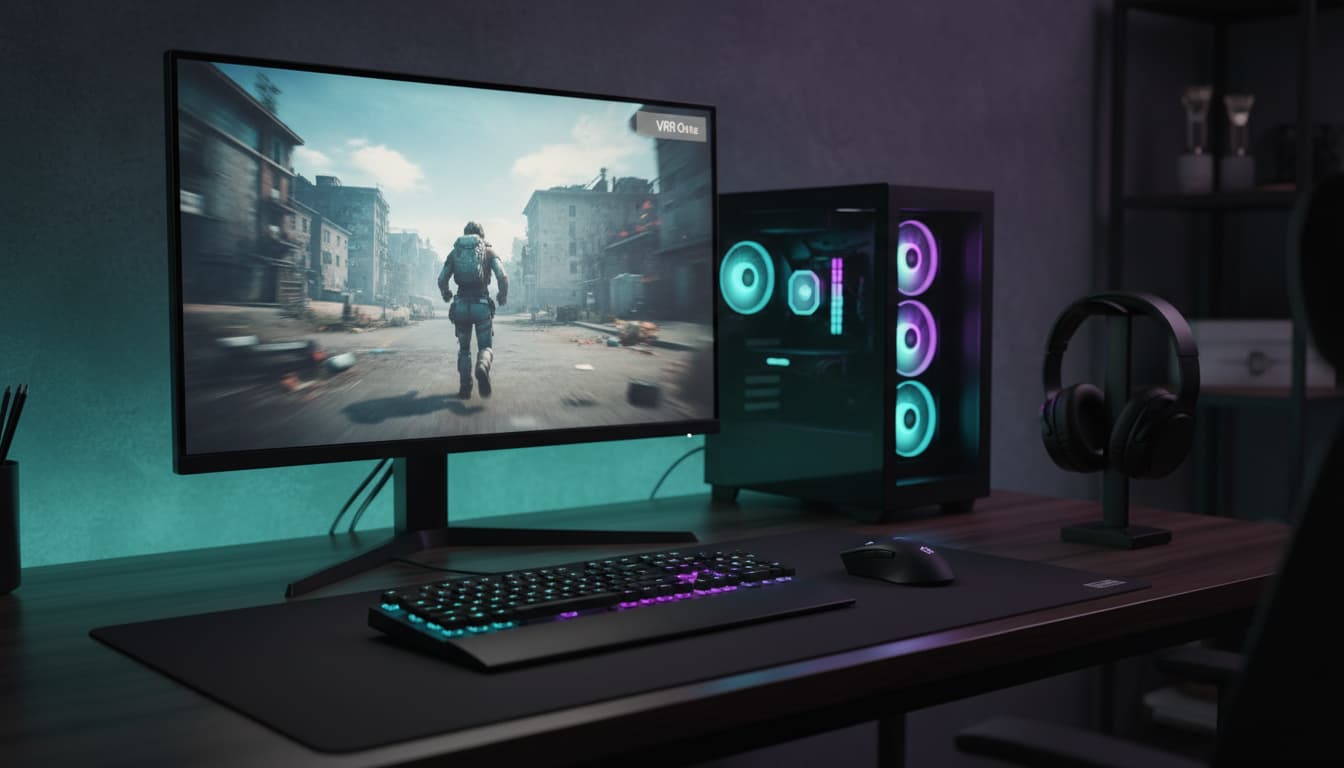

When shopping for a gaming monitor, two terms quickly dominate the conversation: Nvidia G‑Sync and AMD FreeSync. Both technologies solve the same problem—screen tearing and stutter—by synchronizing your graphics card’s output with your monitor’s refresh rate. But the differences in compatibility, cost, performance consistency, and feature sets can meaningfully impact your experience. Add in the question of which refresh rate (144 Hz, 165 Hz, 240 Hz, 360 Hz) is right for you, and the decision becomes more complex. This guide explains how G‑Sync and FreeSync work, why variable refresh rate (VRR) matters, and how to choose the best high‑Hz monitor for your setup, budget, and games.
What Is Screen Tearing and How VRR Fixes It
Screen tearing happens when your GPU and monitor are out of sync: the panel shows portions of multiple frames at once. VRR aligns the monitor’s refresh cycle to the GPU’s instantaneous frame rate, reducing tearing and micro‑stutter. This creates smoother motion clarity and more consistent input response, especially noticeable in fast‑paced titles like competitive shooters and racing sims.
- V‑Sync: Eliminates tearing but can add input lag and cause stutter when FPS dips below the refresh rate.
- Adaptive Sync (FreeSync/G‑Sync): Dynamically matches refresh to FPS, minimizing both tearing and stutter with lower latency than traditional V‑Sync.
- Low Framerate Compensation (LFC): When FPS drops below the monitor’s VRR floor, frames are multiplied to keep sync, preserving smoothness.
G‑Sync vs FreeSync: Core Differences
- Underlying tech:
- FreeSync uses VESA Adaptive-Sync (an open standard over DisplayPort/HDMI). It’s widely available and tends to be more affordable.
- G‑Sync (original) uses a proprietary Nvidia module with tight validation, consistent overdrive control, and often excellent motion handling.
- Tiers and branding:
- FreeSync, FreeSync Premium (adds LFC + 120 Hz at FHD), FreeSync Premium Pro (adds HDR pipeline requirements).
- G‑Sync, G‑Sync Compatible (no module; validated to meet Nvidia’s baseline quality), and G‑Sync Ultimate (module + HDR + strict performance).
- Consistency and quality control:
- G‑Sync module monitors are frequently more consistent across variable refresh ranges with well‑tuned overdrive, limiting ghosting/inverse ghosting.
- FreeSync quality varies by model; some are excellent, but validation is less stringent. Check independent reviews for VRR flicker, scanline artifacts, and overdrive behavior at different FPS.
- Cost and availability:
- FreeSync monitors generally offer better price‑to‑performance and broader selection.
- G‑Sync module monitors cost more but often deliver premium motion performance and lower variable lag.
GPU Compatibility and Best Pairings
- Nvidia GPUs:
- Work with G‑Sync and G‑Sync Compatible monitors.
- Also support many FreeSync displays via “G‑Sync Compatible” over DisplayPort. Look for models explicitly listed as compatible for fewer issues.
- AMD GPUs:
- Work natively with FreeSync (DisplayPort and HDMI). Some G‑Sync module monitors can still function at fixed refresh, but VRR support is not guaranteed unless the monitor supports Adaptive‑Sync as well.
Tip: If you’re on Nvidia and buying FreeSync, verify G‑Sync Compatible status and user reports. If you’re on AMD, FreeSync is the safest, most economical route.

Choosing the Right Refresh Rate (144 Hz vs 165 Hz vs 240 Hz vs 360 Hz)
- 144–165 Hz: A substantial upgrade over 60/75 Hz for almost all gamers. Easier to drive at high settings; strong “sweet spot” for single‑player and casual competitive play.
- 240 Hz: Noticeably smoother cursor/aim tracking and reduced input latency for competitive shooters. Requires stronger GPU/CPU and often lower visual settings to sustain high FPS.
- 360 Hz and beyond: Niche, esports‑focused. Benefits are present but diminishing returns for most users. Demands very high frame rates and excellent system tuning.
- Resolution trade‑offs:
- 1080p at 240–360 Hz for competitive focus.
- 1440p at 144–240 Hz for balanced visual fidelity and responsiveness.
- 4K at 120–144 Hz for cinematic clarity; ideal with high‑end GPUs and modern titles.
- Panel technology:
- IPS: Best overall balance—good color accuracy, viewing angles, fast response on modern “Fast IPS” panels.
- VA: Deep contrast; can show dark‑scene smearing if response times are slow; varies by model.
- OLED: Exceptional motion clarity (near‑instant response), perfect blacks, unmatched contrast. Watch for ABL behavior, text fringing on some subpixel layouts, and panel care.
Input Lag, Response Time, and Overdrive
Lag is influenced by processing, refresh rate, and VRR state. Faster refresh lowers the upper bound of input delay. Response time (pixel transitions) affects motion clarity.
- Overdrive tuning matters: Too aggressive can cause inverse ghosting; too weak causes blur.
- G‑Sync module often maintains stable overdrive across the entire VRR range. FreeSync behavior depends on the OEM’s tuning—check reviews for “overdrive at 60 vs 144 vs 240 Hz.”
- Look for published response time heatmaps, VRR range (e.g., 48–144 Hz), and LFC support.
HDR, Color, and Connectivity Considerations
- HDR:
- FreeSync Premium Pro and G‑Sync Ultimate labels imply HDR‑related requirements, but real HDR quality depends on peak brightness, dimming zones (or OLED), and color volume.
- For impactful HDR, seek OLED or Mini‑LED with high peak nits and many dimming zones.
- Color depth and gamut:
- Aim for wide‑gamut (DCI‑P3 coverage) and factory calibration reports if color accuracy matters.
- Connectivity:
- Use DisplayPort for highest VRR ranges on PC; HDMI 2.1 for modern consoles at 4K 120 Hz with VRR.
- Ensure cables match the bandwidth (DP 1.4 HBR3 or HDMI 2.1 Ultra High Speed).
Practical Buying Scenarios
- Budget PC gamer (1080p, mid‑range GPU):
- FreeSync 144–165 Hz IPS is excellent value. Confirm LFC and G‑Sync Compatible if you’re on Nvidia.
- Competitive shooter (high FPS focus):
- 1080p 240 Hz (or 360 Hz if you can sustain FPS). Prioritize fast response, clean overdrive, low processing lag. G‑Sync module or top‑tier FreeSync with strong reviews.
- All‑rounder (1440p, mixed single‑player and multiplayer):
- 1440p 165–240 Hz Fast IPS. Either FreeSync Premium or G‑Sync Compatible with solid validation.
- Visual fidelity first (4K HDR titles):
- 4K 120–144 Hz with solid HDR. OLED or Mini‑LED preferred. Choose VRR tech based on your GPU brand.
Setup and Tuning Tips for Best Results
- Enable VRR in GPU control panel and on the monitor OSD.
- Use Optimal overdrive mode; avoid “Extreme” unless reviews confirm minimal overshoot.
- Cap FPS slightly below max refresh (e.g., 141 on 144 Hz) to avoid V‑Sync trigger and keep latency down.
- Consider Reflex (Nvidia) or Anti‑Lag/Anti‑Lag+ (AMD) and in‑game settings that reduce queueing.
- For consoles, enable VRR in system settings and use certified HDMI 2.1 cables.
Which One Should You Choose?
- If you own an Nvidia GPU and want the most consistent VRR experience with minimal tuning, a G‑Sync module monitor is a safe bet—albeit at a premium.
- If you want the best value or use an AMD GPU, a quality FreeSync Premium/Premium Pro monitor is often the smarter choice. Just verify VRR range, LFC, and third‑party test results to ensure smooth performance.
- Ultimately, panel quality, resolution, refresh rate, and real‑world overdrive tuning matter more than the logo. Prioritize proven models with thorough reviews.