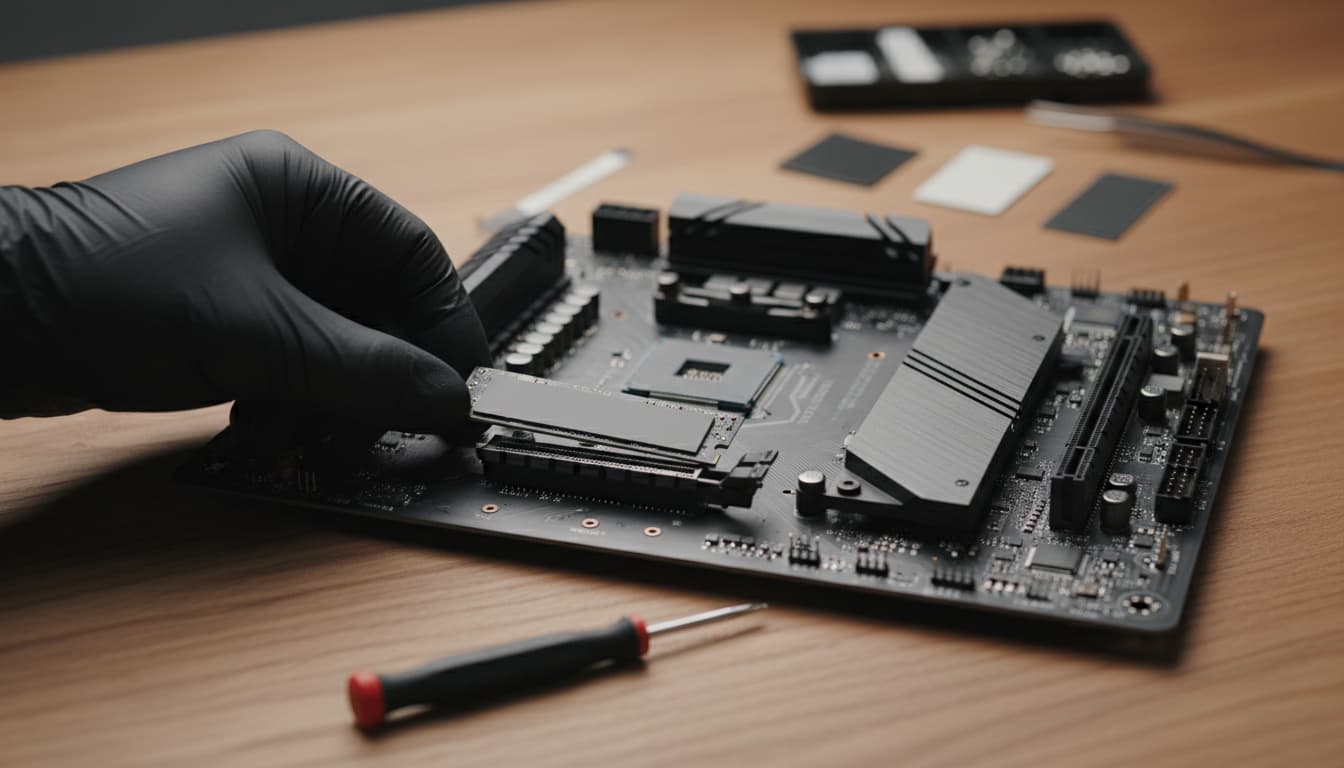

Keeping your Windows PC fast and your SSD healthy doesn’t have to be complicated. With a strategic cleanup routine and a few smart configuration tweaks, you can reclaim storage space, boost performance, and prolong the life of your solid-state drive. This guide walks you through what matters, what to avoid, and how to set up Windows so your SSD remains reliable for years.
Why SSD Care Is Different From HDD Care
SSDs store data in flash memory cells. Each write/erase cycle adds a tiny bit of wear, so minimizing unnecessary writes is key to longevity. Unlike HDDs, SSDs don’t benefit from traditional defragmentation, and Windows already includes SSD-aware maintenance like TRIM. Your goal is to remove junk efficiently while avoiding heavy, repetitive write operations that offer marginal gains.
Step 1: Start With Built-In Tools (Safe and Effective)
- Storage Sense: Go to Settings > System > Storage and toggle on Storage Sense. Configure it to:
- Automatically delete temporary files.
- Empty Recycle Bin after a sensible period (e.g., 14–30 days).
- Clean Downloads only if you truly don’t store important files there.
This hands-off approach prevents clutter without constant manual cleanup or third-party writes.
- Disk Cleanup (Cleanmgr): Search “Disk Cleanup,” select your system drive, and check:
- Temporary files
- Windows upgrade leftovers (if present)
- Delivery Optimization Files
- Thumbnails (they will rebuild as needed)
Avoid checking “Downloads” unless you’ve backed up or reviewed it. Disk Cleanup is write-light and safe for SSDs.
- Manage System Restore Points: System restore can consume many GBs.
- Control Panel > System > System Protection > Configure
- Reduce Max Usage to a modest percentage (e.g., 3–5%) or delete older points.
This prevents silent storage creep.
Step 2: Uninstall What You Don’t Use
Open Settings > Apps > Installed apps and remove:
- Trialware and OEM bloat you never launched
- Old games, large creative suites, and duplicate utilities
This frees significant space with minimal write cost. For stubborn remnants, use trusted uninstallers sparingly; run them once, then uninstall the uninstaller to avoid bloat.
Step 3: Target Big Files and Folders
- Use Windows’ built-in “Storage” breakdown (Settings > System > Storage) to find large categories.
- Sort your Downloads, Videos, and Pictures by size. Archive large, infrequently accessed files to:
- External SSD/HDD
- NAS/cloud storage with on-demand sync
Moving large cold data off your system drive both frees space and reduces future write churn.
Step 4: Optimize Cloud Sync Behavior
Cloud drive clients can consume space with offline mirrors.
- Enable Files On-Demand (OneDrive/Dropbox/Google Drive). Keep files online-only unless needed.
- Avoid syncing bulky folders (VM images, RAW footage) to your primary SSD.
Step 5: Smart Browser Hygiene
- Clear browser caches periodically (not daily). Monthly or quarterly is fine, unless you’re extremely tight on space.
- Limit excessive extensions; each can add caches and background writes.
6: Avoid SSD-Unfriendly Habits
- Don’t Defrag an SSD: Windows automatically runs TRIM, not defrag, on SSDs via “Optimize Drives.”
- Don’t run aggressive “registry cleaners” or constant “deep-clean” suites. They often cause many small writes without meaningful benefits.
- Avoid frequent full-disk imaging to the same SSD. Keep backups on an external drive or a separate internal disk.
7: Enable and Verify TRIM
TRIM helps the SSD controller reclaim unused blocks, maintaining performance over time.
- Windows typically enables TRIM by default. To check:
- Open Command Prompt as admin and run:
fsutil behavior query DisableDeleteNotify - Result “= 0” means TRIM is enabled.
No need to spam TRIM utilities; Windows schedules it automatically.
- Open Command Prompt as admin and run:
Step 8: Keep Enough Free Space
SSDs need free space for wear-leveling and maintaining speed.
- Aim to keep at least 10–20% free space. If you routinely drop below 10%, consider migrating large libraries to a secondary drive.
Step 9: Tame Hibernation and Pagefile (Advanced, optional)
- Hibernation File: If you never use hibernate, disable it to reclaim several GB:
- Command Prompt (Admin): powercfg -h off
- This removes hiberfil.sys. Note: You’ll lose Fast Startup on some systems.
- Pagefile: Let Windows manage it unless you’re extremely low on space and understand the trade-offs. Disabling can cause instability; reducing size may be acceptable, but monitor for crashes.
10: Move Write-Heavy Workloads Off the System SSD
- Redirect temp render caches (video editing, 3D, DAW) to a secondary SSD/HDD if available.
- Place virtual machines and large game libraries on another drive when possible.
- For torrents or large downloads, use a non-system drive to minimize write amplification on your boot SSD.
11: Keep Firmware, Drivers, and Windows Updated
- SSD Firmware: Vendor tools (Samsung Magician, Crucial Storage Executive, WD Dashboard) can apply firmware updates that improve reliability and performance. Run them sparingly—don’t enable constant background tasks.
- Chipset/Storage Drivers: Updated drivers ensure optimal NVMe/ACHI behavior and power states.
- Windows Updates: Performance and storage management improvements arrive via cumulative updates.
12: Sensible Scheduling, Not Obsessive Cleaning
- Monthly routine:
- Storage Sense checkup
- Disk Cleanup on system drive
- Purge large, obsolete files
- Verify free space target (10–20%)
- Quarterly routine:
- Review installed apps
- Audit cloud sync folders and offline availability
- Verify TRIM/Optimize schedule
13: Backups That Don’t Wear Out Your SSD
- Use incremental image backups to an external drive or cloud.
- Schedule weekly or biweekly increments; avoid hourly full images on your system SSD.
- Test restores occasionally so you can confidently clean more aggressively when needed.
14: Security Without Excessive Writes
- Keep one reputable antivirus/EDR solution. Multiple overlapping tools can create redundant scanning and write load.
- Run on-access scanning and periodic full scans, but avoid daily scheduled deep scans unless risk dictates.
15: Monitor Health (But Don’t Fixate)
- Use SMART monitoring via a vendor tool or a light utility to check remaining life percentage, total bytes written (TBW), and temperatures.
- If you’re nearing the drive’s TBW rating or see reallocated blocks rising, plan a replacement and data migration.
What Not to Delete
- WinSxS and system component stores: Let Windows manage them; manual deletion risks instability.
- ProgramData and AppData: These contain app settings and caches; prune with care.
- System32 or driver folders: Do not touch.
Quick Wins Summary
- Turn on Storage Sense and let it run automatically.
- Run Disk Cleanup monthly.
- Keep 10–20% free space.
- Disable hibernation if you never use it.
- Move large, write-heavy workflows to another drive.
- Verify TRIM and avoid defrag on SSDs.
- Update SSD firmware occasionally.
These habits keep your Windows install lean and your SSD healthy, without over-cleaning or causing unnecessary wear.









