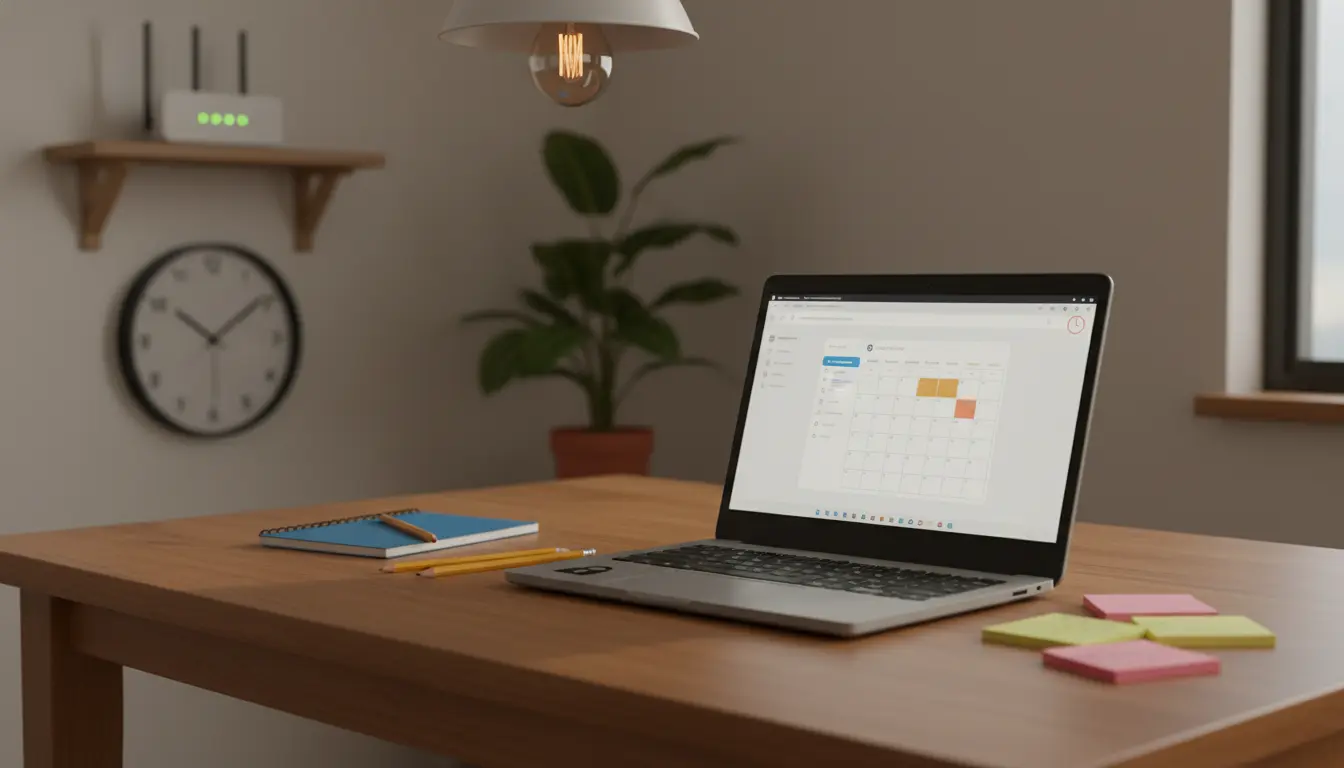

Chromebook Management for Schools (Guardian Tips): Chromebooks have become a staple in modern classrooms thanks to their affordability, simplicity, and seamless integration with cloud-based learning. For parents and guardians, however, navigating Chromebook management can feel daunting—especially when balancing safety, productivity, and digital wellbeing. This comprehensive guide explains how Chromebooks work in school environments, what guardians can control at home, and the best practices to ensure students stay focused and secure. You’ll also find actionable tips on content filtering, time management, privacy, and collaboration—plus tools and settings every guardian should know.
What “Managed Chromebooks” Mean in Schools
Most school-issued Chromebooks are managed through Google Admin Console by the district’s IT team. This means:
- School accounts control device settings, app availability, and security policies.
- Students typically sign in with their school Google Workspace for Education account.
- Policies can enforce safe browsing, disable incognito mode, and require certain extensions.
- Web activity and device compliance may be monitored under school policy.
What this means for guardians: You don’t need to be an IT expert. Focus on reinforcing healthy usage habits at home and supplementing school protections with family tools on your Wi‑Fi and personal accounts.
Essential Setup Checks at Home
- Confirm account separation: Encourage your child to use the school account only for schoolwork. If a personal profile is allowed, keep it separate to avoid policy conflicts.
- Update Chrome OS regularly: Go to Settings > About Chrome OS > Check for updates. Up-to-date devices are safer and faster.
- Wi‑Fi safety: Rename your home network and use WPA2/WPA3 with a strong password. Consider a guest network for non-family devices.
- Device PIN or password: Teach your child to lock the device when unattended. Short, memorable PINs are acceptable if allowed by school policy.
Content Filtering and Safe Browsing
Schools often enforce safe search and block inappropriate content, but you can add a second layer at home:
- Router-level filtering: Use your router’s parental controls or a DNS-based filter (e.g., CleanBrowsing, OpenDNS FamilyShield) to filter content across all devices on your network.
- YouTube Restricted Mode: Many schools force this, but verify at home. On YouTube, toggle Restricted Mode at the bottom of the page.
- Extension awareness: Schools may pre-install protective extensions. Teach your child not to remove or disable them. If allowed, you can add reputable productivity tools (e.g., ad blockers, focus timers).
Tip: DNS-based filtering works even if the child tries different browsers, since it filters at the network level.
Time Management and Focus Habits
Even with the best filters, time can slip away. Help your child build focus:
- Set study windows: Agree on specific times for homework, breaks, and leisure.
- Use built-in focus tools: Chrome’s Focus Mode alternatives include website blockers (if allowed), or simply pinning tabs with required sites to reduce distraction.
- Leverage timers: The Pomodoro technique (25 minutes focus, 5 minutes break) helps younger students maintain momentum.
- Offline-first approach: Encourage downloading docs for offline work to minimize tempting web distractions when possible.
Conversation tip: Collaboratively create a “study contract” that lists goals, allowed sites, and consequences—then revisit it monthly.
Privacy and Data Protection
Students’ privacy matters. Here’s how to support it:
- Teach password hygiene: Use unique passphrases and enable recovery options in the school account (as permitted). Reinforce the rule: never share passwords—not even with friends.
- Webcam and mic awareness: Cover the camera when not in use, or use the system’s camera permission controls. Remind students to join video calls only from trusted links.
- Phishing prevention: Show your child how to spot suspicious emails and links—hover to preview URLs, look for mismatched domains, and avoid downloading unknown files.
- Minimal personal info: Encourage students to use first name and last initial on public platforms and avoid posting school details.
App and Extension Management
Not all Chrome extensions are created equal. Quality over quantity:
- School-managed lists: Respect the school’s allow/block lists and avoid installing unapproved tools.
- Evaluate before installing: Check developer reputation, reviews, and requested permissions. If an extension wants full “read and change data on all sites,” be cautious.
- Periodic cleanups: Every few months, review installed apps and remove what’s unnecessary to reduce attack surface and distractions.
Homework Workflow and Collaboration
Chromebooks shine with cloud collaboration:
- Google Drive organization: Create subject-based folders and use consistent file naming, e.g., “Subject_Unit_Assignment_Date.”
- Version history in Docs/Slides: Teach students to view version history to recover work and track changes.
- Shared calendars: Add assignment deadlines to Google Calendar and enable reminders. Color-code by subject for clarity.
- Classroom sync: Ensure Google Classroom notifications are enabled for updates, grades, and teacher comments.
Pro tip: Encourage students to “turn in” assignments via Classroom even if they’ve already shared the doc—this signals completion and organizes grading.
Offline Access for Reliability
Home internet can be inconsistent. Prepare for outages:
- Enable offline mode in Google Docs/Sheets/Slides (Settings in Drive > Enable offline).
- Bookmark essential resources and download reference PDFs if allowed.
- Teach saving frequently and verifying sync status before closing the lid.
Digital Wellbeing and Balance
Healthy tech habits are as important as academic performance:
- Breaks and posture: Use a simple stretch routine every hour. Position the device at eye level to reduce strain.
- Blue light management: Enable Night Light in Chrome OS during evening study to reduce eye fatigue.
- Boundaries: No‑screen zones (e.g., dining table, bedroom at night) support better sleep and family time.
Communicating with the School
Partnership improves outcomes:
- Ask for the school’s device policy and acceptable use guidelines.
- Clarify how to report issues (malware, cyberbullying, account problems).
- Attend digital citizenship sessions if offered.
- Share feedback about what’s working at home—schools can often fine-tune settings.
Troubleshooting Quick Wins
- Slow performance: Restart weekly; close unused tabs; check for OS updates.
- Can’t access sites needed for homework: Contact the teacher or IT—some resources may need to be allowlisted.
- Sync conflicts: Ensure the student is signed into the correct account; log out of personal accounts if conflicts occur.
- Battery life: Lower screen brightness, disable Bluetooth when unused, and close background apps.
Tools and Settings Every Guardian Should Know
- Chrome OS Settings: Accounts, Privacy & Security, Accessibility, and About Chrome OS.
- Google Family Link (if personal accounts are used at home and allowed by school): Manage app installs, set time limits, and view activity.
- Router or DNS parental controls: Baseline protection across all devices.
By combining school-enforced protections with thoughtful home practices, guardians can create a safe, focused, and empowering learning environment. Chromebooks reward consistency—set clear expectations, revisit them regularly, and keep the conversation open. With the right approach, your child will develop not only digital literacy but also responsible, independent learning habits that last.









