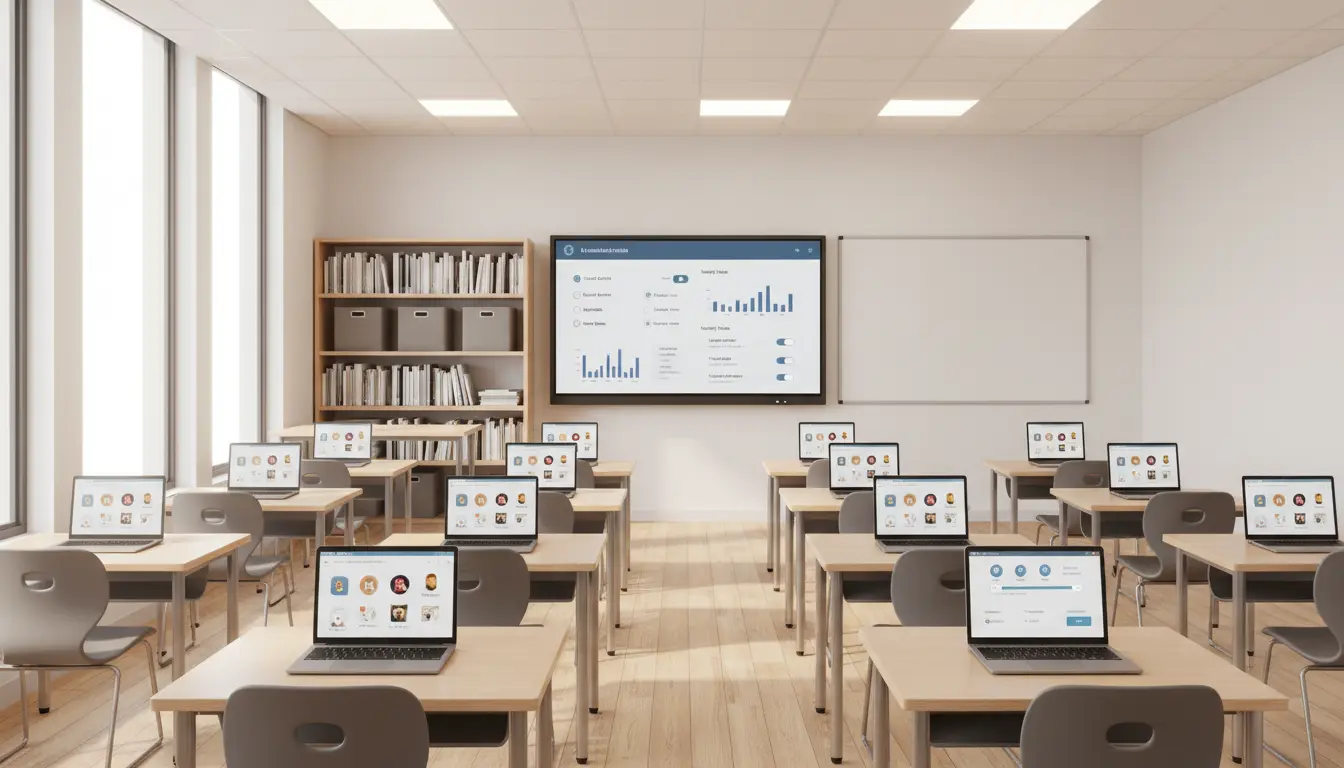

Chromebooks have become the backbone of digital learning in many schools due to their affordability, fast boot times, and seamless integration with Google Workspace for Education. For families and educators alike, two core pillars ensure a safe and effective student experience: properly configured child profiles and well-defined school policies. Understanding how these elements interact is essential for protecting student data, promoting responsible use, and keeping learning environments distraction-free. This guide explains how child profiles work on Chromebooks, how schools enforce policies through Google Admin Console, and what parents can do at home to maintain consistency, safety, and compliance.
What is a Child Profile on a Chromebook?
A child profile is a managed user account designed for minors, typically created via Google Family Link (for home use) or provisioned by a school domain (for classroom use). These profiles determine what apps students can install, which websites they can access, how screen time is managed, and what data is collected. The goal is to provide an age-appropriate environment that supports learning while minimizing online risks.
- Home (Family Link): Parents create Google accounts for their children, set app and content filters, manage screen time, and approve sign-ins on devices. This is ideal for personal Chromebooks used outside of school hours.
- School (Managed Accounts): Schools create managed student accounts under their domain. IT administrators centrally enforce policies like sign-in restrictions, Chrome extensions, content filtering, SafeSearch, and device-level settings.
While both approaches can coexist on the same physical device, the active profile determines the rules. If a student signs into their school account, school policies take precedence while they’re logged in.

How School Policies Work on Chromebooks
School policies are managed through the Google Admin Console and applied to organizational units (OUs) such as grades, classes, or special programs. These policies affect both the Chrome browser and the ChromeOS device settings. Common policy categories include:
- Sign-in Restrictions: Only allow school-domain accounts to sign into school-owned devices.
- Browser Controls: Enforce SafeSearch, block third-party cookies, and disable incognito mode.
- Extension Management: Force-install specific learning apps and block unapproved extensions.
- URL Filtering: Allowlist or blocklist categories and sites to keep students on task.
- Device Settings: Control screenshot permissions, printing, Bluetooth, and guest mode.
- Update & Security: Enforce OS version, automatic updates, and verified boot for integrity.
- Data Protection: Limit data sharing, control sync behavior, and apply DLP (Data Loss Prevention) rules where available.
These policies help schools meet legal obligations like COPPA, FERPA, and regional data protection requirements. They also minimize distractions and reduce the risk of malware or phishing attacks.
Balancing Safety and Usability
Overly restrictive policies can hinder learning, while lax rules can expose students to risk. The key is balance:
- Age-Appropriate Controls: Younger students often need stricter filters and limited app access, while older students may require more flexibility for research and collaboration tools.
- Tiered OUs: Use grade-based OUs to tailor policies, gradually lifting restrictions as digital literacy improves.
- Feedback Loops: Encourage educators and students to request exceptions for legitimate learning needs; IT can create controlled allowlists to support curriculum goals.
Integrating Family Link with School Policies
Many students use their Chromebooks for both school and home. To avoid conflicts:
- Keep Context Clear: Use the school account for academic tasks and the child’s personal account (via Family Link) for home use. Each profile enforces its own policies.
- Disable Guest Mode on School Devices: Prevent policy circumvention by blocking guest sign-in on school-managed Chromebooks.
- Communicate Boundaries: Schools should share guidelines with families about acceptable use outside class time, including privacy and screen time expectations.
Privacy and Data Protection
Student privacy is fundamental. Schools should publish transparent policies covering:
- Data Collection: What information is collected (login metadata, browsing logs under policy, app activity) and why.
- Third-Party Apps: Vetting process for EdTech tools; ensure vendor compliance with student privacy laws.
- Consent and Access: How parents can review or request correction of student data; who has administrative access and audit oversight.
- Retention and Deletion: Data retention timelines and offboarding processes when students graduate or change schools.
Parents should review Family Link privacy controls, including location permissions, activity reports, and the scope of data visible to guardians.
Effective Classroom Management with Chromebooks
Chromebooks can streamline instruction when paired with the right management practices:
- Use Classroom Tools: Google Classroom and approved LMS platforms centralize assignments, grading, and communication.
- Standardize Extensions: Adopt a core set of extensions for note-taking, accessibility (screen readers, captions), and research.
- Time-on-Task Strategies: Combine URL filtering with instructional techniques such as timeboxing, visible timers, and structured breaks.
- Digital Citizenship: Integrate short lessons on online etiquette, cyberbullying prevention, source evaluation, and plagiarism.
Accessibility and Inclusion
Chromebooks offer built-in accessibility features that should be enabled based on student needs:
- ChromeVox screen reader, high-contrast mode, and magnifier for visual impairments.
- Live captions and dictation for auditory and writing support.
- Sticky keys, on-screen keyboard, and custom shortcuts for motor needs.
- Read-aloud and simplified view using approved extensions for language and reading support.
Policies should ensure these accessibility tools are available even when other settings are locked down.
Security Best Practices
To keep devices and accounts secure:
- Enforce Strong Authentication: Require complex passwords and consider 2-Step Verification for staff. For students, balance security with usability; use recovery workflows.
- Automatic Updates: Ensure ChromeOS auto-updates are enabled to receive security patches.
- Phishing Awareness: Provide age-appropriate training on suspicious links and reporting mechanisms.
- Lost Device Protocols: Enable remote sign-out and powerwash options; track device asset tags.
- Network Segmentation: Use school Wi‑Fi with appropriate content filters and separate VLANs for admin and student traffic.
Troubleshooting Common Issues
- Can’t Install an App: Check if the extension is blocked by policy; request allowlisting or use the approved store.
- Websites Blocked Unexpectedly: Confirm which OU the account belongs to and whether a category filter is catching the domain. Use exceptions or subdomain allowlists.
- Sync Not Working: Policies may disable certain sync features; verify Admin Console settings or retry after sign-out/sign-in.
- Conflicting Controls at Home: If a school device enforces strict policies, home Family Link settings won’t override them while the student is signed into the school account. Switch profiles to use home rules.
- Guest Mode Missing: Likely disabled by the school. This is intentional to prevent bypassing policies.
Building a Sustainable Policy Framework
A durable Chromebook program relies on clear governance:
- Policy Documentation: Maintain an Acceptable Use Policy (AUP) and device handbook accessible to families and staff.
- Review Cadence: Reassess policies each term, especially after major ChromeOS updates or curriculum changes.
- Stakeholder Training: Provide short, practical training for teachers, students, and parents on new features and expectations.
- Metrics and Audits: Monitor blocked attempts, extension usage, and security incidents to fine-tune configurations.
Parent and School Collaboration
The strongest safeguard is aligned expectations:
- Share Resources: Provide quick-start guides for students on signing in, finding assignments, and staying compliant.
- Define Support Channels: Make it clear how to report device issues, request app access, or get help with account recovery.
- Encourage Dialogue: Invite feedback from families about content appropriateness and practical challenges at home.
When child profiles and school policies are intentionally designed and consistently communicated, Chromebooks can deliver a safe, private, and highly effective learning environment that supports academic success and digital well-being.









