
Windows Bloatware Cleanup with PowerShell and Winget
If you’ve ever set up a fresh Windows PC and noticed dozens of unnecessary apps eating up space, memory, and your Start menu, you’re not alone. These preinstalled apps—often called bloatware—can slow down boot times, clutter your workflow, and even run background services that consume system resources. The good news: you can remove them efficiently and safely using PowerShell and Winget. This guide explains what bloatware is, why it matters, and how to use Microsoft’s modern tooling to debloat Windows in a maintainable, repeatable, and scriptable way. You’ll learn best practices, pitfalls to avoid, and a step-by-step process you can apply to new builds or existing machines.
What is bloatware and why remove it?
Bloatware refers to preinstalled applications you didn’t explicitly ask for—trialware, OEM bundles, promotional apps, and redundant utilities. On consumer Windows images, this often includes games, shopping links, and media apps. While not all preloads are harmful, removing the ones you don’t need can:
- Reduce startup impact and background CPU/RAM usage
- Free disk space
- Minimize notification spam and scheduled tasks
- Improve privacy by limiting data-collecting apps you never use
- Simplify your Start menu and app search results
For IT teams, standardized bloatware removal supports consistent, secure baselines across fleets, easing support and speeding up device provisioning.
Why PowerShell and Winget?
- PowerShell gives you administrative control, scripting, and automation capabilities. It can query, uninstall, and block packages at scale, and integrate with task scheduling or configuration management.
- Winget (Windows Package Manager) provides a curated, trustworthy catalog and modern uninstall commands. It works for both Win32 and MSIX packages, making it simpler than juggling Control Panel, Settings, and legacy installers.
Used together, PowerShell and Winget let you reliably discover, remove, and prevent reinstallation of unwanted apps—whether you’re cleaning one PC or hundreds.
Preparation and safety
Before you begin:
- Create a system restore point or a full backup.
- Ensure you’re using an administrative PowerShell session.
- Update Winget: open Microsoft Store and update “App Installer,” or run
winget --info. - Export a list of installed packages so you have an audit trail and a rollback reference.
Example PowerShell commands to inventory your system:
# List provisioned (preinstalled for all users) Store apps
Get-AppxProvisionedPackage -Online | Select-Object DisplayName, PackageName | Out-GridView

# List current user appx apps
Get-AppxPackage | Select-Object Name, PackageFullName | Out-GridView

# List Win32 programs (Control Panel style)
Get-WmiObject -Class Win32_Product | Select-Object Name, Version | Out-GridView

# Export Winget list to CSV for auditing
winget list --source winget > "$env:USERPROFILE\Desktop\winget-list.txt"
Note: Win32_Product can trigger MSI reconfigurations—prefer using Get-Package or winget list for performance. For inventory only, winget list and Get-AppxPackage are generally sufficient.
Discovering what to remove
Not every preinstalled app is “bloat.” Microsoft and OEMs may ship helpful tools such as:
- Drivers or control panels (graphics, audio)
- OEM recovery or update utilities
- Accessibility and security components
Focus on apps you’re certain you don’t need. A prudent workflow:
- Build a candidate list by scanning installed packages.
- Identify packages known to be promotional, trial, or duplicative.
- Research uncertain packages before removal.
- Test removals on a non-production device or VM snapshot.
Removing Microsoft Store (Appx) bloatware
For Store-based apps, you’ll likely see two layers:
- Provisioned packages for all new users.
- Installed packages for the current user.
1.Remove both to prevent reappearing apps.
2.Remove for current user:
# Example: remove Xbox-related apps for the current user
Get-AppxPackage *xbox* | Remove-AppxPackage
3.Remove provisioned packages (prevents new profiles from getting the app):
# Example: remove Xbox-related provisioned packages for all future users
Get-AppxProvisionedPackage -Online | Where-Object { $_.DisplayName -like "*Xbox*" } `
| ForEach-Object { Remove-AppxProvisionedPackage -Online -PackageName $_.PackageName }
Tip: Replace *Xbox* with patterns like *Skype*, *Candy*, *TikTok*, *Spotify* depending on what’s installed on your image and your policy.
Removing Win32 applications with Winget
For classic desktop apps, Winget offers a clean uninstall path:
# List apps with "trial" in their name
winget list | findstr /i trial

# Uninstall by exact Id or Name
winget uninstall --id SomeVendor.SomeApp --silent
# or
winget uninstall "Some App Name" --silent
If Winget doesn’t find an app, try:
winget list --source winget- Use Control Panel for stubborn MSI packages
- Check the vendor’s uninstaller under
C:\Program Files\orC:\Program Files (x86)\
Add --silent to avoid prompts when possible. For mass cleanup, create a list of package IDs and loop through them in PowerShell.
Example: Reusable cleanup script
Below is a sample PowerShell script that removes common consumer bloat with both Appx and Winget. Tailor it to your environment.
# Run as Administrator

# 1) Candidate Appx patterns to remove (current user + provisioned)
$appxPatterns = @(
  "*Xbox*",
  "*Skype*",
  "*Spotify*",
  "*TikTok*",
  "*Disney*",
  "*CandyCrush*",
  "*Trial*",
  "*ZuneMusic*",   # legacy Groove Music
  "*ZuneVideo*",
  "*FeedbackHub*", # optional: remove if unmanaged
  "*Microsoft.News*"
)

Write-Host "Removing Appx apps for current user..."
foreach ($pattern in $appxPatterns) {
  Get-AppxPackage $pattern -AllUsers | Remove-AppxPackage -ErrorAction SilentlyContinue
}

Write-Host "Removing provisioned Appx packages..."
$prov = Get-AppxProvisionedPackage -Online
foreach ($pattern in $appxPatterns) {
  $prov | Where-Object { $_.DisplayName -like $pattern } | ForEach-Object {
    Remove-AppxProvisionedPackage -Online -PackageName $_.PackageName -ErrorAction SilentlyContinue
  }
}

# 2) Winget list to uninstall (Ids or Names)
$wingetTargets = @(
  "BYtedance.TikTok",           # example, may vary by region
  "Spotify.Spotify",
  "Disney.+"                    # regex-like names won’t work; specify exact Ids in your environment
)

Write-Host "Attempting Winget uninstalls..."
foreach ($target in $wingetTargets) {
  try {
    winget uninstall --id $target --silent --accept-source-agreements --accept-package-agreements
  } catch {
    try {
      winget uninstall "$target" --silent --accept-source-agreements --accept-package-agreements
    } catch {
      Write-Warning "Could not uninstall $target via winget."
    }
  }
}

Write-Host "Cleanup complete. Consider rebooting."
Notes:
- Replace the Winget Ids with the exact ones from your
winget list. - Some enterprise setups keep Feedback Hub and similar apps; adjust accordingly.
- For multi-user systems, run after creating the primary user profile or incorporate into your provisioning pipeline.
Preventing reinstallation and repopulation
Windows can occasionally re-add certain consumer experiences after feature updates or during first sign-in. To minimize repopulation:
- Disable consumer features via Group Policy or local policy:
- Computer Configuration > Administrative Templates > Windows Components > Cloud Content > “Turn off Microsoft consumer experiences” = Enabled
- Use a lean Windows image or provisioning packages without consumer content.
- After feature upgrades, re-run a light version of your script to ensure parity.
Advanced tips and best practices
- Log everything: output to a CSV or a simple text log for compliance and rollback.
- Keep a “baseline allowlist” of apps your org requires, then remove everything else that’s not on the list.
- Separate detection and removal steps—first produce a candidate report, review, then execute removals.
- Test on a VM snapshot before rolling out to production devices.
- For enterprise, integrate into Autopilot/MDM scripts or ConfigMgr task sequences.
- Document the exact Winget Ids for reproducibility across versions and regions.
Common pitfalls to avoid
- Over-removal: Don’t remove components that break Windows features (e.g., critical frameworks or system utilities).
- Ignoring provisioned packages: If you only remove current-user apps, new profiles may still get them.
- Skipping backups: Always have a restore point or image, especially on personal machines.
Measuring results
After cleanup, verify improvements:
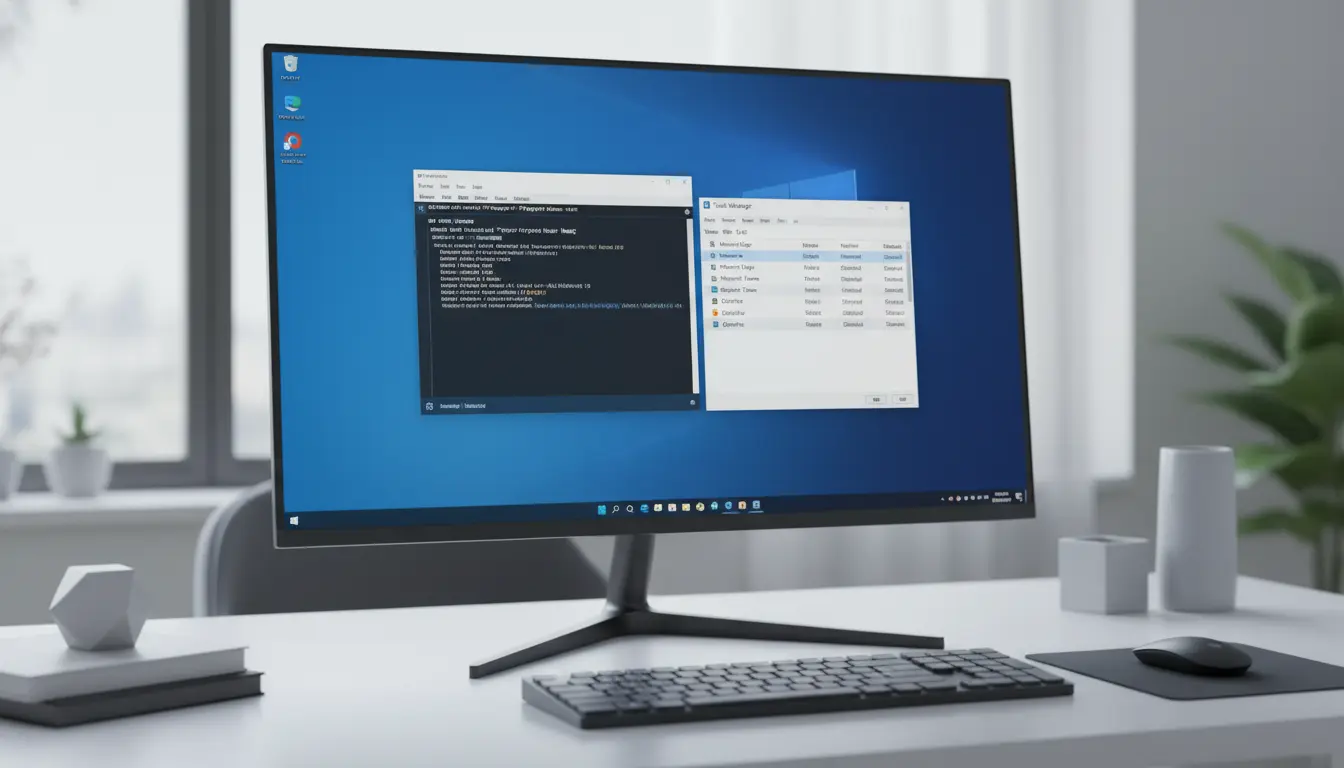
- Compare boot time and background CPU using Task Manager’s Startup tab.
- Measure disk usage and memory at idle.
- Confirm the Start menu is uncluttered and search results are cleaner.
- Ensure no required feature was inadvertently removed.
Conclusion
Using PowerShell and Winget for Windows bloatware cleanup gives you precise control, auditable changes, and repeatable results. With a careful inventory, tested patterns, and policy adjustments, you can maintain a lean, stable Windows environment that prioritizes performance, privacy, and productivity.