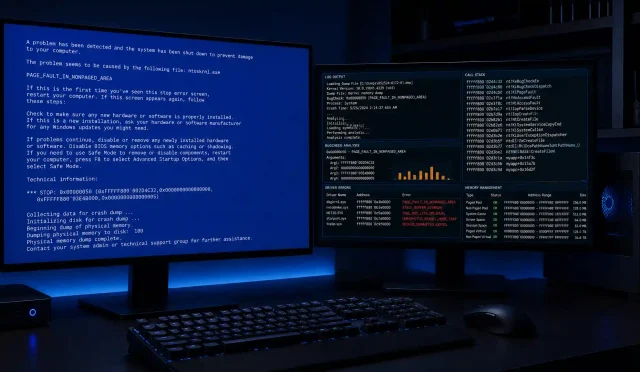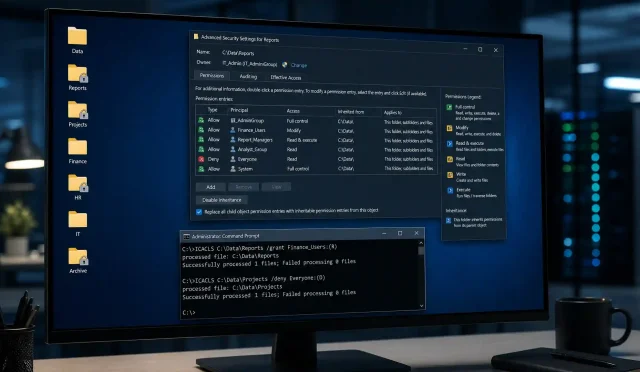

Designing a smart disk partitioning strategy is one of the most impactful steps you can take to boost system performance, stability, data safety, and manageability. By separating your operating system (OS), scratch (temporary/working), and archive (long‑term storage) into distinct partitions or volumes, you create clear boundaries for different data lifecycles and I/O patterns. This separation reduces fragmentation, speeds up backups and recovery, and helps prevent a single failure or corruption from cascading across your entire system.
In this guide, we’ll break down what each partition type does, how to size and format them, best practices for SSDs and HDDs, and how to future‑proof your setup for growth. Whether you manage developer workstations, data science rigs, content‑creation systems, or small servers, the OS–Scratch–Archive model gives you a resilient, high‑performance foundation.
Why partition at all?
- Performance isolation: Temporary reads/writes on the scratch partition don’t slow the OS or archives.
- Reduced risk: Malware or OS corruption is less likely to touch archived data if it’s isolated.
- Faster backups and recovery: You can image the OS volume quickly while handling archives with a different backup cadence.
- Cleaner organization: Each volume has a single purpose and set of policies, simplifying maintenance and monitoring.
The OS partition: clean, minimal, and recoverable
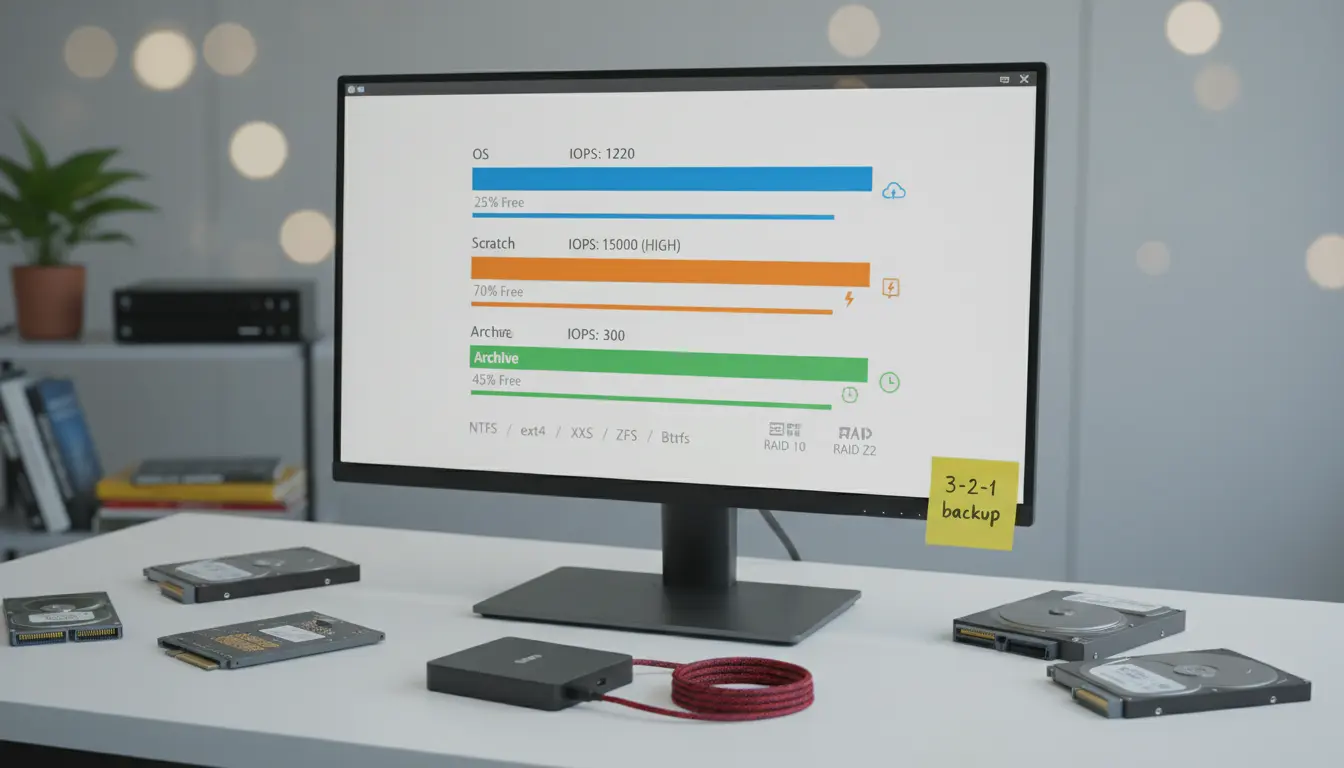
The OS partition hosts the operating system, drivers, system libraries, and installed applications that don’t store large mutable datasets. Keeping it lean improves boot times and makes system imaging faster.
Best practices:
- Size planning:
- Windows: 100–200 GB for OS + apps (more if you install large suites).
- Linux: 60–120 GB for
/plus separate/homeif user profiles are large. - macOS (if using APFS containers): allocate a dedicated APFS volume for system and apps, leaving user data elsewhere.
- File system choices:
- Windows: NTFS for compatibility and ACLs; enable BitLocker for encryption if needed.
- Linux: ext4 or XFS for general use; Btrfs or ZFS if you want snapshots and checksums.
- macOS: APFS with native snapshots and FileVault encryption.
- Features to enable:
- Snapshots: Btrfs/ZFS/APFS snapshots let you roll back after patching or bad installs.
- Encryption: BitLocker, LUKS, or FileVault to protect the OS and credentials on mobile devices.
- Minimal install: Keep caches, downloads, and temp projects off the OS volume to avoid bloat.
Maintenance tips:
- Create a golden image right after you finalize drivers and baseline tools.
- Patch on a schedule; snapshot before major updates.
- Monitor free space; reserve at least 15–20% headroom for updates and paging.
The scratch partition: fast, short‑lived, and disposable
Scratch space is where you do heavy lifting—compiles, renders, temp datasets, ETL staging, swap, and intermediate files. It thrives on speed and parallel I/O.
Best practices:
- Media and layout:
- Prefer SSDs or NVMe for high IOPS and low latency.
- On multi‑disk systems, place scratch on the fastest device; consider a dedicated NVMe for workstations.
- For HPC or content creation, consider RAID 0 (with backups elsewhere) or RAID 10 for a balance of speed and resilience.
- File system and tuning:
- Windows: NTFS with large allocation unit size for big files; set TEMP/TMP and application scratch paths to this volume.
- Linux: XFS or ext4 with tuned mount options; consider a separate swap partition or swapfile on SSD if RAM pressure is expected.
- Avoid journaling overhead if data is throwaway; for Linux, mount with options that optimize write throughput while maintaining acceptable safety.
- Lifecycle and hygiene:
- Automate cleanup with scheduled tasks or systemd timers to purge files older than N days.
- Do not store anything here that isn’t easily reproducible.
- Keep logs and telemetry directed to OS or archive as appropriate, not scratch.
Sizing guidance:
- Developers: 50–200 GB depending on build artifacts.
- Data science/ML: 200 GB to several TB depending on dataset staging and feature stores.
- Video/VFX: Multiple TB for intermediates; plan for very high throughput.
The archive partition: safe, durable, and scalable
Your archive holds finished deliverables, cold data, and long‑term records—things you can’t afford to lose but don’t need to rewrite constantly. Durability and integrity are paramount.
Best practices:
- Media and redundancy:
- Large HDDs are cost‑effective for bulk storage; SSDs for active archives where read speed matters.
- Use RAID Z (ZFS), RAID 6, or RAID 10 for resilience; always pair RAID with external backups—RAID isn’t a backup.
- Consider offsite/cloud copies for 3‑2‑1 backup compliance: 3 copies, 2 media types, 1 offsite.
- File system and integrity:
- ZFS or Btrfs for checksums, self‑healing, snapshots, and scrubs.
- Windows: NTFS with ReFS for larger pools (if available) for resilience features and data integrity.
- Enable regular scrubbing and SMART monitoring to detect bit rot and drive failures early.
- Data governance:
- Use WORM or immutability where needed for compliance.
- Tag and organize with a consistent folder taxonomy and metadata.
- Apply lifecycle policies: hot → warm → cold → deep archive (e.g., move to object storage or tape over time).
Backup and recovery:
- Separate backup policies: OS images frequently but small; archives less often but with versioning and offsite copies.
- Test restores quarterly; document RPO/RTO targets and ensure they’re realistic for your workload sizes.
Putting it together: example layouts
- Single workstation with one NVMe + one HDD:
- NVMe: OS (150 GB) + Scratch (rest of NVMe).
- HDD: Archive (all), with periodic backups to external drive or cloud.
- Creator rig with two NVMe + NAS:
- NVMe 1: OS (200 GB).
- NVMe 1 (remaining) or NVMe 2: Scratch (all).
- NAS (RAID 6/RAID Z2): Archive with snapshots; replicate to cloud.
- Linux development server:
/(80–120 GB),/varseparate if heavy logs,/homeseparate if large user data./scratchon fast SSD/NVMe./archiveon ZFS/Btrfs pool with scrubs and snapshots.
Performance tuning and operational tips
- Align workloads: Point build systems, render caches, and temp directories to scratch by default.
- Monitor I/O: Use tools like iostat, perfmon, Activity Monitor, or vendor NVMe dashboards to spot contention.
- Keep headroom: 20–30% free space per volume maintains performance and reduces fragmentation.
- Plan growth: Choose file systems and volume managers that resize easily; keep spare bays or M.2 slots available.
- Security: Encrypt OS and archives (and scratch if data sensitivity warrants it). Secure keys and recovery procedures.
- Documentation: Record partition sizes, file systems, mount options, and backup schedules; this speeds incident response.
Common pitfalls to avoid
- Overstuffed OS volume: Leads to slow updates and instability; move caches off OS.
- Using scratch as a data graveyard: Treat scratch as disposable; promote only finalized outputs to archive.
- “RAID equals backup” myth: Always maintain independent backups and test restores.
- Ignoring SMART and scrubs: Silent corruption is real—checksums and regular scrubs are your friend.
Migrating to OS–Scratch–Archive
If you’re reorganizing an existing system:
- Back up everything first.
- Create new partitions/volumes with desired file systems.
- Move temporary and cache paths to scratch; update application settings.
- Move final deliverables and long‑term data to archive; set backup policies.
- Snapshot the OS and take a fresh system image.
The payoff is immediate: smoother performance under load, cleaner upgrades, and data protection that matches how you actually work.
Conclusion
An OS–Scratch–Archive partitioning strategy creates clarity and control. It maps storage to the real lifecycle of your data: system, working, and preserved. With the right file systems, redundancy, and backup policies, you get faster workflows, safer archives, and simpler recovery—exactly what robust, modern systems demand.