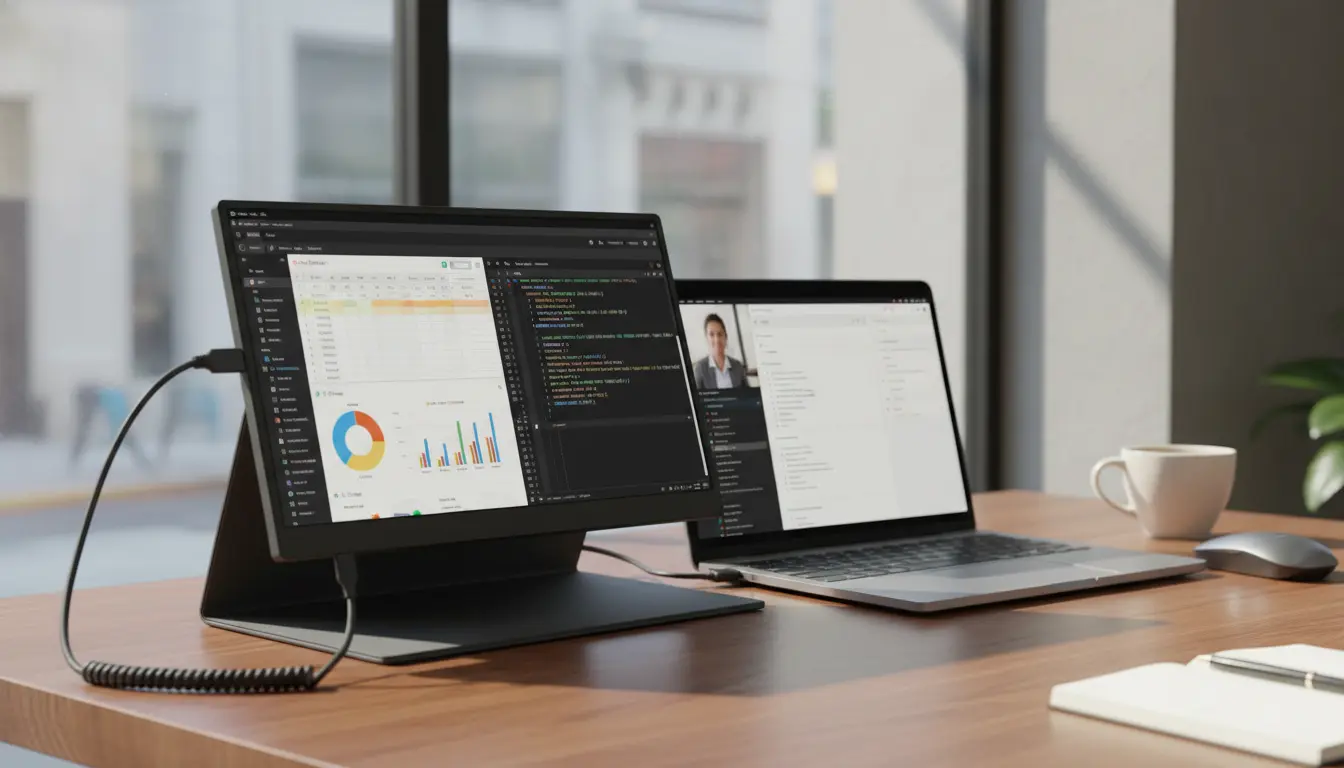

The Productivity Boost of 14” and 16” Portable Monitors: A Comprehensive Guide
In an always‑connected world, professionals, students, creators, and frequent travelers need more screen real estate without sacrificing mobility. Portable monitors in the 14-inch and 16-inch range have emerged as the sweet spot for productivity: large enough to meaningfully extend your workspace, yet light and slim enough to slip into a backpack next to your laptop or tablet. Whether you’re editing spreadsheets, coding, managing timelines, or presenting to clients, an extra display can transform how you work—reducing app switching, improving focus, and accelerating output.
This guide breaks down why 14” and 16” portable monitors matter, how they compare, what features to prioritize, and how to integrate them into a seamless multi‑device workflow. You’ll also find practical use cases, compatibility tips, and buying advice to help you choose the right screen for your day‑to‑day needs.
Why an extra portable screen lifts productivity
Context switching—jumping between apps and windows—costs time and attention. With a second display:
- You can dedicate one screen to communication and research (email, Slack, browser tabs) and the other to core tasks (docs, code, design).
- You minimize window shuffling during meetings, keeping notes and slides visible simultaneously.
- You speed up decision‑making by comparing documents side by side without zooming and scrolling.
Studies consistently show that more screen space improves throughput and reduces errors, particularly for analytical and creative tasks. A 14” or 16” portable monitor delivers these gains without locking you to a desk.
14” vs 16”: Which size fits your workflow?
- Portability vs. canvas size:
- 14-inch: Typically lighter (around 500–700 g) and more compact. Ideal for frequent travelers, coffee shop work, and tight tray tables.
- 16-inch: Larger workspace for spreadsheets, timelines, design canvases, and code. Slightly heavier (often 700–1,200 g) but still backpack‑friendly.
- Visual comfort:
- The 16” size reduces the need to scale UI elements, keeping text and UI crisp at a comfortable viewing distance.
- On 14”, higher pixel density at 1080p can look sharp, but some users may prefer 125–150% scaling depending on eyesight and task.
- Power and connectivity:
- Both sizes frequently support USB‑C DisplayPort Alt Mode for one‑cable plug‑and‑play. Larger panels may draw slightly more power; ensure your device or power bank supports it.
Bottom line: If you prioritize maximum mobility, choose 14”. If you need a clearer overview for data-heavy or visual work, go 16”.
Essential features to look for
- Resolution and panel type:
- 1920×1080 (Full HD) remains a solid baseline for both 14” and 16”.
- 2560×1600 (WQXGA) or 1920×1200 (16:10) adds vertical space—great for documents and coding.
- IPS panels deliver consistent colors and wide viewing angles; OLED options offer deep blacks and vibrant contrast for creative review.
- Brightness and surface:
- Aim for at least 250–300 nits for indoor versatility. Anti‑glare matte coatings reduce reflections; glossy offers punchier contrast but more glare.
- Refresh rate:
- 60 Hz is sufficient for productivity; 120 Hz+ feels smoother for scrolling and can double for casual gaming after hours.
- Color accuracy:
- Look for sRGB 100% coverage; creators may prefer wider gamuts (DCI‑P3). Hardware calibration support is a plus.
- Connectivity:
- USB‑C with DP Alt Mode and Power Delivery simplifies setup—video, power, and data over a single cable.
- Mini HDMI or full HDMI adds flexibility for older laptops, consoles, and cameras.
- Power options:
- Bus‑powered via USB‑C reduces cable clutter. Some models include an external power passthrough or bundled wall adapter for brighter modes.
- Ergonomics:
- Integrated kickstands offer angle flexibility on any table. Folio covers are slim but may be less stable on soft surfaces.
- VESA mounts or magnetic laptop mounts are handy for fixed setups or dual‑screen stacking.
- Portability:
- Check weight, thickness, and cover durability. A sturdy sleeve preserves the screen in transit.
Real‑world use cases
- Remote and hybrid work:
- Keep video calls and chat on one screen while taking notes or sharing content on the other. Reduced app toggling equals fewer disruptions and clearer communication.
- Finance and operations:
- View dashboards, reconcile transactions, or compare contracts side by side. A 16” panel makes complex spreadsheets less taxing.
- Developers:
- Code on one display with documentation, logs, or terminal on the second. 16:10 aspect ratios shine here by adding vertical lines of code.
- Designers and content creators:
- Use the laptop screen for toolbars and the portable monitor for canvas or preview. For color‑sensitive tasks, prioritize panels with wide gamut and solid uniformity.
- Students:
- Lecture on one screen, notes or research on the other. The 14” size pairs well with ultraportables for campus mobility.
- Presenters and field teams:
- Mirror slides or prototypes for clients without hunting for a projector. A bright 16” display is engaging in small‑group reviews.
- Travelers:
- Portable monitors fold flat, weigh under 1 kg, and set up in seconds at the hotel or co‑working space.
Setup tips for a frictionless workflow
- One‑cable simplicity:
- If your laptop supports USB‑C DP Alt Mode, plug directly. Otherwise, use HDMI plus a separate USB power cable or a compact hub.
- Power management:
- For long sessions, connect a power adapter or a high‑capacity power bank that supports PD output at 30–45 W to avoid laptop battery drain.
- Display settings:
- On Windows, use Win + P to extend; fine‑tune scaling per display in System > Display. On macOS, arrange displays and adjust scaling in System Settings > Displays.
- Ergonomics and eye comfort:
- Elevate the portable screen to eye level if possible. Use warmer color temperatures at night and consider blue‑light filtering if you work late.
- Cable discipline:
- Short, right‑angled USB‑C cables reduce desk clutter. A low‑profile stand can stabilize the screen on narrow surfaces.
Buying checklist for 14”/16” portable monitors
- Use case first: travel vs. stationary productivity vs. creative review.
- Panel and resolution: IPS 1080p minimum; consider 1200p/1600p for vertical space.
- Brightness and coating: 250–300 nits+; choose matte if you work under mixed lighting.
- Colors: sRGB 100% minimum; DCI‑P3 for creative.
- Ports: At least one USB‑C with DP Alt Mode; HDMI for flexibility.
- Power: Bus‑powered if you want true one‑cable use; check PD passthrough.
- Weight and build: Under ~1 kg with a durable folio or rigid kickstand.
- Extras: Speakers, touch support, pen input, or a protective sleeve if you need them.
Sustainability and longevity
- Low power panels and efficient backlights reduce energy draw when bus‑powered.
- Choose models with replaceable cables, robust hinges, and scratch‑resistant coatings to extend lifespan.
- A quality sleeve prevents pressure damage in backpacks.
The bottom line
If you’re serious about mobile productivity, a 14” or 16” portable monitor is one of the most effective upgrades you can make. The 14” format maximizes mobility for students and frequent flyers, while 16” shines for data‑heavy workflows, creative layouts, and code. Prioritize a solid IPS or OLED panel, USB‑C with DP Alt Mode, and a stable stand or folio, and you’ll unlock a smoother, more focused workflow anywhere you open your laptop.
- 14-inch pick: ASUS ZenScreen MB14AC
- Panel: 14″, IPS, 1920×1080 (16:9)
- Connectivity: USB‑C (DP Alt Mode hybrid), true single-cable use on modern laptops
- Brightness: ~250 nits
- Portability: Slim and lightweight with a folio cover that doubles as a stand
- Why it’s good: Reliable colors and easy compatibility for meetings, travel, and study. A hassle-free choice for expanding screen real estate on the go.
- 16-inch pick: ASUS ZenScreen MB16ACE
- Panel: 15.6″/16″ class, IPS, 1920×1080 (16:9)
- Connectivity: USB‑C single cable (DP Alt Mode/DisplayLink compatible)
- Brightness: ~250 nits
- Portability: Thin bezels, sleek aluminum-like design, folio stand
- Why it’s good: Roomier canvas for spreadsheets, timelines, and code. A balanced 16″ option for everyday productivity without much weight penalty









