
Switching from Android to iPhone can feel like moving houses: exciting, but a little overwhelming. The good news is that Apple and Google now make the transition largely painless. This comprehensive guide walks you through every step of moving your contacts, photos, messages, apps, files, calendars, and even WhatsApp chats from Android to iPhone. We’ll also cover common pitfalls, privacy tips, post-migration checks, and optimization steps to ensure your new iPhone feels like home from day one.
1) Prepare both devices
- Update software:
- Android: Settings > System > System update.
- iPhone: During setup, ensure you’re on the latest iOS version if prompted.
- Charge to at least 50% and connect both phones to stable Wi‑Fi.
- Free up space on iPhone:
- Confirm your iCloud storage and device storage are sufficient for all the data you plan to move. Consider upgrading iCloud temporarily if needed.
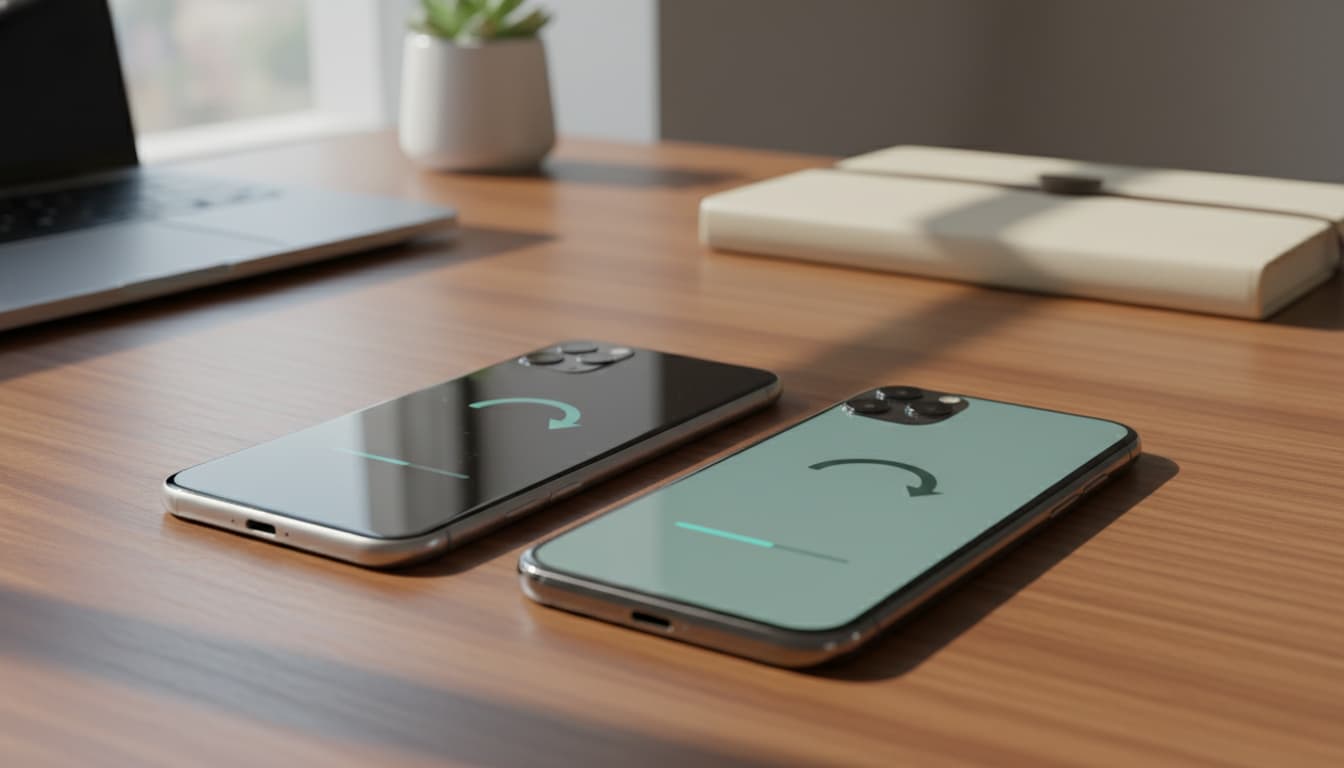
2) Use Move to iOS for core data
Apple’s Move to iOS app is the most seamless way to transfer the essentials.
- On Android:
- Install Move to iOS from Google Play.
- Keep Bluetooth and Wi‑Fi on.
- On iPhone:
- Start the setup process until you reach “Apps & Data,” then tap “Move Data from Android.”
- A numeric code appears on your iPhone.
- On Android:
- Open Move to iOS, accept permissions, enter the code, and connect to the temporary iPhone Wi‑Fi.
- Choose what to transfer:
- Contacts, message history (SMS/MMS), camera photos and videos, mail accounts, calendars, and web bookmarks. Some app data may not transfer if it’s not cross-platform or cloud-synced.
- Start transfer and wait:
- Keep both devices unlocked and nearby until the transfer finishes. Times vary by data size.
Pro tip: If the transfer stalls, toggle Airplane Mode off/on on Android, keep screens awake, and ensure both devices remain on the same power/Wi‑Fi conditions.
3) Bring WhatsApp chats to iPhone
WhatsApp supports Android → iPhone chat migration.
- Requirements:
- iPhone on iOS 15.5 or later, WhatsApp iOS 2.22.10.70+, Android WhatsApp 2.22.7.74+, same phone number on both devices.
- Steps:
- On Android, open WhatsApp > Settings > Chats > Move chats to iOS and follow prompts. Alternatively, you may be guided during Move to iOS.
- On iPhone, install WhatsApp, log in with the same number, and follow the on-screen prompt to import chat history.
Note: Call history and display name may not transfer.
4) Transfer Google data (Gmail, Contacts, Calendar)
You can sync Google services directly on iPhone:
- Settings > Mail > Accounts > Add Account > Google.
- Enable Mail, Contacts, Calendars, and Notes as desired.
This keeps your data synced live without duplicating.
5) Photos and videos: iCloud Photos vs Google Photos
- iCloud Photos:
- Settings > [your name] > iCloud > Photos > turn on Sync this iPhone.
- After Move to iOS, remaining media can upload over time to iCloud; ensure you have adequate storage.
- Google Photos:
- Install Google Photos on iPhone, sign in, and your library appears without consuming iPhone storage (viewing via cloud).
- To physically store on iPhone: select items and Save to device (be mindful of space).
Best practice: If you plan to live fully in the Apple ecosystem, consolidate in iCloud Photos for native integration.
6) Music and files
- Streaming services (Spotify, Apple Music, YouTube Music): just log in on iPhone; your library/playlists sync via your account.
- Local music:
- Upload tracks to a cloud drive (Google Drive, Dropbox) and download on iPhone, or sync through a Mac/PC and Apple Music.
- Documents and downloads:
- Move via cloud storage (Google Drive, OneDrive, iCloud Drive), or AirDrop from a Mac. In Files app on iPhone, add your cloud providers for unified access.
7) Apps: Replace and re-authenticate
- App equivalents:
- Many Android apps exist on iOS. Open App Store and search for your essentials. For paid apps, check if purchases carry over via account or subscription.
- 2FA and authenticator apps:
- If you use Google Authenticator or Authy, migrate tokens before resetting your Android. Authy supports multi-device; Google Authenticator now supports account sync—verify it’s enabled so codes appear on iPhone.
- Banking and carrier apps:
- Re-register and approve security prompts. Keep your old SIM active during setup if your bank needs SMS verification.
8) Messages and SIM/eSIM
- iMessage and FaceTime:
- Settings > Messages > iMessage and Settings > FaceTime > On.
- Deactivate RCS on Android:
- In Google Messages, disable Chat features to avoid message delivery issues post-switch.
- SIM vs eSIM:
- For eSIM, contact your carrier to transfer the line. Many carriers offer QR codes or in-app eSIM activation on iPhone.
9) Calendars, notes, and reminders
- Calendars:
- If you used Google Calendar, it syncs via your Google account. For third-party calendars, add those accounts under Settings > Calendar > Accounts.
- Notes:
- Google Keep has an iOS app. Samsung Notes can export to PDF; for editable migrations, copy text into Apple Notes or import via iCloud.com if supported.
- Reminders/Tasks:
- Export lists from your Android task app where possible; consider Apple Reminders or cross-platform options like Todoist.
10) Browser data and passwords
- Passwords:
- If you used a password manager (1Password, LastPass, Bitwarden, Dashlane), install it on iPhone and log in.
- If you used Chrome passwords, enable Chrome on iPhone and sign in, or export to a password manager that integrates with iOS AutoFill.
- Bookmarks:
- Move to iOS can transfer Chrome bookmarks. Alternatively, sign into Chrome or import into Safari via iCloud for Windows/Mac.
11) Troubleshooting common issues
- Move to iOS code not working:
- Ensure both devices are on the setup screen, close background VPNs/firewalls, and keep Android near the iPhone. Restart both devices and try again.
- Not enough iPhone storage:
- Reduce large video transfers first, then move remaining files via cloud after setup.
- Duplicates (contacts/photos):
- Use iCloud.com or Contacts apps to deduplicate contacts. In Photos, avoid enabling multiple libraries (Google Photos + iCloud Photos) for the same media unless you intend to keep both.
- Missing MMS/SMS after switch:
- Confirm iMessage activation and turn off RCS on old device. Ask contacts to start new threads.
12) Privacy and security best practices
- Review permissions on iPhone:
- Settings > Privacy & Security > each category. Limit location to “While Using” where possible.
- Enable Find My iPhone and set up Face ID/Passcode.
- Enable automatic iCloud backups:
- Settings > [your name] > iCloud > iCloud Backup > Back Up This iPhone.
13) Post-migration optimization
- Widgets and Focus:
- Long-press home screen to add widgets; set Focus modes for work, personal, or sleep.
- Notifications:
- Settings > Notifications > summarize non-urgent alerts and disable noise from apps you don’t need.
- Battery and storage:
- Settings > Battery to identify heavy apps; Settings > General > iPhone Storage to offload unused apps.
14) What won’t transfer automatically
- Some app-specific data that isn’t cloud-synced.
- In-app downloads or offline maps may need to be re-downloaded.
- Certain system settings, custom ringtones, and launcher layouts.
15) Final checklist
- Contacts, calendars, mail show correctly.
- WhatsApp chats visible and searchable.
- Password manager set up with AutoFill.
- Banking apps authenticated.
- Photos accessible in iCloud Photos or Google Photos.
- iMessage/FaceTime activated.
- Old device factory reset only after verifying everything is present.