
Best TVs for PC Gaming With True 4:4:4 Chroma: The Ultimate Guide
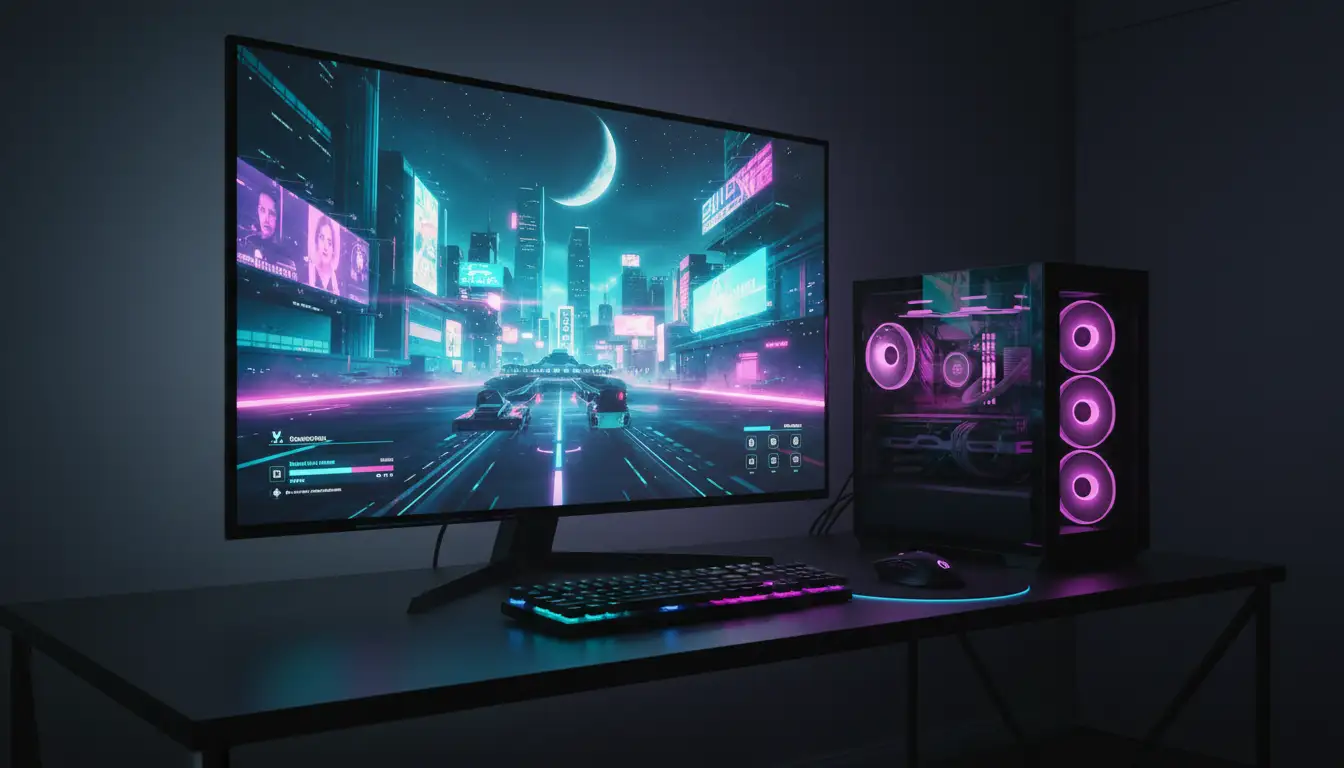
If you plan to use a TV as your main PC display, you must pay attention to 4:4:4 chroma support. Many TVs look great for movies and console gaming, but they blur small text and UI elements when connected to a computer. That’s where a TV with full 4:4:4 chroma at your target resolution and refresh rate becomes essential.
In this guide, you’ll learn why 4:4:4 chroma matters, which specs you should prioritize for PC gaming, and what to look for in modern OLED and QLED TVs. You’ll also see an example of a highly suitable TV model you can find on Amazon.com.
What Is 4:4:4 Chroma and Why Does It Matter for PC Gaming?
Chroma subsampling is a form of compression used in video signals. Most movies and streaming content use 4:2:0 or 4:2:2 because the human eye is less sensitive to color detail than to brightness. This works fine for films, but it hurts clarity when you use a TV as a monitor.
- 4:4:4 chroma means every pixel has full color information.
- 4:2:2 or 4:2:0 means color data is reduced, which can cause colored text, icons, and thin lines to look fuzzy or fringed.
When a TV accepts a 4:4:4 signal at 4K 60 Hz or 4K 120 Hz from your GPU, you get razor‑sharp text and clean edges, just like on a high‑quality PC monitor. This is essential for:
- Reading documents and websites at normal viewing distance
- Editing code or working with spreadsheets
- Playing games with detailed HUD elements and small text
For PC gamers who want their TV to double as a desktop display, 4:4:4 chroma is non‑negotiable.
Key Specs to Look for in a PC Gaming TV (With 4:4:4 Chroma)
When shopping for the best TV for PC gaming, don’t just look at the marketing terms. Focus on the specs and features that actually influence responsiveness and clarity.
1. HDMI 2.1 and Bandwidth
For modern graphics cards and next‑gen performance, HDMI 2.1 ports are almost mandatory. They provide enough bandwidth for:
- 4K at 120 Hz with 4:4:4 chroma
- Variable Refresh Rate (VRR)
- Auto Low Latency Mode (ALLM)
Check that the TV offers at least one full‑bandwidth HDMI 2.1 port (40–48 Gbps) and confirm in the manual or reviews that it can accept 4K 120 Hz 4:4:4 from a PC.
2. Low Input Lag and Game Mode
Input lag can make or break your PC gaming experience, especially in competitive shooters or fast‑paced action games. Look for:
- A dedicated Game Mode that disables extra processing
- Published measurements around 5–15 ms at 4K 120 Hz
Most modern gaming‑focused OLED and QLED sets advertise low input lag, but always verify that this remains true when using a PC input with 4:4:4 chroma.
3. Variable Refresh Rate (VRR) and Sync Technologies
If you want smooth gameplay without tearing, especially when your frame rate fluctuates, pick a TV that supports:
- HDMI Forum VRR
- AMD FreeSync Premium / Premium Pro
- NVIDIA G‑Sync Compatible (often unofficial but supported on many LG and some Samsung TVs)
VRR is a major reason many PC gamers now choose a TV as a PC monitor replacement, especially for immersive single‑player and couch gaming.
OLED vs QLED vs Standard LED for PC Gaming
Panel technology has a big impact on your experience.
OLED TVs
OLED gaming TVs are extremely popular among PC users because they offer:
- Perfect blacks and near‑infinite contrast
- Instant pixel response time for crystal‑clear motion
- Excellent viewing angles
Drawbacks include potential burn‑in risk if you leave static UI elements (taskbar, HUD, browser tabs) on screen for many hours. Modern OLEDs have strong protections, but you should still:
- Enable pixel shift and screen savers
- Use taskbar auto‑hide on Windows
- Mix up content regularly
If you mostly game and watch content and use the desktop moderately, an OLED TV is often the best overall choice.
QLED and High‑End LED TVs
QLED and mini‑LED TVs from brands like Samsung and others offer:
- Very high brightness for HDR gaming
- Reduced burn‑in concerns
- Often excellent color volume
They can’t match OLED for black levels, but they excel in bright rooms and still provide strong gaming features, including 4:4:4 support, VRR, and 120 Hz panels on the right models. For heavy desktop use and long work sessions, QLED can be a safer long‑term option.
Size, Distance, and Resolution: Finding the Sweet Spot
Using a TV as a PC monitor changes how you think about size and viewing distance:
- At 4K resolution, a 48–55‑inch TV works well from about 3–4 feet for mixed work and gaming.
- At 65 inches or larger, you’ll usually want to sit farther back (5–7 feet or more).
Make sure:
- Your GPU can comfortably drive 4K 120 Hz at the settings you want.
- The TV supports 4:4:4 chroma in PC mode at your chosen resolution.
- You enable proper scaling in Windows to keep text at a comfortable size.
You should also confirm that the TV has a dedicated PC input label or mode, which often forces full chroma and correct color space.
How to Enable 4:4:4 Chroma on Your New Gaming TV
Even if the hardware supports 4:4:4, you may need to adjust settings on both the GPU and the TV.
On Your PC (NVIDIA / AMD / Intel)
- Set resolution to 3840×2160 (or your TV’s native resolution).
- Choose 120 Hz (or 60 Hz if your TV doesn’t support 120).
- In color settings, select:
- RGB or YCbCr 4:4:4
- Full or limited range as recommended by your TV’s manual
On Your TV
- Rename the HDMI input to “PC” if the brand uses that to trigger PC mode.
- Turn on Game Mode to reduce input lag.
- Disable heavy motion interpolation, noise reduction, and extra processing.
- Ensure Chroma 4:4:4 / PC mode / UHD Color / HDMI Enhanced is enabled (the exact name varies by manufacturer).
To confirm it’s working, you can display a 4:4:4 chroma test pattern from your PC and check that all small colored text looks crisp and fully legible.
HDR Gaming and Color Accuracy for PC Use
Beyond sharp text, you want games and content to look accurate and vibrant.
- Choose a TV with strong HDR peak brightness and good local dimming (or OLED contrast).
- Calibrate or at least adjust:
- Brightness and contrast
- Color temperature to something close to D65 (often called “Warm 2”)
- Game HDR settings both on the TV and in Windows / your games
Some TVs now offer dedicated PC HDR gaming presets, optimizing tone mapping and input lag for computer use. Combined with 4:4:4 chroma, this delivers both sharp desktop use and cinematic game visuals.
Recommended Use Cases for a 4:4:4 PC Gaming TV
A TV with true 4:4:4 chroma and modern gaming features is ideal if:
- You want an all‑in‑one display for work, browsing, and high‑end PC gaming.
- You prefer playing from a couch or a recliner rather than at a desk.
- You need both HDR gaming and a great experience for streaming movies and shows.
It may not be the perfect choice if you:
- Work with color‑critical content where a calibrated professional monitor is required.
- Spend 8–10 hours daily on static desktop content (in which case, a standard monitor might be safer than OLED).
For most enthusiast PC gamers, though, a properly configured TV with 4:4:4 chroma delivers an immersive, responsive, and extremely versatile setup.
Amazon Product Suggestion (Example)
One example of a TV that many PC gamers use and that is often available on Amazon.com is the:
LG C4 55‑Inch OLED 4K TV (HDMI 2.1, 120 Hz, VRR, G‑Sync Compatible, Game Optimizer)
Why it’s a strong pick for PC gaming:
- Supports 4K 120 Hz with 4:4:4 chroma on HDMI 2.1 ports when connected to a modern GPU.
- Extremely low input lag and excellent response time in Game Mode.
- OLED panel with perfect blacks and fantastic HDR performance.
- Strong PC‑oriented features like G‑Sync Compatible operation, FreeSync, and advanced game settings.
Before purchasing, always check the latest product page on Amazon.com to confirm supported features, port configuration, and current pricing.