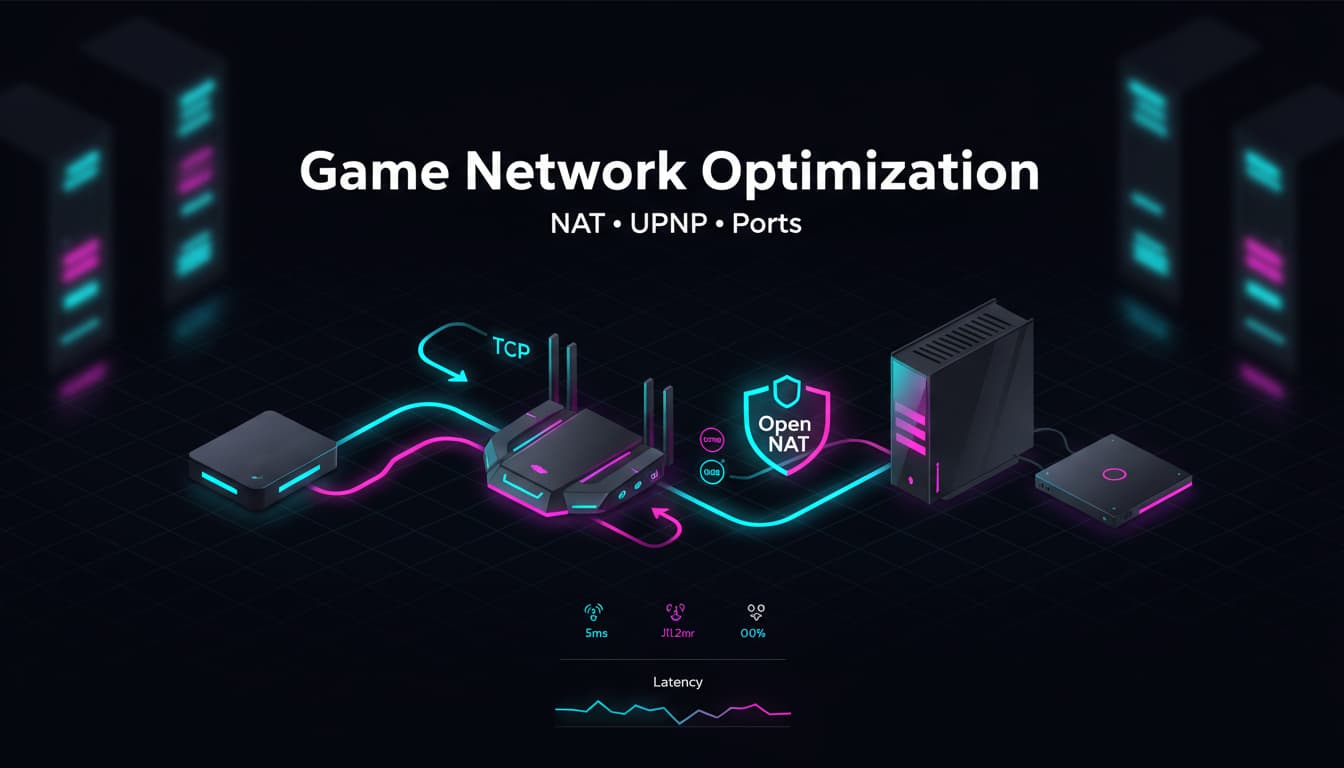

If you’ve ever experienced lag spikes, strict NAT errors, or teammates unable to join your lobby, your issue likely isn’t your GPU or ISP—it’s network configuration. Game network optimization focuses on how your router translates and forwards traffic using NAT, how UPnP automates port openings, and how custom port forwarding stabilizes peer-to-peer and dedicated server connections. The payoff is immediate: lower latency, consistent matchmaking, clean voice chat, and fewer disconnects. This article explains NAT, UPnP, and port management in clear terms, then shows how to optimize them safely for buttery-smooth online gameplay.
What is NAT and why it matters for gaming
NAT (Network Address Translation) lets multiple devices share a single public IP. While it’s great for security, it can block inbound traffic your games need. Console dashboards and PC launchers often label NAT status as Open/Type 1 (or A), Moderate/Type 2 (or B), and Strict/Type 3 (or C). The closer you are to “Open,” the easier it is for your system to host and join sessions, voice chat, and crossplay lobbies. Strict NAT frequently causes:
- Inability to join certain players
- Long matchmaking times
- Party voice chat failures
- “Double NAT” warnings on mesh or ISP-provided gateways
To fix NAT issues, you typically either enable UPnP or set up manual port forwarding. In rare cases, you might use a gaming VPN or request a public IPv4/CGNAT opt-out from your ISP.

UPnP vs. manual port forwarding
- UPnP (Universal Plug and Play): Automatically opens and closes required ports on your router for supported games. It’s convenient and dynamic—no guesswork. However, it relies on devices and apps behaving properly, and some security-conscious admins prefer to keep it off.
- Manual Port Forwarding: You explicitly open specific ports to a specific device (your console/PC). It’s precise and predictable, often the go-to for competitive players and streamers who want maximum control and stability.
A simple rule of thumb: if your router and devices are modern and you play a variety of games, start with UPnP. If UPnP is unreliable or you want tighter control, use manual port forwarding.
The role of ports in online gameplay
Games use TCP and UDP ports to communicate with matchmaking services, game servers, and other players. UDP is common for low-latency voice and real-time gameplay packets. Some examples:
- PlayStation Network: TCP 80, 443, 3478–3480; UDP 3478–3479
- Xbox Live: UDP 88, 500, 3544, 4500; TCP/UDP 3074
- Steam/PC titles: Frequently use 27015–27050 (varies by game)
Always verify the official port list for your specific game or platform. Forward only the ports you need.
Step-by-step optimization checklist
- Identify NAT type and baseline latency
- On consoles, check Network/Internet settings for NAT status.
- On PC, test in-game network stats and run a speed/latency test. Record ping, jitter, and packet loss.
- Eliminate double NAT
- If you use an ISP modem/router combo plus your own router, you may be double NATed.
- Solutions:
- Put your ISP gateway in Bridge or Passthrough mode so only your router handles NAT.
- Alternatively, put your gaming router in Access Point mode (less ideal if you want advanced features).
- Ask your ISP to disable CGNAT or provide a public IPv4 if applicable.
- Try UPnP first (fastest path to “Open NAT”)
- Enable UPnP in your router’s advanced settings.
- Reboot the router and your console/PC.
- Retest NAT status and matchmaking. If it’s Open and stable, you’re done.
- Fall back to manual port forwarding (for full control)
- Reserve a static DHCP lease (local IP) for your console/PC to prevent IP changes.
- Forward the official ports for your platform/game to that device. Choose “UDP,” “TCP,” or “Both” per the vendor’s guidance.
- Disable conflicting features: avoid enabling both UPnP and manual port rules for the same ports.
- Reboot and test again.
Other
- Consider NAT-PMP or PCP if supported
- Some routers support NAT-PMP or PCP—alternatives to UPnP that can be more efficient or secure. Enable only one auto-port protocol.
- Optimize Wi‑Fi or use Ethernet
- Ethernet is best for consistent latency and zero interference.
- If Wi‑Fi is your only option:
- Use 5 GHz (or 6 GHz with Wi‑Fi 6E) for reduced congestion.
- Pick a clear channel, enable DFS if legal in your region.
- Place your console/PC within line-of-sight of the router; avoid dense walls and metal.
- QoS (Quality of Service) for jitter and bufferbloat
- Enable Smart Queue Management (SQM) or Cake/FQ‑CoDel if your router supports it.
- Set modest bandwidth caps (e.g., 85–90% of your real upstream/downstream) to prevent bufferbloat under load, keeping ping stable while others stream or upload.
- Keep firmware updated
- Update your router firmware for security, better UPnP handling, and improved stability.
- Update console/PC network drivers and the game client to avoid known connectivity bugs.
- Validate with real gameplay tests
- Run a few matches at peak hours.
- Measure average ping and peak spikes; check party chat reliability.
- If issues persist, re-check for double NAT, ISP CGNAT, or port conflicts.
Security best practices while opening ports
- Forward only the exact ports you need and to a single device.
- Avoid DMZ for everyday use; it exposes the entire device to the internet.
- Keep UPnP on only if you trust devices on your network.
- Maintain strong admin passwords and disable remote router administration unless necessary.
- Monitor your router logs for unexpected port mappings.
Business case: why invest in proper game network optimization
Whether you’re a competitive player, a content creator, or a gaming household, network tuning is the cheapest “hardware upgrade” you can make:
- Higher win consistency: fewer lag-induced losses.
- Faster matchmaking: Open NAT gets you into games with broader pools.
- Reliable voice comms: cleaner call quality and fewer dropouts.
- Streamer-friendly: stable upstream for live broadcasting while gaming.
- Family harmony: QoS prevents one user’s 4K stream from ruining another’s ranked match.
When to use a gaming VPN or advanced solutions
- If your ISP enforces CGNAT and won’t opt you out, a gaming VPN with port forwarding can sidestep strict NAT—though it may add latency depending on the server.
- For multi-console homes playing the same game, consider routers that support “NAT Optimizer” profiles or per‑device UPnP/NAT behavior to avoid port collisions.
- If you host dedicated servers, use a static public IP and clear firewall and port rules.
Quick troubleshooting tips
- If UPnP seems flaky, toggle it off and on and reboot. Ensure only one router is performing NAT.
- If manual forwarding doesn’t work, confirm the device’s IP hasn’t changed and that no duplicate port rules exist.
- Test with a different Ethernet cable or port, and temporarily disable third‑party firewalls to isolate the cause.
- Verify the game’s port list hasn’t changed after updates.
By understanding NAT, leveraging UPnP wisely, and dialing in precise port rules, you unlock consistently smooth online sessions. Do the fundamentals once, and your setup will pay dividends every match, every season.