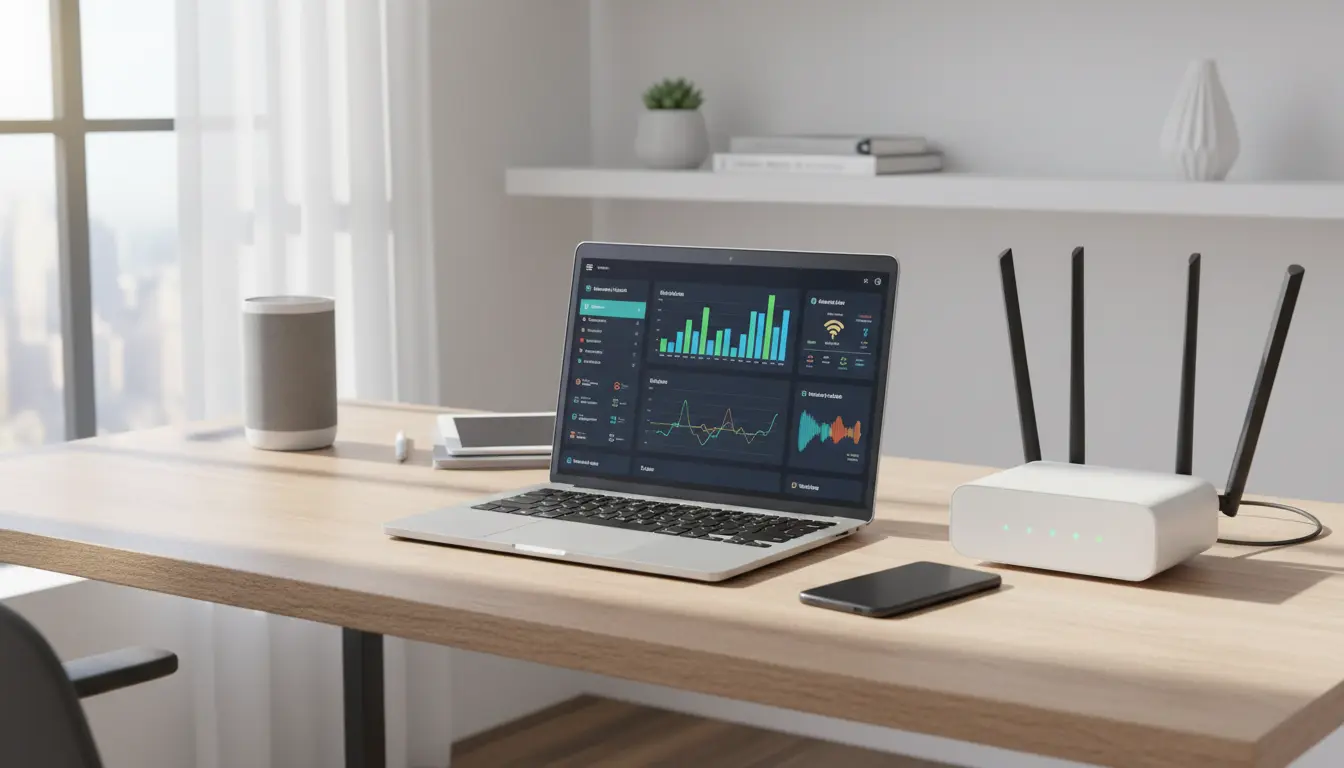

In modern homes and offices, Wi‑Fi performance can make or break productivity, streaming quality, and overall user experience. Yet many users still suffer from buffering, choppy video calls, and inexplicable slowdowns. The culprit is often not your internet plan but radio-frequency interference and poor channel selection. Two of the most common interference sources are microwave ovens and Bluetooth devices, and understanding how they interact with 2.4 GHz and 5 GHz Wi‑Fi bands is the key to stable, fast, and reliable wireless connectivity. This guide explains why interference happens, how Wi‑Fi channels work, and which practical steps you can take—backed by best practices—to optimize channel selection and mitigate noise for a truly robust wireless network.
Why interference happens: RF basics you can use
Wi‑Fi uses unlicensed spectrum in the 2.4 GHz and 5 GHz bands (and increasingly 6 GHz). Because the 2.4 GHz band is crowded and has relatively few non‑overlapping channels, it is more susceptible to interference from household devices. Electromagnetic interference (EMI) raises the noise floor—the baseline level of background radio energy—reducing your signal‑to‑noise ratio (SNR). When SNR drops, Wi‑Fi clients respond by lowering their modulation and coding schemes, which slashes throughput and increases latency and retransmissions. The result is slower speeds, jitter, and packet loss.
The microwave problem: why ovens wreck 2.4 GHz
Microwave ovens typically operate around 2.45 GHz—the heart of the 2.4 GHz ISM band that Wi‑Fi and Bluetooth also use. Even well‑shielded ovens can leak small amounts of RF energy. When you run a microwave near your router or Wi‑Fi clients, the noise floor in channels centered around 2.4 GHz spikes, especially on channels 8–13 and often visibly impacting channels 1–6 due to wideband splatter. Symptoms include abrupt drops in throughput, frozen streams, and voice call glitches. If your kitchen is between the router and the client, the problem worsens, since interference and attenuation combine.

Actionable tip:
- If you must use 2.4 GHz, place the router away from the kitchen or high‑EMI appliances and prefer channels farthest from 2.45 GHz energy peaks—channels 1 or sometimes 6, depending on your local scans. Better yet, migrate latency‑sensitive devices to 5 GHz or 6 GHz.
Bluetooth’s role: short bursts that add up
Bluetooth uses frequency‑hopping spread spectrum (FHSS) across the 2.4 GHz band, hopping 1,600 times per second. While each hop is brief, a dense Bluetooth environment—multiple headsets, controllers, keyboards, speakers—creates frequent micro‑collisions that raise contention and airtime usage. Classic Bluetooth and BLE coexist mechanisms help, but they cannot eliminate interference entirely. The effect is most noticeable in crowded apartments or offices with many personal devices.
Actionable tip:
- Move mission‑critical devices (work laptops, conferencing gear, TVs) to 5 GHz or 6 GHz Wi‑Fi SSIDs to reduce collision domains with Bluetooth. Keep Bluetooth hubs and dongles away from your router and 2.4 GHz clients.
Understanding Wi‑Fi channel planning: 2.4 vs 5 vs 6 GHz
- 2.4 GHz: Only three non‑overlapping 20 MHz channels in most regions (1, 6, 11). Longer range, better wall penetration—but crowded and noisy. Avoid 40 MHz channel width here unless you live in a rural RF‑quiet area.
- 5 GHz: Many more channels, lower noise, higher throughput, shorter range. 80 MHz widths are common; use 40 MHz in dense apartments to reduce co‑channel interference. DFS channels can offer cleaner air but may be vacated when radar is detected.
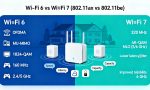
- 6 GHz (Wi‑Fi 6E/7): Clean spectrum with many channels and no legacy 2.4 GHz/5 GHz interference. Shortest range, best for same‑room performance. If available, it’s a superb option for backhaul and high‑bandwidth clients.
Smart channel selection: manual vs automatic
Most modern routers include automatic channel selection that scans for congestion and noise. However, auto settings can be imperfect—some choose channels based on scan results taken at boot, not continuously. For best results:
- Survey first: Use a Wi‑Fi analyzer app to visualize channel utilization, RSSI, and noise. Look at both 2.4 and 5 GHz. Run scans at peak times (evenings/weekends) to capture realistic congestion.
- Pick non‑overlapping channels: In 2.4 GHz, stick to channels 1, 6, or 11. Choose the one with the lowest combined congestion and strongest SNR for your clients.
- Size your channel widths:
- 2.4 GHz: 20 MHz only in most environments.
- 5 GHz: 40 MHz in dense areas; 80 MHz if the spectrum looks clean; avoid 160 MHz unless you’re in a very quiet RF setting and the clients support it.
- 6 GHz: 80 MHz is a solid default; consider 160 MHz for line‑of‑sight scenarios.
- Re‑evaluate periodically: RF is dynamic—neighbors move in, add mesh nodes, or change routers. Re‑scan quarterly or after noticeable performance changes.
- Separate SSIDs by band: Consider distinct SSIDs like
MyHome-2GandMyHome-5Gor enable band steering on quality routers. This provides control over client band selection instead of leaving it solely to client roam logic.
Mesh systems and backhaul choices
Mesh systems are convenient but can amplify interference when wireless backhaul shares airtime with clients on the same band. To improve:
- Prefer wired Ethernet or MoCA backhaul when possible.
- If using wireless backhaul, dedicate a clean 5 GHz or 6 GHz band for backhaul only. Some tri‑band systems reserve a backhaul radio.
- Place nodes to ensure overlapping coverage at −65 dBm to −70 dBm RSSI where clients roam, minimizing sticky client behavior.
Router placement and RF hygiene
Physical layout strongly influences interference and multipath:
- Avoid placing the router near the microwave, cordless phone bases, baby monitors, or thick metal appliances.
- Elevate the router, keep it off the floor, and away from enclosed cabinets.
- Orient antennas per manufacturer guidance; for multi‑antenna APs, a mix of vertical/horizontal orientations can help client diversity.
- Reduce reflective surfaces (large mirrors, metal racks) directly between AP and clients when possible.
Advanced settings that actually help
- Airtime fairness: Can improve performance when mixed slow/fast clients compete, but test on and off; older IoT devices may behave better with it disabled.
- Minimum data rates: Increasing minimums on 2.4 GHz can push clients to associate to closer APs and free airtime, but may disconnect very weak devices.
- Band steering: Encourages 5 GHz/6 GHz association for dual‑band clients; ensure 5 GHz coverage is strong where used.
- DFS channels: Often cleaner. If your environment doesn’t trigger radar events, DFS can boost capacity.
- Client isolation for guest SSIDs: Reduces broadcast traffic for guests and isolates noisy devices.
IoT segmentation: keep noisy devices in their lane
Many smart home devices are 2.4 GHz only and chatty. To preserve performance:
- Create a separate 2.4 GHz IoT SSID/VLAN with client isolation and limited bandwidth.
- Keep your work and streaming devices on 5 GHz or 6 GHz SSIDs.
- Disable legacy protocols if safe; for example, hiding 802.11b data rates can reduce overhead in some environments.
Microwave and Bluetooth mitigation checklist
- Switch critical devices to 5 GHz/6 GHz.
- Choose channel 1 or 11 on 2.4 GHz after a local scan; avoid mid‑band channels near 2.45 GHz during heavy microwave use.
- Shorten the RF path through the kitchen by repositioning the router and client devices.
- Separate Bluetooth dongles from Wi‑Fi antennas by a few feet; use USB extension leads for PC dongles to improve isolation.
- During microwave use, schedule large downloads or switch rooms to minimize line‑of‑sight interference.
Measuring success: what to monitor
- Throughput consistency: Use iPerf3 or a consistent speed test against a nearby server on your LAN/ISP.
- Latency and jitter: Ping your gateway continuously during normal use; look for spikes during microwave operation or peak Bluetooth activity.
- Retransmissions and MCS rates: Some routers expose PHY stats; lower retransmissions and higher average MCS indicate cleaner air.
- Roaming behavior: Ensure clients roam to stronger APs quickly; sticky clients hurt airtime for everyone.
When to upgrade
If your router is older than 5–6 years, consider upgrading to Wi‑Fi 6 or 6E:
- Better OFDMA scheduling reduces contention.
- Improved BSS coloring helps mitigate co‑channel interference.
- 6E unlocks an expansive 6 GHz spectrum for cleaner, faster links.
By combining smart channel selection, thoughtful placement, and selective use of 5 GHz/6 GHz bands, you can dramatically reduce the impact of microwaves, Bluetooth, and neighbor networks. The payoff is tangible: smoother streaming, clearer calls, and faster downloads—without changing your internet plan.