
How to Secure Your Home Wi‑Fi Network for Smart Devices
Smart devices make daily life easier, but they also expand your attack surface. A single weak password, an outdated router, or one poorly secured camera can give an intruder a foothold into your entire home network. The good news: you can dramatically improve IoT security without becoming a network engineer—if you follow a clear, repeatable setup.
This guide walks you through practical steps to harden your Wi‑Fi for smart devices while keeping things convenient for your household.
Why smart devices are a different kind of risk
Laptops and phones usually get frequent updates, run modern security features, and have stronger user authentication. Many smart devices don’t. They may:
- Ship with weak defaults or outdated software
- Offer limited logging and visibility
- Use cloud connections you can’t fully control
- Stay online 24/7, which increases exposure
So your goal is simple: reduce what an IoT device can reach and make it harder for anyone to get onto your network in the first place.
1) Start with your router: it’s the front door
Your router is the control center for everything connected at home. If it’s misconfigured, nothing else matters.
Turn on the strongest Wi‑Fi encryption available
In your router settings, select:
- WPA3 encryption (best option)
- If WPA3 isn’t available: WPA2‑AES (avoid WPA2‑TKIP and anything labeled “mixed” unless absolutely required)
Strong encryption protects your traffic and makes password attacks harder.
Use a strong passphrase (and make it unique)
A strong passphrase beats a complex-looking short password. Aim for 16+ characters. Example pattern: four random words + a separator. Don’t reuse passwords from other accounts.
This is one of the highest-impact steps you can take for home Wi‑Fi security.
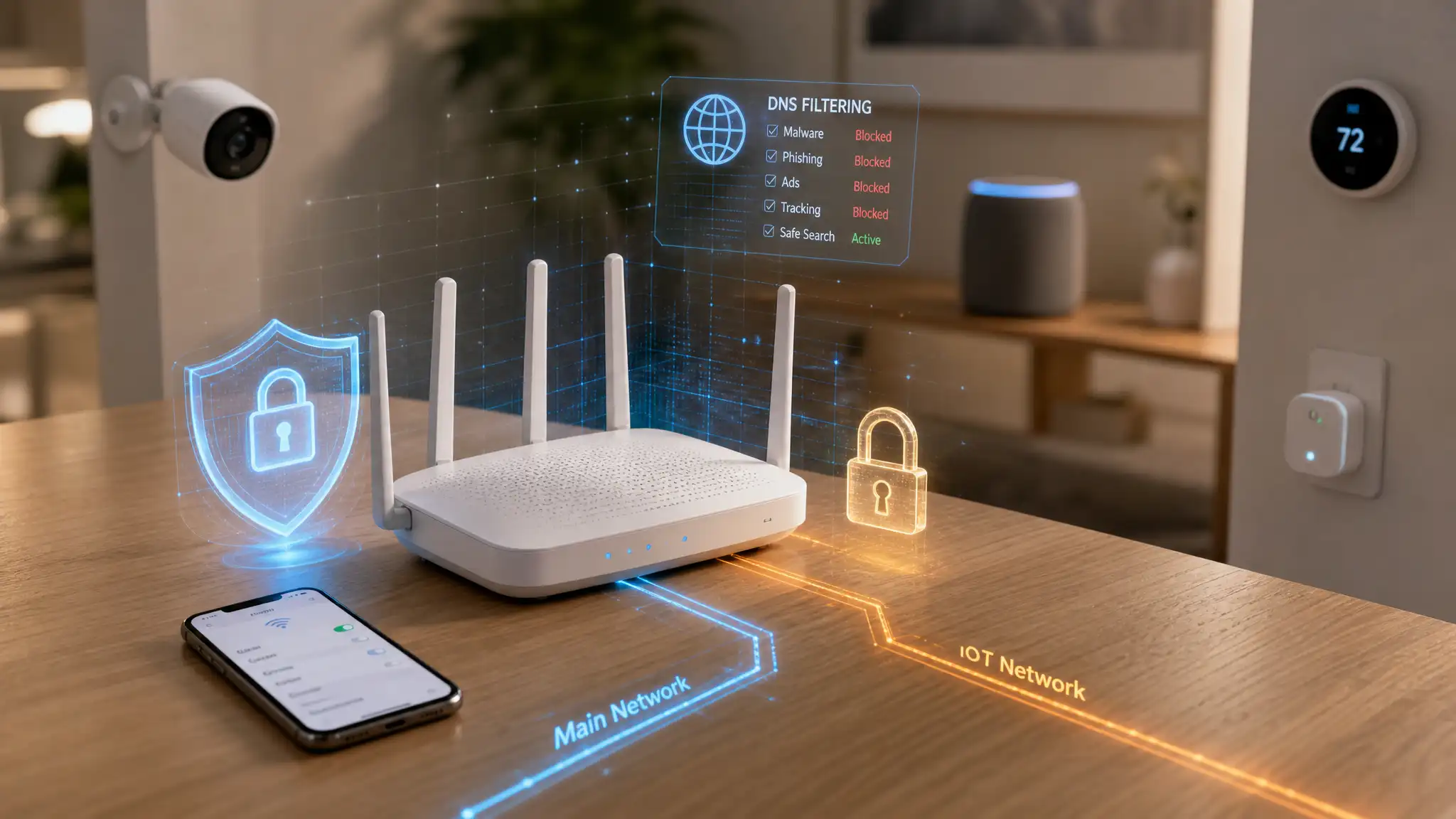
2) Create a dedicated IoT network (don’t mix devices with your laptop)
Smart devices should not live on the same network as your work computer or your phone backups.
Use a guest network (or a separate SSID/VLAN if supported)
Many routers let you create a guest network. Use it as your “Smart Devices Wi‑Fi” whenever possible. If your router supports more advanced options, use network segmentation (sometimes called VLANs) so smart devices can’t freely talk to your main devices.
Your ideal layout:
- Main network: phones, laptops, tablets
- IoT network: cameras, TVs, speakers, plugs, thermostats
- Optional third network: true guests (friends/family visiting)
Even if one smart bulb gets compromised, segmentation limits lateral movement.
3) Disable convenience features attackers love
Some settings exist to simplify setup, but they also weaken security.
Disable WPS
Disable WPS (Wi‑Fi Protected Setup). It’s often exploited because PIN-based WPS can be brute‑forced. If you need easy onboarding, use a temporary setup method, then turn it off again.
Lock down remote access
Turn off remote router administration unless you truly need it. If you do need it, restrict access:
- Allow only from a specific IP/VPN
- Use strong authentication and logging
- Avoid exposing the admin panel to the public internet
4) Keep firmware current (router + smart devices)
Outdated software is one of the most common real-world causes of home network compromise.
Router firmware update routine
Enable automatic updates if available. If not, set a reminder (monthly or quarterly) to check for a router firmware update. Updates often patch vulnerabilities that attackers actively scan for.
Smart device updates matter too
In each device’s app, enable auto-updates where possible. If a device hasn’t received updates in years, consider replacing it—especially for cameras, doorbells, and locks.
5) Strengthen logins and account access
Wi‑Fi security is only half the story. Many IoT devices rely on cloud accounts.
Turn on two-factor authentication (2FA)
Enable two-factor authentication for:
- Your router vendor account (if used)
- Smart home platforms (Google Home, Alexa, Apple ID)
- Camera/doorbell apps and any security system app
2FA blocks many account-takeover attempts even if a password leaks.
Reduce app permissions and shared access
Only give household members the access they need. Remove old accounts (ex-roommates, old phones). Review third-party integrations regularly.
6) Use safer DNS and basic filtering
DNS is where your devices learn “where” websites and services live. Safer DNS can block known malicious domains before connections happen.
Turn on DNS filtering (router-level if possible)
Many routers support DNS filtering or let you specify secure DNS providers. This can help block:
- Phishing domains
- Malware command-and-control domains
- Suspicious ad/tracker networks (depending on your configuration)
This isn’t magic, but it’s an easy “seatbelt” for IoT-heavy homes.
7) Tighten firewall rules (and keep inbound closed)
Most home routers include a firewall. Use it.
Review firewall settings
Enable the router firewall and block inbound connections by default. Avoid port forwarding unless you understand exactly why you need it. If you’re port-forwarding a camera feed, reconsider—use a VPN or the vendor’s secure method instead.
If your router offers device-level rules, you can also restrict IoT devices so they can only reach the internet (not your laptops).
8) Consider MAC filtering—but don’t rely on it alone
MAC address filtering allows only approved devices to join a network. It can reduce casual unauthorized connections, but it’s not a strong security control by itself because MAC addresses can be spoofed.
Use it as an extra layer—not as your main defense.
9) Monitor your network like a homeowner, not a SOC analyst
You don’t need enterprise tools, but you should know what’s connected.
Do basic device management
In your router app:
- Rename devices clearly (e.g., “Kitchen Speaker,” “Front Door Camera”)
- Remove unknown devices immediately
- Review connection history if available
If you want an extra layer, consider intrusion detection features offered by some routers. They can flag suspicious behavior like repeated login attempts or unusual traffic patterns.
10) Make smart device onboarding safer (a repeatable checklist)
Whenever you add a new device, run this quick process:
- Connect it to the IoT/guest network (not your main network)
- Change default credentials immediately
- Update firmware/software before “going live”
- Disable features you won’t use (microphone, remote access, UPnP where applicable)
- Review cloud account settings + turn on 2FA
- Place the device in a reasonable privacy posture (camera zones, mic toggles, recording retention)
This keeps your system clean over time, not just on day one.
11) Upgrade older hardware when it becomes the weak link
If your router is old, lacks WPA3, or stops receiving updates, it’s time to upgrade. A modern router or mesh WiFi system can improve:
- Coverage (fewer dead zones)
- Security features (WPA3, better guest networks, monitoring)
- Stability for many devices
If you already run a lot of smart devices, newer hardware often pays for itself in reliability alone.
Common mistakes to avoid
- Using one Wi‑Fi password forever (rotate occasionally)
- Putting cameras and laptops on the same SSID
- Leaving WPS on “because it’s easier”
- Ignoring router updates for years
- Port-forwarding IoT devices to the internet
- Over-trusting a smart home hub without segmenting the network (a smart home hub helps, but it doesn’t replace good network design)
Recommended Amazon.com product (1)
A widely available option on Amazon.com is the TP-Link Deco X55 AX3000 Whole Home Mesh WiFi 6 System. It’s a solid pick for homes with many smart devices because it typically supports strong encryption, stable coverage, and easy guest-network style separation for IoT.