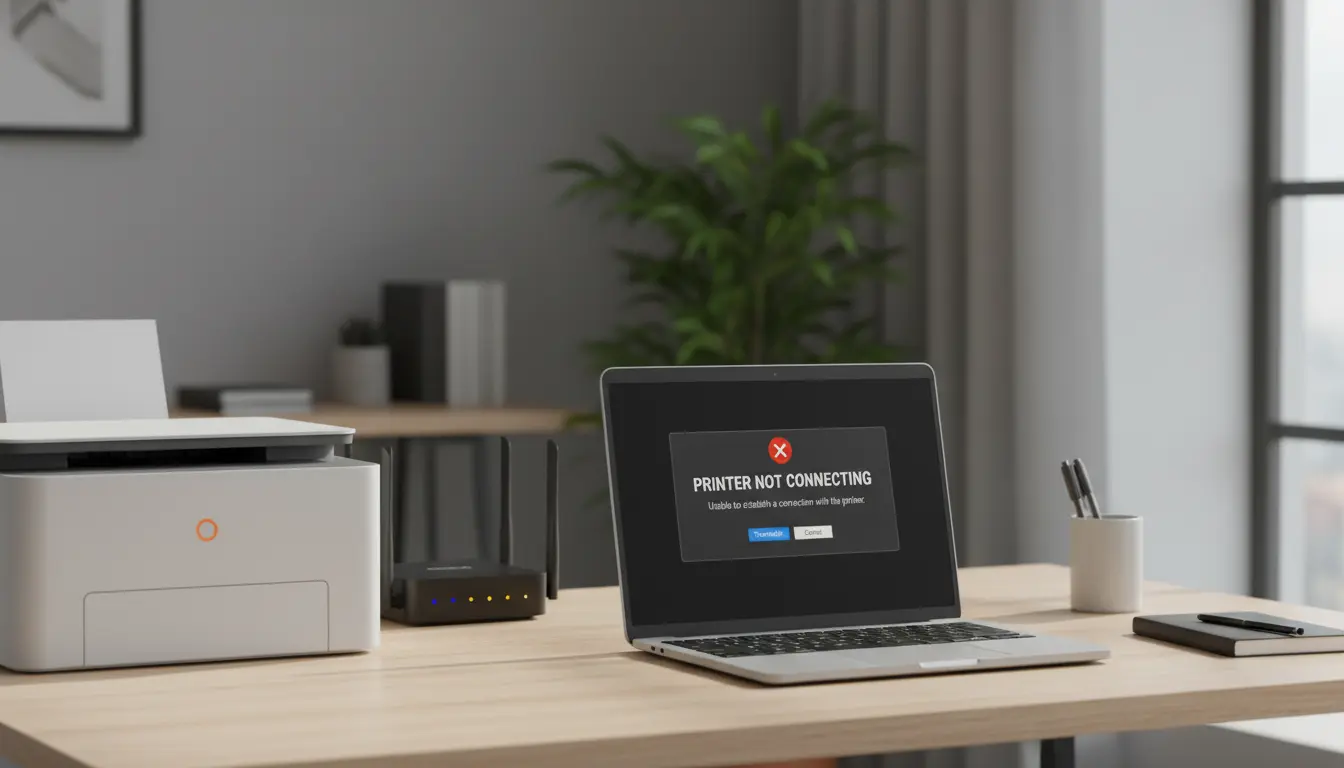

When your printer won’t connect, it’s usually due to two culprits: Wi‑Fi connectivity problems or outdated/misconfigured drivers. This comprehensive, SEO-friendly guide walks you through proven fixes for both, helps you understand why these issues occur, and shows you how to prevent them from recurring. Whether you’re on Windows, macOS, or using a mobile device, the steps below will help you get your printer back online quickly and reliably.
Why printers fail to connect
Most connection failures trace back to:
- Network instability or incorrect Wi‑Fi settings
- IP conflicts or router configuration
- Outdated or corrupted printer drivers
- Mismatched protocols (AirPrint vs. vendor drivers)
- Firewall, VPN, or security software blocking discovery
- Firmware that hasn’t been updated on the printer or router
Understanding these root causes helps you choose the right fix without guesswork.
Quick pre-checks
Before deep troubleshooting, confirm:
- The printer is powered on, paper is loaded, no error lights are blinking.
- The printer’s Wi‑Fi light is steady (not flashing), indicating it’s connected.
- Your computer/phone is on the same Wi‑Fi network and frequency band (2.4 GHz vs 5 GHz).
- Ethernet users: cable seated firmly, router port active.
- VPN is off; some VPNs block local network discovery.
If any of the above fails, address it first. Many “offline” printers come back simply by aligning the basics.
Fix Wi‑Fi connection issues
- Verify SSID and band
- Printers often only support 2.4 GHz. If your router uses separate SSIDs for 2.4 and 5 GHz, connect the printer to the 2.4 GHz SSID.
- Avoid “Smart Connect” band steering if your printer is older—manually choose the 2.4 GHz network.
- Rejoin the network
- On the printer’s control panel, run Wireless Setup Wizard (name varies by brand) to select the correct SSID and re‑enter the Wi‑Fi password.
- If you recently changed your Wi‑Fi password or router, the printer must be reconfigured.
- Assign a static IP
- Log into your router and reserve a DHCP address (IP reservation) for the printer’s MAC address. This prevents IP changes that make the printer “disappear.”
- On the printer’s Network Config page (you can usually print this from the control panel), note the current IP and confirm it matches what your computer uses.
- Check router settings
- Enable multicast/Bonjour for AirPrint discovery.
- Disable AP/client isolation and guest network isolation; these block devices from seeing each other.
- Reduce overly aggressive firewall settings that block local traffic.
Other
- Improve Wi‑Fi signal quality
- Move the printer closer to the router or reduce interference (microwaves, thick walls).
- If coverage is weak, add a mesh node near the printer.
- Reboot sequence helps: power off printer > reboot router and modem > wait 2–3 minutes > power on printer.
- Forget and re-add on devices
- On Windows: Settings > Bluetooth & devices > Printers & scanners > Remove device. Then Add device and let Windows detect the printer by IP or name.
- On macOS: System Settings > Printers & Scanners > remove the printer with “–” and re-add with “+”. Prefer “Use: AirPrint” for most Wi‑Fi printers unless vendor features are required.
- Print by IP
- If name-based discovery fails, add the printer by its IP address.
- Windows: Add device > Add manually > Add a printer using TCP/IP address or hostname.
- macOS: Printers & Scanners > “+” > IP tab > enter IP > Protocol: AirPrint or Line Printer Daemon (LPD)/IPP depending on the model.
Fix driver and software problems
- Remove old drivers and duplicates
- Windows: Control Panel > Devices and Printers > remove printer(s). Open Print Server Properties > Drivers tab > remove old drivers for the same brand. Then reinstall cleanly.
- macOS: Remove from Printers & Scanners. Optionally, reset printing system (right‑click blank area in the printer list > Reset printing system), then re‑add.
- Install the latest driver or prefer AirPrint
- Visit the manufacturer’s support page (HP, Canon, Brother, Epson, etc.) and download the latest driver/package specific to your OS version.
- On macOS, AirPrint is often the most stable. Only install vendor drivers if you need full-feature scanning utilities or special finishing options.
- Update firmware
- Many printers ship with firmware that struggles with modern routers. Use the vendor utility or the printer’s web interface (enter the printer’s IP in a browser) to check for firmware updates.
- Check spooler and services (Windows)
- Press Win+R, type services.msc. Restart “Print Spooler.” Ensure “Function Discovery Resource Publication” and “SSDP Discovery” are running for network discovery. Set them to Automatic.
- Disable conflicts
- Temporarily disable third-party firewalls, endpoint protection, or VPNs. If the printer appears, add an allow rule for local network traffic and the printer’s IP/ports (IPP 631, RAW 9100, LPD 515).
- Reinstall vendor suites carefully
- If the full OEM suite caused bloat or conflicts before, install only core drivers or choose “Minimal” during setup. Avoid duplicate “virtual” printers.
Platform-specific pointers
- Windows 10/11:
- Settings > Printers & scanners > Manage > Print test page. If it fails, try the Troubleshooter.
- Use “Add a printer using TCP/IP” for stubborn cases.
- If using Wi‑Fi Direct, connect to the printer’s temporary SSID and print, but note this bypasses your main network.
- macOS (Ventura/Sonoma and later):
- Prefer “Use: AirPrint” unless vendor features are required.
- If you see “Filter failed,” remove and re‑add with IPP and AirPrint.
- Reset printing system if multiple stale queues exist.
- iOS/Android:
- Ensure the phone and printer share the same Wi‑Fi.
- Use AirPrint (iOS) or the manufacturer’s Android plug‑in/service.
- Toggle airplane mode on/off to refresh local discovery.
Prevent recurring issues
- Reserve a DHCP address for the printer to keep its IP stable.
- Keep router and printer firmware up to date.
- Label and standardize your SSIDs; avoid frequent password or SSID changes.
- For offices, consider Ethernet for the printer or a nearby mesh node for reliable throughput.
- Document the printer IP and admin password for quick access later.
When to switch connection methods
- If Wi‑Fi remains unreliable, connect via Ethernet for maximum stability.
- For single-user setups near the router, USB may be simplest—install drivers and print locally.
- In Apple-heavy environments, AirPrint via IPP on a stable network is typically seamless.
What to do if nothing works
- Factory reset the printer’s network settings and set it up from scratch.
- Try a different network (mobile hotspot) to isolate whether your router is the problem.
- Create a new SSID just for 2.4 GHz IoT/print devices with simple security (WPA2‑PSK AES).
- Contact vendor support with your model number, firmware version, router brand/model, and a recent network config printout.
Summary
Most “printer not connecting” problems boil down to mismatched Wi‑Fi settings or outdated drivers. Rejoining the correct band/SSID, reserving a DHCP IP, enabling Bonjour/multicast, and choosing AirPrint or current vendor drivers fixes the majority of cases. Add the printer by IP if discovery fails, and keep firmware updated to prevent future disruptions.