
Protecting your digital footprint on macOS is more important than ever. Between rising data collection, evolving app ecosystems, and compliance expectations in the United States, managing privacy and permissions on your Mac should be a priority—not an afterthought. This guide walks you through a practical, up-to-date, and comprehensive approach to macOS privacy settings, Permission Prompts, transparency tools, and best practices. You’ll learn how to configure system controls, audit app access, reduce tracking, and keep your data secure without sacrificing productivity.
Why macOS Privacy Settings Matter
macOS offers granular controls over files, sensors, and network data—things like your camera, microphone, Photos, Contacts, Calendars, Bluetooth, Location, and Full Disk Access. These permissions govern exactly what third-party apps can see or do. Properly configuring them:
- Minimizes data exposure to apps and advertisers
- Reduces the attack surface for malware or rogue extensions
- Helps align with U.S. privacy expectations and regulations that affect user trust (e.g., CCPA-like standards for transparency, even if not strictly applicable to individuals)
Where to Start: System Settings > Privacy & Security
On macOS Ventura and later, go to:
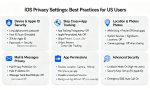

- Apple menu > System Settings > Privacy & Security
From here, review category-by-category:
- Location Services
- Toggle Location Services on only if you use Maps, Weather, Find My, or location-based automations.
- For each app, set access to While Using, Ask Next Time, or Never.
- Disable Precise Location where approximate location is enough.
- Consider turning off Location Services for system services you don’t need (e.g., Significant Locations).
- Contacts, Calendars, Reminders, Photos
- Allow only trusted apps to access personal data containers.
- In Photos, limit access to Selected Photos when an app doesn’t need your entire library.
- Revisit approvals every few months and revoke apps that no longer need ongoing access.
- Camera and Microphone
- Keep these permissions disabled by default.
- Enable per-app and disable again when no longer needed (e.g., after a video call).
- Use the menu bar indicators and Control Center to confirm active usage.
Other topics
- Files and Folders, Full Disk Access
- Full Disk Access is extremely sensitive. Only grant it to well-known utilities (e.g., backup tools, antivirus, MDM agents) that explicitly require it.
- For Files and Folders, prefer granting access to specific directories (Desktop, Documents, Downloads) instead of blanket access.
- Screen Recording
- Required for video conferencing screen shares and certain productivity tools.
- Enable only for apps you trust and disable if you stop using them.
- Bluetooth and Local Network
- Many accessories and apps request Bluetooth for device discovery.
- Local Network permission controls LAN discovery and media casting. Deny by default, approve only when you’re certain the feature is necessary.
- Accessibility
- Accessibility permission lets apps control your Mac (e.g., automation, hotkeys).
- Carefully audit and remove any app that doesn’t clearly explain why it needs this.
- App Management and Profiles
- Under Privacy & Security > Profiles (or in General > Device Management), remove unknown device profiles or root certificates.
- Avoid installing configuration profiles from untrusted sources as they can silently change security policies.
Gatekeeper, Notarization, and App Sources
Gatekeeper helps ensure apps are from identified developers and notarized by Apple:
- Keep App Store and identified developers enabled.
- For apps from outside the App Store, verify notarization and signatures.
- If macOS blocks an app, instead of force-opening indiscriminately, research the vendor’s reputation.
Transparency With App Tracking and Advertising
- In System Settings > Privacy & Security > Tracking, disable Allow Apps to Request to Track for maximum privacy. If you keep it on, deny tracking per app when prompted.
- Reset your advertising identifier periodically.
- In Safari, enable Prevent cross-site tracking and consider using a privacy-focused content blocker.
Safari Privacy and Permissions
Safari integrates multiple privacy layers:
- Intelligent Tracking Prevention (ITP): Limits cross-site tracking by default.
- Privacy Report: Review which trackers are being blocked.
- Manage Website Data: Clear cookies and cached trackers routinely, especially after testing new services.
- Per-Site Permissions: Control camera, mic, screen sharing, and location per website. Default to Ask and upgrade to Allow only for trusted sites.
- Extensions: Review permissions for Safari extensions. Disable those you don’t need, and prefer extensions with minimal data access.
Pro tip: Use Profiles in Safari to separate work and personal browsing, reducing cross-context data leakage.
Mail, Messages, and iCloud Considerations
- Mail Privacy Protection: Enable to hide your IP and block pixel tracking from newsletters and advertisers.
- Messages and FaceTime: Apple uses end-to-end encryption for iMessage and FaceTime. Avoid syncing sensitive conversations to shared devices.
- iCloud Drive: Use Folder Sharing judiciously; limit sharing to specific people and set permissions to View Only when possible.
- iCloud Keychain: Strong, unique passwords with Keychain plus Passkeys can reduce the risk of credential theft.
Passwords, Passkeys, and Two-Factor Security
- Passwords & Passkeys in System Settings: Audit weak, reused, or exposed passwords. Replace with strong passphrases or passkeys.
- Always enable two-factor authentication for your Apple ID and critical services (email, banking, developer accounts).
- Consider a reputable hardware security key for compatible services.
Lock Screen, FileVault, and Physical Security
- Lock Screen: Shorten auto-lock timeouts on laptops, require password immediately after sleep.
- FileVault: Always enable to encrypt your entire disk at rest. Store the recovery key securely (consider a printed copy in a safe).
- Find My Mac: Keep enabled for remote lock or erase in case of loss or theft.
App Audits: A Quarterly Health Check
- Review Privacy & Security panels every quarter:
- Remove dormant apps
- Revoke unneeded permissions
- Check Login Items and allow only necessary background items
- Verify no unknown configuration profiles or root certificates exist
- Update macOS and apps promptly to patch security vulnerabilities.
Managing Enterprise or BYOD Scenarios in the U.S.
- If your Mac is managed by an employer (MDM), some settings may be enforced. Review the Management Profile for clarity on what’s monitored or restricted.
- Keep work and personal data separate: use different user accounts or separate Safari Profiles. Avoid mixing corporate VPNs with personal browsing.
Privacy-Friendly Daily Habits
- Use a standard user account for daily work; reserve the admin account for installations and system changes.
- Prefer reputable, notarized apps with transparent privacy policies.
- Disable “Open at Login” for apps that don’t need to run constantly.
- Regularly clear Downloads and remove unused configuration files.
- Be cautious with clipboard managers and screenshot tools; they may capture sensitive info.
Advanced Controls and Monitoring
- Network: Consider using a trusted DNS-over-HTTPS or DNS-over-TLS provider for improved privacy and phishing protection.
- Firewall: Keep the macOS firewall on. For fine-grained control, advanced users may add an application firewall with per-app rules.
- Privacy Logs: Some security suites or MDMs provide logs of permission prompts and access attempts—use them to spot anomalies.
What To Do When You See a Permission Prompt
- Ask: Does this app truly need this data or hardware to function?
- Prefer “Ask Next Time” if you’re unsure.
- If an app repeatedly prompts for broad access, look for an alternative with more respectful defaults.
U.S.-Focused Compliance Signals for Site Owners
Since you’re publishing to a U.S.-based audience:
- Offer a clear privacy policy with transparent data usage, retention, and sharing practices.
- Respect Do Not Track/Global Privacy Control signals where feasible.
- Provide cookie consent controls and a simple opt-out for analytics tags that track personal data.
- Secure your site with HTTPS, strong CSP headers, and minimal third-party scripts.
Quick Setup Checklist
- Enable FileVault and Find My
- Turn on macOS Firewall
- Review Location, Camera, Mic, Photos permissions
- Limit Full Disk Access to essentials
- Harden Safari: ITP on, cross-site tracking blocked, manage extensions
- Enable Mail Privacy Protection
- Audit passwords; adopt passkeys and 2FA
- Remove unknown profiles/certificates
- Quarterly permission and app audit
By following these steps, you build a robust, privacy-first macOS setup that aligns with modern best practices, reduces risk, and maintains a smooth user experience.