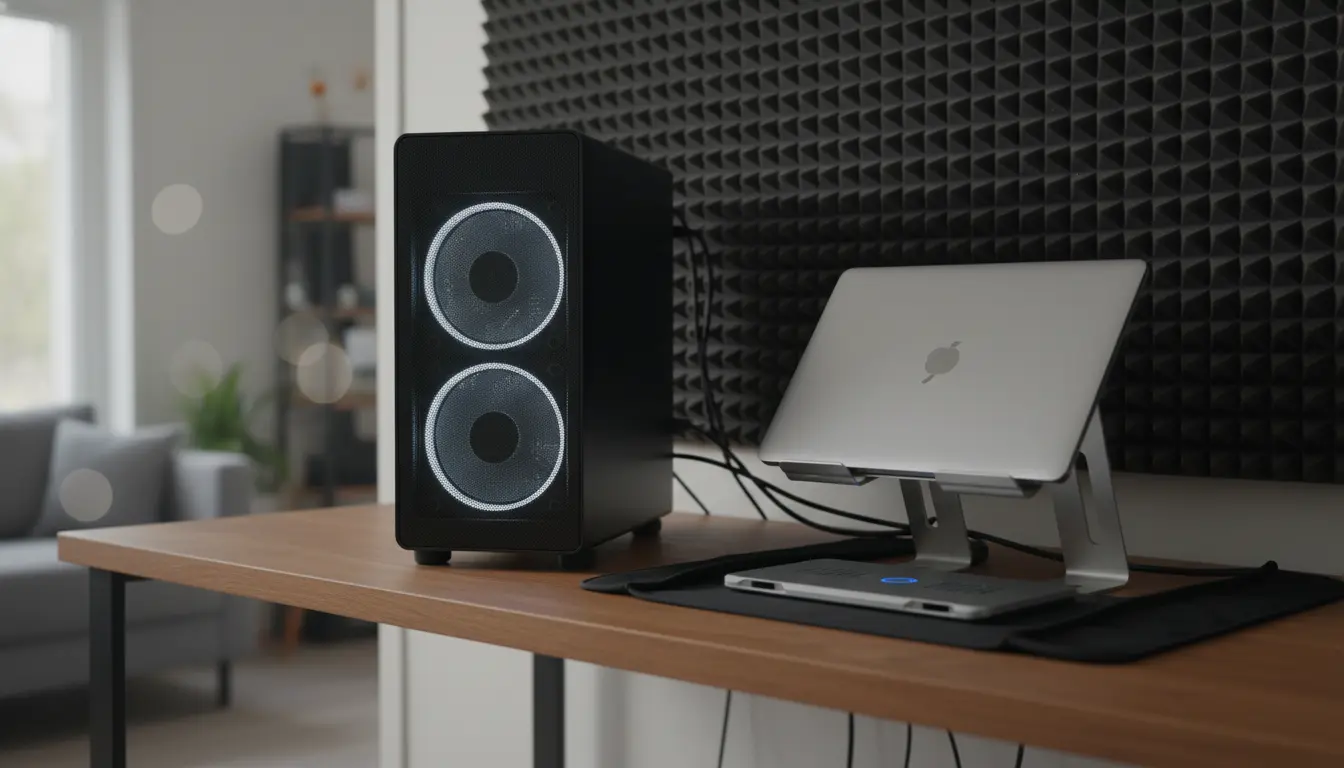

Silent Computer Work: Fans, Cooling Pads, and Common Noise Sources Explained
Working in silence at a computer feels like a luxury—until a whirring fan, a buzzing coil, or a vibrating case breaks your focus. Whether you’re a developer, content creator, gamer, or a remote professional, optimizing your PC or laptop for quiet operation improves focus, reduces fatigue, and can even prevent long-term hardware issues. This guide explains why computers make noise, how fans and cooling pads affect acoustics and thermals, and what you can do to achieve a near-silent setup without sacrificing performance.
Why Computers Make Noise
Most computer noise is mechanical or electrical, and typically comes from:
- Cooling fans: Case fans, CPU/GPU fans, and PSU fans move air and can generate tonal whine, turbulence, or bearing noise.
- Hard drives: Spinning platters (on HDDs) click or hum; SSDs are silent.
- Coil whine: High-frequency electrical noise from inductors (often on GPUs or PSUs) under load.
- Vibrations: Loose panels, poorly mounted drives, or unbalanced fans transfer resonance to the chassis or desk.
- Airflow turbulence: Tight mesh, restrictive dust filters, or obstructed intakes create hissy, rushing air noise even if RPMs are modest.
Understanding which sound you’re hearing is half the battle. A soft whoosh suggests airflow; a high-pitched tone points to coil whine; a rattling or buzzing likely means vibration or a failing fan bearing.


The Role of Fans in Quiet Computing
Fans are essential for thermal management—but they don’t have to be loud. Key points for quiet performance:
- Larger diameter, lower RPM: A 140 mm fan at 700–900 RPM often moves similar air to a 120 mm at higher RPM, with less noise.
- Bearing type matters: Fluid dynamic bearing (FDB) and magnetic levitation (maglev) fans usually outlast and outquiet sleeve bearings.
- PWM control and curves: Use PWM headers and set custom fan curves so fans idle at low RPM during light tasks and ramp smoothly under load. Avoid aggressive step changes that draw attention.
- Positive pressure and airflow strategy: Slight positive pressure (more intake than exhaust) reduces dust and allows lower RPMs because intakes are less restricted than exhaust paths.
- Clean filters and paths: Dust increases turbulence and heat, forcing higher RPM. Clean filters, heatsinks, and vents regularly to keep acoustics steady.
For desktops, quiet CPU coolers with larger heatsinks and 120/140 mm fans can outperform small, fast-spinning stock coolers. On GPUs, modern custom coolers with semi-passive modes stop fans at idle; ensure your case supplies cool intake air to minimize ramp-up.
Cooling Pads for Laptops: When They Help—and When They Don’t
Laptop cooling pads can lower surface and internal temperatures by improving airflow to the underside. However, their acoustic benefits vary:
- Active cooling pads: Include fans that push air into chassis vents, often reducing internal fan RPMs under load. Choose pads with large, low-RPM fans and adjustable speed; otherwise, you might trade one noise source for another.
- Passive stands: Elevate the rear to improve natural convection and give internal fans a less restrictive intake—quiet and maintenance-free.
- Fit matters: If your laptop intakes are blocked by a solid bottom panel or side vents, an active pad may have limited impact. Align fans with intake grills when possible.
- Surface decoupling: Pads can dampen vibration and reduce desk resonance, especially on hollow or glass desks.
Measure results pragmatically: a mild pad fan at 700–900 RPM plus a well-ventilated stand can drop CPU temps by several degrees Celsius and reduce the laptop’s own fan noise noticeably during sustained workloads.
Tackling Common Noise Sources
- Fan noise: Replace whiny or rattly fans with quality FDB/maglev models. Balance intake and exhaust to reduce turbulence. Add rubber corner dampers and use proper screws to prevent rattles.
- Coil whine: Not harmful, but annoying. Limit high, uncapped frame rates (enable V-Sync, G-Sync/FreeSync caps, or use an FPS limiter) to reduce high-frequency load transitions. Some PSUs or GPUs exhibit less coil whine; in severe cases, RMA may help.
- Drive noise: Move to SSDs for OS and apps. If you need HDD capacity, suspend drives with silicone grommets, use AAM (if supported), and keep them off resonant panels.
- Case resonance: Add mass-damping where panels vibrate (sound-dampening sheets), ensure all screws are snug, and use rubber feet to isolate from the desk.
- Airflow path: Remove obstructions like unused front cages; use fine but low-resistance dust filters; route cables cleanly to avoid micro-turbulence at intakes.
Smart Software and BIOS Tuning
- Fan curves: In BIOS or software, create smooth curves that prioritize silence up to safe temperatures. For example, hold CPU fans under 30% until 50–60°C, then ramp linearly.
- Power profiles: Use balanced or silent profiles on Windows/macOS/Linux for light tasks; undervolt CPUs/GPUs where supported to cut heat without noticeable performance loss.
- Frame rate capping: Prevents GPUs from rendering hundreds of frames that only generate heat and coil whine.
- Background tasks: Reduce unnecessary services that keep the CPU spiking and fans ramping.
Hardware Choices for Quiet Builds
- Cases: Choose models with open, direct airflow paths and space for 140 mm fans. Some “silent” cases rely on thick panels but can choke airflow; a well-ventilated case with slow fans is often quieter under load.
- CPU coolers: Tower coolers with two 140 mm fans or high-quality AIOs with large, low-RPM radiators are both viable. For AIOs, select pumps known for low acoustic signatures and use rubber-washer mounting.
- PSUs: Efficient units (80 Plus Gold/Platinum) with semi-passive fans stay silent at low-to-moderate loads and can reduce coil whine upstream.
- GPUs: Look for models with larger heatsinks, quiet fan profiles, and idle fan stop. Blower-style coolers are compact but typically louder.
- Storage: NVMe/SSD-first storage strategy for silence and speed.
Laptop-Specific Tips
- Keep vents clean: Dust compacts around heat pipes and fin stacks; periodic cleaning restores both thermals and quietness.
- Repaste and pads: High-quality thermal paste and correctly sized thermal pads can lower temps, reducing fan duty cycles.
- Eco modes: OEM utilities often include “silent” or “whisper” profiles that cap power and fan speed intelligently.
- External positioning: Elevate the rear by 1–2 cm; avoid soft surfaces that block intakes; consider a passive stand plus a mild cooling pad when rendering or gaming.
Measuring Progress
Use simple tools to verify improvements:
- Temperature monitoring: HWInfo, MSI Afterburner, or macOS/iStat to correlate RPM, load, and temps.
- Noise perception: You don’t need a professional meter—consistent distance smartphone apps can help compare before/after changes. Aim for smooth broadband “whoosh,” avoid sharp tonal spikes.
Maintenance for Long-Term Silence
- Quarterly dust cleaning (filters, fan blades, heatsinks).
- Re-tension screws, re-seat panels, and check rubber feet.
- Replace aging fans showing bearing noise or wobble.
- Keep firmware/BIOS updated for improved fan control logic.
The Bottom Line
Quiet computing isn’t about a single magic component—it’s a system approach. Combine efficient airflow, large low-RPM fans, smart fan curves, clean vents, and vibration isolation. For laptops, pair passive elevation with selective active cooling and power tuning. With a few targeted changes, you can transform distracting whine and hiss into a near-silent backdrop that supports deep focus and healthier thermals.









