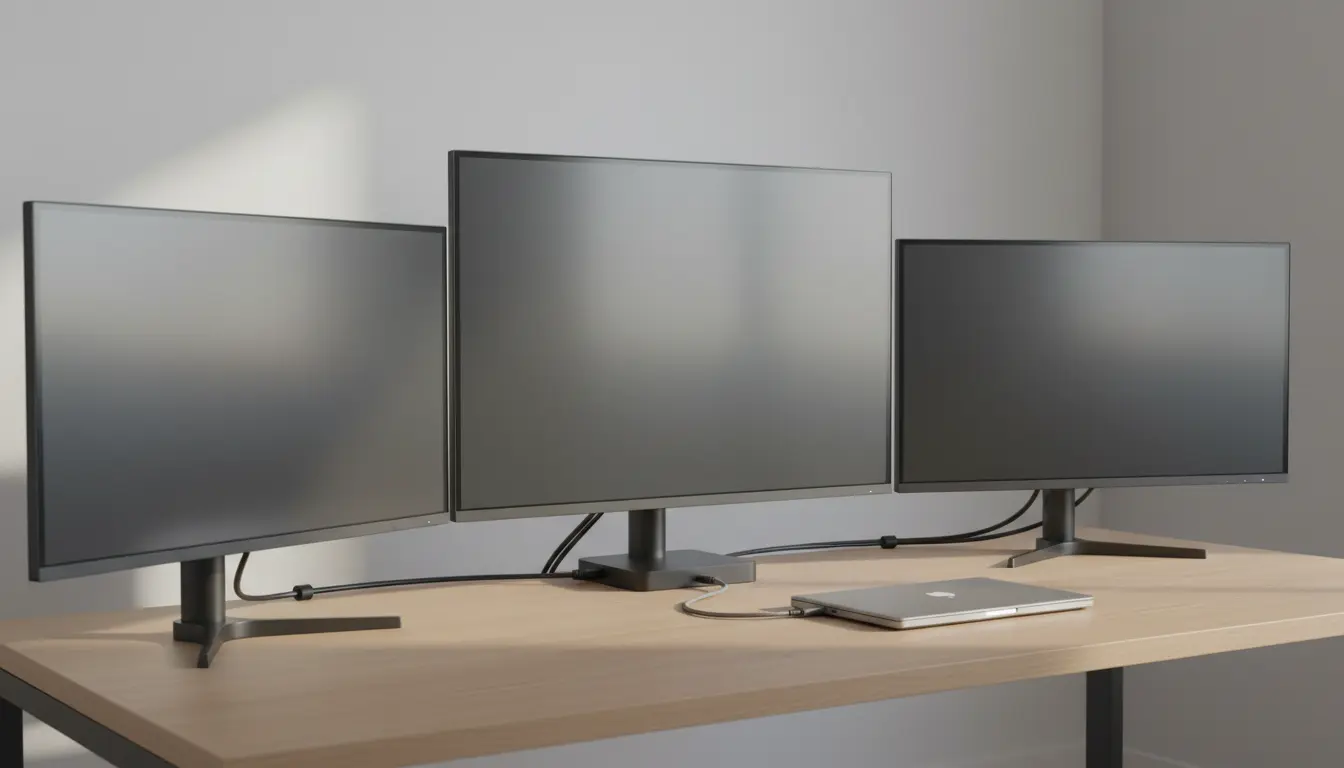

Docking Station Guide: Dual 4K and 8K Monitor Setups
Running multiple high‑resolution displays from a single laptop was once a luxury. Today, with the right docking station, dual 4K and even 8K monitor configurations are practical for productivity, gaming, design, and content creation. This guide explains how dual 4K/8K setups work, what to look for in a docking station, and how to avoid common bottlenecks that can ruin performance.
Why Use Dual 4K or 8K Monitors?
Dual 4K and 8K configurations dramatically increase workspace and visual clarity:
- More screen real estate: You can keep code, emails, and browser tabs visible at the same time without constant window switching.
- Sharper image quality: 4K and 8K resolutions offer extremely crisp text and detailed visuals, critical for designers, video editors, and data analysts.
- Improved multitasking: Separate displays for communication apps, dashboards, and creative tools help you stay focused and organized.
- Future‑proof setup: Investing in a docking station that supports dual 4K or 8K means your workspace can grow with new monitors and devices.
However, not every dock or laptop can handle high‑resolution, high‑refresh setups. Understanding ports, bandwidth, and standards is essential.
Key Technologies Behind Dual 4K and 8K Docking Stations
1. DisplayPort and HDMI Standards
High‑resolution outputs depend heavily on your docking station’s ports:
- DisplayPort 1.4 / 2.0:
- DP 1.4 can support up to 8K at 60 Hz with Display Stream Compression (DSC) or dual 4K at high refresh rates.
- DP 2.0 offers even more bandwidth for ultra‑high resolutions and refresh rates.
- HDMI 2.0 / 2.1:
- HDMI 2.0 typically handles 4K at 60 Hz.
- HDMI 2.1 is capable of 8K at 60 Hz or 4K at 120 Hz, ideal for gaming and media professionals.
When choosing a docking station for dual 4K displays, verify that it has at least DisplayPort 1.4 or HDMI 2.0; for 8K, DisplayPort 1.4 with DSC or HDMI 2.1 is strongly recommended.
2. USB‑C and Thunderbolt
Modern docking stations usually connect via USB‑C or Thunderbolt:
- USB‑C with DisplayPort Alt Mode:
Allows video output over USB‑C. It can drive one or more 4K monitors depending on bandwidth and the dock’s design. - Thunderbolt 3 / 4:
Offers up to 40 Gbps bandwidth, more than enough for dual 4K at 60 Hz and often 8K support. Thunderbolt docks are ideal for power users who need high‑speed data, networking, and multi‑monitor output all at once.
Check whether your laptop’s USB‑C port supports DisplayPort Alt Mode or Thunderbolt. A docking station can only perform at the level your host port allows.
Choosing the Right Docking Station for Dual 4K/8K
1. Confirm Maximum Resolution and Refresh Rate
Read the dock’s specifications carefully:
- Look for lines such as “Dual 4K @ 60 Hz” or “8K @ 60 Hz (single display)”.
- Some docks advertise 4K support but only at 30 Hz on one or both ports, which leads to choppy cursor movement and poor user experience.
For most users:
- Dual 4K at 60 Hz is the sweet spot for productivity.
- 8K at 60 Hz is best for specialized creative or visualization work.
2. Check GPU and OS Support
Even the best docking station cannot bypass your laptop’s GPU and OS limitations:
- Laptop GPU: Integrated GPUs may only support a limited number of external displays or lower maximum resolutions.
- Operating system: Windows, macOS, and Linux each have display limits and driver requirements. Always verify dual 4K/8K support for your specific GPU + OS combination.
If you run into issues such as one monitor staying at a lower resolution, your GPU or drivers might be the bottleneck, not the docking station.
3. Look for Adequate Power Delivery (PD)
A good USB‑C or Thunderbolt docking station should also charge your laptop:
- For ultrabooks, 60–65 W PD can be sufficient.
- For powerful workstations or gaming laptops, you may need 90–100 W or more.
Insufficient power can cause your laptop battery to drain even while plugged in or reduce performance under heavy load.
4. Prioritize Ports and Expansion
A docking station that supports dual 4K/8K should also function as a central hub:
- Multiple USB‑A and USB‑C ports for peripherals.
- Gigabit or 2.5G Ethernet for stable, high‑speed networking.
- Audio in/out, SD card reader, and possibly additional Thunderbolt ports.
This lets you connect monitors, storage, audio, and input devices with a single cable to your laptop.
Display Modes: Extend vs Mirror
Dual 4K and 8K setups are most useful in Extend mode:
- Extend mode:
Each monitor acts as a separate desktop. You can drag windows between screens and increase workspace dramatically. - Mirror mode:
All displays show the same content at a matched resolution. Useful for presentations but wastes the potential of multiple high‑resolution screens.
On Windows, macOS, and Linux you can change display mode in system settings, then fine‑tune resolution and scaling for each monitor.
Optimizing Performance and Stability
High‑resolution multi‑monitor setups are bandwidth‑intensive. To keep everything stable and responsive:
- Use certified cables
- For 4K/8K, choose high‑quality DisplayPort 1.4 or HDMI 2.1 cables.
- Shorter cables often provide better signal integrity.
- Avoid daisy‑chaining unless supported
- DisplayPort Multi‑Stream Transport (MST) can daisy‑chain monitors, but not all docks or displays support it reliably at 4K/8K.
- Update firmware and drivers
- Keep your docking station firmware, GPU drivers, and OS up to date to fix compatibility and stability issues.
- Manage USB and network traffic
- Heavy data transfers on USB or Ethernet can share bandwidth with video over the same connection. Thunderbolt docks typically handle this best thanks to greater total bandwidth.
- Adjust scaling and refresh rates
- If your GPU struggles, consider 4K at 60 Hz on your main monitor and slightly lower resolution or refresh on secondary displays to balance performance.
Dual 4K vs 8K: Which Should You Choose?
Dual 4K is ideal for most professionals:
- Excellent clarity for text and UI.
- Widely supported across modern laptops and GPUs.
- Easier to drive at 60 Hz without specialized hardware.
8K is more niche:
- Best suited for cinematic video editing, advanced CAD, medical imaging, or highly detailed design workflows.
- Requires a very capable GPU and the latest display standards.
- Docks that support 8K are typically more expensive and may offer fewer high‑refresh multi‑monitor combinations.
For a future‑proof, practical setup, a docking station that can reliably handle dual 4K @ 60 Hz and at least single 8K output is a strong investment.
Amazon Product Suggestion
For a robust dual 4K/8K‑ready setup, consider the CalDigit TS4 Thunderbolt 4 Dock on Amazon.com. It offers:
- Thunderbolt 4 connectivity with up to 40 Gbps bandwidth
- Support for high‑resolution multi‑monitor configurations (including dual 4K and 8K options depending on your host system)
- Up to 98 W power delivery for charging laptops
- Extensive ports: multiple USB‑A and USB‑C, DisplayPort (via adapter), Ethernet, audio, and SD card reader
Always verify the latest specifications and compatibility with your exact laptop and monitors on the product page before purchasing.









