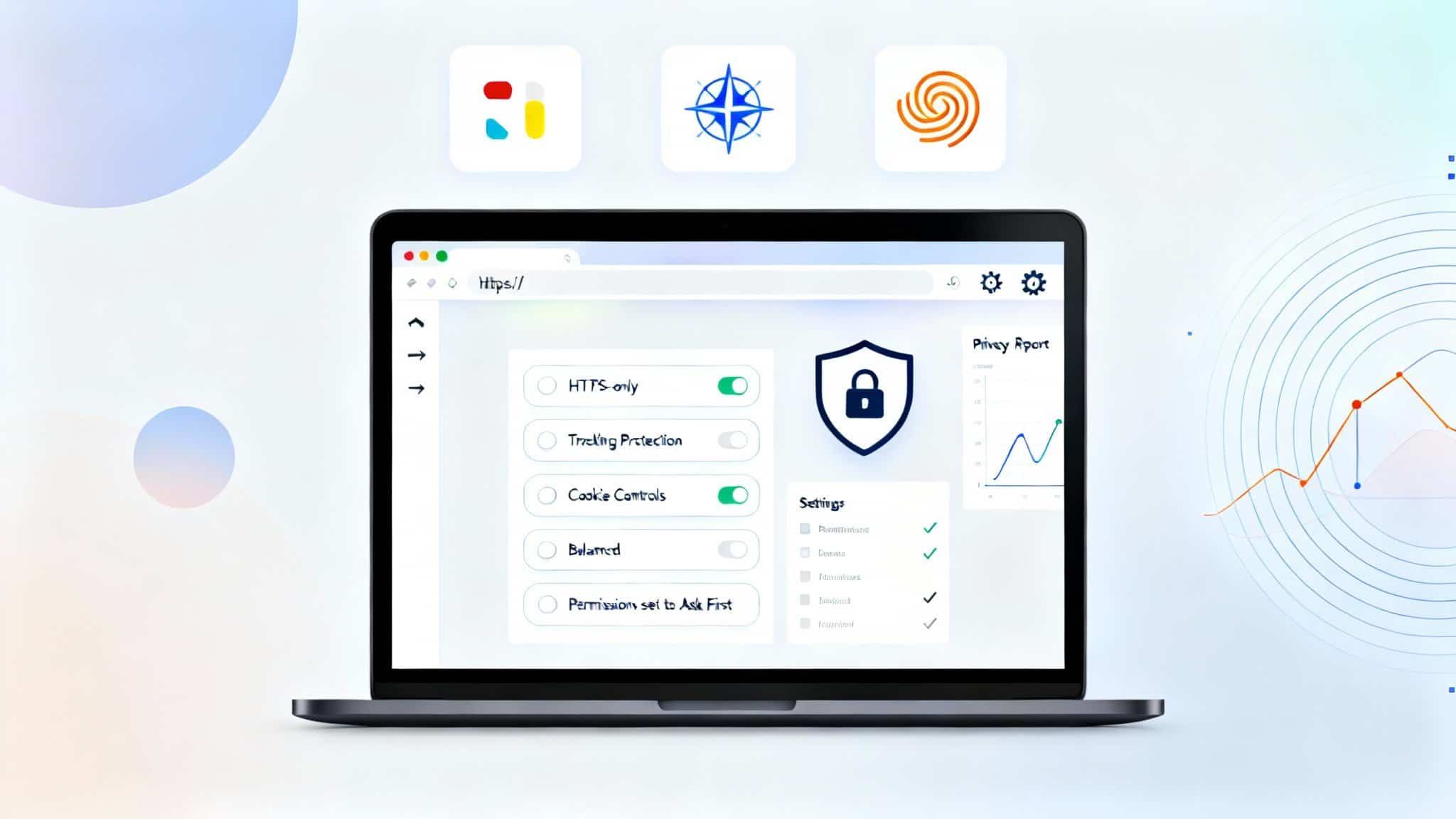

In a world where phishing scams, data breaches, and malware evolve by the day, your browser’s security settings are your first and strongest line of defense. Whether you use Google Chrome, Apple Safari, or Mozilla Firefox, each browser offers powerful tools to protect your privacy, block malicious content, and reduce tracking. This guide explains the essential security and privacy features in each browser, how to configure them for maximum safety, and what to do to maintain organic visibility if you publish similar content online.
Why browser security settings matter
Modern websites run complex scripts, third-party integrations, and sometimes invasive trackers. Misconfigured settings can expose your device to:
- Credential theft via phishing and drive‑by downloads
- Cross-site tracking and behavioral profiling
- Malicious extensions or side-loaded code
- Insecure HTTP connections that leak sensitive data
By tailoring a few key settings—safe browsing, permissions, tracking protection, HTTPS enforcement, password and autofill rules—you drastically reduce your attack surface.

Core security concepts to know
- HTTPS-first: Always prefer encrypted connections to prevent data interception.
- Site isolation/sandboxing: Limits what a compromised tab can access.
- Tracking prevention: Blocks cross-site cookies and fingerprinting techniques.
- Permission control: Camera, microphone, location, and notifications should be “ask first.”
- Extension hygiene: Fewer extensions, from trusted sources only, with minimal permissions.
Google Chrome: Security settings that matter
Chrome integrates robust safe browsing features and enterprise-grade controls.
- Safe Browsing (Enhanced Protection)
- Path: Settings > Privacy and security > Security > Safe Browsing
- Choose “Enhanced protection” to get faster, more proactive blocking of dangerous sites, downloads, and extensions. This setting shares limited telemetry with Google to improve threat detection.
- Always use secure connections
- Toggle “Always use secure connections” to automatically upgrade to HTTPS and warn on insecure HTTP pages.
- Cookies and tracking
- Settings > Privacy and security > Cookies and other site data
- Use “Block third-party cookies” for a solid balance of compatibility and privacy. Consider “Block third-party cookies in Incognito” if certain sites break in normal mode.
- Site permissions
- Settings > Privacy and security > Site settings
- Set critical permissions (Location, Camera, Microphone, Notifications, File System) to “Ask first.”
- Disable “Insecure content” and restrict “Pop-ups and redirects” unless necessary.
- Under “Additional permissions,” disable “Background sync” for privacy if you don’t need it.
- Passwords and autofill
- Settings > Autofill > Password Manager
- Use the built-in password checker to detect weak or compromised passwords.
- Turn off autofill for payment methods on shared devices and enable biometric confirmation.
- Extensions
- Visit chrome://extensions
- Remove anything you don’t recognize. Prefer well-reviewed, actively maintained extensions with minimal permissions.
- Site isolation
- chrome://flags/#enable-site-per-process (generally enabled by default)
- Ensures each site runs in its own process, limiting cross-site data leakage.
Best for: Users who want strong phishing and malware protection, fast updates, and tight integration with Google services.
Apple Safari: Privacy-first defaults with powerful tracking prevention
Safari emphasizes privacy by default, especially on macOS and iOS.
- Intelligent Tracking Prevention (ITP)
- Settings > Safari (iOS) or Safari > Settings > Privacy (macOS)
- “Prevent cross-site tracking” is enabled by default. Keep it on to limit third-party cookies and fingerprinting-based tracking.
- Fraudulent Website Warning
- Ensure this is enabled to alert you about suspected phishing sites.
- Hide IP address from trackers
- Turn on “Hide IP address from trackers” to blunt cross-site profiling.
- Privacy Report
- Click the shield icon (macOS) to see blocked trackers. Use this to audit sites that rely heavily on third-party tracking.
- Permissions per site
- Safari > Settings for This Website
- Set “Ask” for Camera, Microphone, Location, and Notifications. Disable autoplay and pop-ups unless trusted.
- Passwords and passkeys
- Safari integrates with iCloud Keychain and passkeys for phishing-resistant logins. Use strong, unique passwords and enable two-factor authentication for Apple ID.
- Extensions
- Install only from the App Store. Review data access scopes carefully.
Best for: Users who prioritize privacy out-of-the-box with minimal tweaking, and those deeply in the Apple ecosystem.
Mozilla Firefox: Granular controls and open-source transparency
Firefox offers best-in-class tracking protection with extensive customization.
- Enhanced Tracking Protection (ETP)
- Settings > Privacy & Security
- Choose “Strict” to block cross-site tracking cookies, social media trackers, cryptominers, and fingerprinting scripts. If a site breaks, add an exception.
- Total Cookie Protection
- Built into ETP “Strict,” it isolates cookies per site, preventing cross-site tracking without fully breaking functionality.
- HTTPS-Only Mode
- Enable HTTPS-Only Mode to force secure connections when available and warn you on HTTP.
- Permissions and autoplay
- Settings > Privacy & Security > Permissions
- Set Location, Camera, Microphone, Notifications to “Ask.”
- DNS-over-HTTPS (DoH)
- Settings > General > Network Settings > Enable DNS over HTTPS
- Use a trusted provider (e.g., Cloudflare or NextDNS) for encrypted DNS queries.
- Containers and profiles
- Firefox Multi-Account Containers isolate cookies by context (e.g., Work, Shopping), reducing tracking and improving compartmentalization.
- Passwords and breach alerts
- Built-in password manager checks for known breaches. Consider pairing with a dedicated password manager if you need cross-platform vaults or advanced sharing.
Best for: Users who want deep privacy controls, encrypted DNS, containerization, and open-source ethos.
Cross-browser hardening checklist
- Use a reputable password manager, unique passwords, and passkeys where supported.
- Turn on two-factor authentication everywhere.
- Keep the browser up to date; enable automatic updates.
- Limit extensions to essentials; audit them monthly.
- Clear site data periodically or use automatic cookie clearing on exit (with exceptions for trusted sites).
- Prefer privacy-focused search engines in private browsing modes.
- Consider network-level protections: router DNS filtering, reputable antivirus, and OS-level firewalls.
Common pitfalls and how to fix them
- Overblocking breaks sites: Use per-site exceptions rather than weakening global settings.
- Autofill on shared devices: Disable payment and address autofill or require biometric confirmation.
- Ignoring update prompts: Security patches close active exploits; set updates to automatic.
- Too many overlapping extensions: They can conflict and increase attack surface—consolidate.
Maintaining security without sacrificing usability
- Start strict (block third-party cookies, enforce HTTPS, ask-first permissions).
- Add site exceptions for essential services that malfunction under strict rules.
- Use distinct browser profiles or containers for work, banking, and personal browsing.
SEO and organic search tips for similar content
If you plan to publish a guide like this:
- Target intent-rich long-tail queries (e.g., “best Chrome security settings for small business,” “enable HTTPS-only mode Firefox”).
- Use structured headings (H2/H3) and concise answers near the top for featured snippet potential.
- Add internal links to related privacy topics (VPN, password managers, 2FA guides).
- Include a comparison table, FAQs, and a step-by-step checklist to increase dwell time.
- Keep URLs clean, use descriptive title tags, and write a compelling meta description that matches searcher intent.
- Update the post quarterly to reflect UI changes and new protections.
Quick-start configuration summary
- Chrome: Enhanced Safe Browsing, Block third-party cookies, Always use secure connections, Ask-first permissions, extension audit.
- Safari: Prevent cross-site tracking, Hide IP from trackers, Fraudulent Website Warning, per-site Ask permissions, App Store-only extensions.
- Firefox: ETP Strict with Total Cookie Protection, HTTPS-Only Mode, DoH enabled, Containers for compartmentalization, strict permissions.