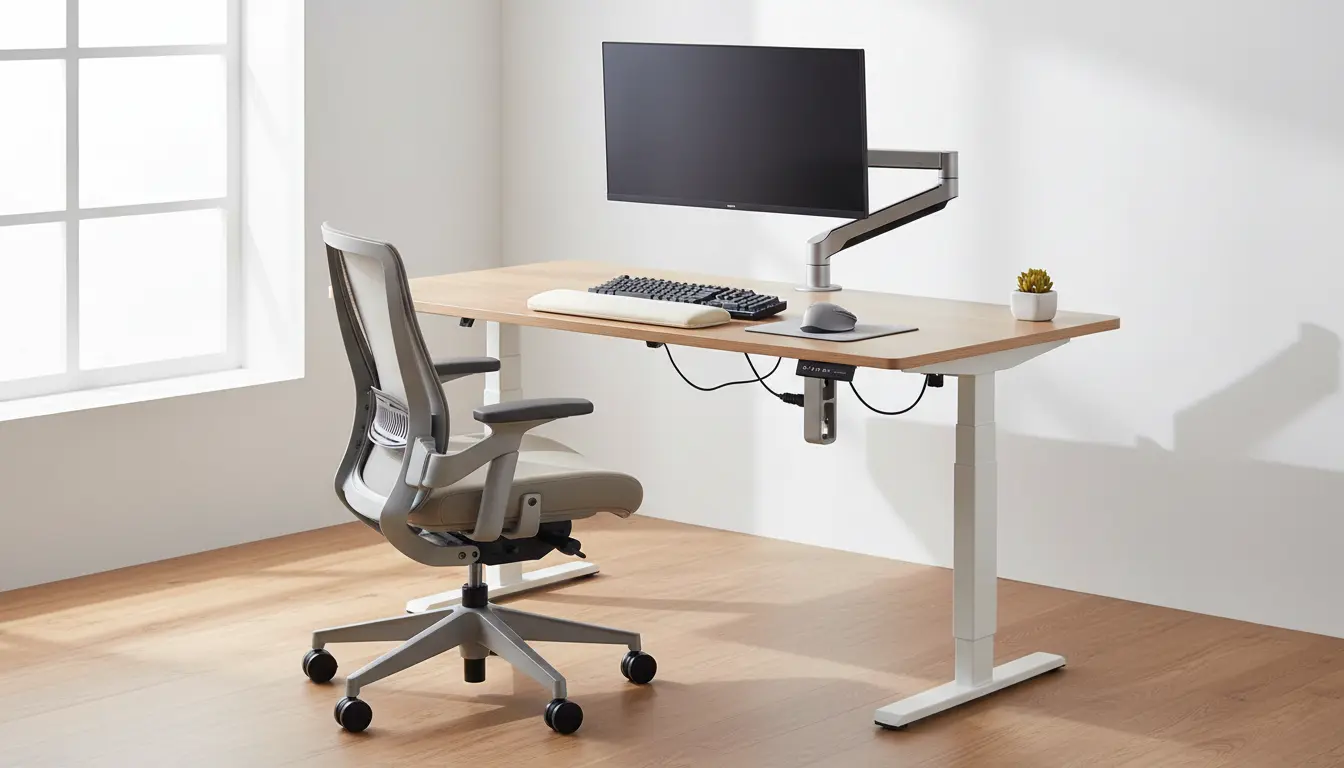

Ergonomic Setup Guide: Chair, Desk, Wrist Rest and VESA Arm
Designing an ergonomic workstation is one of the best investments you can make in your health, productivity, and long‑term comfort. A well‑planned setup reduces muscle strain, supports neutral posture, and helps prevent common issues like back pain, neck tension, and wrist discomfort. In this guide, you will learn how to optimize your chair, desk, wrist support, and monitor arm (VESA mount) to create a truly ergonomic workspace.
Why an Ergonomic Workstation Matters
You probably spend hours every day at your desk. Without proper ergonomics, this time can slowly damage your body. Poor posture increases pressure on your spine, compresses nerves, and overstretches muscles and tendons. Over time, this leads to:
- Chronic neck and shoulder pain
- Lower back pain
- Wrist and forearm strain
- Headaches and eye fatigue
- Reduced focus and productivity
An ergonomic setup does not have to be expensive or complicated. The key is to adjust your environment to your body instead of forcing your body to adapt to your equipment. When you align your chair, desk, wrist rest and monitor correctly, you create a neutral, balanced posture that allows your body to work with less effort.

Ergonomic Office Chair: Foundation of Your Setup
Your chair is arguably the most important part of your ergonomic workstation. It supports your spine, hips and thighs for long periods. A good ergonomic chair should be adjustable and allow dynamic sitting.
Key features of an ergonomic chair
Look for these elements when choosing or adjusting your chair:
- Seat height adjustment: Your feet should rest flat on the floor, with your knees at roughly 90 degrees. If your desk is high and you must raise the chair, use a footrest so your feet are supported.
- Lumbar support: Your lower back has a natural inward curve. Built‑in lumbar support or an external cushion should fill that curve and prevent slouching.
- Seat depth: When you sit back fully, there should be 2–3 fingers’ space between the front of the seat and the back of your knees. If the seat is too deep, it may cut off circulation.
- Armrests: Adjust armrests so your shoulders stay relaxed, not raised. Your elbows should rest at about 90 degrees close to your body. If armrests prevent you from getting close to the desk, lower or remove them.
- Backrest recline: A slight recline of 100–110 degrees can reduce pressure on your spine. Use tilt tension so you can lean back easily but still feel supported.
How to sit correctly
Sit all the way back in the chair, not on the edge. Keep your hips slightly higher than your knees, which encourages a natural lumbar curve. Avoid crossing your legs for long periods; instead, keep both feet supported. Shift positions regularly and stand up at least once every 30–60 minutes to promote circulation.
Ergonomic Desk: Height, Layout and Work Area
Your desk defines where your keyboard, mouse, and work materials sit. Even the best chair cannot compensate for a desk that is too high or too low.
Ideal desk height
For most people, the ideal desk height allows the forearms to rest parallel to the floor when typing, with elbows at about 90 degrees. If you use a height‑adjustable desk or sit‑stand desk, you can fine‑tune this more easily.
- Too high: You will shrug your shoulders or raise your wrists, leading to neck and shoulder tension.
- Too low: You will lean forward or bend your back and wrists down, increasing back and wrist strain.
If you cannot change your desk height, adjust your chair and add a footrest or seat cushion as needed.
Desk layout and reach zones
Organize your desktop according to how often you use each item:
- Primary zone (frequent use): Keyboard, mouse, and main work documents should stay within easy reach without leaning forward.
- Secondary zone (occasional use): Phone, notebook, or reference materials can sit slightly farther back but still reachable by extending your arm.
- Avoid clutter: Extra items and decorations are fine, but keep your immediate work area clear so you do not adopt awkward positions to reach what you need.
Cable management and a clean surface also support a more relaxing, focused work experience.
Wrist Rest and Keyboard Position: Protecting Your Hands
Many people overlook wrist ergonomics, but repetitive typing and mousing with poor support can lead to tendonitis or carpal tunnel‑like symptoms.
Neutral wrist posture
Aim to keep your wrists in a straight, neutral line with your forearms:
- Wrists should not bend up (extension) or down (flexion) while typing or using the mouse.
- Avoid excessive side‑to‑side deviation of the wrists.
To support this posture, place the keyboard:
- Directly in front of you
- At a height where your elbows are at 90 degrees
- Flat or with a negative tilt (front edge slightly higher than the back), if possible
How and when to use a wrist rest
A wrist rest or keyboard palm rest is not meant to support your wrists while you actively type. Instead, it should support the base of your palms during pauses.
Best practices:
- Choose a wrist rest that is soft but not too squishy, and about the same height as the front of your keyboard.
- Rest the heel of your palms, not the middle of your wrists, on the support to avoid direct pressure on the carpal tunnel area.
- For mouse use, consider a mouse pad with wrist support if you experience strain, but ensure the size allows full arm movement rather than only wrist movement.
Also, use more arm and shoulder movement for the mouse instead of tiny wrist‑only motions. This distributes strain across larger muscles.
Monitor Ergonomics and VESA Arm: Aligning Screen with Your Body
Your monitor plays a major role in neck and eye comfort. A VESA monitor arm gives you flexibility to position the screen exactly where you need it.
Ideal monitor height and distance
When you sit in neutral posture:
- The top of the screen should be at or slightly below eye level.
- Your eyes should naturally fall to the upper third of the screen when looking straight ahead.
- The monitor should sit approximately an arm’s length away (about 50–70 cm) depending on screen size and vision.
- If you use bifocals or progressive lenses, you may need to lower the monitor slightly to avoid tilting your head back.
Benefits of a VESA arm
A VESA‑compatible monitor arm allows you to:
- Raise or lower the monitor easily
- Pull it closer or push it back
- Tilt and swivel the screen to reduce glare
- Quickly switch between sitting and standing positions at a sit‑stand desk
This flexibility helps maintain neutral neck posture and reduces the instinct to hunch forward toward the screen. If you work with multiple monitors, use VESA arms to align them at equal height and angle them slightly inward, so you can rotate your neck minimally instead of twisting your whole body.
Putting It All Together: Step‑by‑Step Ergonomic Setup
Use this simple sequence to build a cohesive ergonomic workstation:
- Adjust your chair first
- Feet flat and supported, hips slightly higher than knees, lumbar spine supported, shoulders relaxed.
- Set your desk height relative to your chair
- Elbows at roughly 90 degrees, forearms parallel to the floor, shoulders not raised.
- Position keyboard and mouse
- Center the keyboard with your body.
- Keep wrists straight and relaxed.
- Place the mouse close to the keyboard at the same height.
- Add wrist support carefully
- Use palm rests for breaks, not constant weight‑bearing during typing.
- Avoid hard surfaces that press directly into your wrists.
- Install and adjust the VESA monitor arm
- Place the top of the screen at or slightly below eye level.
- Align the monitor directly in front of you, one arm’s length away.
- Tilt the screen slightly backward to match your natural gaze.
- Incorporate movement
- Change posture regularly.
- Stand or walk for a few minutes each hour.
- Do simple stretches for your neck, shoulders and wrists throughout the day.
A truly ergonomic setup is not static; it supports micro‑movements and posture changes rather than locking you into one position.
Final Tips for a Healthy, Organic Work Routine
Even the most advanced ergonomic equipment cannot replace healthy work habits. Combine your optimized workstation with:
- Short, frequent breaks away from the screen
- Simple stretching or mobility exercises
- Adequate lighting to reduce eye strain
- Conscious posture checks during the day
Over time, these habits help your body adapt to a healthier, more sustainable way of working. You will likely notice more energy, less discomfort, and better focus during long work sessions.
Amazon Product Suggestion
For a flexible and space‑saving monitor setup, consider an adjustable VESA monitor arm like the Amazon Basics Single Monitor Stand – Height Adjustable Mount available on Amazon.com. It supports VESA‑compatible monitors, offers smooth height and tilt adjustments, and helps you position your screen at the ideal ergonomic height and distance.









