
What Are Ping and Jitter? How To Reduce Them for Gaming and Streaming
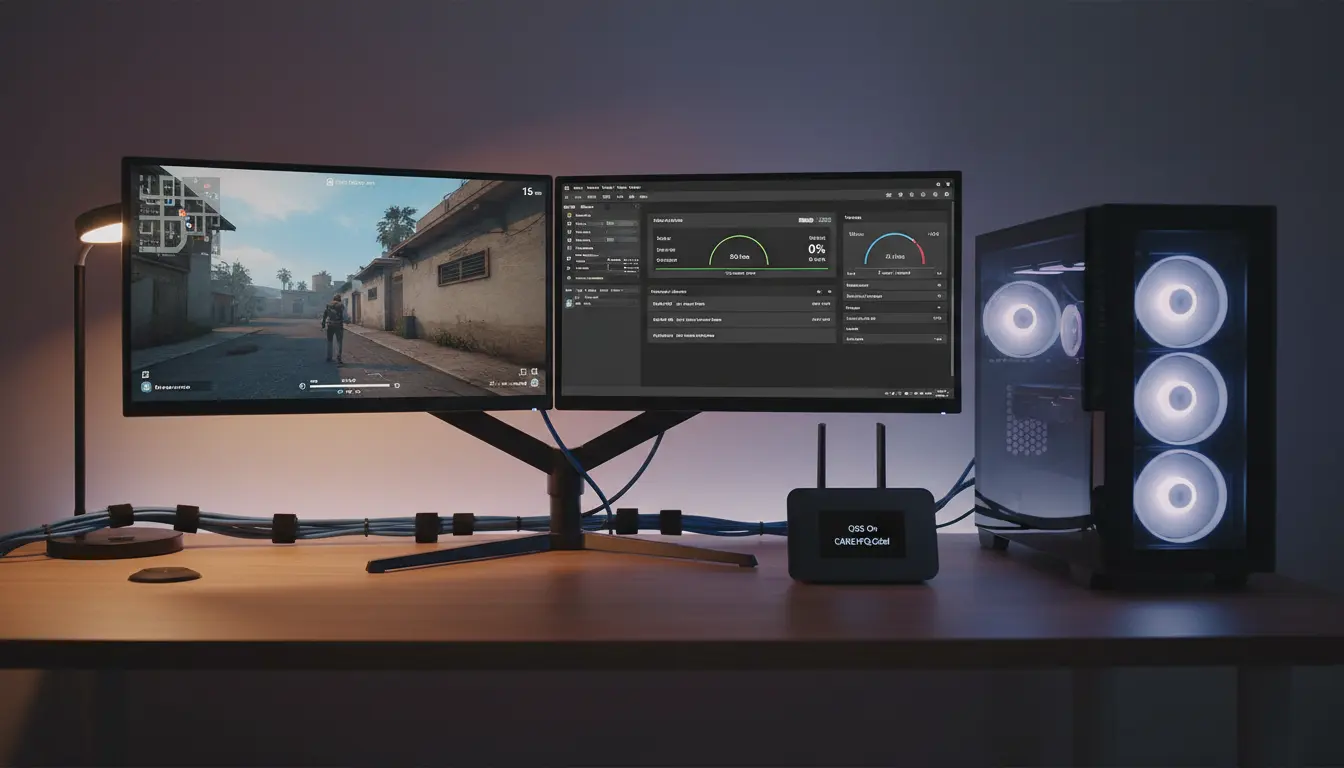
If you play online games or stream live video, you’ve probably heard people talk about “ping” and “jitter.” Both directly affect how smooth your experience feels. High ping causes noticeable delay between your actions and the server’s response; high jitter makes that delay inconsistent, leading to lag spikes, rubber-banding, and choppy streams. In this guide, you’ll learn what ping and jitter are, why they matter for gaming and streaming, how to measure them correctly, and practical steps to reduce them on any connection.
Ping vs. Jitter: The Basics
- Ping (Latency): Ping is the round-trip time (RTT) it takes for a small packet to travel from your device to a server and back, measured in milliseconds (ms). Lower is better. For competitive gaming, under 30 ms is excellent; 30–60 ms is good; 60–100 ms is borderline; over 100 ms can feel laggy.
- Jitter (Latency Variance): Jitter is the variability in latency over time. Even if average ping is low, high jitter means some packets take longer than others, creating micro-stutters and inconsistent inputs. Jitter is typically measured in ms; single-digit jitter is ideal, under 15 ms is generally acceptable, and anything higher can produce noticeable stutter.
Think of ping as the average delay and jitter as how much that delay fluctuates. Smooth gameplay and stable streams require both low ping and low jitter.
Why Ping and Jitter Matter for Gaming and Streaming
- Gaming: Shooters, MOBAs, and fighting games rely on precise timing. High ping increases input delay; high jitter causes unpredictable hit registration and rubber-banding. Esports-level play often demands <30 ms ping and <10 ms jitter.
- Streaming: Live streaming protocols buffer to smooth out delivery, but high jitter can still cause dropped frames, bitrate swings, and buffering, especially at low-latency settings. Stable latency helps maintain consistent quality and prevents stream interruptions.
How To Measure Ping and Jitter Correctly
- Built-in game network stats: Many titles display ping and sometimes jitter/packet loss in the HUD or network diagnostics screen.
- Speed test tools: Some tools show “latency” and “jitter” separately. Run multiple tests at different times to spot congestion patterns.
- Command line:
- Ping test:
ping -n 50 example.com(Windows) orping -c 50 example.com(macOS/Linux) to see average and variation. - Jitter estimate: Look at min/avg/max and standard deviation, or use
mtr/WinMTRto observe hop-by-hop variability and packet loss.
- Ping test:
Test to the actual game server or streaming ingest server region when possible. Results to generic test servers can differ from in-game performance.



Common Causes of High Ping and Jitter
- Wi‑Fi interference: Distance, walls, neighboring networks, and 2.4 GHz congestion all increase retransmissions and variability.
- Bufferbloat: Full queues on your router/modem under load (uploads especially) inflate latency and jitter during peak usage.
- ISP congestion and routing: Overloaded local nodes or suboptimal peering paths add delay and volatility.
- Background traffic: Cloud backups, OS updates, or other household devices saturating upload/download create spikes.
- Hardware limits: Old routers without proper QoS, weak CPUs, or outdated firmware can’t manage modern traffic well.
- Server distance: Longer physical distance and extra network hops increase RTT and the opportunity for variance.
Practical Ways To Reduce Ping and Jitter
- Prefer Ethernet
- Use a wired Ethernet connection for gaming and streaming. It reduces interference, halves latency in many cases, and dramatically cuts jitter.
- If wiring isn’t possible, try powerline adapters or MoCA as alternatives.
- Optimize Wi‑Fi if You Must Use It
- Use 5 GHz or Wi‑Fi 6/6E where available; 2.4 GHz is crowded and jitter-prone.
- Place the router centrally, elevated, away from microwaves and thick walls.
- Manually choose the least congested channel using a Wi‑Fi analyzer.
- Reduce the number of connected devices and disable legacy protocols if possible.
- Control Bufferbloat With Smart Queue Management (SQM)
- Enable QoS/SQM on your router (keywords: CAKE, FQ_CoDel). These algorithms prioritize interactive traffic and keep queues short.
- Set upload/download bandwidth in QoS to about 80–90% of your real peak rates so the queue remains under control.
- Prioritize game console/PC MAC/IP and the game/streaming ports.
- Manage Household Traffic
- Pause large downloads, cloud backups, and OS updates while gaming or streaming.
- Schedule heavy tasks for off-peak hours.
- Limit bandwidth-hungry apps (4K streaming, file sync) on other devices during critical sessions.
Other
- Choose the Right Server/Region
- In-game, pick the closest server region with the lowest reported ping.
- For streaming, select the nearest ingest server or use tools that auto-pick the lowest-latency endpoint.
- Keep Firmware and Drivers Updated
- Update router firmware to fix bugs and improve QoS performance.
- Update NIC/Wi‑Fi drivers on your PC or console system software.
- Use a Quality Router and Modem
- Entry-level ISP gateways often have weak QoS. Consider a router that supports SQM (e.g., OpenWrt-capable or reputable gaming routers with proven bufferbloat control).
- If possible, replace old DOCSIS or DSL modems with newer models certified by your ISP.
- Optimize Your PC/Console Network Stack
- Disable unnecessary overlays or background launchers that sync data.
- On Windows, ensure “Delivery Optimization” is limited. Turn off automatic updates during play.
- Consider enabling “Game Mode” and closing apps that periodically phone home.
- Try Different Times or Contact Your ISP
- If jitter spikes only at peak evening hours, it may be node congestion. Document tests over a week and share with your ISP.
- Ask about routing changes, provisioning issues, or upgrades. Sometimes a different plan or profile reduces latency.
- Advanced: Multi-Path or VPN (Use With Caution)
- Some gamers see improvements using gaming-optimized VPNs that provide better peering to specific game servers. Results vary; test before committing.
- Bonding/multi-path services can smooth jitter by sending packets over multiple links, but they add cost and complexity.
Streaming-Specific Tips
- Set a conservative bitrate: If your upload is 20 Mbps, don’t stream at 15 Mbps. Leave headroom to avoid bufferbloat. For 1080p60, 6–8 Mbps with good encoding is often enough.
- Use CBR with proper network buffers: CBR plus an adequate network buffer stabilizes delivery; tune keyframe intervals and lookahead carefully.
- Low-latency modes: Only enable ultra-low-latency if your network is rock solid. Otherwise, standard latency prevents jitter from causing visible issues.
Gaming-Specific Tips
- UDP ports and NAT: Use UPnP or manual port forwarding to ensure open NAT and reduce retransmission delays.
- Frame pacing: Keep a stable framerate to match network smoothness; erratic FPS amplifies perceived jitter.
- In-game net settings: Some games let you choose tick rate servers or packet rates; pick settings your connection can sustain consistently.
How To Tell If You’ve Fixed It
- Before/after logs: Run
mtror repeated speed/jitter tests before changes and after enabling SQM or switching to Ethernet. Look for lower average latency and reduced variation. - In-game feel: Fewer rubber-bands, steadier hit-reg, and consistent TTKs are good signs.
- Stream health: Watch the dropped frames and network stability charts in OBS or your platform’s dashboard.
Quick Checklist
- Use Ethernet.
- Enable SQM/QoS (CAKE/FQ_CoDel) and cap bandwidth to ~85–90% of max.
- Choose closest server/ingest region.
- Update router firmware and NIC drivers.
- Stop background uploads/downloads during sessions.
- Optimize Wi‑Fi only if Ethernet isn’t possible (5 GHz, clear channel, Wi‑Fi 6).