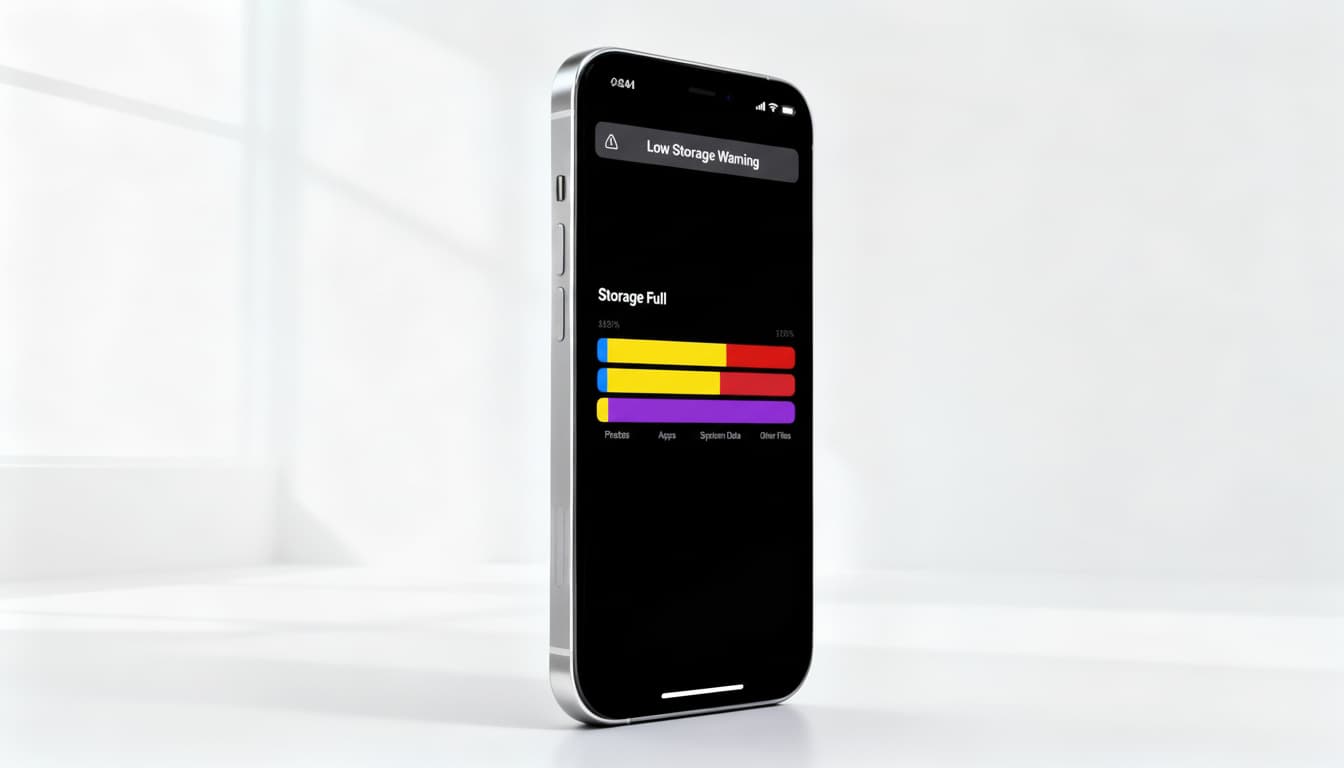

In today’s digital-driven world, our smartphones carry everything—from precious photos and important work documents to entertainment apps and social media platforms. While Apple’s iPhone offers incredible user experience, one major challenge users face over time is running out of storage. If your iPhone constantly pops up the dreaded “Storage Almost Full” notification, it’s time to take action.
This detailed guide will teach you how to clean iPhone storage effectively, improve your phone’s speed, extend its life, and even save money by avoiding unnecessary iCloud upgrades or buying a higher-capacity model. Whether you use your iPhone for business, personal memories, or everyday multitasking, storage management is the hidden secret for keeping it running like new.
Why iPhone Storage Gets Full So Fast
Even with newer models offering larger capacities, iPhone storage fills up quickly. Here are the main culprits:
- Photos and Videos: With 4K recording and high-resolution images, media files eat up gigabytes in no time.
- Applications: Social media apps like Instagram, Facebook, and TikTok grow larger as caches and updates pile up.
- System Data: Over time, software updates, logs, and caches steal hidden storage.
- Messages & Attachments: Old iMessage threads, GIFs, and videos silently consume space.
Recognizing what clogs memory is the first step toward effective iPhone storage cleaning.
Step-by-Step Guide to Cleaning iPhone Storage
1. Check Your Storage Breakdown
Go to Settings > General > iPhone Storage. Apple provides a color-coded bar showing how much space is taken by apps, photos, media, and “other.” This overview helps you detect your biggest problem areas.
2. Delete or Offload Unused Apps
Studies show the average person uses fewer than half the apps installed. By offloading unused apps—a feature Apple provides—you retain the data while freeing up storage. Later, if you reinstall, your data is restored automatically.
Pro tip: Check your usage statistics to see which apps you haven’t touched in months.
3. Clean Photo and Video Library
Your media library is usually the largest storage hog. Take these actions:
- Enable iCloud Photos: Store full-resolution versions in the cloud and keep lightweight thumbnails on-device.
- Use “Optimize iPhone Storage” option for automatic space saving.
- Delete duplicates and screenshots using third-party cleaning apps or Apple’s built-in “Albums > Utilities > Duplicates.”
- Export & Backup to External Drives: Transfer photos to a computer or external SSD before deleting them.
4. Manage Safari Cache and Files
Browser cache builds up silently. Go to Settings > Safari > Clear History and Website Data. This not only saves space but also improves browsing speed.
5. Optimize Messages Storage
Texting habits can chew massive storage.
- Turn on auto-delete old messages (Settings > Messages > Keep Messages > choose 30 Days).
- Delete conversations with large media files.
- Offload high-volume files like memes and videos into cloud storage before removing them.
6. Stream Instead of Storing
Use Apple Music, Spotify, Netflix, or cloud storage platforms to stream instead of downloading. This drastically reduces storage use.
7. Regularly Update iOS & Apps
Newer Apple updates often feature storage optimization tools. Updating also ensures app caches are refreshed with more efficient versions.
8. Use Third-Party iPhone Cleaner Apps
If manual cleaning feels overwhelming, specialized apps like PhoneClean, iMyFone Umate, or Cleaner Pro automate the process. Always choose reputable software for safety.
Benefits of Cleaning iPhone Storage
- Boosts Performance: Free space allows smoother operation, faster app launches, and fewer crashes.
- Extends iPhone Lifespan: Reduces wear on memory chips, delaying the need for expensive upgrades.
- Improves Security: Deleting old data minimizes risks of sensitive information leaks.
- Saves Money: Avoid upgrading to a higher storage model or paying monthly for larger iCloud plans.
- Peace of Mind: A clutter-free iPhone means more space for new memories, apps, and business operations.
iPhone Storage Cleaning vs. Buying More Storage
Most people instantly jump into buying a new iPhone or upgrading iCloud when storage runs out. Yet, that’s not always necessary. Cleaning and managing your current device can save you hundreds of dollars annually.
Buy More Storage When:
- You’re a professional creator needing constant offline access to high-resolution images and videos.
- You travel often with limited internet connectivity.
Clean Storage When:
- You want to extend the lifespan of your iPhone.
- Cloud solutions and external backups work fine for you.
- You want to avoid unnecessary costs.
Professional Storage Cleaning Services
If you’re pressed for time, many repair shops and Apple-certified service providers offer professional iPhone storage cleaning. While it’s possible to DIY, professionals ensure deep cleaning, removing redundant system files that average users struggle to identify.
Sales Angle: Tools You Can Use
Whether you’re a student, a photographer, or a business professional, investing in smart storage management tools ensures your iPhone performs at peak capacity. Consider:
- External SSDs or Flash Drives: Easy plug-and-play solutions for backups.
- iCloud Storage Plans: Affordable cloud option synced across Apple devices.
- Trusted Cleaner Apps: Automated, fast, and reliable space saving.
By applying these, you’ll maximize both phone performance and personal productivity.
Conclusion
A clean iPhone is a fast, safe, and stress-free iPhone. With proactive storage management, you don’t need to constantly upgrade or worry about interruptions when capturing memories or running critical business apps.
Follow the steps outlined in this iPhone storage cleaning guide, and you’ll protect your investment, improve performance, and enjoy smoother digital living.