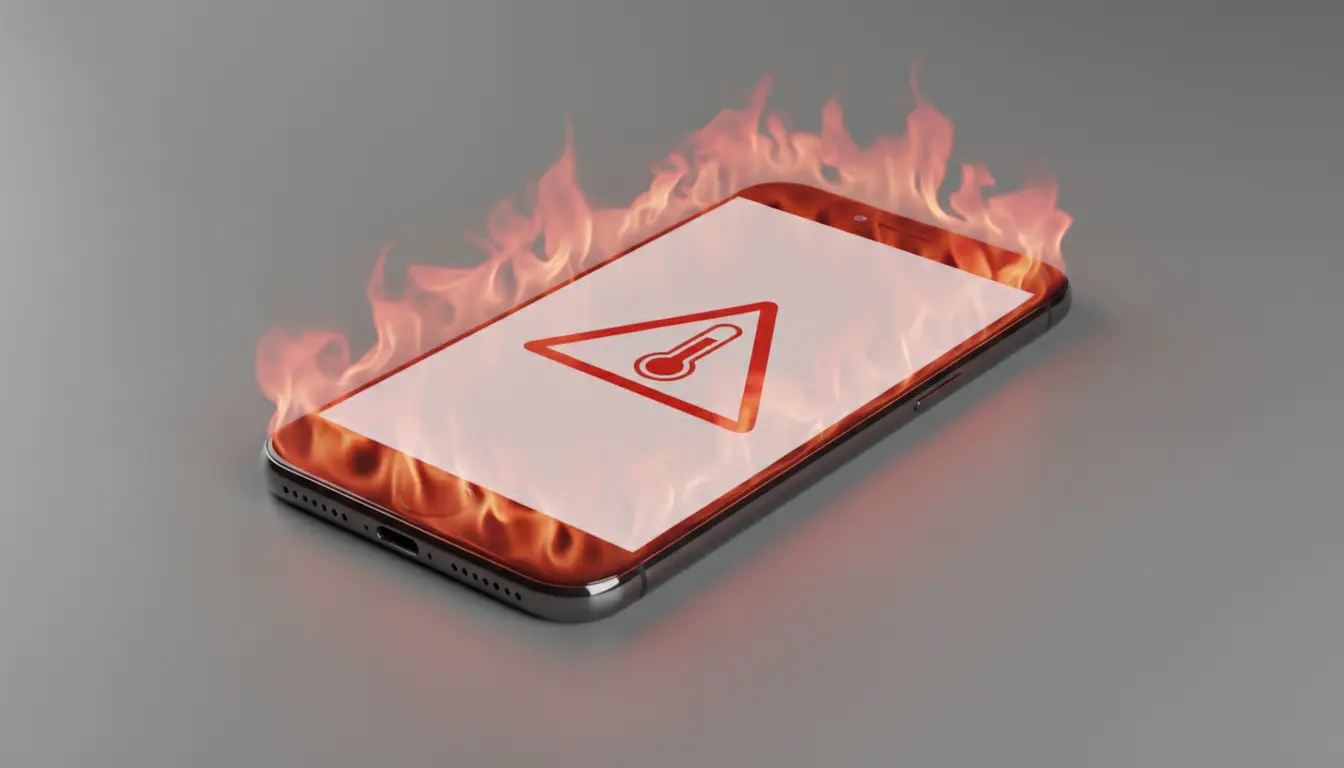

Phone overheating is a common problem that can affect performance, battery life, and even device safety. While mild warmth is normal during intensive tasks, sustained or sudden heat can signal deeper issues that should be addressed. In this comprehensive guide, we’ll explain why phones get hot, how to diagnose the underlying cause, and the most effective, organic solutions to keep your device cool and healthy. You’ll also find best practices for long-term prevention, myths to avoid, and when to seek professional help.
Why Do Phones Overheat?
A smartphone heats up when internal components—primarily the processor (CPU), graphics chip (GPU), and battery—work harder than usual or operate in an inefficient environment. Heat is a byproduct of energy conversion. If your device can’t dissipate that heat quickly enough, surface temperature rises and throttling or shutdowns may occur.
Common scenarios:

- Heavy multitasking or gaming that maxes out CPU/GPU.
- Streaming or video recording at high resolution for extended periods.
- Charging while using resource-heavy apps.
- High ambient temperature or direct sunlight exposure.
- Background processes, rogue apps, or malware.
- Poor ventilation from thick cases or blocked vents.
- Software bugs, outdated OS, or corrupted system caches.
- Battery health degradation or hardware faults.
Primary Causes in Detail
- Processor and Graphics Load
- Demanding apps like 3D games, AR tools, or video editors push chips to their limits, generating heat. If the phone lacks robust thermal management, heat accumulates.
- Charging Habits
- Fast charging increases power flow, which produces heat—especially if done on a soft surface (like a bed) or in hot environments. Using the phone while charging compounds the issue.
- Background Tasks and App Misbehavior
- Some apps continue syncing, scanning location, or refreshing content in the background. Misconfigured apps or hidden processes can keep the CPU “awake,” raising temperature.
- Connectivity and Signal Strength
- Weak mobile signal forces the modem to boost transmission power. Continuous 5G usage, tethering, or long Bluetooth sessions can also increase thermal load.
- Environmental Conditions
- Hot weather, parked cars, or direct sunlight rapidly elevate device temperature and impede cooling. Cases that trap heat make this worse.
- Software Bugs or Outdated Firmware
- Poor optimization, memory leaks, or OS-level bugs can cause unnecessary resource use. Pending updates often contain performance and thermal fixes.
- Battery Age or Faults
- Lithium-ion batteries degrade over time, increasing internal resistance and heat during charge/discharge. Swelling, rapid drain, or unusual warmth are red flags.
How to Diagnose the Root Cause
- Check Battery and Thermal Stats:
- On Android, use built-in battery stats or reputable monitoring apps to find power-hungry apps.
- On iOS, review Settings > Battery to identify usage spikes.
- Note Patterns:
- Overheating during gaming or camera use suggests CPU/GPU load.
- Heat only when charging points to charger/cable, fast-charge settings, or environment.
- Heat in low-signal areas implicates the modem/network.
- Safe Mode (Android):
- Booting in Safe Mode can reveal whether third-party apps are the culprit.
- Inspect Hardware:
- Look for case thickness, dust in ports, or any swelling on the back indicative of battery issues.
Practical Solutions That Work
- Reduce Performance Load
- Close unused apps and clear recent tasks.
- Lower in-game graphics settings and frame rates.
- Disable live wallpapers and excessive widgets.
- Turn off background app refresh for non-essential apps.
- Optimize Charging
- Avoid using the phone during charging when possible.
- Prefer manufacturer-approved chargers and cables.
- Remove the case while charging to improve heat dissipation.
- Enable “Optimized Charging” or “Battery Protection” features if available.
- Charge in a cool, ventilated area; avoid cars and direct sunlight.
- Manage Connectivity
- Switch to Airplane Mode in very low-signal areas or temporarily disable 5G.
- Turn off Wi‑Fi/Bluetooth tethering when not needed.
- Use Wi‑Fi calling to reduce cellular strain in weak-signal buildings.
- Improve Thermal Environment
- Keep the phone out of sun-exposed pockets and dashboards.
- Use breathable, slim cases; consider heat-dissipating cases if necessary.
- Do not cover the phone with blankets or pillows while charging.
- Software Maintenance
- Update the OS and apps regularly for performance and thermal fixes.
- Clear app caches or reinstall problematic apps.
- Consider a clean restart or, as a last resort, a factory reset after backing up data.
- Battery Health and Hardware
- Check battery health status (on iOS or via service tools on Android).
- Replace the battery if it’s degraded or shows swelling.
- If heat persists without heavy usage, consult authorized service—there may be a failing component or thermal pad issue.
- Immediate Cooling Steps (Do and Don’t)
- Do: Power down for a few minutes, remove the case, move to a cool place, and unplug the charger.
- Don’t: Put the phone in a fridge or freezer—condensation can cause permanent damage.
Preventive Best Practices
- Configure power-saving modes to balance performance and thermals.
- Schedule app updates and backups when you’re not actively using the device.
- Limit auto-sync intervals for cloud apps if not mission-critical.
- Use dark mode and lower screen brightness to reduce power draw on OLED displays.
- Keep storage with at least 10–20% free space; low storage can cause background thrashing.
- Periodically audit installed apps and remove rarely used ones.
Myths vs. Facts
- Myth: “All fast chargers ruin batteries and cause overheating.”
Fact: Certified fast chargers and smart charging algorithms are generally safe. Heat issues arise from poor cables, third-party unsafe adapters, or hot environments. - Myth: “Killing all apps always helps.”
Fact: Constantly force-closing can backfire; some system apps relaunch and use more power. Target only misbehaving apps identified by battery stats. - Myth: “Cooling pads are unnecessary gimmicks.”
Fact: External airflow can help during long gaming sessions, but proper settings and environment matter more.
When to Seek Professional Help
- The phone overheats at idle or in airplane mode.
- Rapid battery drain, swelling, or burning odor.
- Device frequently throttles or shuts down despite light usage.
- After drops or liquid exposure followed by persistent heat.
Phone overheating is usually manageable with a mix of usage adjustments, software hygiene, and environmental awareness. By identifying whether the trigger is performance load, charging behavior, connectivity strain, or hardware aging, you can apply precise, organic fixes that extend battery lifespan and keep your device safe. Make these best practices routine, and you’ll reduce heat, preserve performance, and avoid costly repairs.