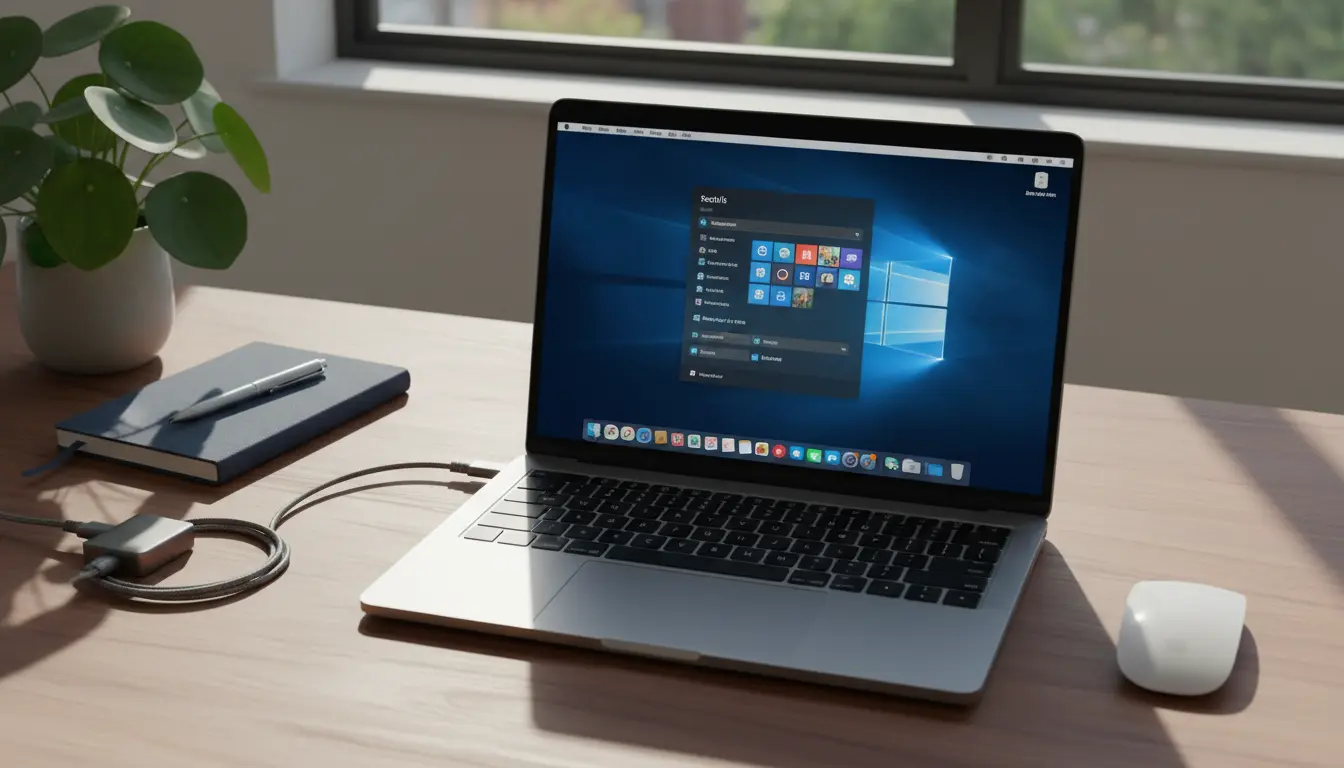

If you’re a Mac user who needs Windows for work, gaming, or specific software, you essentially have two mainstream options: Apple’s Boot Camp Assistant and Parallels Desktop. Each route lets you run Windows on your Mac, but they do so in very different ways—with distinct trade-offs in performance, compatibility, convenience, and cost. This comprehensive guide walks you through both solutions, explains when to choose one over the other, and shares best practices for installation, optimization, security, and licensing. By the end, you’ll know exactly which approach is right for your workflow.
Boot Camp vs. Parallels at a Glance
- Boot Camp (Intel Macs only): Creates a separate Windows partition and boots your Mac natively into Windows. You use either macOS or Windows at a time, not both simultaneously. Best for maximum performance (e.g., gaming, CAD).
- Parallels Desktop (Intel and Apple Silicon Macs): Virtualization that runs Windows inside macOS as an app—no reboot required. Best for convenience, quick app switching, and integration features.
Note: Boot Camp is not available on Apple Silicon (M1, M2, M3) Macs. If you have an Apple Silicon Mac, virtualization (e.g., Parallels) is the practical path, using Windows on ARM.
When to Choose Boot Camp
- You need native performance for GPU-heavy tasks (AAA games, 3D rendering, simulations).
- You rely on drivers or peripherals that require direct hardware access.
- You have an Intel-based Mac and a compatible Windows ISO.
- You don’t mind rebooting to switch between macOS and Windows.
Pros:

- Near-native performance because Windows runs directly on the hardware.
- Simple partitioning and official Apple drivers for supported Intel Macs.
Cons:
- Requires a reboot to switch between operating systems.
- Consumes disk space for a dedicated Windows partition.
- No longer supported on Apple Silicon Macs.
When to Choose Parallels Desktop
- You want to run Windows apps and macOS apps side by side.
- You need seamless copy/paste, drag-and-drop, or file sharing between OSes.
- You have an Apple Silicon Mac and need Windows on ARM.
- Your workloads are CPU- and productivity-focused rather than GPU-intensive.
Pros:
- No reboot needed; instant switching and high productivity.
- Coherence Mode blurs the line between macOS and Windows apps.
- Easy snapshotting, backup, and rollback.
- Works on both Intel and Apple Silicon (with Windows on ARM).
Cons:
- Virtualization overhead can reduce peak performance compared to Boot Camp.
- Some 3D titles and specialized drivers may not perform as well or be compatible.
- Requires a paid license/subscription for Parallels Desktop.
System Requirements and Compatibility
- Intel Macs: Can use Boot Camp or Parallels. Verify model support on Apple’s site and ensure enough free disk space (at least 64–128 GB for a practical Windows install).
- Apple Silicon Macs (M1/M2/M3): Use Parallels with Windows 11 on ARM. Many Windows apps run via x86 emulation on ARM, but test critical tools for compatibility.
- Windows License: You’ll need a valid Windows 11 (or Windows 10, where still supported) license. For ARM builds on Apple Silicon, use Microsoft’s Windows 11 for ARM.
Installing Windows with Boot Camp (Intel Macs)
- Back up your Mac with Time Machine or your preferred backup tool.
- Download a Windows 10/11 ISO from Microsoft.
- Open Boot Camp Assistant (Applications > Utilities).
- Allocate partition size (practical minimum 64 GB; more if gaming).
- Proceed with installation; your Mac will reboot into the Windows installer.
- Complete Windows setup; install Boot Camp Support Software (drivers) when prompted.
- After installation, use the Boot Camp Control Panel in Windows to manage trackpad, keyboard, and startup disk preferences.
Best Practices:
- Allocate generous disk space if you install large games or development tools.
- Update GPU and Boot Camp drivers for performance and stability.
- Use a dedicated NTFS write solution in macOS if you need to share data across partitions, or rely on a shared exFAT drive.
Installing Windows with Parallels Desktop
- Install Parallels Desktop from the official site and start a free trial if available for your region/tier.
- For Apple Silicon, Parallels can automatically fetch Windows 11 on ARM. Otherwise, point Parallels to your Windows ISO.
- Choose a configuration preset: Productivity, Software Development, Design, or Gaming (tunes CPU/RAM/graphics allocation).
- Create the virtual machine (VM), then sign into Windows and activate it with your license.
- Enable Parallels Tools inside the VM for optimized graphics, sharing, and seamless integration.
Optimization Tips:
- Assign 50–60% of your CPU cores and RAM to the VM for heavy workloads, but leave headroom for macOS.
- Store large project folders on the Mac side and share them with the VM to keep VM disk sizes manageable.
- Enable Coherence Mode to run Windows apps directly on your macOS desktop.
- Use snapshots before major updates so you can roll back quickly.
Performance Considerations
- CPU: Modern Macs have excellent multi-core performance. Boot Camp gives you the full CPU; Parallels splits resources between host macOS and the VM.
- GPU: Boot Camp (Intel) uses your Mac’s GPU natively—better for gaming. Parallels uses a virtual GPU layer; it’s improving, but still not ideal for the most demanding games or pro 3D tools.
- Disk I/O: Fast SSDs help both methods. In Parallels, pre-allocating VM disk and using NVMe-backed storage improves responsiveness.
- Battery Life: Boot Camp in Windows may drain battery faster than macOS. Parallels draws power too, but you can throttle resources for better battery life.
App and Driver Compatibility
- Specialized industrial software, USB dongles, and low-level drivers tend to work best under Boot Camp due to direct hardware access.
- Most productivity suites, IDEs, and business apps work well in Parallels. On Apple Silicon, check Windows on ARM compatibility pages for niche apps.
- For gaming, Boot Camp (Intel) generally wins. On Apple Silicon, Parallels can run many titles but may struggle with anti-cheat systems or certain DirectX features.
Networking, Sharing, and Security
- Parallels Networking: Choose Bridged mode for a unique IP on your network, or Shared mode for simplicity. Use host-only networks for isolated testing.
- File Sharing: Parallels provides shared folders, clipboard sync, and drag-and-drop—huge productivity boosts.
- Security: Keep Windows Defender enabled, apply OS updates regularly, and snapshot your VM before installing untrusted software. On Boot Camp, treat Windows like a standalone PC—use reputable antivirus if your threat model requires it.
Licensing and Updates
- Windows License: Required for both Boot Camp and Parallels usage.
- Parallels License: Parallels Desktop has different editions. Ensure you have the edition that matches your use case (e.g., Pro for development features).
- Updates: Keep macOS, Parallels, and Windows updated for performance and compatibility. Update Boot Camp drivers periodically on Intel Macs.
Migrating or Switching Approaches
- From Boot Camp to Parallels: Parallels can often import a Boot Camp partition as a VM. This gives you the convenience of virtualization without losing your existing Windows setup.
- From Parallels to Boot Camp (Intel): Perform a clean Windows install with Boot Camp, then migrate data using cloud storage or external drives.
Troubleshooting Common Issues
- Windows activation errors: Sign in with your Microsoft account and ensure your license is valid for the edition installed.
- Parallels graphics glitches: Update Parallels Tools and switch graphics to Automatic or set a fixed amount of VRAM in VM settings.
- USB devices not recognized: In Parallels, explicitly connect the device to Windows (Devices > USB & Bluetooth). In Boot Camp, reinstall or update the device driver.
- Disk space warnings: Expand the VM disk in Parallels settings or clean up Windows using Storage Sense and unneeded snapshots. For Boot Camp, you may need to remove and recreate the partition with a larger size.
Which One Should You Pick?
- Choose Boot Camp (Intel Macs) if you prioritize raw performance, especially for games or heavy GPU tasks, and you don’t mind rebooting.
- Choose Parallels if you want the smoothest day-to-day experience running Windows apps alongside macOS, rely on quick context switching, or you own an Apple Silicon Mac.
With a clear sense of your workload, hardware, and convenience needs, both Boot Camp and Parallels can deliver a reliable Windows experience on your Mac.









