
Losing access to your Google account can be stressful—especially when it’s tied to Gmail, YouTube, Drive, Photos, and business tools. This step-by-step guide walks you through Google account recovery methods that work in the United States, along with expert tips to increase your success rate. You’ll also find prevention best practices to secure your account long term.
What You Need Before You Start
Gather the following to improve recovery success:
- A device and browser you’ve previously used to sign in
- A familiar location (home/office Wi‑Fi you typically use)
- Your last remembered password
- Recovery email and/or phone number
- 2-Step Verification (2SV) method (Authenticator app, backup codes, security key), if enabled
Consistency matters. Using the same device, IP, and location helps Google recognize your sign-in as legitimate.
Method 1: Use Google’s Account Recovery Page
- Go to Google Account Recovery.
- Enter your email or phone number linked to the account.
- Answer the prompts carefully:
- Enter the last password you remember. Even a partial match helps.
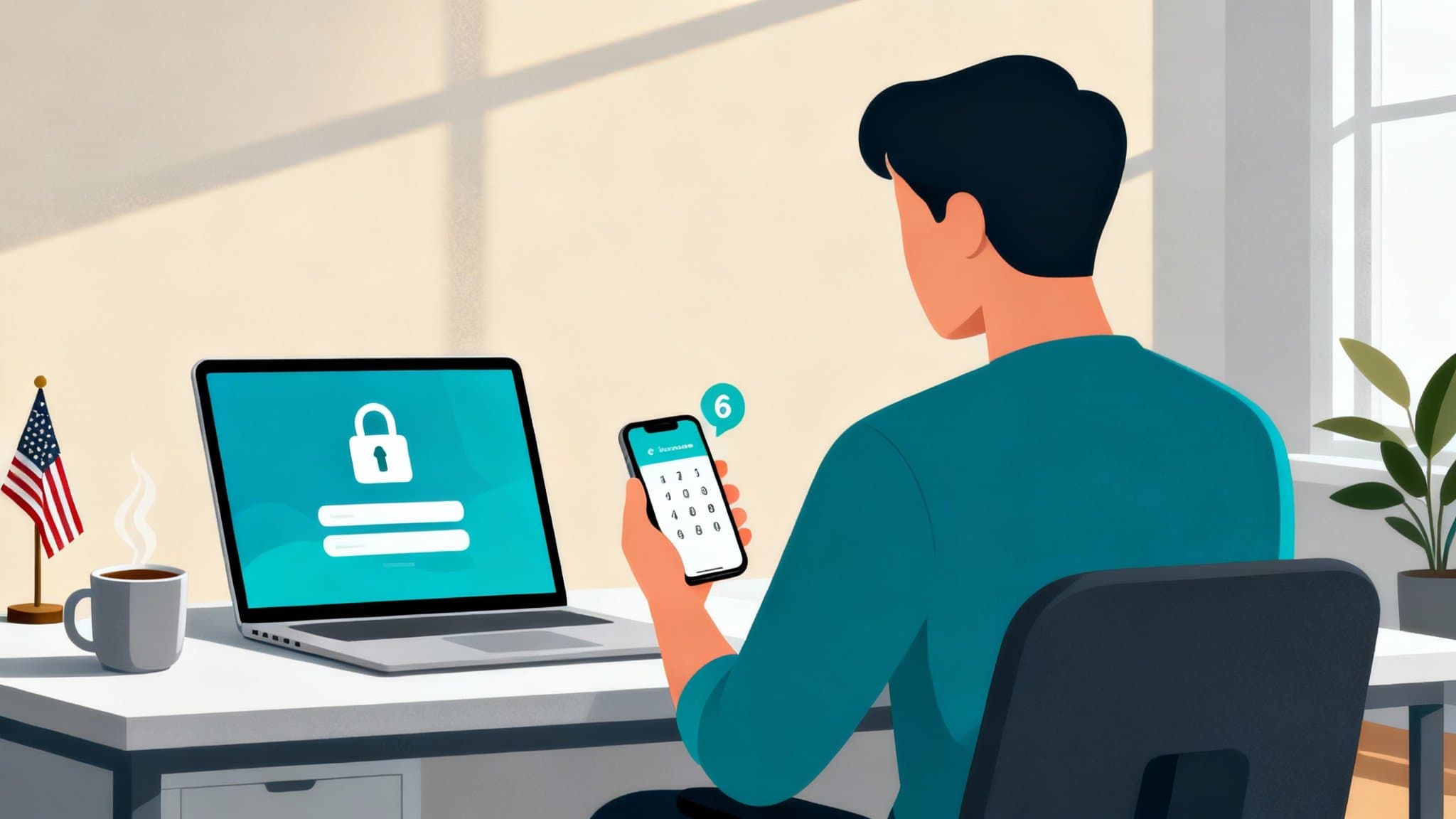
- Confirm a verification code sent to your recovery email or phone.
- Approve a prompt on a trusted device if available.
- If asked about when you created the account, provide your best estimate (month/year). You can sometimes find this in old welcome emails or early Google service activity.
- If 2-Step Verification is on, choose a method you still control (SMS, Authenticator, backup codes, or security key).
Tip: If you fail once, wait 24–48 hours and try again from the most “trusted” environment (same device, same browser, same location). Avoid multiple rapid attempts.
Method 2: Recover a Gmail Account Without a Password
- Click “Forgot password?” on the Google sign-in page.
- Use recovery email or phone to receive a verification code.
- If you can’t access either, proceed with “Try another way.” You may be asked to:
- Answer security questions
- Verify with a trusted device
- Provide approximate creation date or services you used (e.g., “I used Gmail and YouTube in 2016”)
If you regain access, immediately update your recovery options and enable 2SV.
Method 3: Recover When You’ve Lost Your Phone or Authenticator
If you enabled 2-Step Verification and lost access to your phone:
- Use backup codes (downloaded when you set up 2SV). Search local files, password managers, or printed copies.
- Try a secondary 2SV method if you added one (backup phone number, Google Prompt on another device, security key).
- If you previously signed into your Google account on another device (like a laptop), you might get a “Yes, it’s me” prompt there.
- If all methods fail, go through Account Recovery and emphasize details that prove ownership (old passwords, consistent device/location).
Tip: For hardware security keys registered with Google Advanced Protection, ensure you have your backup key available.
Method 4: Recover a Disabled or Suspended Account
- Visit the sign-in page. If you see a message that your account is disabled for policy violations, review Google’s policy and appeal using the provided form.
- For suspected hacking or unusual activity, use the recovery flow and then run a security checkup after access is restored.
Note: Policy-based suspensions require an appeal; standard recovery will not bypass policy enforcement.
Method 5: Business and Workspace Accounts
If your email is part of Google Workspace (business/school):
- Contact your organization’s administrator first. Admins can reset passwords or restore accounts directly in the Admin console.
- If you are the admin, use the Admin password recovery flow and ensure domain ownership is verified.
After Recovery: Secure Your Account
Once you regain access:
- Change your password to a strong, unique one (at least 12–16 characters, mixed case, numbers, and symbols).
- Turn on 2-Step Verification:
- Prefer an Authenticator app or a security key over SMS for stronger protection.
- Add multiple second factors: primary phone, backup phone, Authenticator app, and a set of backup codes.
- Update recovery options:
- Add a recovery email you control long term (not a work email that may change).
- Add a recovery phone number you’ll keep for years.
- Run Google’s Security Checkup:
- Review devices and sign out of ones you don’t recognize.
- Check recent security events.
- Remove risky third-party app access.
- Store backup codes and recovery details in a reputable password manager.
- Set up passkeys if available for easier, phishing-resistant sign-ins.
Common Reasons Recovery Fails (and Fixes)
- Using a new device, new network, or private browsing: Try again from your usual device, browser, and home/office network.
- Inaccurate answers: Provide your best truthful estimate. Even partial accuracy helps.
- No recovery options set: You may still pass recovery by using old passwords, device signals, or creation date. If it fails, wait and try again from a more trusted context.
- Multiple failed attempts in a short period: Pause, then try again after 24–48 hours.
Advanced Tips to Improve Your Success Rate
- Keep cookies enabled during recovery. Don’t clear browsing data right before attempting.
- If you moved, try recovering from your old location if possible (even via VPN is risky—avoid unless it matches your historical IP block).
- If you used an Android device signed into the account, keep that device powered and connected—it can receive prompts.
- Check other logged-in Google services (e.g., YouTube on a smart TV) for prompts or device recognition.
Preventive Best Practices for US Users
- Use a US-based phone number you’ll keep long term, especially for 2SV and recovery.
- Add more than one recovery method (email + phone + authenticator + backup codes).
- Consider a hardware security key (FIDO2) for strong protection, plus a backup key stored safely.
- Regularly audit third-party app access and revoke unnecessary permissions.
- Enable alerts for suspicious sign-ins and review them promptly.
When to Seek Further Help
Google does not offer traditional phone support for standard personal account recovery. If your issue involves payments, ads, or business services, you may find additional support channels through those products. For Workspace-managed accounts, your domain admin is the primary recovery contact.
By following the steps above from a familiar device and location, most US-based users can successfully restore access and lock down their Google accounts against future issues.