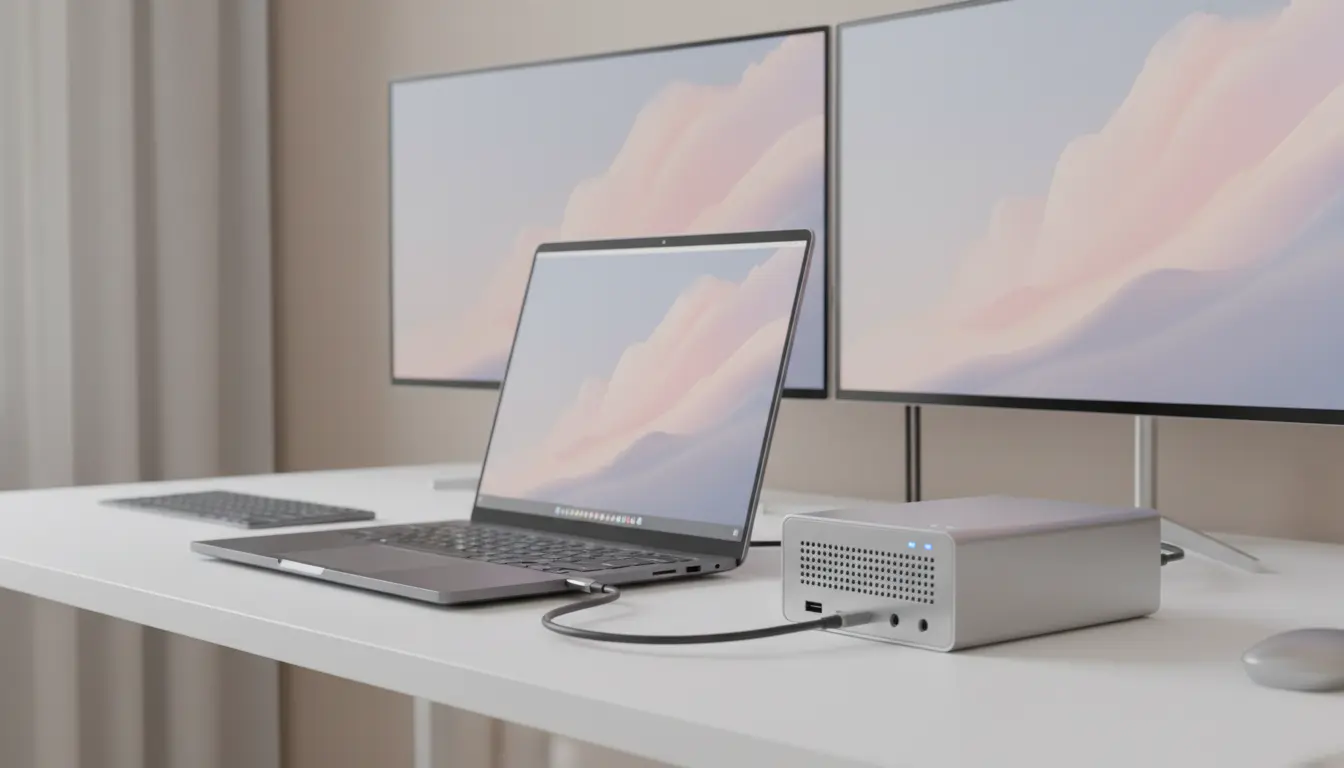

Thunderbolt 4 vs USB4: Which Is Better for Bandwidth and eGPU Setups?
Thunderbolt 4 and USB4 often look identical from the outside: same USB‑C connector, similar logos, and marketing that talks about 40 Gbps speeds. Under the hood, though, they behave very differently, especially when you push them with high‑bandwidth tasks like external GPUs (eGPUs), multiple 4K monitors, or fast external SSDs.
This guide explains Thunderbolt 4 vs USB4 in clear, practical terms. You will learn how bandwidth really works, why not all USB4 ports are equal, and which port you should choose for an eGPU‑ready laptop or desktop.
What Is Thunderbolt 4?
Thunderbolt 4 is Intel’s latest version of the Thunderbolt standard. It builds on Thunderbolt 3 but adds stricter minimum requirements and some important reliability guarantees.
Key points about Thunderbolt 4:
- Maximum bandwidth: 40 Gbps (bidirectional)
- Guaranteed PCIe bandwidth: 32 Gbps for data (equivalent to PCIe 3.0 x4)
- Video support: up to two 4K displays or one 8K display
- Power delivery: up to 100 W for charging (device‑dependent)
- Daisy‑chaining: supports up to six Thunderbolt devices in a chain
- Backward compatibility: works with Thunderbolt 3 and USB‑C devices
The most important detail for eGPU users is the mandatory 32 Gbps of PCIe bandwidth. Every certified Thunderbolt 4 port must support this. That means any Thunderbolt 4 laptop that advertises eGPU support will deliver consistent and predictable performance.
What Is USB4?
USB4 is the next step in the USB family. It uses the same USB‑C connector but aims to unify USB, DisplayPort, and PCIe under one specification.
Key points about USB4:
- Maximum bandwidth: 20 Gbps or 40 Gbps (depends on implementation)
- PCIe tunneling: optional, not guaranteed
- Display support: uses DisplayPort tunneling, may support multiple monitors
- Power delivery: uses USB Power Delivery (PD), but wattage varies by device
- Backward compatibility: works with USB 3.x, USB 2.0, and many USB‑C devices
The crucial detail here is that USB4 is more flexible but less strict than Thunderbolt 4. A USB4 port can be amazing or mediocre depending on how the manufacturer implemented it:
- Some USB4 ports only support 20 Gbps total bandwidth.
- Some USB4 ports do not support PCIe tunneling, which is required for eGPUs.
- Some USB4 implementations match Thunderbolt 3‑level performance, but this is not guaranteed by the spec.
Thunderbolt 4 vs USB4: Bandwidth in Real‑World Use
On paper, both technologies can hit 40 Gbps. But how that bandwidth is allocated makes a huge difference when you connect demanding devices.
Raw bandwidth
- Thunderbolt 4:
- 40 Gbps total link speed
- At least 32 Gbps reserved for PCIe data
- The rest can be used for display and other protocols
- USB4:
- 20 Gbps or 40 Gbps total link speed (implementation‑dependent)
- PCIe bandwidth is optional and not fixed
- More variation between different laptops and docks
In practice, this means Thunderbolt 4 delivers more predictable, high‑bandwidth data performance, while USB4 can be excellent or disappointing depending on the specific port and controller.
Display and docking
- With Thunderbolt 4, you get a guaranteed baseline:
- Two 4K displays at 60 Hz or one 8K display
- Stable support for full‑featured Thunderbolt docks and monitors
- With USB4, display support depends on:
- Whether the port supports full DisplayPort tunneling
- Total available bandwidth (20 vs 40 Gbps)
- How many displays the manufacturer decided to support
If you want to connect multiple high‑resolution monitors plus fast storage, Thunderbolt 4 gives more consistent results across brands.
eGPU Scenarios: Why Thunderbolt 4 Usually Wins
Running an external GPU over a cable is one of the toughest things you can ask from a port. The GPU needs a PCIe connection with as much bandwidth and as little latency as possible. This is where design differences between Thunderbolt 4 and USB4 become critical.
eGPU over Thunderbolt 4
Thunderbolt has been the de facto standard for eGPU enclosures for years, and Thunderbolt 4 continues that tradition.
Advantages:
- Guaranteed PCIe 3.0 x4 (32 Gbps) to the eGPU enclosure
- Wide support from popular eGPU enclosures and docks
- Stable performance across different Thunderbolt 4 laptops
- Easy daisy‑chaining with storage, displays, and other devices
Typical eGPU scenarios with Thunderbolt 4:
- Gaming laptop at home
- Plug a thin‑and‑light laptop into a Thunderbolt 4 eGPU dock
- Dock provides: desktop GPU, multiple monitors, keyboard, mouse, Ethernet
- Performance: not 100% of a desktop PCIe x16 slot, but close enough for high‑refresh 1080p and solid 1440p gaming
- Content creation workstation
- Laptop or mini PC with Thunderbolt 4
- eGPU with a high‑end GPU for 3D rendering, video editing, AI workloads
- External NVMe SSDs and 4K/6K monitors on the same Thunderbolt chain
In these setups, Thunderbolt 4’s strict PCIe requirement gives you consistent and reliable eGPU performance.
eGPU over USB4
USB4 can support eGPUs, but only if:
- The specific USB4 implementation supports PCIe tunneling, and
- It provides enough bandwidth (ideally 40 Gbps), and
- The OS and drivers support eGPU over that USB4 controller.
Problems you may encounter with USB4 eGPU setups:
- Some laptops have USB4 ports that lack PCIe support entirely.
- Others limit the connection so heavily that the eGPU performs poorly.
- Laptop marketing may say “USB4 40 Gbps” without mentioning PCIe or eGPU at all.
For this reason, if you plan to use an eGPU, Thunderbolt 4 is usually the safer and more future‑proof choice. A USB4‑only port may work well, but you must carefully read the technical specifications or reviews to confirm eGPU support.
Gaming, Creation, and Productivity: Which Port Should You Choose?
For PC and Mac gaming with eGPU
- Prefer Thunderbolt 4 whenever possible.
- It offers a proven, stable path for eGPU enclosures and gaming monitors.
- Look for laptops that explicitly mention Thunderbolt 4 eGPU support.
USB4 may work, but only if the vendor clearly documents PCIe tunneling and eGPU compatibility. Without that information, you are taking a risk.
For creative professionals (video, 3D, photography)
If your workflow relies on:
- Multiple 4K or 5K displays
- Fast external NVMe SSDs
- Possibly an eGPU for rendering or AI workloads
Thunderbolt 4 again provides more consistent bandwidth guarantees, especially once you start hanging several devices off a single port through a dock or hub.
USB4 is fine for:
- Simple USB‑C monitors
- Moderate data transfers
- Basic docking needs
But for heavy, combined loads (displays + storage + GPU), Thunderbolt 4 generally handles contention better.
For everyday productivity
If you do not plan to use an eGPU and only need:
- One or two displays
- A keyboard, mouse, Ethernet, and some storage
- Laptop charging
Both Thunderbolt 4 and a good USB4 implementation can work very well. In this case, your choice may come down to device availability and price rather than raw bandwidth.
How to Read Specs When Buying a New Laptop
When you shop for a new laptop or mini PC and want strong external GPU or docking support, do the following:
- Look for “Thunderbolt 4” by name
- If the spec sheet says “Thunderbolt 4”, you can rely on the mandatory PCIe bandwidth and feature set.
- If you only see “USB4”, dig deeper
- Check whether the USB4 port is 20 Gbps or 40 Gbps.
- Look specifically for phrases like “PCIe tunneling”, “eGPU support”, or “external GPU”.
- Search for real‑world reviews or benchmarks of that exact model.
- Confirm display and charging needs
- If you want two 4K displays over a single cable, Thunderbolt 4 is a safer baseline.
- Make sure the port supports enough USB Power Delivery for your laptop’s wattage.
Recommended Product: Apple 2025 MacBook Air 15‑inch (M4)
If you want a modern, thin‑and‑light laptop that pairs well with advanced connectivity standards, consider the:
Apple 2025 MacBook Air 15‑inch Laptop with M4 chip: Built for Apple Intelligence, 15.3‑inch Liquid Retina Display, 16GB Unified Memory, 256GB SSD Storage, 12MP Center Stage Camera, Touch ID; Midnight (available on Amazon.com).
Reasons it’s a strong candidate for Thunderbolt / USB‑C workflows:
- Powerful yet efficient Apple silicon (M4) for both productivity and light content creation
- Large, color‑accurate 15.3‑inch Liquid Retina display suited for creative tasks
- 16 GB of unified memory helps when you work with many apps and browser tabs
- macOS has a mature ecosystem for docks, monitors, and external storage
For details on exact port types and the number of Thunderbolt / USB‑C ports, check the product listing and Apple’s official specifications. That way, you can confirm whether it fully matches your planned eGPU or multi‑monitor setup.









