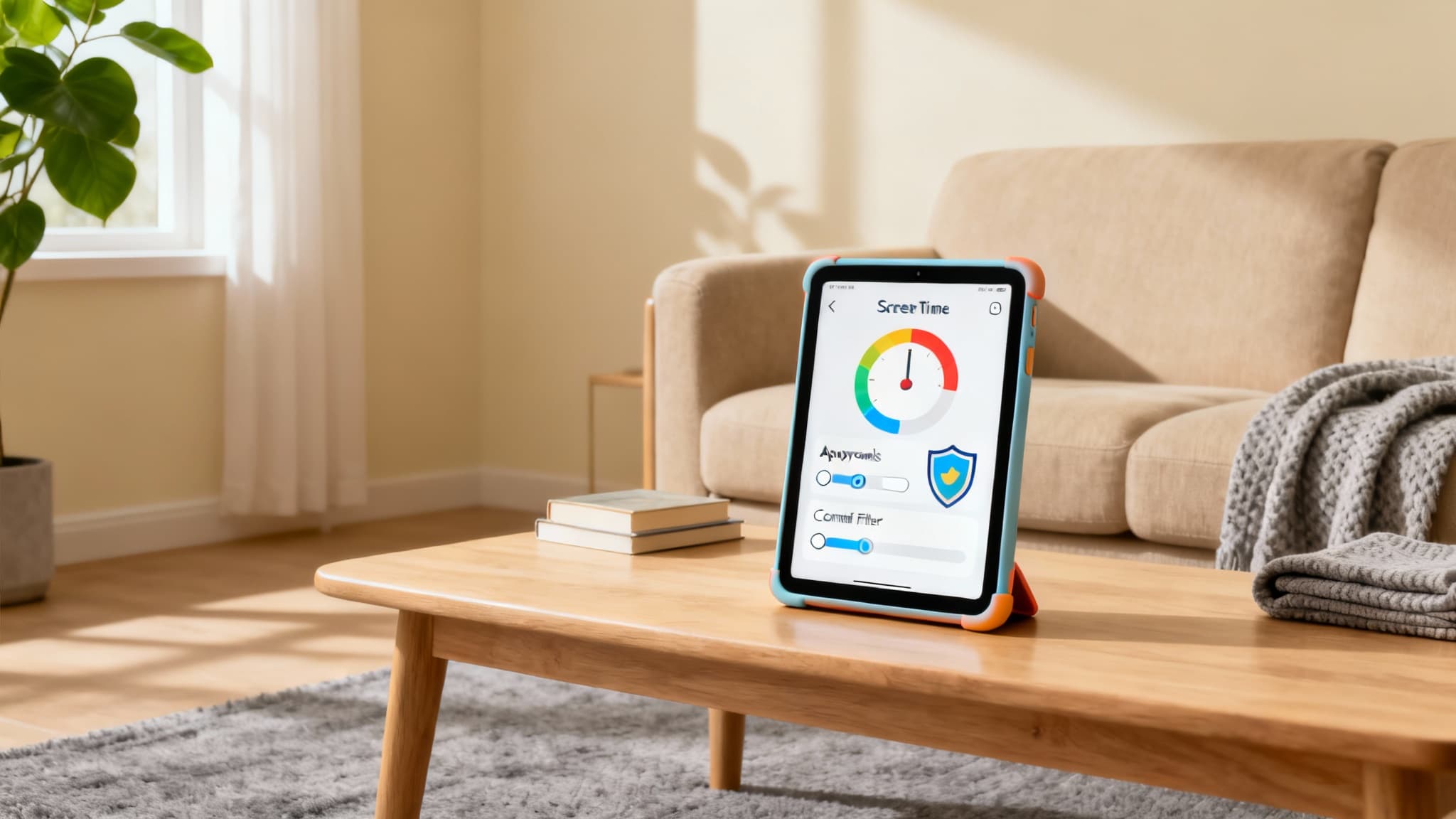

As tablets have become essential tools for learning, creativity, and entertainment, many U.S. parents are asking the same question: which tablet is best for kids—and how do we manage screen time responsibly? This guide walks you through selecting the right device by age and budget, configuring safety features, and establishing family-friendly boundaries that promote digital well-being. You’ll also find practical tips for balancing on-screen and off-screen activities, ensuring a safer, more enriching tech experience for your child.
1) How to choose the right tablet for your child
The “best” tablet depends on age, use case, durability, and your budget. Consider these factors:
- Age and use case
- Ages 3–6: Look for rugged builds, kid profiles, and curated app stores. Preloaded educational content and easy parental controls matter most.
- Ages 7–10: Prioritize performance for learning apps, reading, and basic gaming. Ensure strong parental controls and expandable storage.
- Ages 11–14: Focus on multitasking, homework, reading, and creative tools (drawing, music, coding). A better processor and stylus support can help.
- Teens: Think long-term value—good display, ample storage, keyboard compatibility, and productivity apps for school.
- Durability and design
- Protective cases with raised bezels and shock absorption save money over time.
- Water-resistant or spill-proof designs are a plus for younger kids.
- Consider warranty and accidental damage coverage.
- Performance and storage
- At least 3–4 GB RAM for smooth learning apps and video.
- 64 GB storage minimum (or microSD support) for books, videos, and educational apps.
- Battery life of 8–12 hours for school days and trips.
- Display and eye comfort
- 8–10 inches is a sweet spot for younger kids; 10–11 inches for preteens and teens.
- Blue light filters, adaptive brightness, and anti-glare help reduce eye strain.
- Ecosystem and compatibility
- Consider your family’s devices. Apple, Android, and Amazon ecosystems differ in app availability, parental controls, and sharing features.
- Check compatibility with school platforms (Google Classroom, Microsoft 365, Zoom).
- Content and learning potential
- Access to well-rated educational apps (reading, math, science, coding).
- Built-in reading modes and note-taking apps encourage learning beyond videos.
2) Essential parental controls and safety settings
Before handing over a tablet, set guardrails. Most major platforms offer robust tools:



- Create child profiles
- Set age-based content filters for apps, videos, and websites.
- Approve app downloads manually to prevent surprises.
- Screen time limits
- Daily usage caps for weekdays and weekends.
- Bedtime schedules to lock the device at night.
- App category limits (e.g., 30 minutes for games, longer for reading or school).
- Content restrictions
- Block explicit or mature content across apps, music, and web.
- Turn on SafeSearch or kid-friendly browsers.
- In‑app purchases and ads
- Disable in-app purchases or require approval.
- Choose ad-free or educator-vetted apps where possible.
- Location and privacy
- Disable unnecessary location sharing for kids.
- Review app permissions—deny camera/mic access unless needed.
- Use privacy-focused DNS or kid-safe browsers to reduce tracking.
- Communication controls
- For messaging-capable tablets, set approved contacts.
- Restrict social apps for younger children and monitor teen usage respectfully.
Tip: Revisit settings every few months as your child’s needs and maturity evolve.
3) Healthy screen time habits that actually work
A tablet can be an amazing tool when screen time is balanced. Here’s how to set up healthy habits at home:
- Co-create a family tech plan
- Involve your child in setting rules: daily limits, “no device” zones (dinner table, bedrooms), and offline priorities.
- Write it down and post it on the fridge for clarity and consistency.
- Balance passive vs. active use
- Encourage “active” screen time: drawing, coding, reading, language learning, creative projects.
- Limit “passive” consumption: endless scrolling or autoplay videos.
- Encourage breaks and movement
- Follow the 20–20–20 rule: every 20 minutes, look 20 feet away for 20 seconds to reduce eye strain.
- Build routines that pair screen time with physical activity.
- Model the behavior
- Kids mirror adults. Keep your own phone/tablet away during meals and bedtime.
- Celebrate offline hobbies: sports, crafts, music, and outdoor time.
- Use timers and visual cues
- Built-in timers or a kitchen timer help transitions.
- Give 5–10 minute warnings before ending sessions to avoid conflict.
- Reward systems
- Tie extra tablet time to reading, chores, or outdoor activity.
- Switch rewards to non-screen options regularly to avoid overreliance.
4) Recommended categories and features by platform
Every ecosystem offers strengths. Here are features to prioritize regardless of brand:
- Robust web filters or kid-safe browsers
- School-friendly apps and note-taking tools
- Offline content options for travel (books, videos, lessons)
- Stylus support for handwriting and drawing
- Keyboard compatibility for older kids and projects
- Family sharing for apps and subscriptions to save money
When comparing models in-store or online, ask:
- How easy is it to create and manage child profiles?
- Does the device offer age-appropriate app libraries?
- How transparent and simple are the parental controls?
- What kinds of warranties or accidental damage plans are available?
5) Cyber safety: teaching kids to be smart online
Technology skills are essential, but so is digital citizenship. Teach these fundamentals:
- Protect personal info
- No sharing full name, address, school, or birthdate publicly.
- Use nicknames and avatars.
- Know what to do if something feels wrong
- If an app, message, or video feels scary or strange, pause and tell a trusted adult.
- Encourage open dialogue—no shaming for accidental clicks.
- Respectful communication
- Discuss kindness online, what cyberbullying looks like, and how to respond.
- Teach kids to screenshot/report harmful content to adults.
- Password hygiene
- Use strong, unique passwords saved in a family password manager.
- Enable two-factor authentication for older kids and teens when available.
- Scam awareness
- Explain pop-ups, fake download buttons, and phishing attempts.
- Only download apps from official stores with adult approval.
6) Educational apps and content that build skills
To make the most of tablet time, steer toward quality learning tools:
- Early learning: phonics, number sense, shapes, and storytelling apps
- Elementary: reading comprehension, math games, science experiments, geography
- Creativity: drawing, animation, music-making, digital storytelling
- STEM: beginner coding, logic puzzles, robotics simulators
- Literacy: eBooks, audiobooks, vocabulary builders
- Mindfulness: breathing exercises, focus tools for study sessions
Look for:
- Educator endorsements, parent reviews, and research-backed content
- Clear learning goals, adaptive difficulty, and progress tracking
- Minimal ads and transparent pricing
7) Setting up a child-friendly home environment
Beyond the device, your setup matters:
- Central charging station
- Keep tablets in a common area overnight to avoid late-night use.
- Good lighting and posture
- Use stands to keep screens at eye level and reduce neck strain.
- Headphones with volume limits
- Choose kid-safe headphones with capped decibel levels.
- Offline alternates
- Keep board games, craft supplies, sports gear, and books handy to diversify activities.
8) When to upgrade or replace a tablet
Signals it’s time to upgrade:
- Security updates have ended or the OS can’t run essential apps
- Battery can’t last through a school day, even after setting optimizations
- Screen damage affects usability or readability
- Storage is constantly full and can’t be expanded
- Your child has outgrown the performance for school projects or creative apps
When upgrading, consider trade-in credits, bundled kid cases, and extended warranties to reduce total cost of ownership.
9) A balanced perspective for U.S. families
In the United States, schools increasingly integrate technology, and many parents rely on tablets for homework, reading, and connection. The goal isn’t zero screen time; it’s thoughtful, purposeful use. When families set clear expectations, use robust parental controls, and steer toward creative and educational apps, tablets can genuinely support growth, curiosity, and confidence.
The takeaway: pick a durable, age-appropriate tablet, lock in safety settings from day one, and guide your child toward active, meaningful screen time. Combine that with consistent routines, offline play, and open conversations, and you’ll build a healthier digital life—together.









