
A laptop that suddenly needs its charger more often does not always need a new battery. Background activity, demanding software, and changing power settings can also shorten runtime. Before buying replacement hardware, check Windows battery health with Powercfg, a utility already included in Windows. Its reports help you separate declining battery capacity from everyday energy consumption and make better decisions about your computer.
What Powercfg Reveals About Your Battery
Powercfg manages power settings and generates diagnostic reports without requiring additional software. For laptop owners, its battery reporting feature offers a useful starting point for laptop battery diagnostics.
The report brings together information about the installed battery, recent usage, capacity history, and estimated runtime. Rather than relying on the battery percentage beside the clock, you can examine how much energy the battery can actually store. That distinction matters: a battery showing a full charge may still hold substantially less energy than it originally did.
Generate Your Windows Battery Report
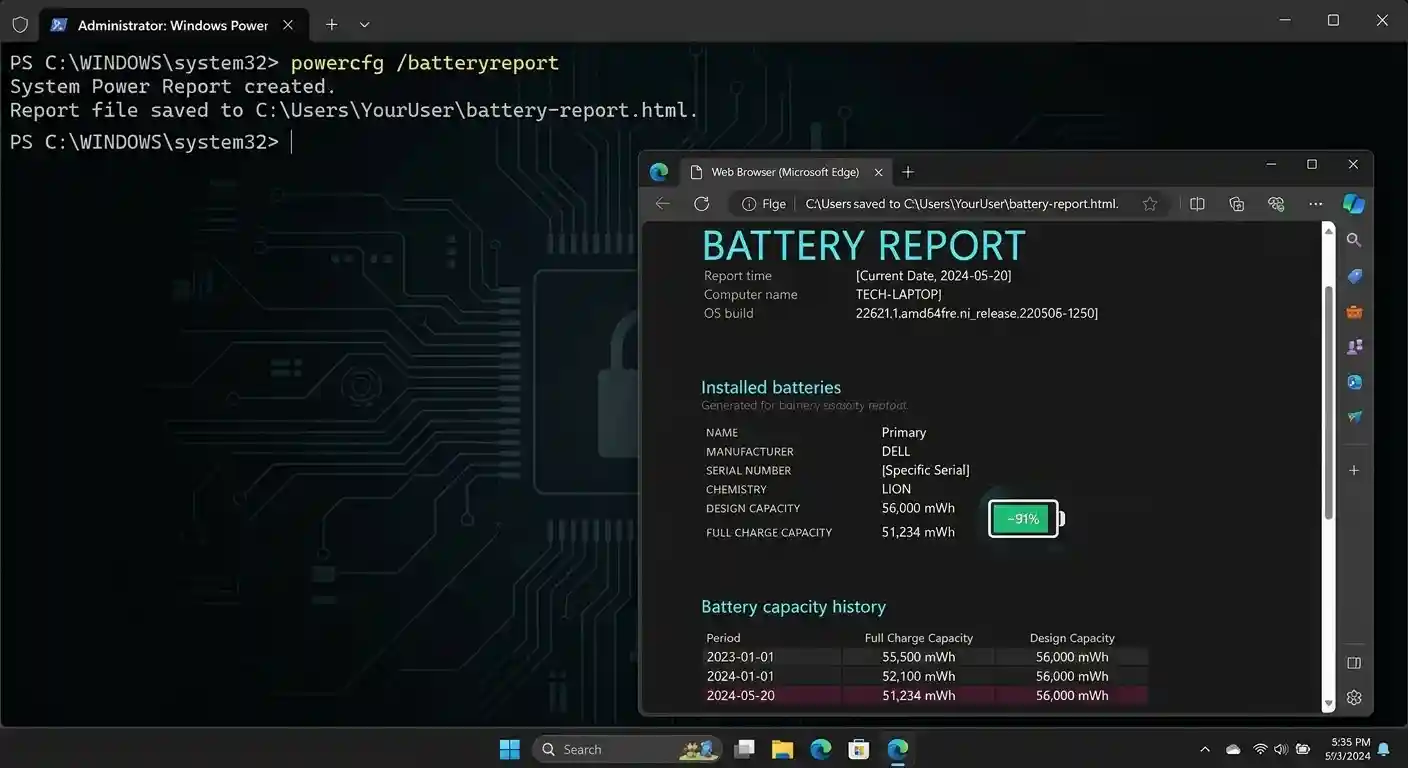
Press Windows + X and choose Terminal (Admin). Approve the permission request, then enter powercfg /batteryreport and press Enter.
Windows creates an HTML file and displays its location in the terminal. Open that file in your browser to view your Windows battery report. Keep track of the displayed location instead of assuming Windows always saves the report in the same folder.
You do not need to install a battery monitoring application or upload your device information to a website. The report stays on your computer, where you can review the available information at your own pace.
Compare Design Capacity and Full Charge Capacity
Start with the installed battery section. Design capacity represents the amount of energy the battery was designed to hold. Full charge capacity reflects its currently reported maximum storage capacity.
Compare these figures to understand battery capacity degradation. A widening gap generally suggests that the battery stores less energy than when new. However, avoid treating one reading as a complete diagnosis. Reported values can fluctuate, and the information available depends on your hardware.
Review the capacity history for a broader picture. A sustained decline across multiple reports provides more useful context than an isolated number. Likewise, treat battery life estimates as guidance rather than promises, because your workload influences actual runtime.
Investigate Power Drain With the Energy Report
If capacity looks reasonable but runtime remains disappointing, investigate energy efficiency. In the administrator terminal, enter powercfg /energy and press Enter. The tool normally monitors the system for 60 seconds before generating another HTML report.
For a clearer baseline, close unnecessary applications and leave the computer idle during the assessment. Open the report from the location Windows provides, then review its findings about power management and device behavior.
This energy efficiency report can highlight configuration issues that deserve attention. However, not every warning explains your specific problem. Consider the findings alongside your workload, connected devices, and recent changes rather than changing every setting indiscriminately.
Use the Results to Choose Your Next Step
If reports show declining capacity alongside noticeably shorter runtime, consider a professional battery assessment or replacement. If capacity remains relatively stable, review background applications, display brightness, and power settings before blaming the battery.
If you notice swelling, stop using the laptop and seek professional help. Software reports cannot establish whether a physically damaged battery is safe, so prioritize visible warning signs over numbers.
Repeat the checks periodically under similar conditions to make comparisons more meaningful. Powercfg does not repair worn battery cells, but it gives you evidence for practical troubleshooting. By combining capacity trends with energy findings, you can check Windows battery health more confidently and avoid replacing hardware without first understanding the problem.
Source: This built-in Windows tool can diagnose your PC’s battery health