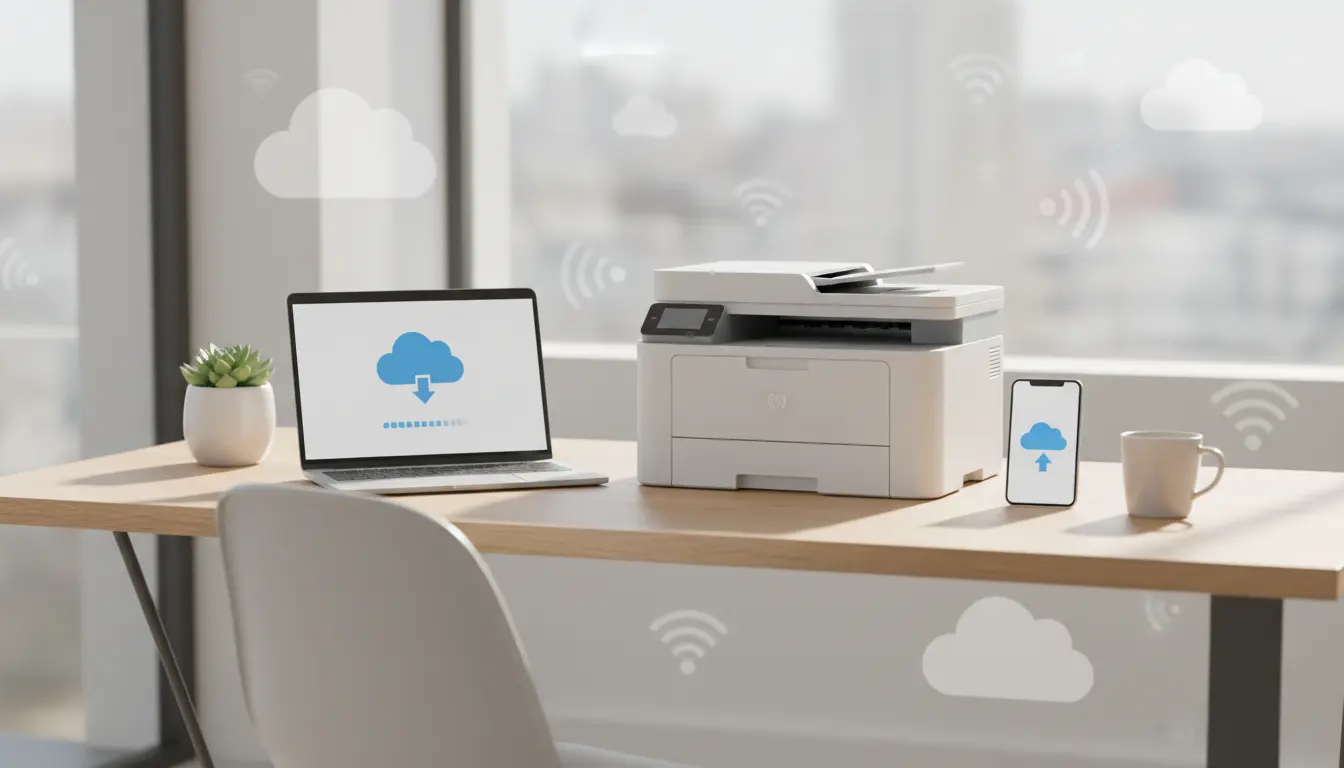

Best Cloud‑Ready Printers: How to Choose the Right One for Seamless Cloud Printing
Cloud printing has moved from being a “nice-to-have” to an essential feature for modern homes and businesses. Whether you work remotely, manage a small office, or just want to print from your phone without fighting with cables and drivers, choosing the best cloud‑ready printers can save you time, money, and frustration.
In this guide, you’ll learn what cloud printing actually is, which features really matter, and how to pick a printer that fits your workflow. You’ll also find a concrete product suggestion from Amazon at the end.
What Is a Cloud‑Ready Printer?
A cloud‑ready printer connects directly to the internet or your Wi‑Fi network and lets you send print jobs from:



- Laptops and desktops
- Smartphones and tablets
- Cloud storage services such as Google Drive, Dropbox, or OneDrive
Instead of relying only on traditional USB or local network printing, a cloud‑ready printer can:
- Receive documents over the internet
- Talk to cloud services through built‑in apps
- Support mobile printing standards like Apple AirPrint, Mopria, or manufacturer apps
Even though Google Cloud Print has been discontinued, modern printers now include their own cloud ecosystems and mobile apps, effectively acting as Google Cloud Print alternatives with more control and better security.
Key Benefits of Cloud‑Ready Printers
1. True Anywhere Printing
You can send a document to your office printer while you’re on the road, or print school homework from a smartphone in the living room. As long as the printer is online, you can reach it.
2. Easy Multi‑Device Support
A wireless cloud printer works with Windows, macOS, iOS, Android, and even Chromebooks. You don’t need to install heavy drivers on every device; in many cases, the printer is auto‑detected over Wi‑Fi or via the cloud.
3. Better Collaboration
For small teams, a Wi‑Fi all‑in‑one printer becomes a shared hub:
- Scan contracts directly to a shared cloud folder
- Allow team members to print from their own accounts
- Track print usage via admin dashboards in some business models
4. Time and Cost Efficiency
Cloud‑ready printers often combine:
- Duplex (two‑sided) printing
- High‑capacity paper trays
- Eco modes and smart ink/toner management
This combination reduces wasted paper, lowers energy usage, and helps you keep consumable costs predictable.
Must‑Have Features in the Best Cloud‑Ready Printers
When you evaluate cloud‑focused printers, look beyond basic specs and focus on practical features that support real‑world use.
1. Robust Wireless Connectivity
Look for:
- Dual‑band Wi‑Fi (2.4 GHz and 5 GHz) for more stable connections
- Wi‑Fi Direct for easy printing without a router
- Ethernet port if you want rock‑solid connectivity in an office environment
These options keep your mobile printing solution reliable and responsive.
2. Strong Cloud and Mobile App Ecosystem
A good cloud‑ready printer should support:
- Direct print/scan to cloud services (Dropbox, Google Drive, OneDrive, Evernote, etc.)
- Manufacturer mobile apps for iOS and Android to manage jobs, check ink levels, and scan from your phone
- Native support for AirPrint compatible printer functionality on Apple devices
This ecosystem matters more in daily use than one or two extra pages per minute on the spec sheet.
3. Print Technology: Inkjet vs Laser
- Inkjet all‑in‑one printer
- Better for color documents, photos, and mixed business/home use
- Often cheaper upfront
- Ideal if you print less but need versatility
- Laser printer for office
- Sharper black text, faster for high‑volume jobs
- Lower cost per page for monochrome printing
- Great for small businesses and heavy document workflows
Cloud printing works equally well with both; your volume and document type should drive the choice.
4. Duplex Printing and Paper Handling
For serious home office or business use, prioritize:
- Automatic duplex printing (two‑sided)
- A 250‑sheet or larger input tray
- Support for envelopes, labels, and card stock via a bypass tray
These features matter for best home office printer and small business printer scenarios where efficiency and flexibility are crucial.
5. Security and User Management
Cloud access introduces new security considerations. Business‑class models often add:
- User authentication (PIN or user codes)
- Secure print release (jobs only print when the user is present)
- Encrypted communication and admin‑level control
If you regularly handle invoices, HR documents, or contracts, choose a business document printer with layered security rather than a basic consumer model.
Types of Users and the Right Cloud Printer for Each
Home and Student Users
You’ll likely want:
- Compact footprint
- Reliable Wi‑Fi and easy mobile printing
- Decent color output for school projects and casual photos
- Affordable cartridges or ink tanks
An inkjet all‑in‑one printer with cloud scanning is usually ideal here.
Home Office and Freelancers
You need more business‑oriented features:
- Faster print speeds
- Duplex printing
- ADF (automatic document feeder) for scanning multi‑page documents
- Cloud scanning to Dropbox or Google Drive for quick digital archiving
A mid‑range all‑in‑one with strong cloud integration offers the best balance.
Small Offices and Teams
Your priorities shift to:
- High monthly duty cycle
- Larger trays and possibly multiple trays
- Ethernet plus Wi‑Fi
- Strong security and user controls
A robust inkjet or laser small business printer with cloud apps and admin tools will serve you better than a basic home model.
Best Practices for Setting Up a Cloud‑Ready Printer
To get smooth, secure, and trouble‑free operation, follow these steps:
1. Connect Properly and Update Firmware
- Connect via Ethernet or strong Wi‑Fi
- Immediately update firmware to the latest version
- Register your printer with the manufacturer’s cloud service or app
This improves compatibility, security, and stability.
2. Install the Right Apps
On each device, install:
- The official printing app (e.g., Brother, HP, Canon, Epson)
- Any necessary drivers if your OS requires them
- Cloud connectors if you want direct cloud scanning to Dropbox or similar services
3. Secure Your Printer
- Change default admin passwords
- Disable remote access features you don’t need
- Restrict printing to your Wi‑Fi network or user accounts where possible
These steps reduce the risk of unauthorized printing or access to scanned documents.
Buying Tips and Common Mistakes to Avoid
Avoid these pitfalls:
- Choosing solely by price and ignoring ink/toner cost per page
- Ignoring whether the printer supports your key cloud platforms
- Overlooking ADF and duplex printing when you often work with multi‑page documents
- Buying a photo‑centric printer when you mostly print text (or vice versa)
Smart buying tips:
- Estimate your monthly page volume and choose a model whose recommended monthly duty cycle comfortably exceeds it.
- Check real‑world reviews focused on wireless reliability and app quality, not just print quality.
- Consider extended warranties or replacement programs if you’ll rely on the printer heavily for business.
Brother MFC‑J5340DW
If you want a concrete, cloud‑ready option that balances performance and price for home office and small business use, consider the:
Brother MFC‑J5340DW Professional Wireless Color Inkjet All‑in‑One Printer
Key reasons it works well as a cloud‑focused printer (Amazon):
- Mobile & cloud ready: Supports printing from and scanning to popular cloud apps directly from its 2.7″ color touchscreen, which makes it ideal as a wireless cloud printer for modern workflows.
- Strong connectivity: Dual‑band Wi‑Fi, Ethernet, Wi‑Fi Direct, and USB let you connect it almost any way you like.
- Productivity features: Up to 28 ppm print speed, automatic duplex printing, a 250‑sheet tray, and a 50‑page ADF make it suitable for busy home offices and small teams.
- Wide‑format support: It prints up to 11″ x 17″ (ledger), which is useful for marketing materials, spreadsheets, and diagrams.
- Smart home friendly: Works with Alexa, so you can integrate it into voice‑controlled or automated office setups.
For users who need a reliable mobile printing solution with strong cloud integration and business‑level features, this model is a very solid candidate.









